As your website attracts more traffic, you may experience performance issues such as slow page loading times or site crashes. This can be caused by an overloaded WordPress site, which is when the site’s resources are used near or beyond the limits. To fix this, you can find here ten suggestions that can help improve your WordPress website performance:
Install only the necessary plugins
Since each plugin consumes resources, the more plugins you have, the more resources your website requires. It is highly recommended that you only install plugins that are absolutely necessary for your website. If you have too many plugins installed, remove the ones you no longer need or look for smaller alternatives.
You can learn more about it in this tutorial: WordPress plugins: How many is too many?
Keep plugins and themes up to date
Outdated code or scripts in plugins and themes can cause them to stop working optimally, which may cause errors or security issues on your website. Therefore, make sure that all the installed themes and plugins are up to date.
Update plugins
Go to the Plugins section on your WordPress admin page and update any plugin that indicates that an update is required:
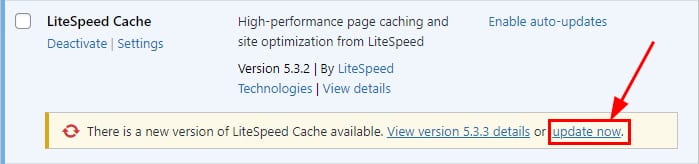
It can also be the case that the developer is no longer updating the plugin – it is recommended to use only regularly updated plugins. You can verify when the plugin was last updated by clicking on View Details:
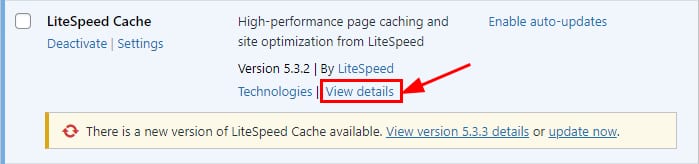
Take a look at the Last Updated section in the description:
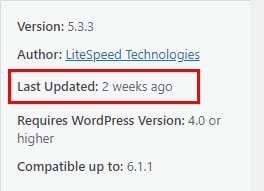
If it has been several months ago since it was last updated, you should look for an alternative plugin with a better updating rate.
Update themes
Same as with plugins, make sure to keep all of your installed themes up to date – not only the theme currently in use. Alternatively, you can uninstall any unused themes.
Go to the Appearance → Themes section on your WordPress admin page and update any theme that indicates that an update is required by clicking on Update now:
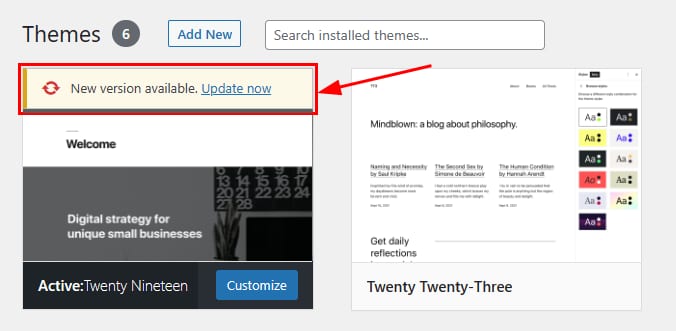
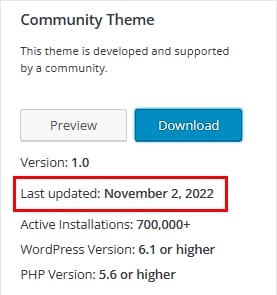
To check when the last time a theme was updated, go to the official WordPress Themes page, hover over the theme, and click on More Info:
NOTES
-
Updating themes and plugins may cause errors on your website due to version incompatibility, so make sure to create a backup before this process. This way, you can easily restore your website if needed.
-
You can also manage your plugins and themes on the WordPress Security section.
Reduce image size
Resize and compress any image you upload to your website to make it the optimum size you need. Unnecessarily large images require more time to load.
Resize images
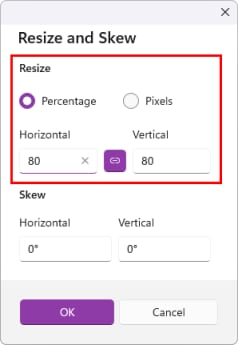
You can use any image editing tool to resize your images. For instance, if you’re using Windows, the Paint application has a Resize option. You will be given the option to resize by either percentage or specify a size in pixels. Make the adjustments and click OK when done:
Compress images
Once the image is resized, you can compress it using any of the available online tools, such as TinyJPG. After the compression process is completed, you can upload the image and download the result.
Use a cache plugin
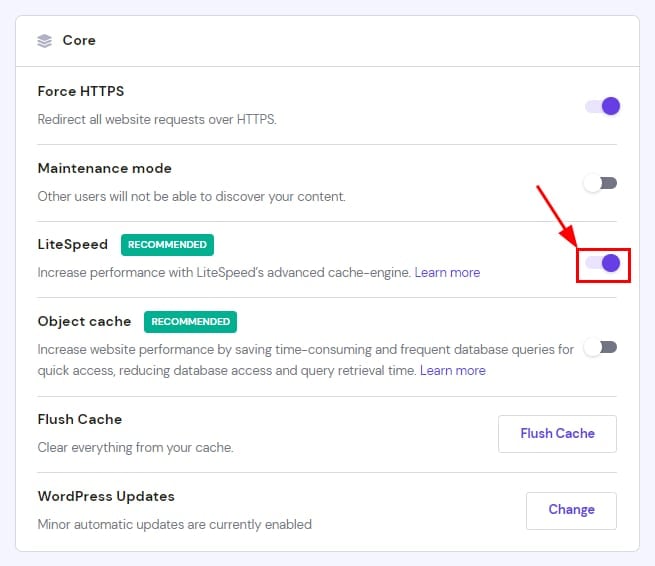
Installing a cache plugin can enhance the server’s performance and speed up your website. We recommend LiteSpeed Cache, as you can easily enable it by going to Websites → Dashboard, searching for Overview in the sidebar, and enabling LiteSpeed Cache:
If your hosting plan is Business or greater, you can enable object cache as well 😊
Use a content delivery network
Using a content delivery network (CDN), you can handle high traffic on your website worldwide. A CDN is a network of servers located in different countries that keeps a cached copy of your website and sends it to the nearest visitor from the server.
With a CDN, servers can easily send website data to locations that are far from the original server location, preventing your website from overloading.
Minify resources
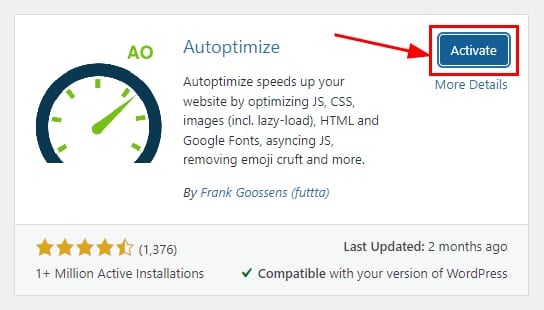
Minification is an action to remove unnecessary characters in the code file such as JavaScript, CSS, and HTML. You can do it using a plugin such as Autoptimize. Once installed, make sure to activate it:
Next, go to the Autoptimize settings page from the top bar of your WordPress admin page, and enable JavaScript CSS and HTML optimization from the JS, CSS & HTML tab. Just click on the checkmark for each:
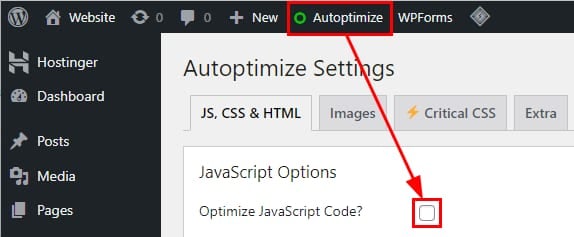
Scroll down to find the option to enable CSS and HTML. Once done, click on Save Changes to apply these settings.
Enable gzip compression
Gzip is a data compression algorithm used to reduce the size of files, allowing them to be transmitted or stored more efficiently. You can enable gzip compression by adding the following lines of code to your website’s .htaccess file:
<IfModule mod_filter.c>
<IfModule mod_deflate.c>
AddOutputFilterByType DEFLATE “application/atom+xml”  “application/javascript”
“application/json”
“application/ld+json”
“application/manifest+json”
“application/rdf+xml”
“application/rss+xml”
“application/schema+json”
“application/vnd.geo+json”
“application/vnd.ms-fontobject”
“application/x-font-ttf”
“application/x-javascript”
“application/x-web-appmanifest+json”
“application/xhtml+xml”
“application/xml”
“font/eot”
“font/opentype”
“image/bmp”
“image/svg+xml”
“image/vnd.microsoft.icon”
“image/x-icon”
“text/cache-manifest”
“text/css”
“text/html”
“text/javascript”
“text/plain”
“text/vcard”
“text/vnd.rim.location.xloc”
“text/vtt”
“text/x-component”
“text/x-cross-domain-policy”
“text/xml”
</IfModule>
</IfModule>
Once added, click on Save to apply the changes.
Update WordPress to the latest version
The WordPress development team is always working to improve it by fixing issues and bugs, enhancing security, and adding more features, so make sure that you keep WordPress up to date.
Whenever a WordPress version is released, you can update it in a few clicks from your panel. Open Websites → Dashboard and search for Overview in the search bar. Find the update notification on top of the WordPress Overview page and click on the button to Update:
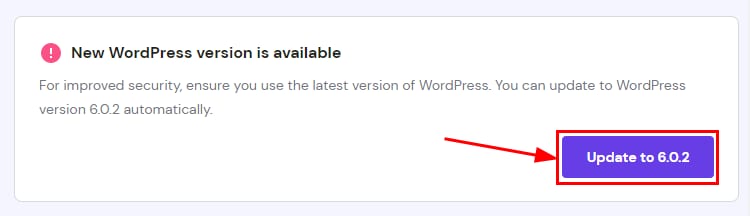
Your WordPress core will be automatically updated to the latest version!
NOTE
-
You may create a backup before upgrading WordPress to restore your website in case of any errors.
Optimize the MySQL Database
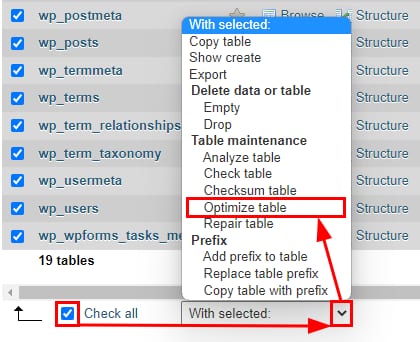
You can also optimize your MySQL database to prevent your website from overloading. Access your website database using phpMyAdmin and scroll down on the list of tables. Click on Check all to select all the tables, then open the drop-down menu next to it and select Optimize table:
Limit Post Revisions
Post Revisions is a very useful WordPress feature that allows you to undo changes and go back to a previous version of a post. WordPress saves all revisions by default, making the website database heavier as more revisions are stored.
To limit the number of stored revisions, open the File Manager and head to the public_html folder of your website. Next, add the following code to your website’s wp-config.php file:
define('WP_POST_REVISIONS', 5);
Here, 5 is the number of revisions that will be kept. You can choose to enter any other number, keeping it low for optimal results. Older revisions past this limit will be automatically deleted as newer versions are saved.
That’s it! Now you know ten ways to optimize an overloaded website and improve its performance 🚀
NOTE
-
If your website is growing and needs more resources, you can also consider upgrading your hosting plan.