If your website is created with Hostinger Website Builder, refer to this article instead: Website Builder: How to Create and Restore Website Backups 💡
At Hostinger, if your hosting plan is Business or greater, you can use the Backup tool to manually create backups of all the files and databases on your hosting plan.
To follow along visually, watch our step-by-step video guide on creating and restoring backups in Hostinger hPanel.
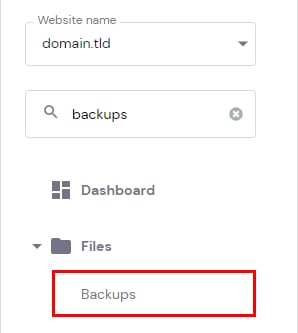
Go to Websites → Dashboard, search for Backups on the sidebar, and click on it:
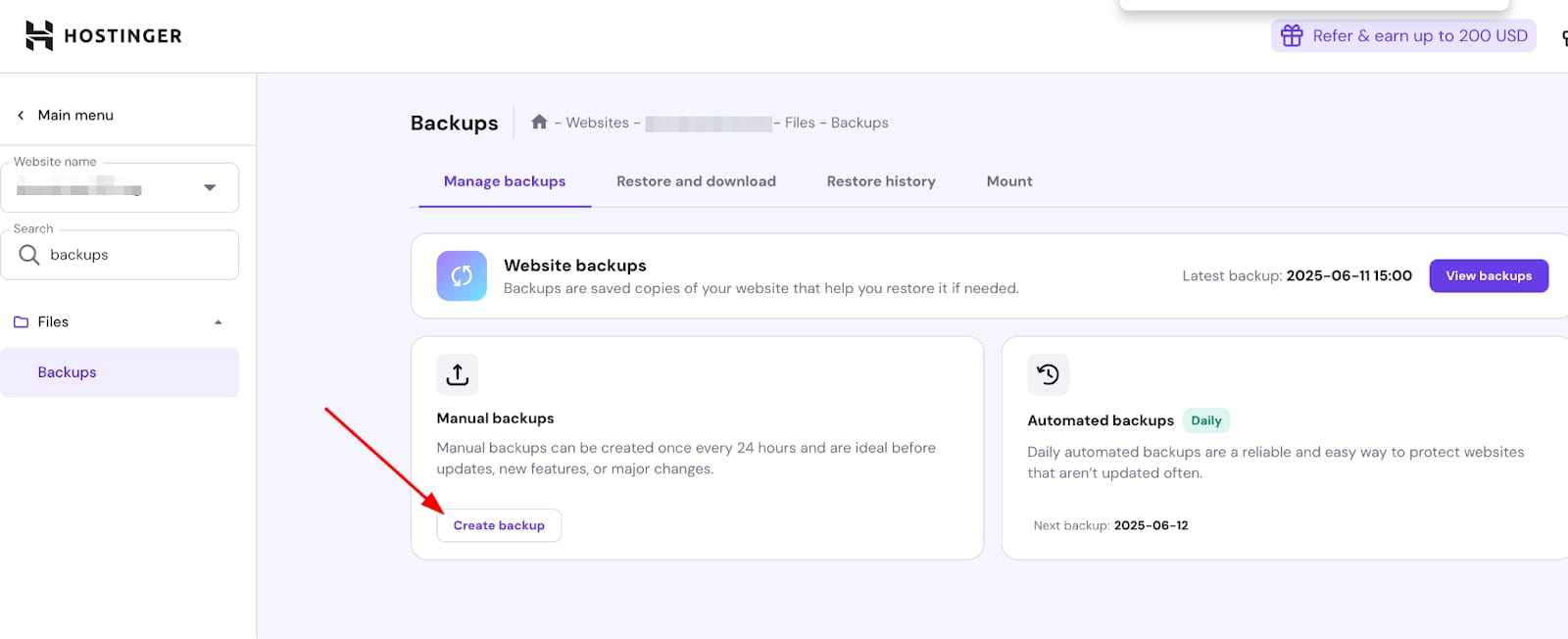
Once there, click Select on the Create Backup option:
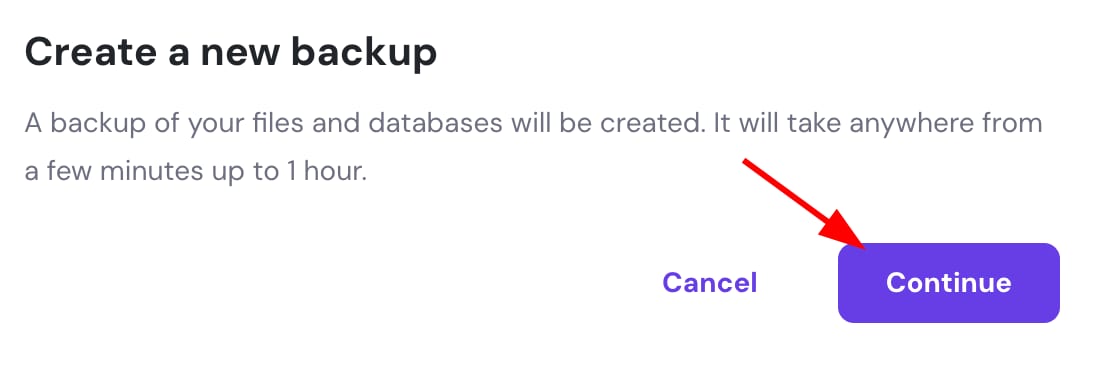
Next, click on Continue, and the backup will start to be prepared.
The process can take a few minutes to a few hours, depending on the number and size of files and databases in your hosting plan.
Once the files and database backups are generated, you will be able to download them to your device or use them to perform a restoration.
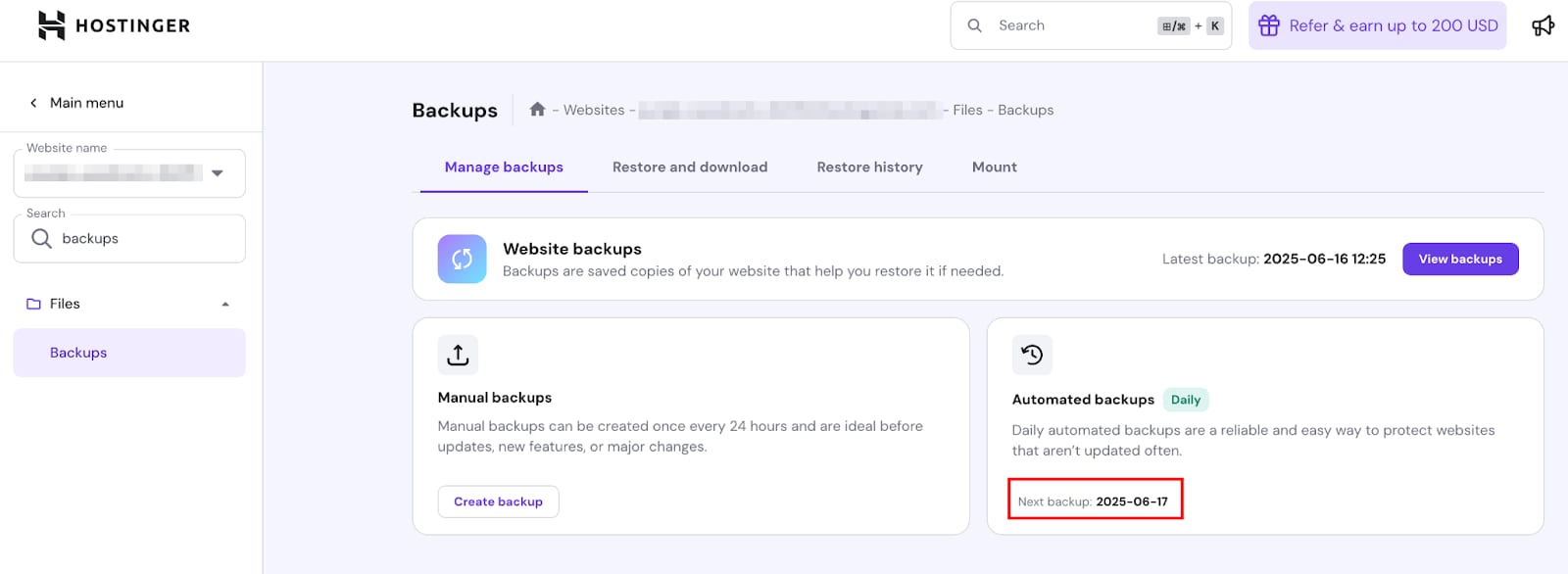
Information that is visible in the Manage Backups section:
The date of the last backup:
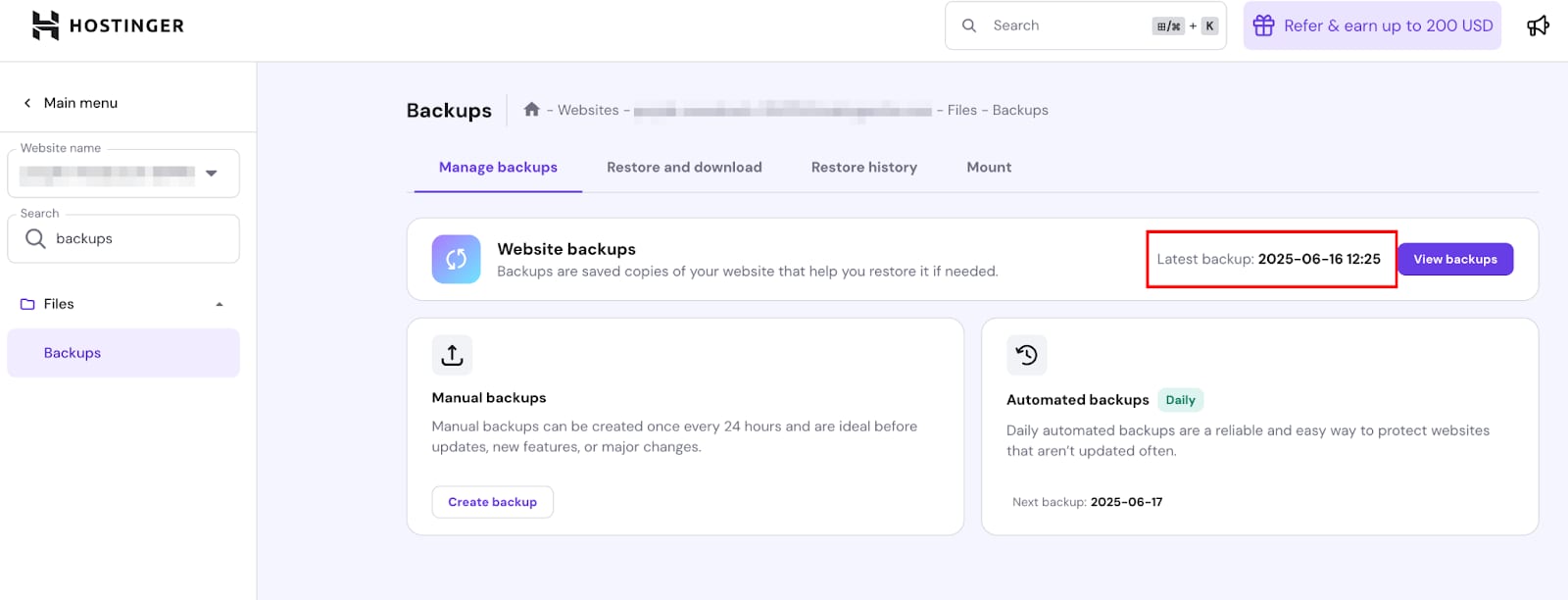
The date of the next backup:
Ability to directly make a manual backup:
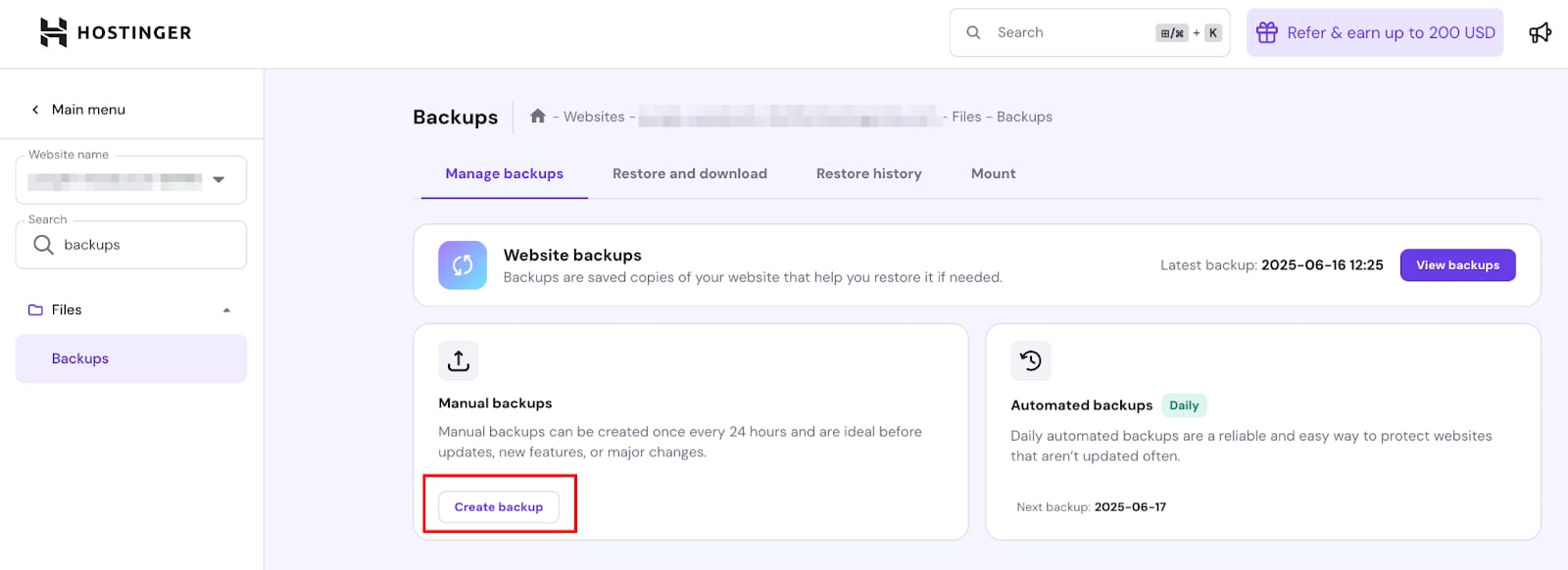
You can generate a new backup using this method once every 24 hours. If your hosting plan does not include this feature, consider upgrading it 🚀