At Hostinger, we provide automated weekly backups for all our web and cloud hosting plans. In addition, if your hosting plan is Business or greater, you have daily backups enabled.
Downloading backups is not available for websites created with Hostinger Website Builder and Hostinger Horizons.
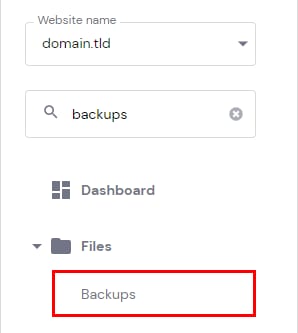
To download a backup, go to Websites → Dashboard, search for Backups on the sidebar, and click on it. There, you will find the option to download files or databases:
Download files
To download your files, go to Restore and download, and select Files backups:
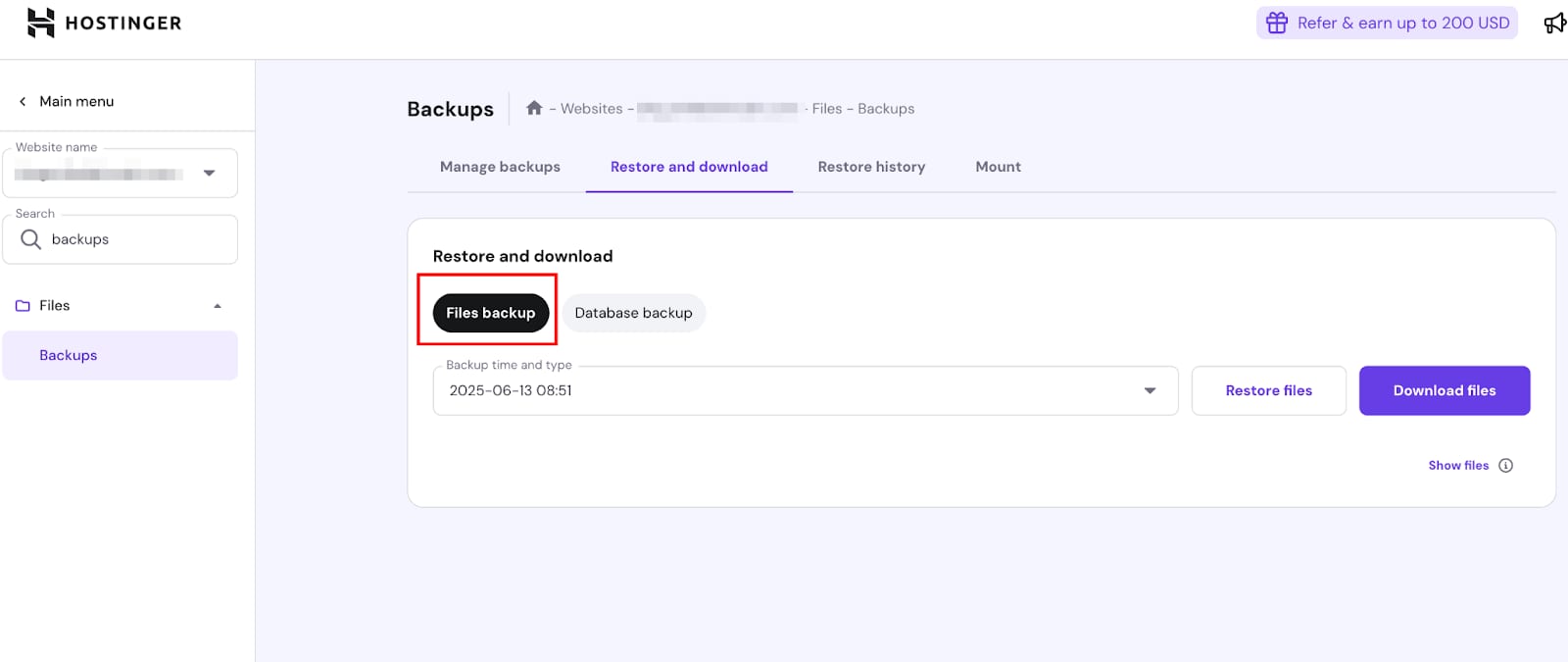
The complete list of all the available backups by date will be shown on the drop-down menu. The time indicates when the backup was created, in your local timezone.
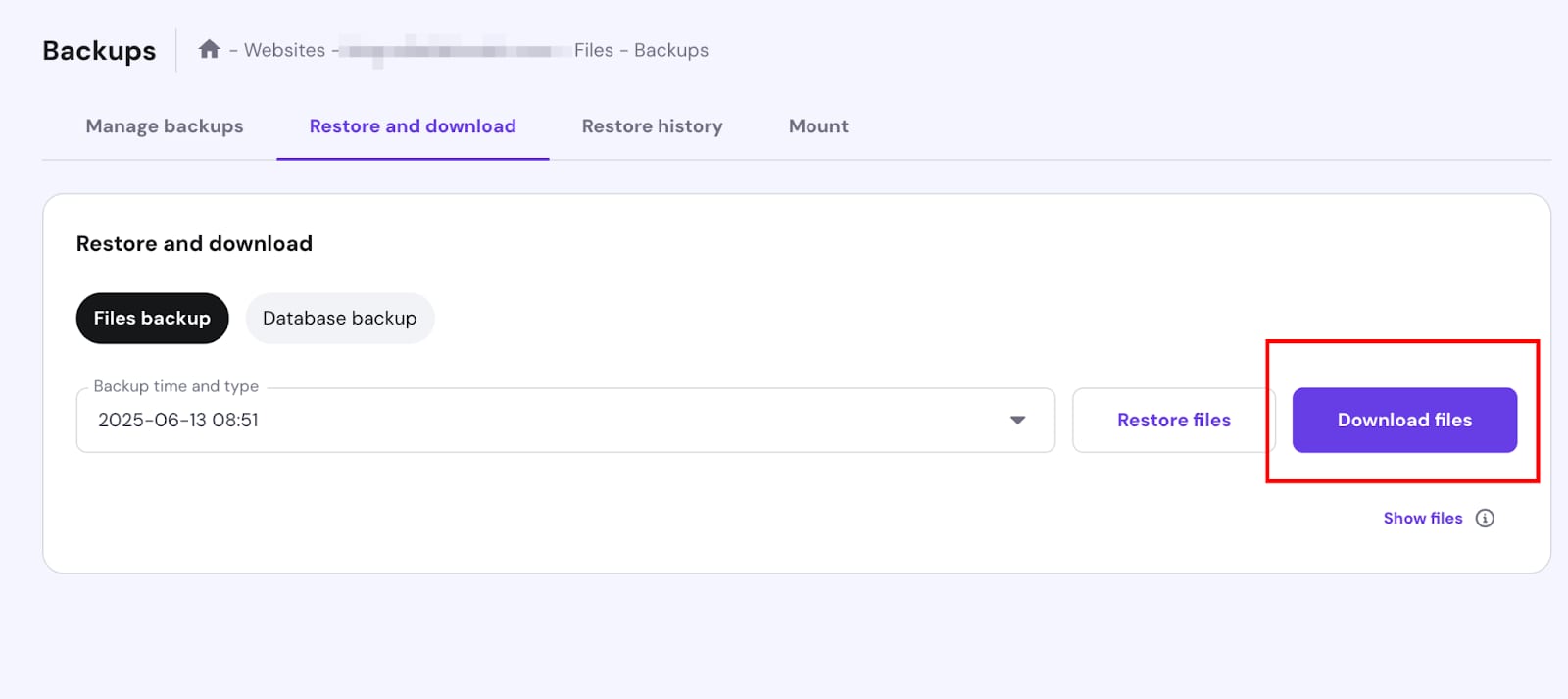
Choose the backup preferred date from these options and click Download files:
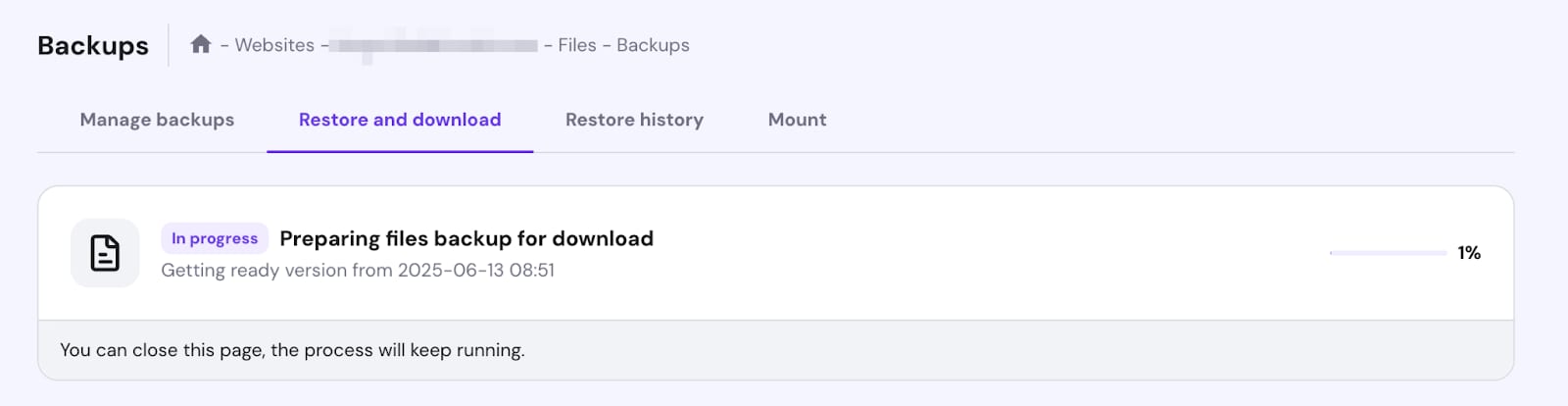
After clicking on Download files, you will be notified that backup preparation has started. The time will vary depending on the size of your backup. You can monitor the progress in the Restore and Download tab.
When it is ready, the option to download it will appear. Click on Download:
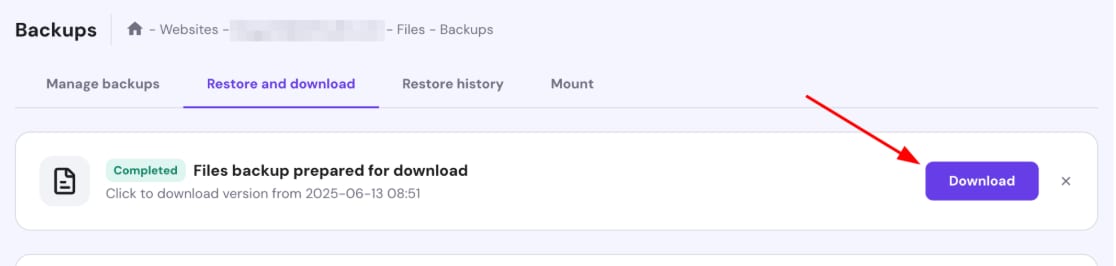
The downloaded archive will be in .tar.gz format.
Download databases
To download a database, select Database backups:
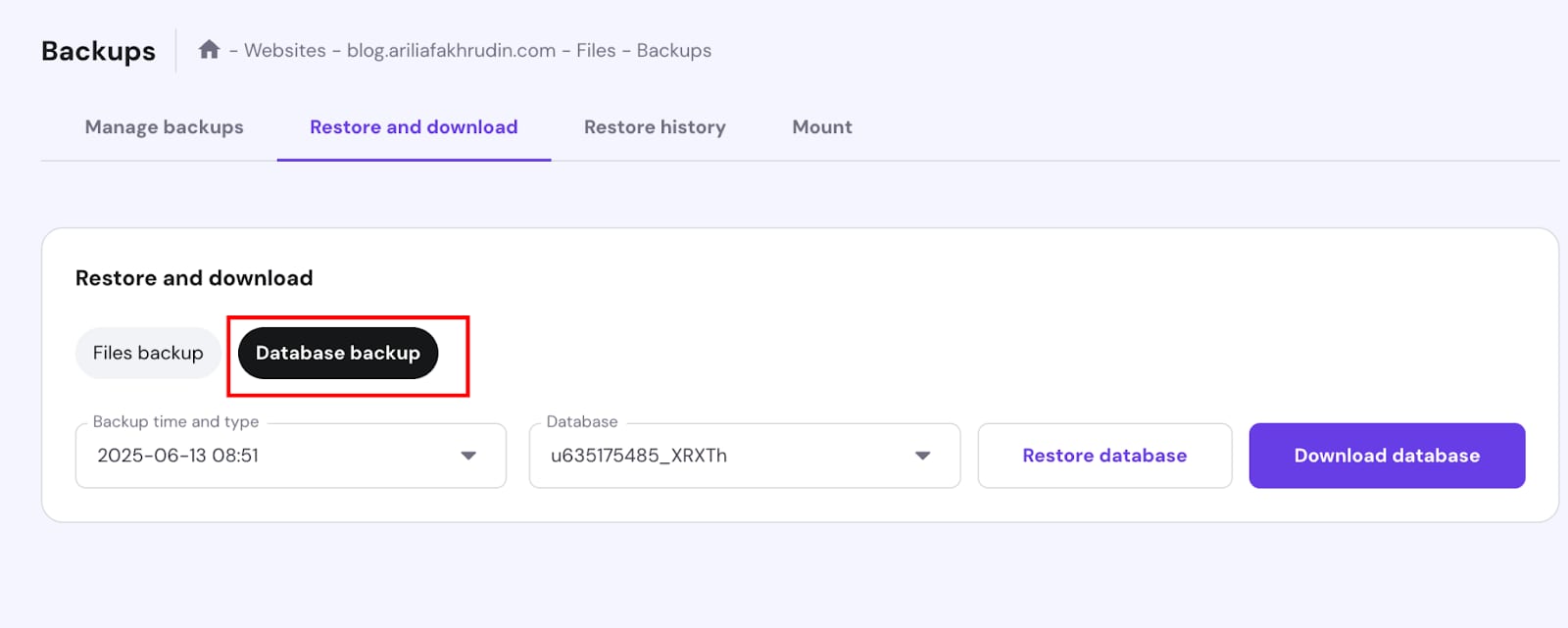
The list of all the backed-up databases will be shown on the drop-down menu. If you’re unsure which database corresponds to a specific website, you can check the website’s configuration file.
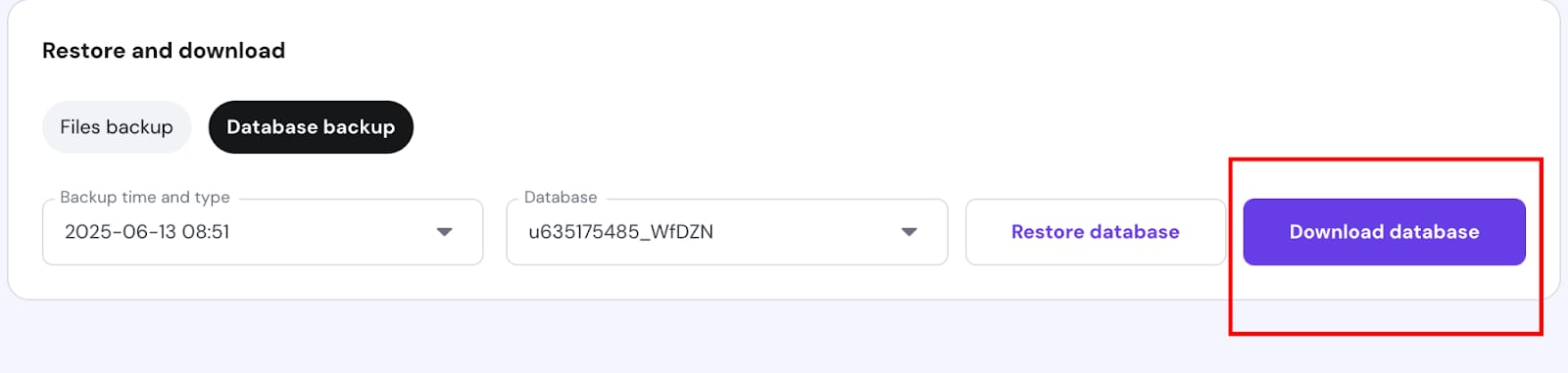
Choose the date and database from the list and click on Download database:
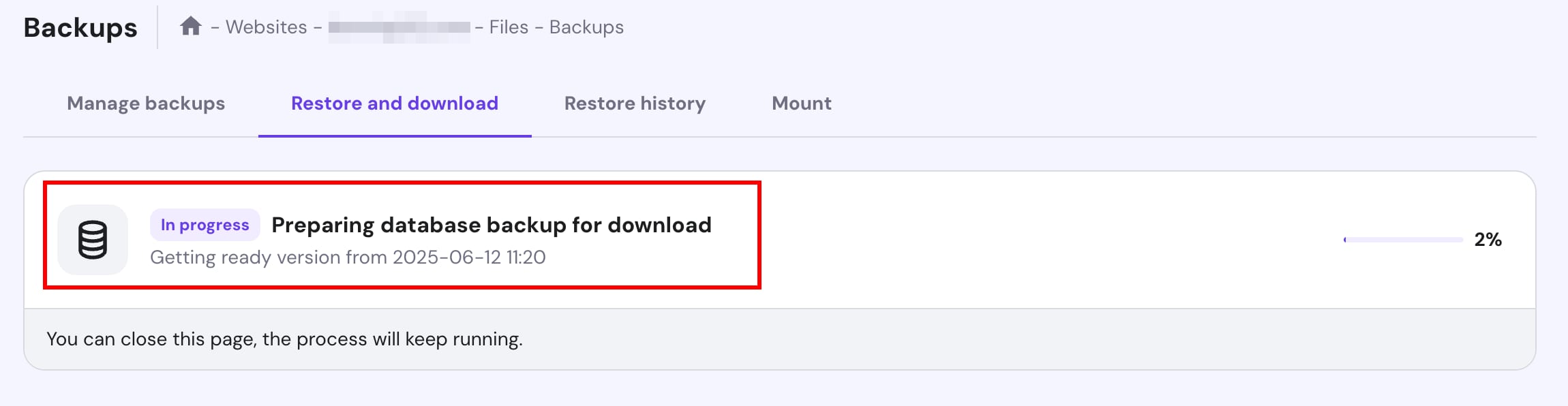
After clicking on Download database, you will be notified that backup preparation has started. The time will vary depending on the size of your backup. You can monitor the progress in the Restore and Download tab:
Once it’s ready, click on Download:
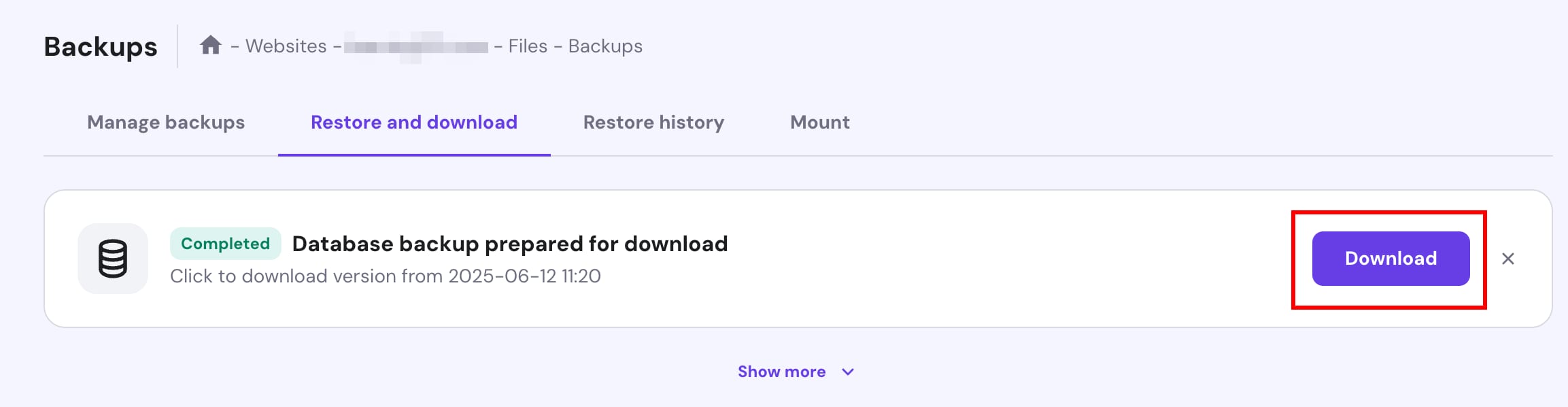
The downloaded database will be in a compressed .sql.gz format.
Now that you have downloaded your files and databases to your local device, you can keep them securely stored and readily accessible whenever necessary.
Downloading specific files
The Files backups feature in hPanel is designed to automatically download all the files within your hosting plan. If you only need specific files, such as those from one of your websites, you can use the File Manager or FTP to download them.
If you are using WordPress for your website, you can generate a backup for a specific website. Backup links will be sent directly to your email. Prepared backups will contain:
-
Website files
-
Database
Downloading a backup for a specific WordPress website
Go to Websites → Dashboard, search for Backups on the sidebar
To download your website, select Restore and download – Website backup:
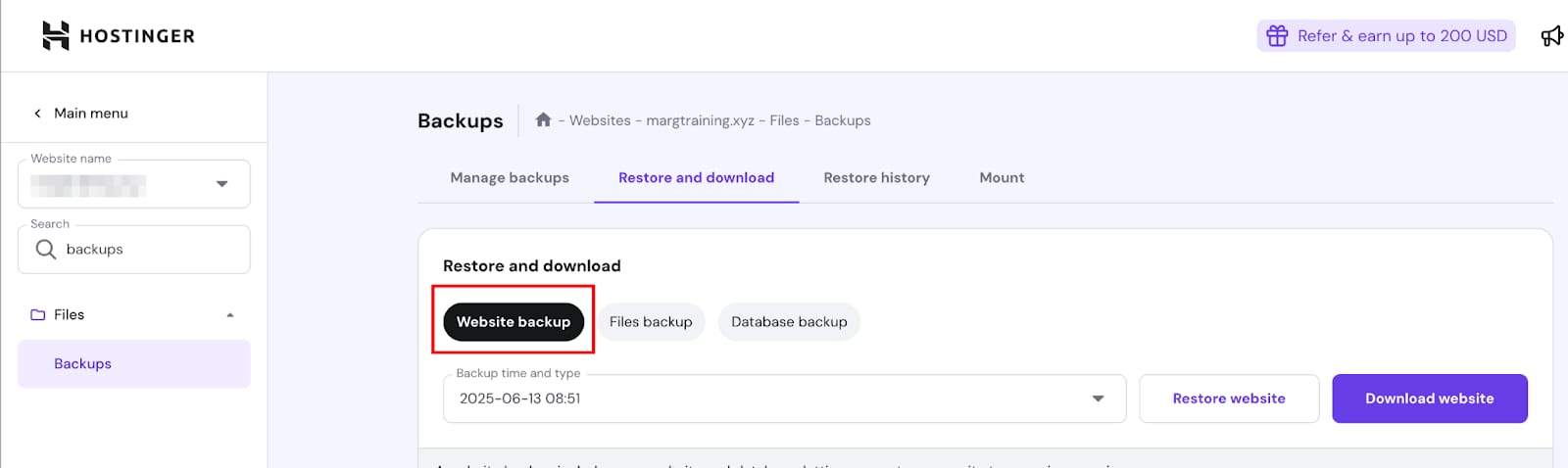
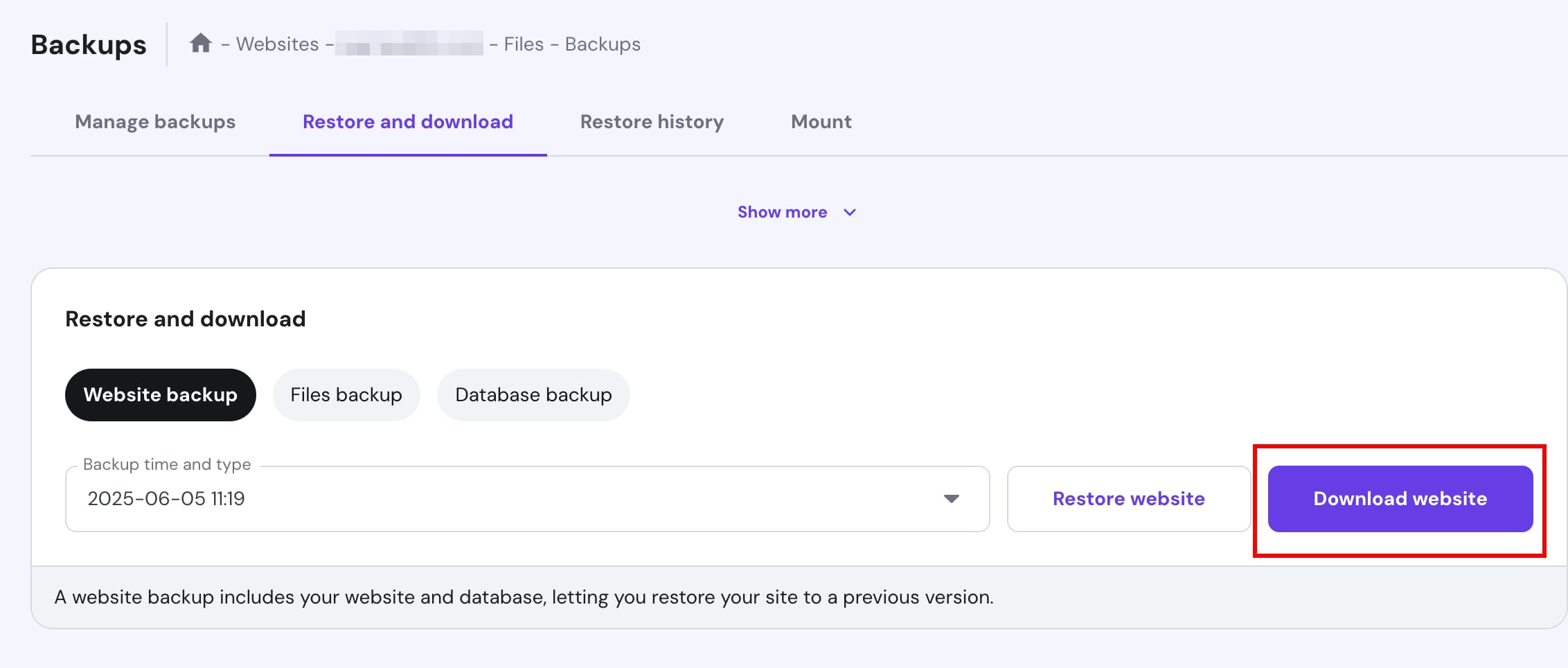
The complete list of all the available backups by date will be shown on the drop-down menu. The time indicates when the backup was created, in your local timezone.
Choose the backup preferred date from these options and click on Download website:
After a moment, new messages will appear. Press on Send link to email:
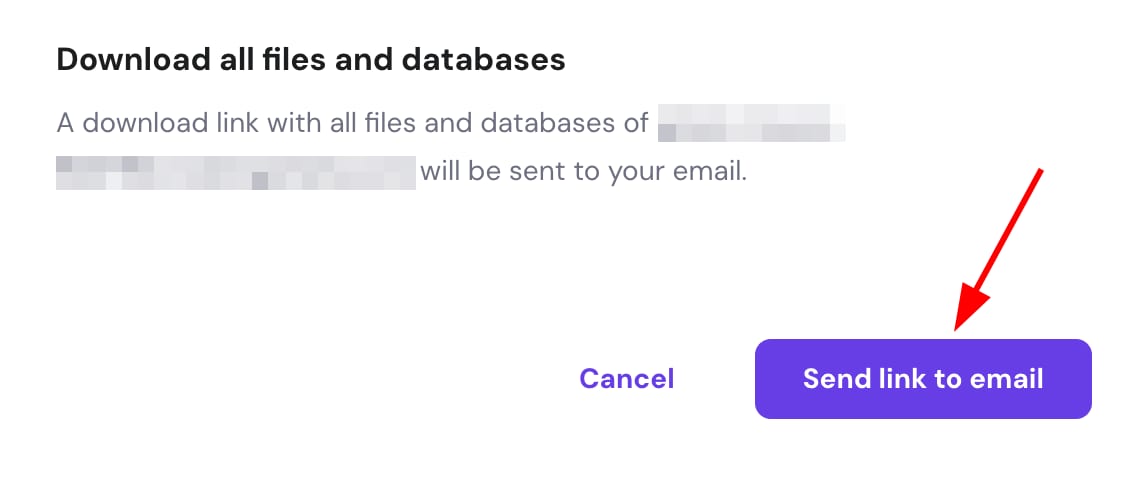
Backup links for your files and database will be sent directly to your email.
NOTES
-
Weekly backups are stored for 6 weeks, and daily backups for 7 days. After that time, older backups are permanently removed and are no longer available for backup or restoration.
-
If a backup for your desired date or time isn’t listed, it means that particular backup doesn’t exist.
-
The date and time of the automatic backup creation is fixed and cannot be modified.
-
Backups are stored separately and, therefore, do not count toward your disk quota.
- The backup link will be sent to the registered email address of the hosting account, not the email of the person currently logged in.