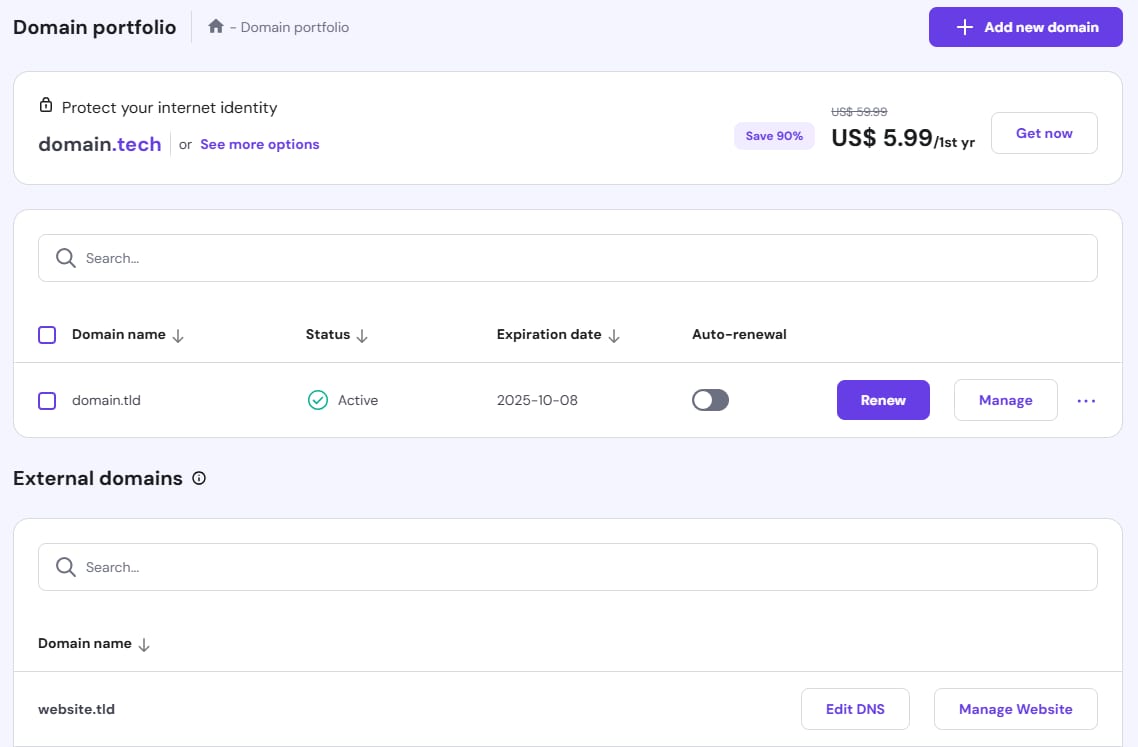
If you have registered a domain at Hostinger, either by a purchase, a transfer, or as a free domain included in your hosting plan, you can manage its options from the Domains section in hPanel. You will find the following sections:
-
Get a new domain – purchase a new available domain name.
-
Transfer an existing domain – transfer a domain to Hostinger so you can manage your domains in one place.
-
The list of your domains – includes domains purchased at Hostinger and any external domains added to your hosting plan.
The My domains list displays the domain name, status, expiration date, and auto-renewal status. To open the management page for a domain, click on the ❯ arrow:
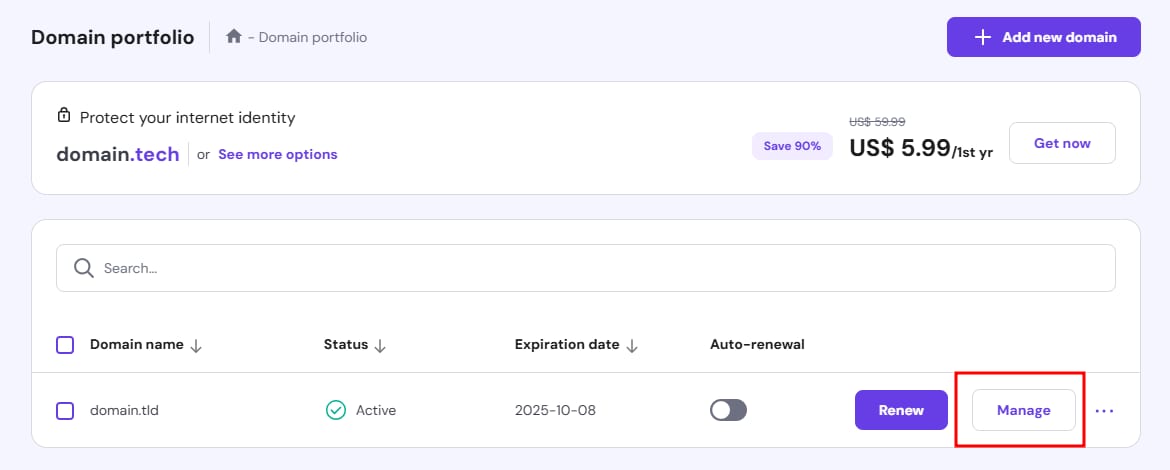
The management page will be disabled if the domain is expired.
There will be three options on the left sidebar:
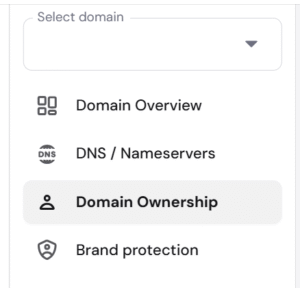
Domain Overview
On this page, you will be able to review all the general information about your domain:
-
Status label – will show if the domain is active or pending verification.
-
Expiration date – the date before which the domain needs to be renewed to stay active.
-
Toggles to enable or disable:
-
Domain auto-renewal.
-
Locking or unlocking your domain for transfer.
-
-
Authorization code – the authorization code or EPP code required to transfer your domain to another provider. The code itself will be hidden. To show it, click on the eye icon.
-
Nameservers – the nameservers your domain is pointing to, as well as an option to change them.
-
Domain contact information and the option to edit.
DNS / Nameservers
Here, you will be able to check and change the domain’s nameservers (NS records).
You can manage DNS records directly from this section — even if the domain’s nameservers currently point to an external provider. Records saved in hPanel will take effect once the nameservers are switched to Hostinger.
You can find a detailed guide here: How to Manage DNS Records at Hostinger.
Domain Ownership
This page shows your current domain’s contact details, such as name, address, email address, and phone number for the Registrant, Administrative, Billing, and Technical contacts.
If you need to change them, for instance, to move the domain to a different account, just follow the steps in this article: How to Edit a Domain’s Contact Details.
NOTE
-
For .es domains, contact details need to be updated on the ESNIC page: How to Change Domain Contact Details for .es Domains.
Brand Reputation
The Brand Reputation page shows how you can secure other TLDs for the same domain name that you own, helping ensure consistent branding and reducing the risk of lookalike domains using your name.
You can now select and purchase multiple domain variations directly from the Brand Reputation page in a single checkout flow — no need to search and add each TLD separately.
To purchase multiple domain variations from the Brand Reputation page:
1. Go to hPanel → Domains and select your domain.
2. In the left sidebar, click Brand Reputation.
3. Browse the available TLD variations and select the ones you want to secure.
4. Click Continue to cart to review your selection.
5. Complete the checkout in a single payment.
This makes it easier to protect your brand identity and secure your presence across relevant TLDs in one go.
External Domains
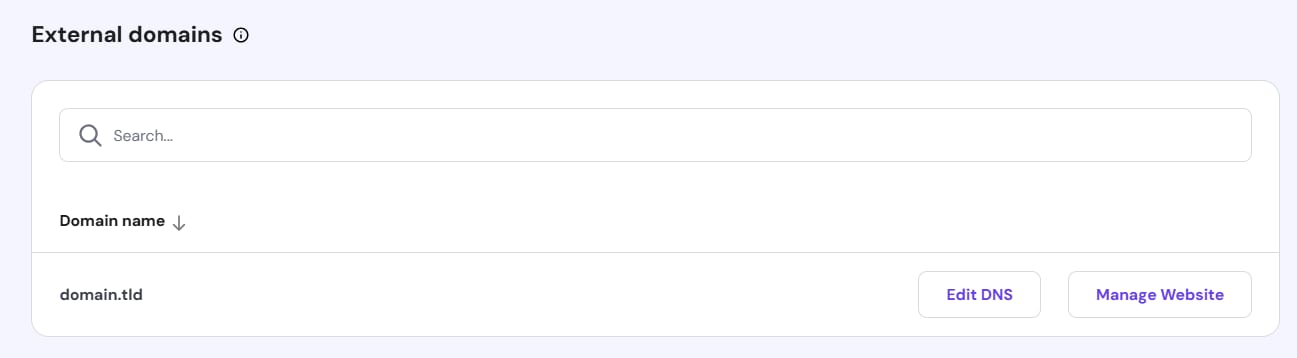
If you have added a domain purchased elsewhere to your hosting plan, you will find it listed under External domains, where you will have the option to transfer it to Hostinger.
For domains pointing to Hostinger by nameservers, you will also find a button to access the active DNS Zone and manage the domain’s records.