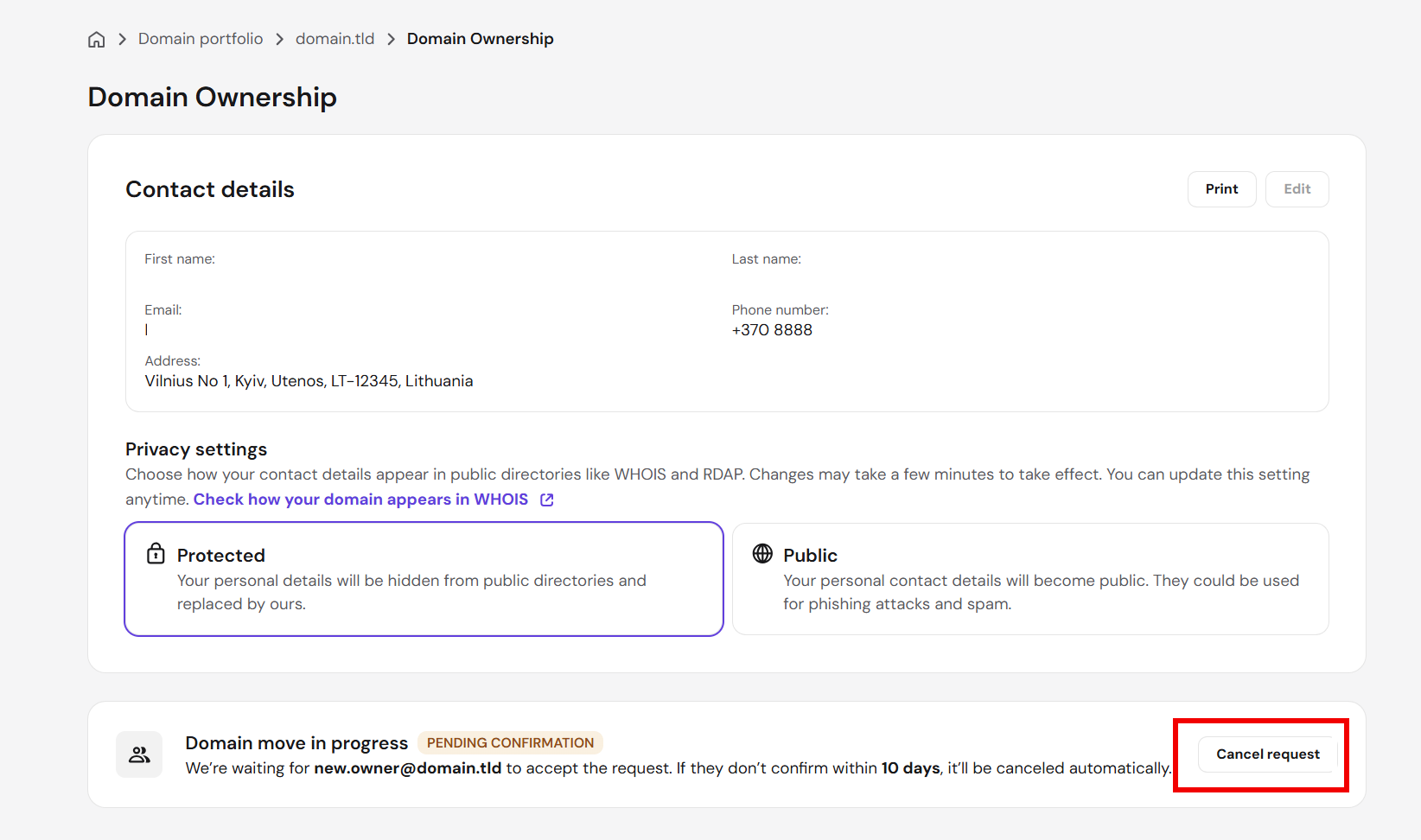
Moving a domain name between two different Hostinger accounts is a free service that allows you to transfer domain ownership without changing providers. This is helpful if you purchased a domain name for a customer’s client and now need to hand over full control to their own account.
Keep in mind that this process is completely optional. If you want to use the domain with a hosting plan or email in a different Hostinger account, you can keep the domain where it is and connect it from there by adding a TXT record to your domain’s DNS zone for ownership verification.
NOTES
- You do not need a transfer authorization code (EPP key) to move a domain between Hostinger accounts.
- This process does not migrate website files, databases, emails, or other related hosting services.
- Your website and connected services will not face downtime during this process.
Before you start
Ensure your domain name meets the following eligibility criteria before initiating the move:
- Unsupported TLDs: Internal domain moves are unavailable for all
.pkdomains, as well as for certain.fiand.dkdomains. - Registration time: The domain must be registered for more than 96 hours and must not have been moved between accounts within the past 10 days.
- Domain status: The domain is active and does not expire within the next 10 days.
Option 1 – For gTLDs, .in, and .co.uk
The automated domain move process in hPanel is available for domain extensions with a generic top-level domain (gTLD) like .com, .net, .online, .store, or one of these specific country-code top-level domains (ccTLDs):
.co.uk.in.co.in.gen.in.ind.in.net.in.org.in.
If your domain matches this case, follow these steps.
Step 1 – Initiate the move
- Navigate to hPanel → Domains.
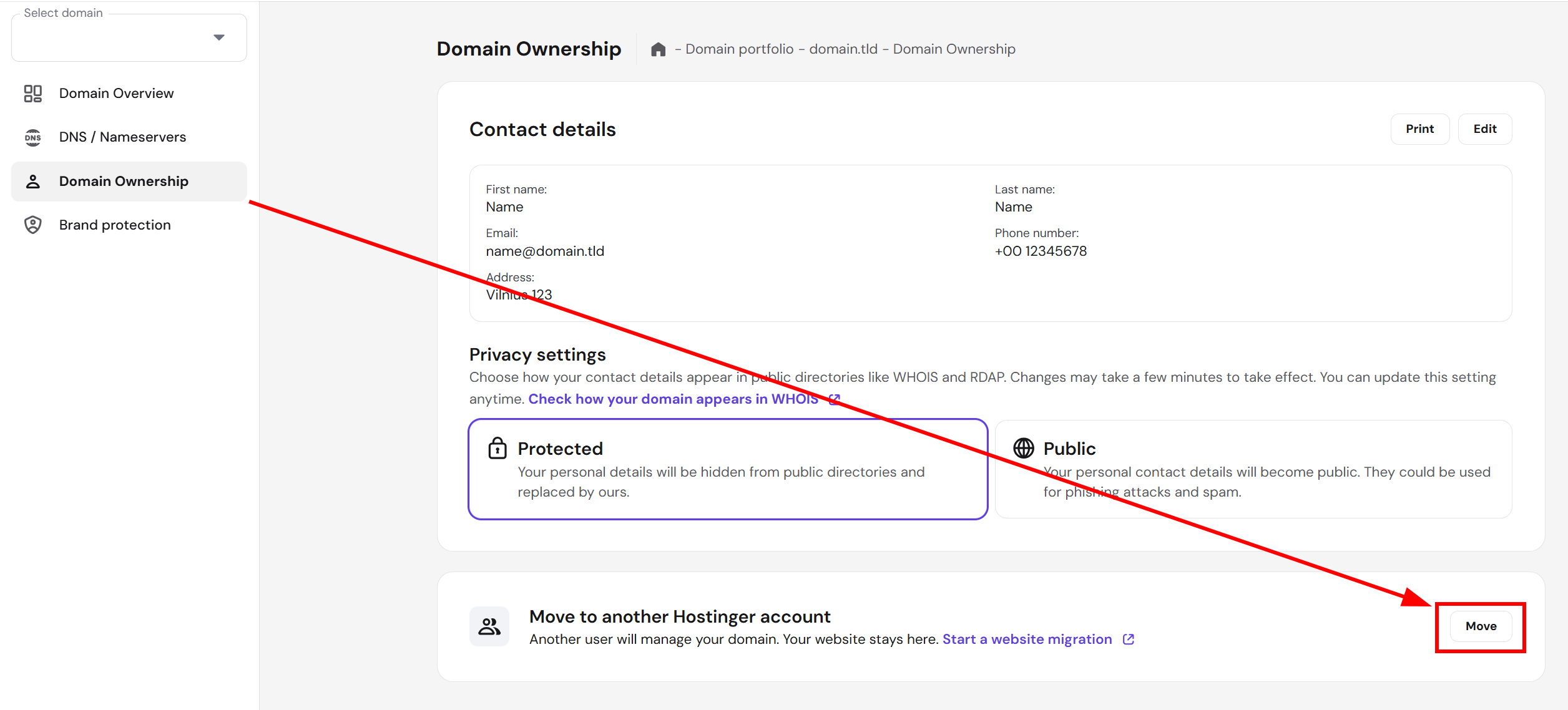
- Find the domain you want to move, click Manage, and open the Domain Ownership page.
- Locate the Move to another Hostinger account section and click on Move.

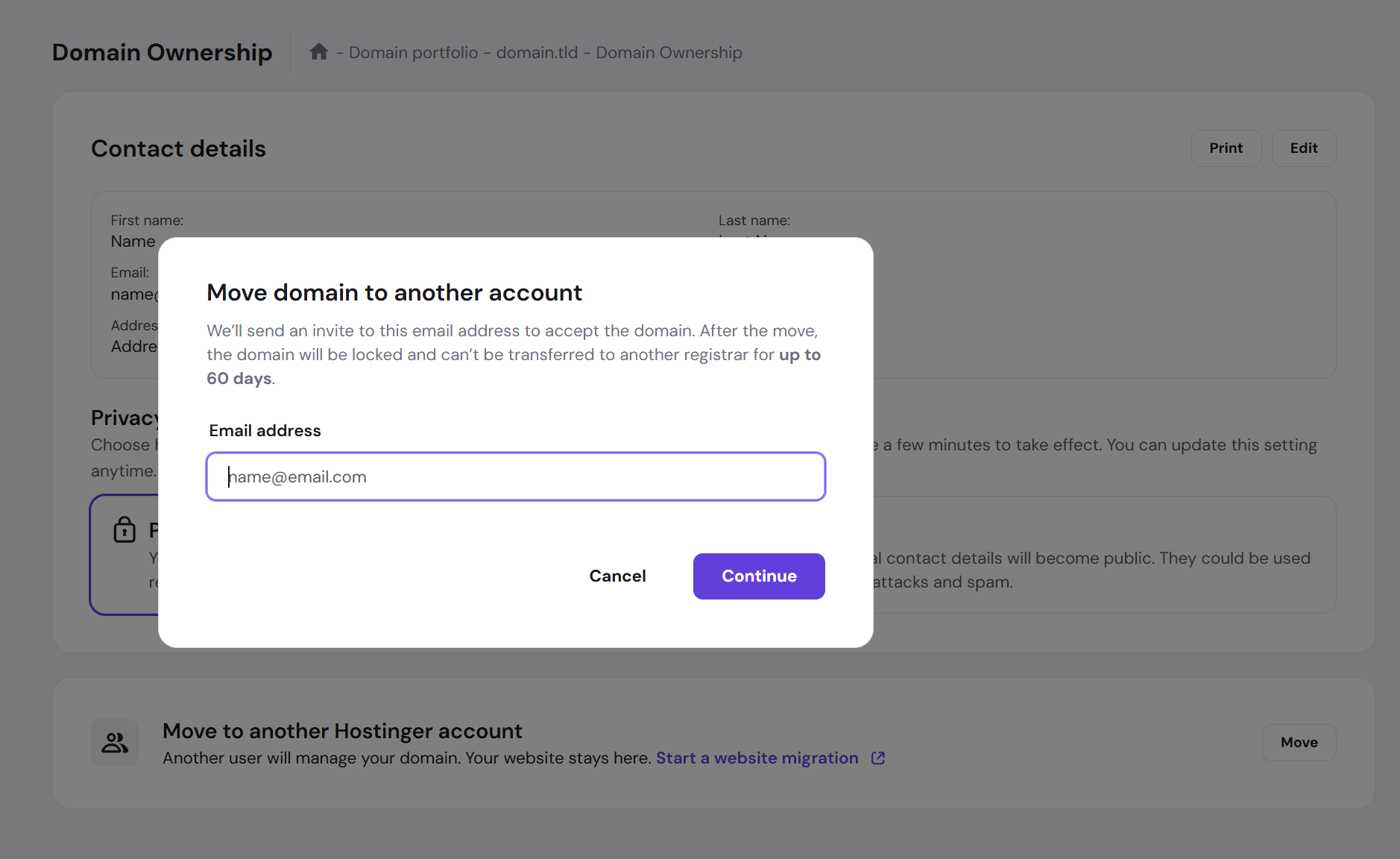
- Enter the email address of the destination Hostinger account and click Continue.

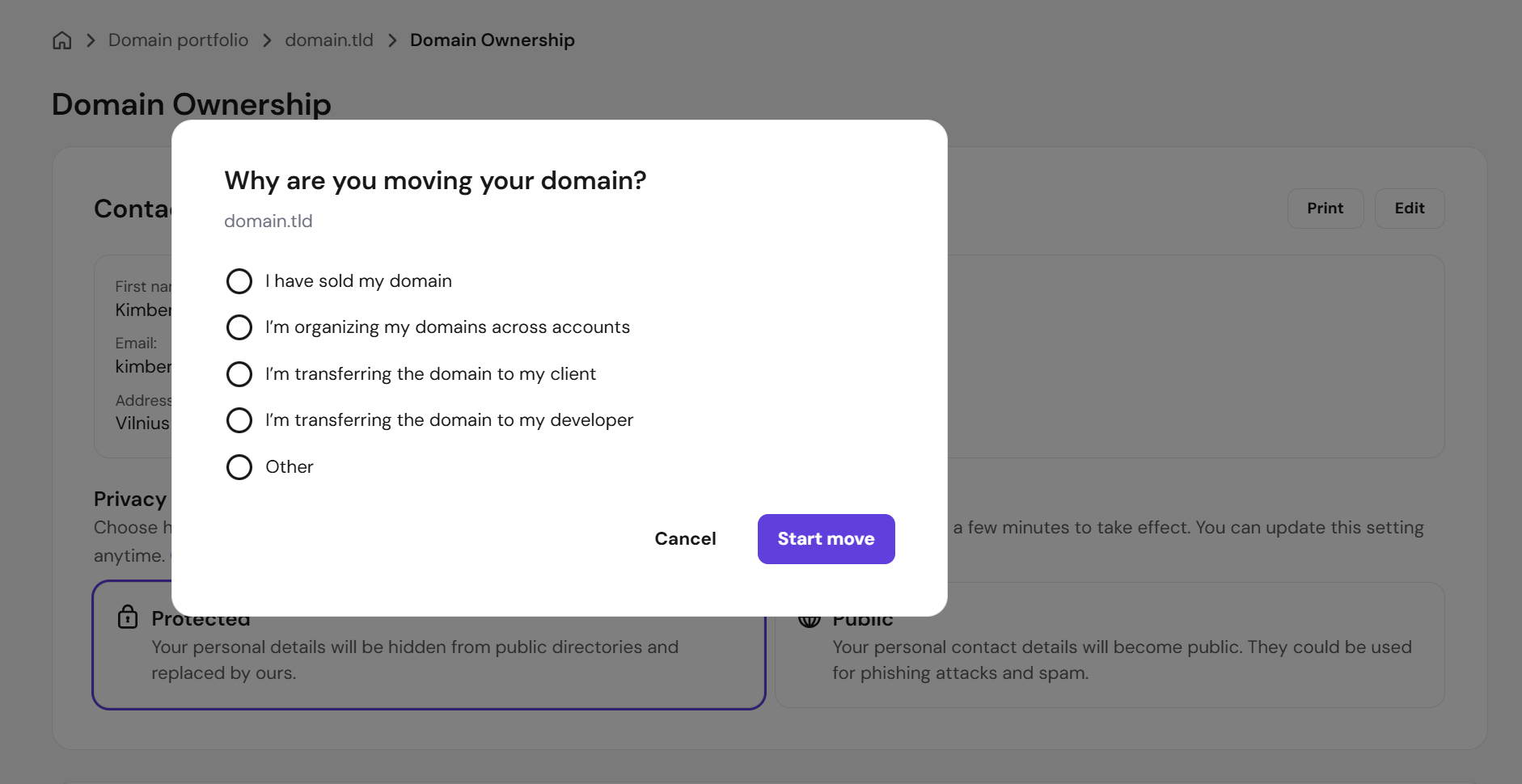
- If prompted, select the reason for moving the domain from the available options.

- Proceed to Step 2.
Step 2 – Confirm the domain move on the destination account
To confirm the domain transfer, follow the steps below.
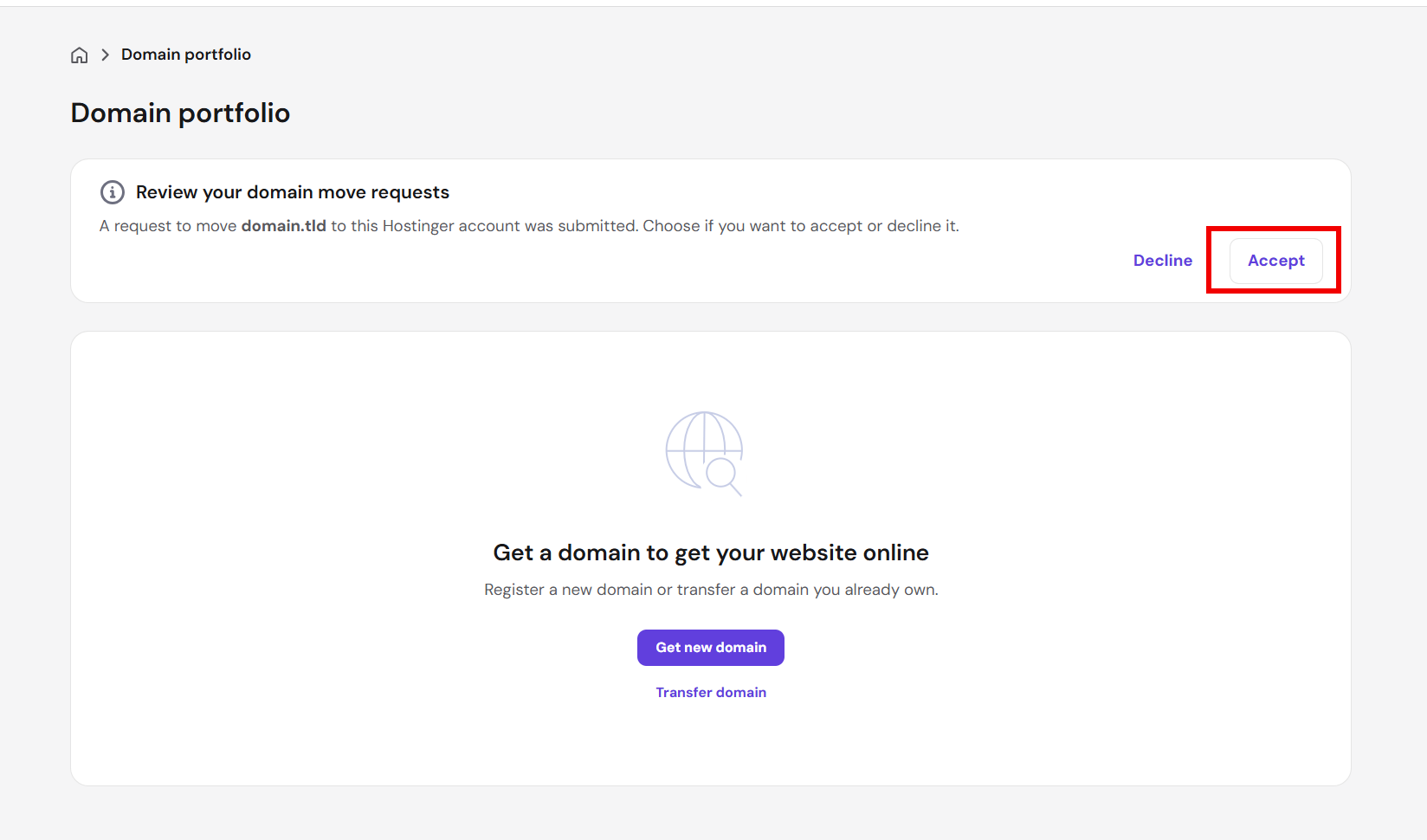
- Log in to the destination Hostinger account.
- Navigate to the Domains section.
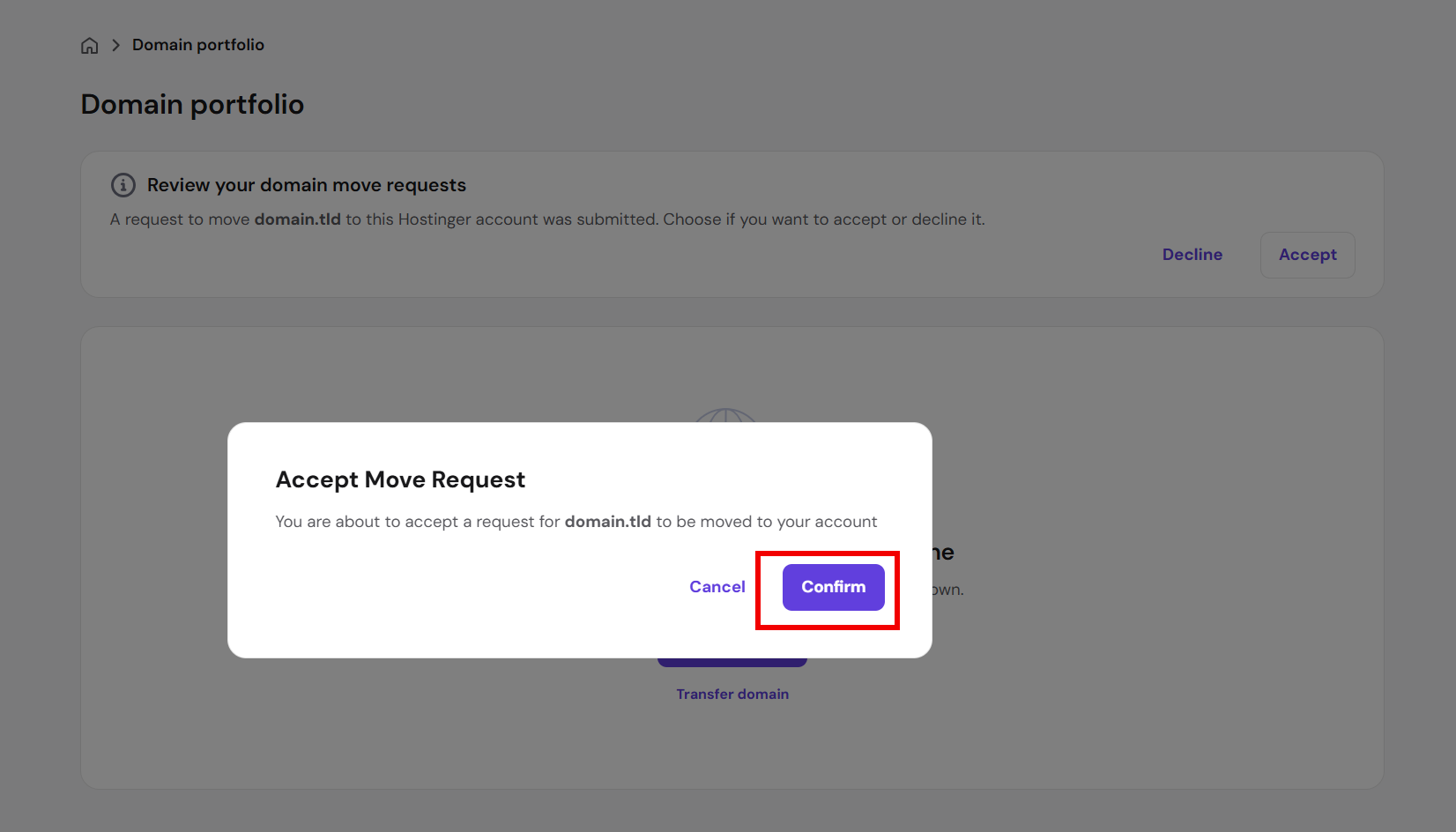
- Locate the move request and click Accept.

- Click Confirm on the popup.

- Enter the new contact details for the domain:
- Choose the country.
- Select whether the domain belongs to a personal property or a company/organization.
- Click Next step.
- Fill in the exact contact details.
- Click Finish registration.
Step 3 – Approve via email
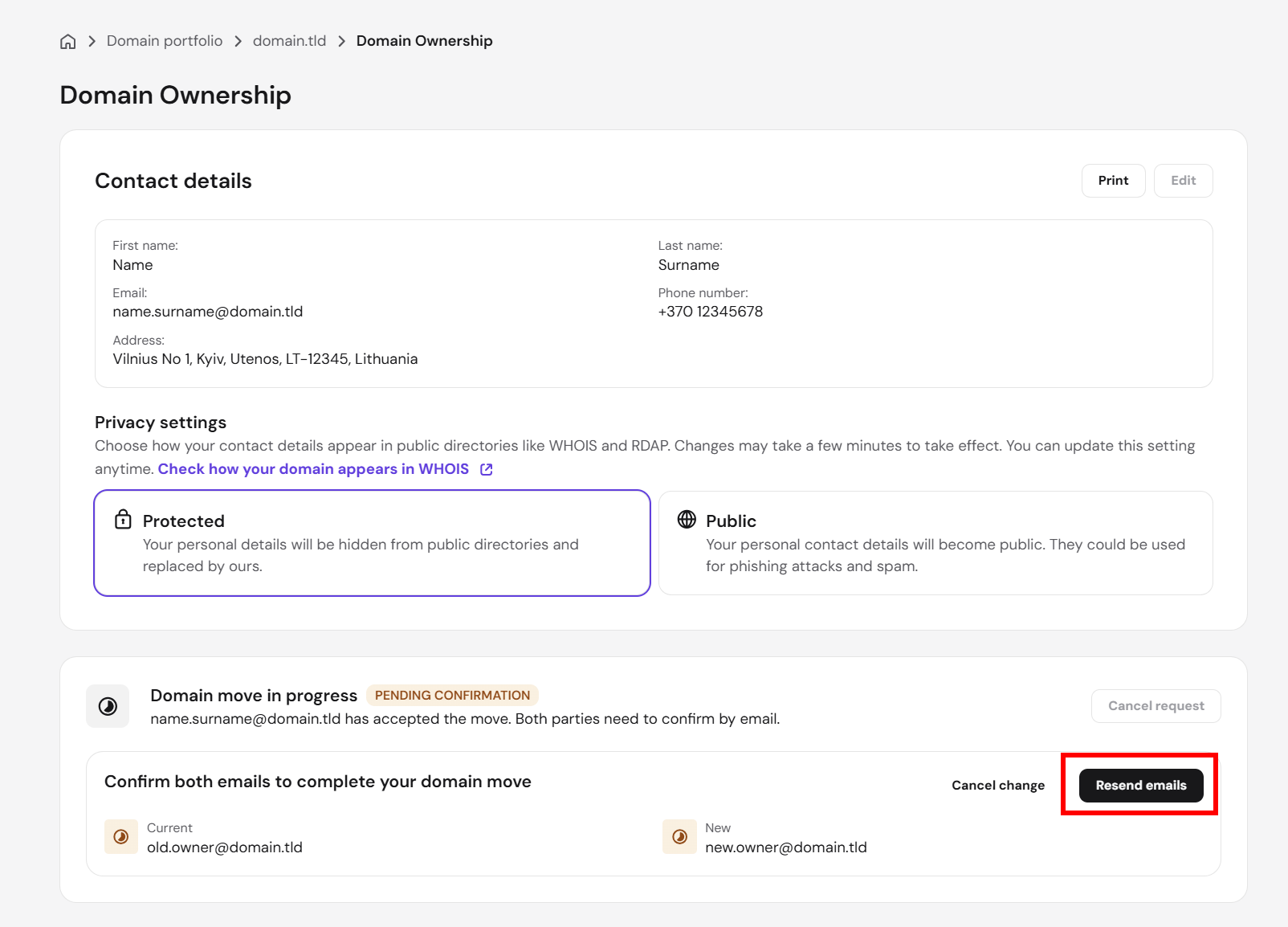
- Check both the current and new email accounts for a verification message. The domain move process initiates once the email address change is verified.
- If you do not receive the verification email, click the Resend emails button. Ensure you check the spam folder.

Option 2 – For all other country-code domains
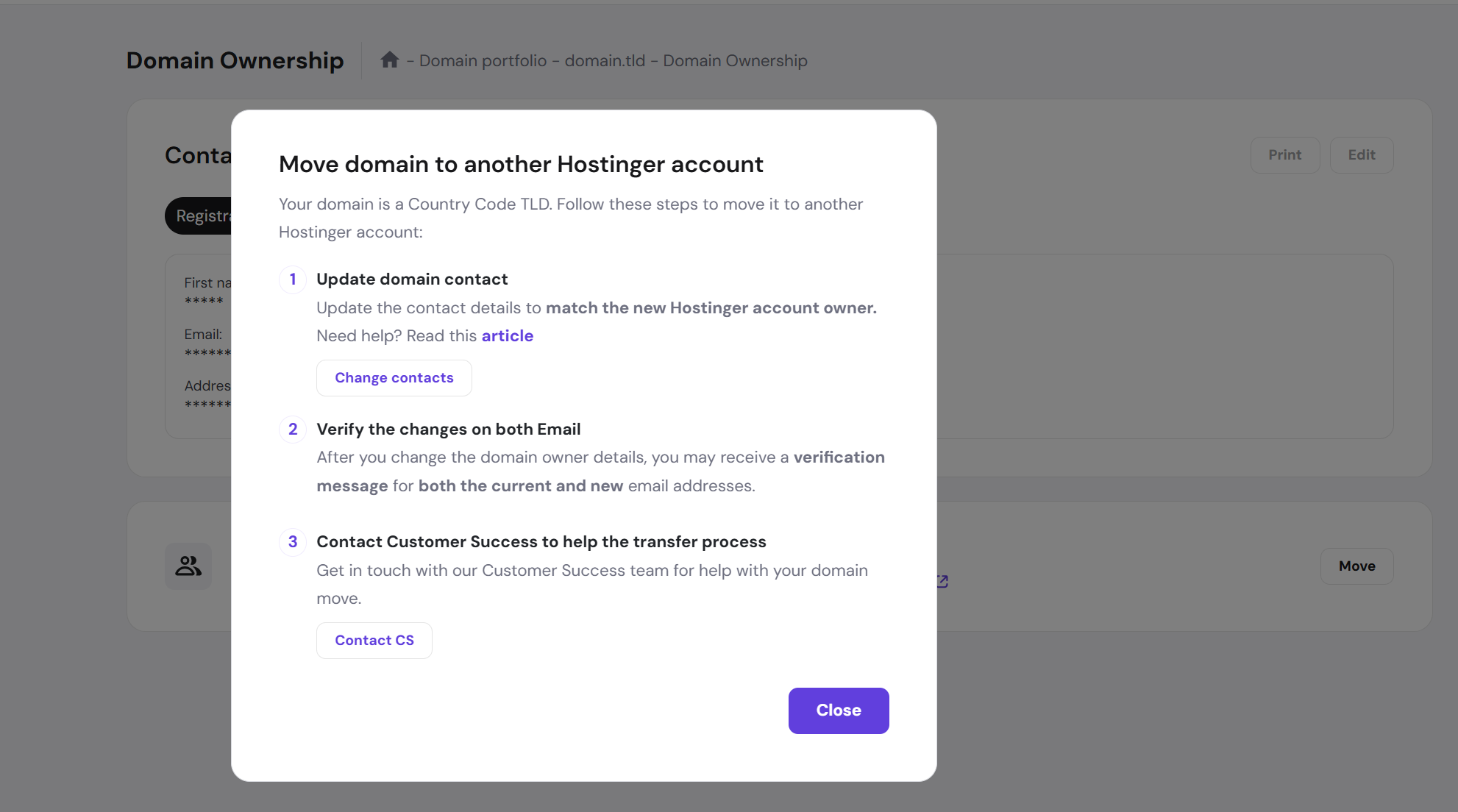
Follow these steps if your domain uses any other supported country-code extension (ccTLD), for example: .br, .fr, or .id.
- Log in to your Hostinger account and go to the Domains section.
- Find the domain you want to move, click Manage, and open the Domain Ownership page.
- Update the domain owner’s contact details on this page so they identically match the profile details of the destination Hostinger account.
- Verify any confirmation emails sent to the current and new email address to complete the contact detail update.
- Contact the Customer Success team. Provide the domain name and destination account email.

- Once the domain contact details match, the team will securely move the domain name to the destination account.
Troubleshooting
The domain was moved between Hostinger accounts less than 10 days ago
Domains can be moved once every 10 days. In this case, wait for the 10-day period to pass and try to move the domain again.
Domain move failed
If the error:
❌ Your domain move failed. There is already a pending action on this domain.
There is already a pending action on this domain. appears, a contact details change is already processing. Approve the new contact details first, then attempt the domain transfer again
After the process is successfully complete, the domain will appear in the destination account ready for standalone management.
NOTES
- You can cancel the domain move request at any time before the new owner confirms it by clicking the Cancel button.

- You can only move domains between two Hostinger accounts, or two Niagahoster accounts. Moving domains across Niagahoster and Hostinger is not supported.