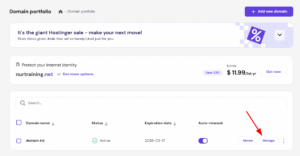
You can change your domain’s contact details anytime from your panel. Just log in to your Hostinger account, go to the Domains section, and click on Manage next to the domain you wish to change contact details:
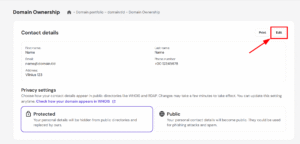
Open the Domain Ownership tab, and click on Edit:
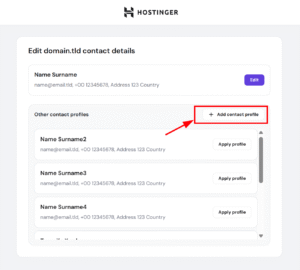
Once there, select Add contact profile:
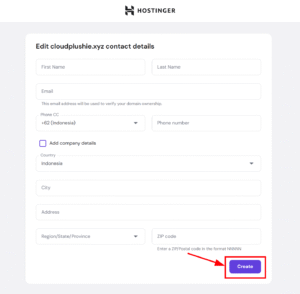
Fill in all the details and click on Create:
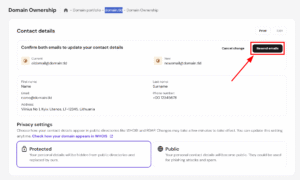
Next, you will receive a verification message to your domain’s registered email address requesting approval of the change. If you are updating the email address as well, the message will be sent to both the current and the new addresses.
If you don’t receive the email address to verify the changes, you can resend them here:
Changes will only be applied after you have verified them via email – make sure to check your spam folder as well 💡
NOTE
-
If domain privacy is disabled, it might take up to 24 hours for the updated details to be visible on WHOIS.