The Hostinger hosting dashboard provides all the essential features to manage your hosting plan’s settings, resources, and website files in one place.
If you have a web, Cloud or Agency hosting plan, you can access the user-friendly hosting dashboard through hPanel for all your websites created with PHP/HTML, such WordPress and other CMS, or Node.js. This interface allows you to monitor your website status, manage databases, settings and resources.
Before you start
Hostinger Website Builder and Horizons websites do not use this dashboard as they have different capabilities and alternative built-in features.
- If all your websites are created with Hostinger Horizons or Website Builder, the hosting dashboard will not be available.
- If you need specific hosting dashboard features (like the File Manager) for a project, you can add a new PHP/HTML website using a subdomain or temporary domain. Note that these features will only be available for that website, not for the other Builder or Horizons websites on your hosting plan.
How to access the hosting dashboard
-
Log in to your Hostinger account and navigate to the Websites section of hPanel.
-
Locate your domain and click on Dashboard.
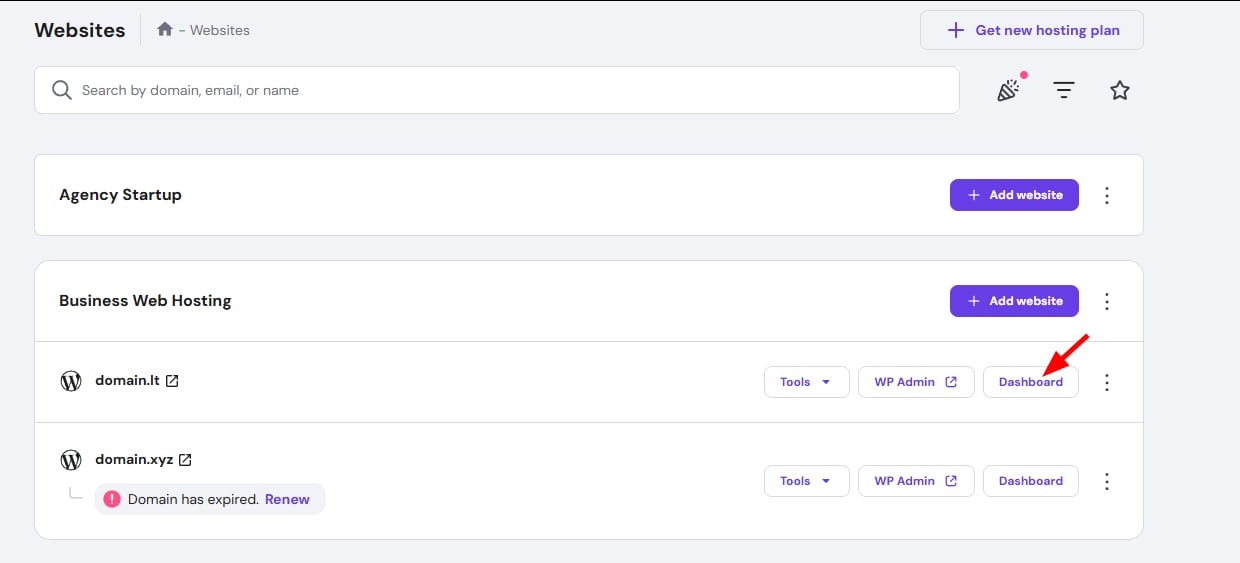
You will be directed to the hosting dashboard main page.
Sidebar
The sidebar contains the all the available management options for your website and a dropdown to ensure you are managing the correct website.
- To display the specific tools, click on the category to expand it, or use the search bar for fast access to specific settings.
- Click Dashboard at any time to return to the main page.
Main Options
This section provides shortcuts to the most common management tasks.
- Website name: Displays your website name, creation date, and a shortcut to open the live site.
- Upgrade plan button: Allows you to upgrade your hosting plan.
- WordPress Admin button: Shortcut to the WordPress management area if your site uses WordPress.
- Domain: Access domain settings or manage the DNS zone if your domain points to Hostinger.
- Hosting: Click to open the Plan details page.
- Email: Click to access the Hostinger Email management options.
- Backups: Shows if backups are weekly or daily. Click to reach the Backups management page.
Additional Sections
- No-cache mode toggle: Available for WordPress websites.
- PageSpeed Insights: Shows the latest page speed analysis. Click Run speed test to analyze your site performance.
- Website safety: Displays the results of the latest malware scan. Click on See details to open the Malware Scanner section of your panel.
- File Manager: Provides access to your website’s files.
- Databases: Click to reach the options to create, manage, or delete databases.
- CMS Management: If using WordPress, this option will open the WordPress Admin panel. Otherwise, you will find a shortcut to the auto installer.
- Clear cache: Buttons to reach a no-cache preview of your website and to clear cache.
- Tips to improve: Optional content with tailored recommendations.
You can now efficiently manage your hosting environment and access all relevant website information at a glance. Using these tools regularly helps ensure your website remains secure and performs optimally.
NOTES
- The hosting dashboard for Node.js websites will present a different layout and options.
- If you wish to switch from the Hostinger Website Builder or Hostinger Horizons to a PHP-based site to use the hosting dashboard features, you must change the website platform. Note that original content created will be lost during this process.