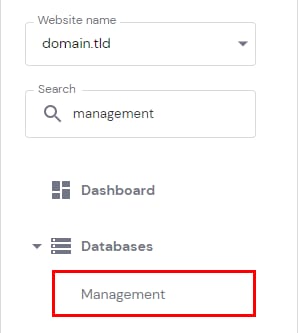
MySQL databases can be managed within the Databases section of hPanel. To access it, go to Websites → Dashboard, search for Databases Management on the sidebar and click on it:
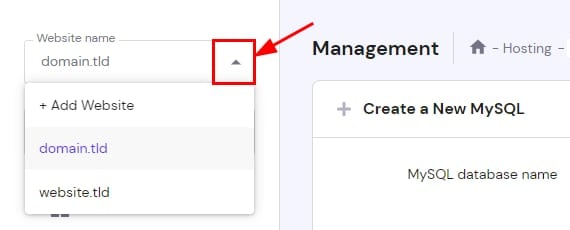
Once there, you can choose a website from the left drop-down menu to show its associated databases:
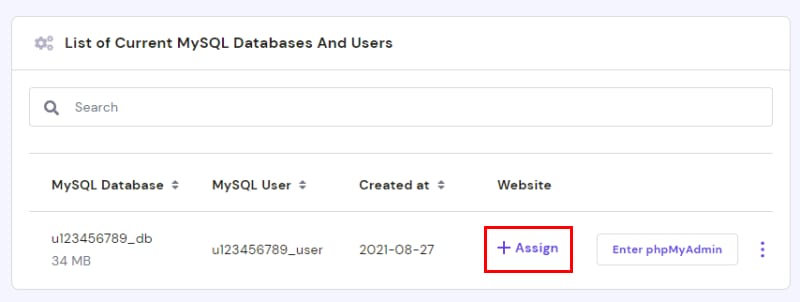
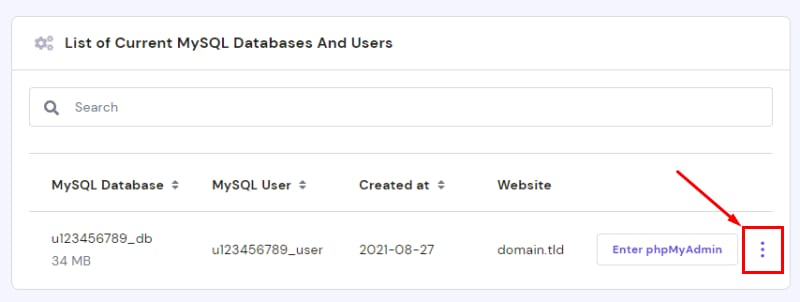
You will be presented with the List of Current MySQL Databases And Users section. Please note that all new databases will be assigned to the selected domain; if a database is not yet assigned to a website, you can do so by clicking on Assign:
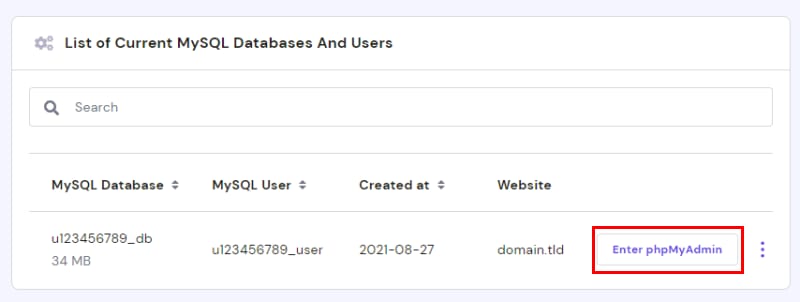
To access your database contents via phpMyAdmin, click on Enter phpMyAdmin:
If you need more options, select your desired database and click the ⋮ button:
You will be able to do the following actions:
-
Repair the database – it will analyze and optimize your database tables, ensuring that the database is working perfectly fine
-
Change the current database password
-
Change various permissions
-
Delete the database completely
Additional resources: