If you use Hostinger Website Builder to run an online store and want to create product categories, you’re in the right place! Follow the steps below 👇
Creating Product Categories
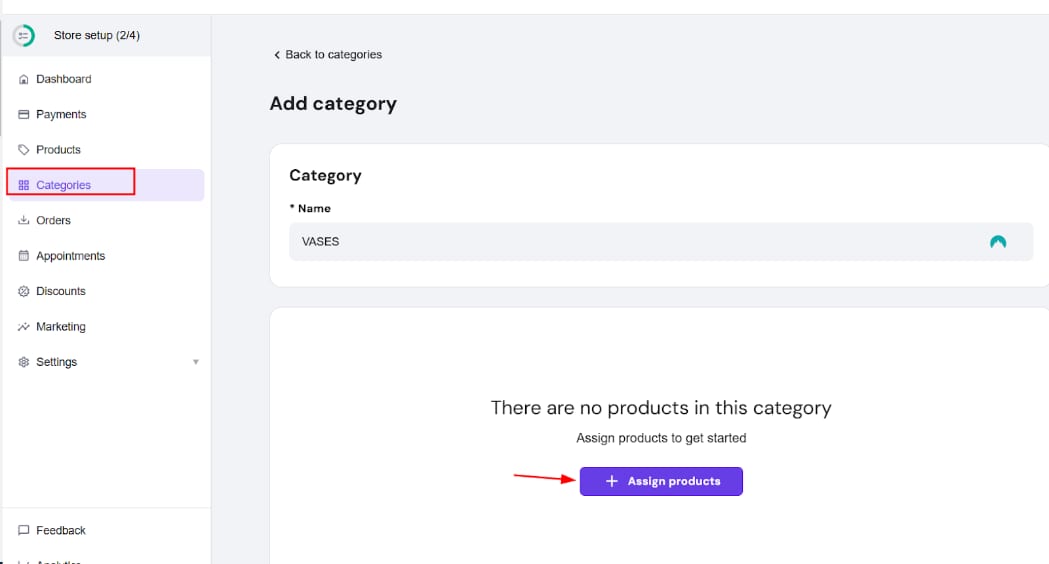
1. In your store management area, go to Categories and click on Add category.
2. Insert the category name and click on Assign products:
3. Select products and click on Save:
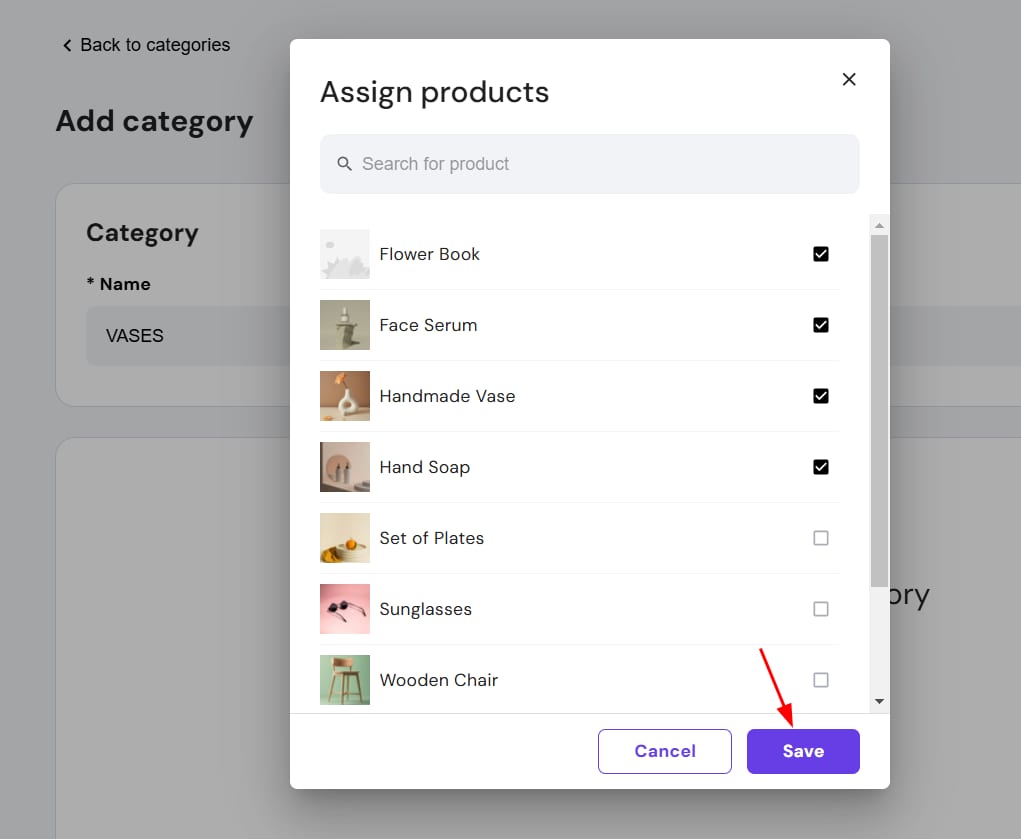
4. Finally, click on Save again to save the whole category.
Drag and drop products within a category to change their display order – this way, products will be displayed in the preferred order on your website, too.
Displaying Product Categories on Your Website
To display product categories on your website, use product list sections.
-
You may show all product categories on a single page by adding multiple product sections to the same page (you can create a dedicated page for that this way)
-
Or you may create dedicated pages for each product category by adding more pages to your website and inserting product sections within each of them
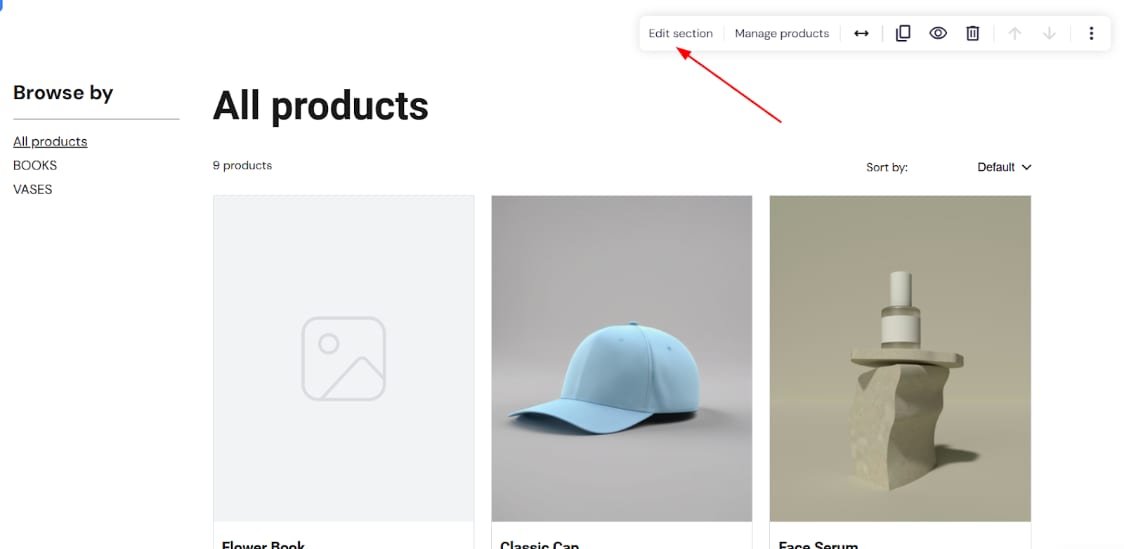
By default, the product list section displays all products, but you can easily change that in the section settings. Click on Edit section:
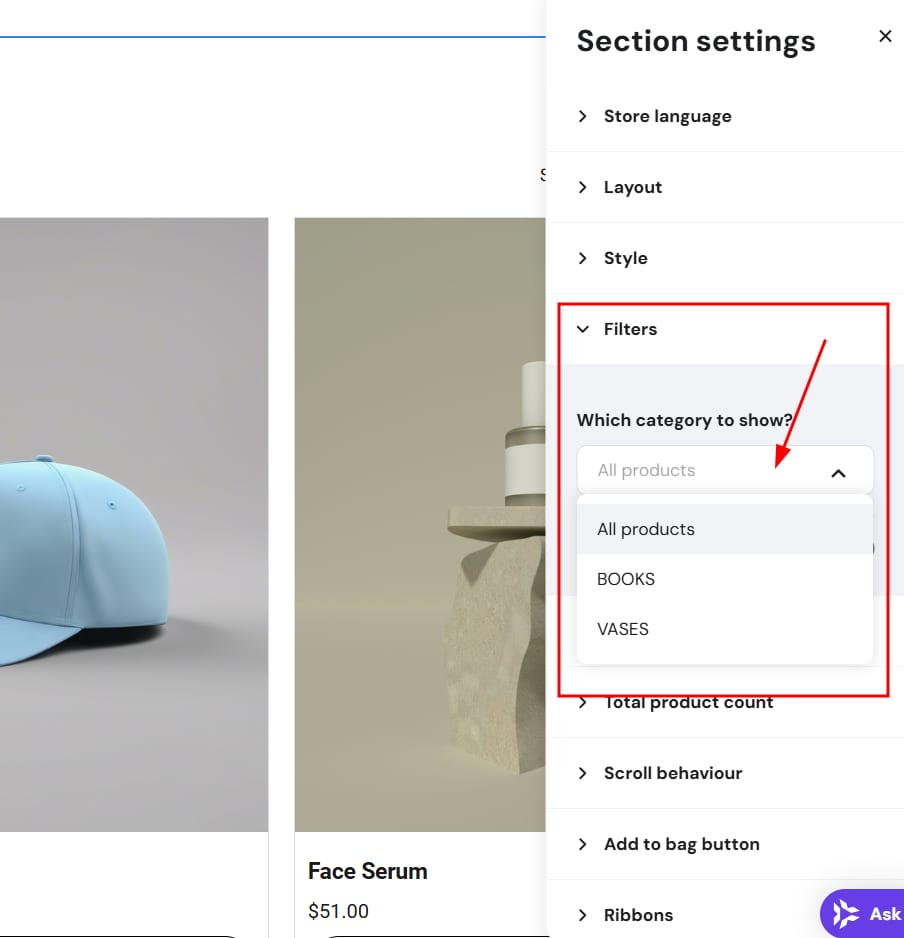
Select which products, by category, to show:
And that’s it!
Finding a Link to a Product Category Page
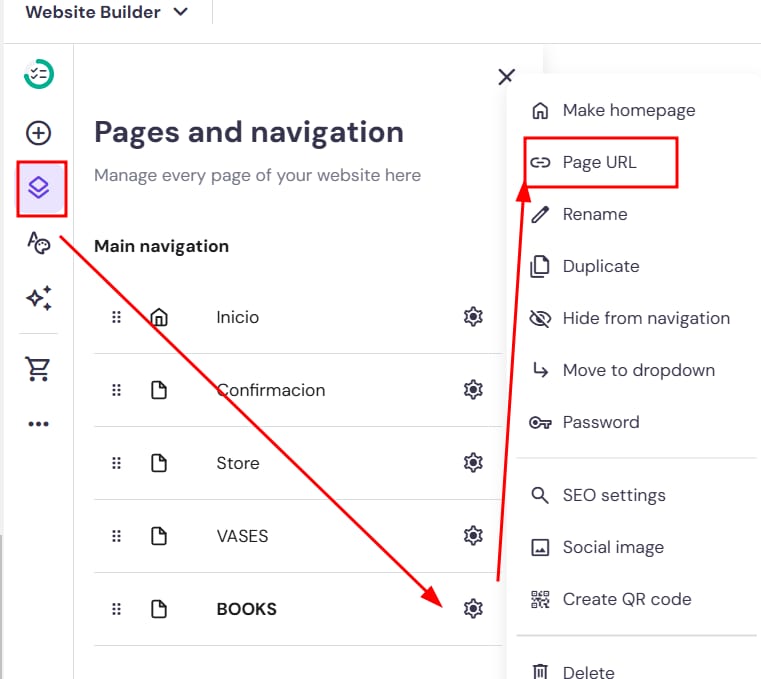
If you display your product categories on separate pages, you can find their links in the Pages and navigation panel on the left. Find your product category page and open its settings:
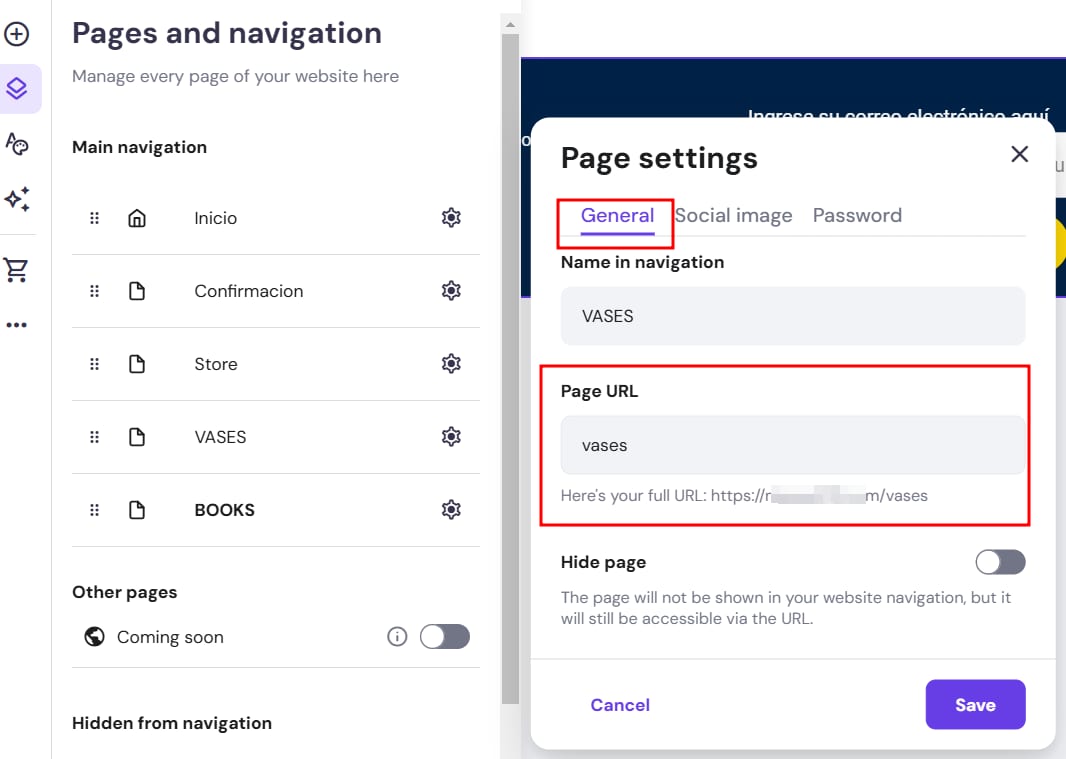
In the General tab, you will see the suffix of your page URL (you can edit it) and the full URL of your category page that you can use:
You can add these links to a dropdown in your website’s menu bar.