If you use Hostinger Website Builder and have eCommerce features enabled on your site, you can easily access the following 👇
Store Management Area
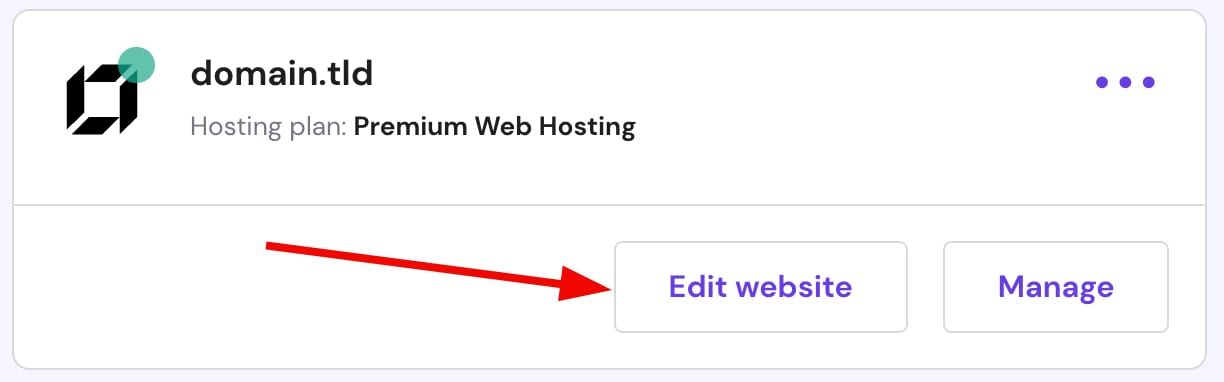
In the Websites section, click on Edit website:
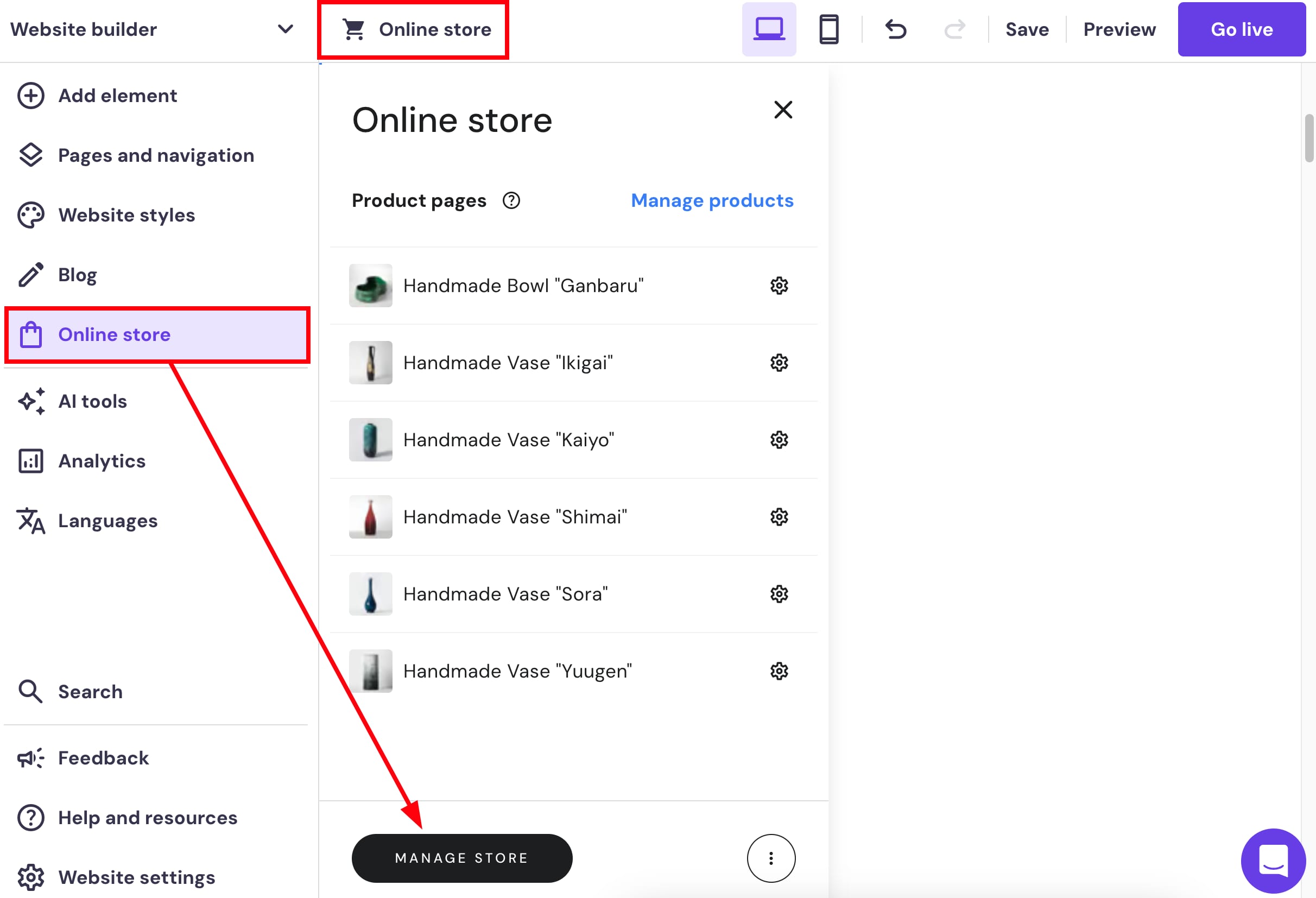
Click on Online store on the left, and select Manage store, or click on Online store at the top:
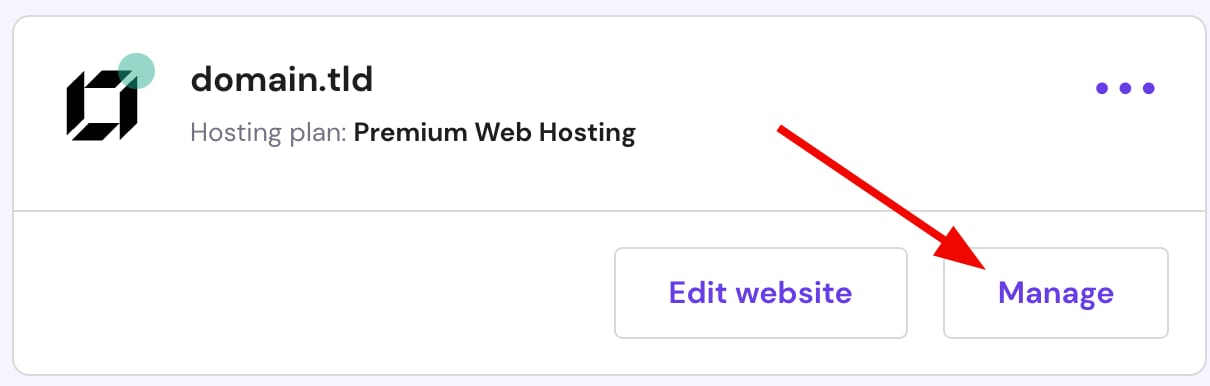
Or, in the Websites section, click on Manage:
Then, click on Manage store:
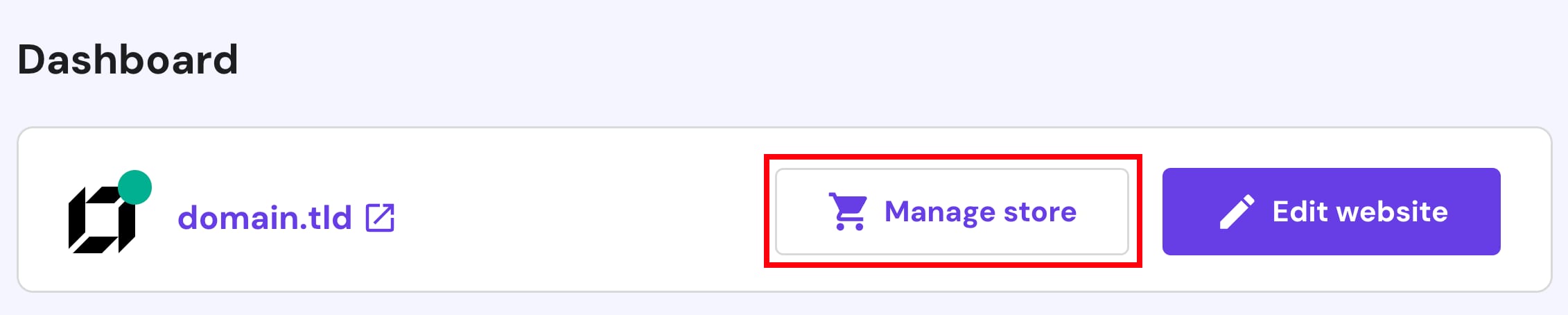
This way, you’ll be redirected to the store management area.
Product Management Area
In the store management area → Products, you can edit the information about all your products. Change their titles, images, prices, descriptions, variations, SKUs, and other details.
Within the builder, click on Online store on the left and select Manage products:
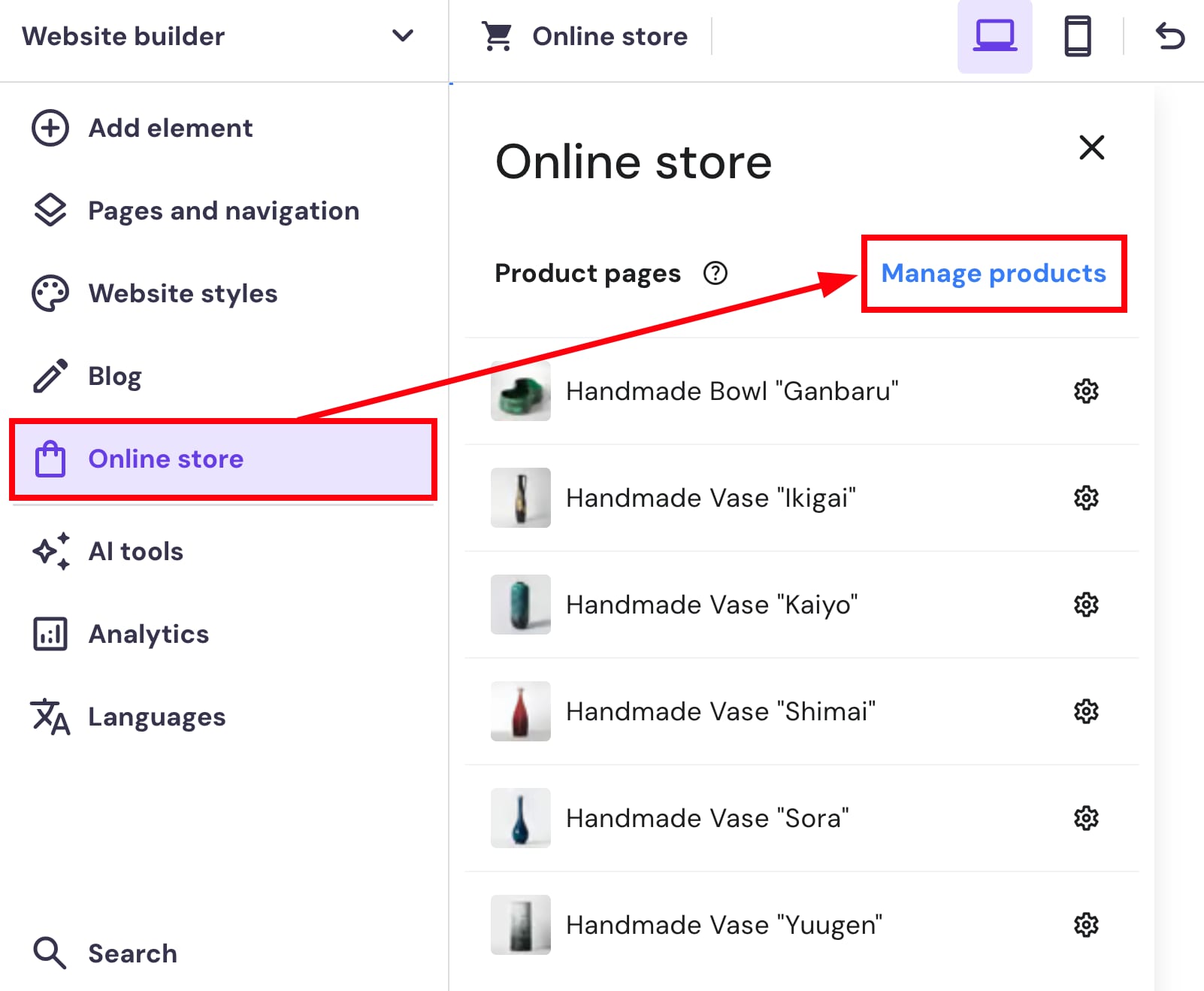
This way, you’ll be redirected to the management area of all your products.
If you want to edit the details of a particular product, navigate to Online store → settings wheel → Edit product:
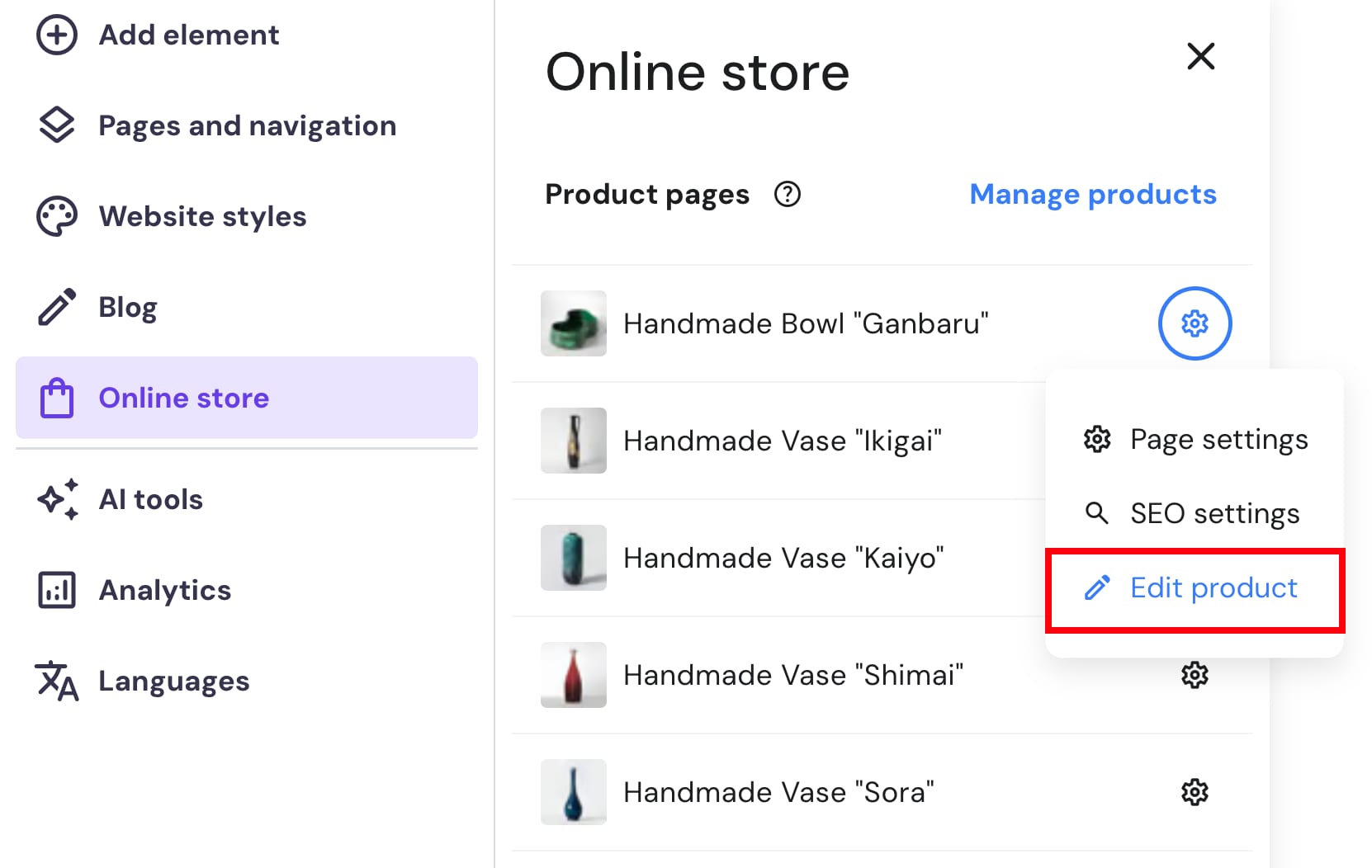
This way, you’ll be redirected to the management area of the particular product.
Product Page
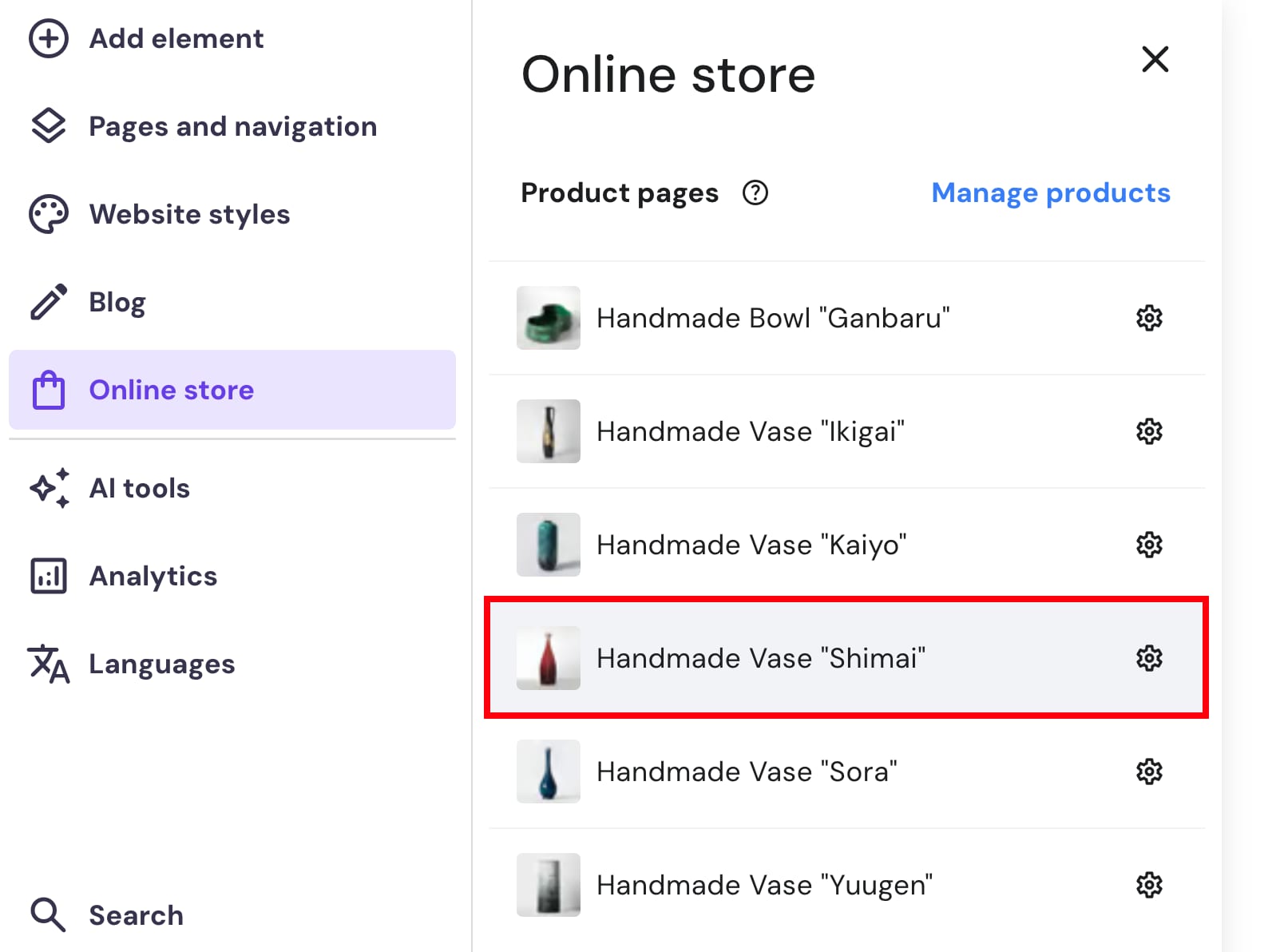
To edit the design (style, layout, etc.) of a particular product page, click on Online store on the left, and then click on the preferred product title:
Product Page Settings
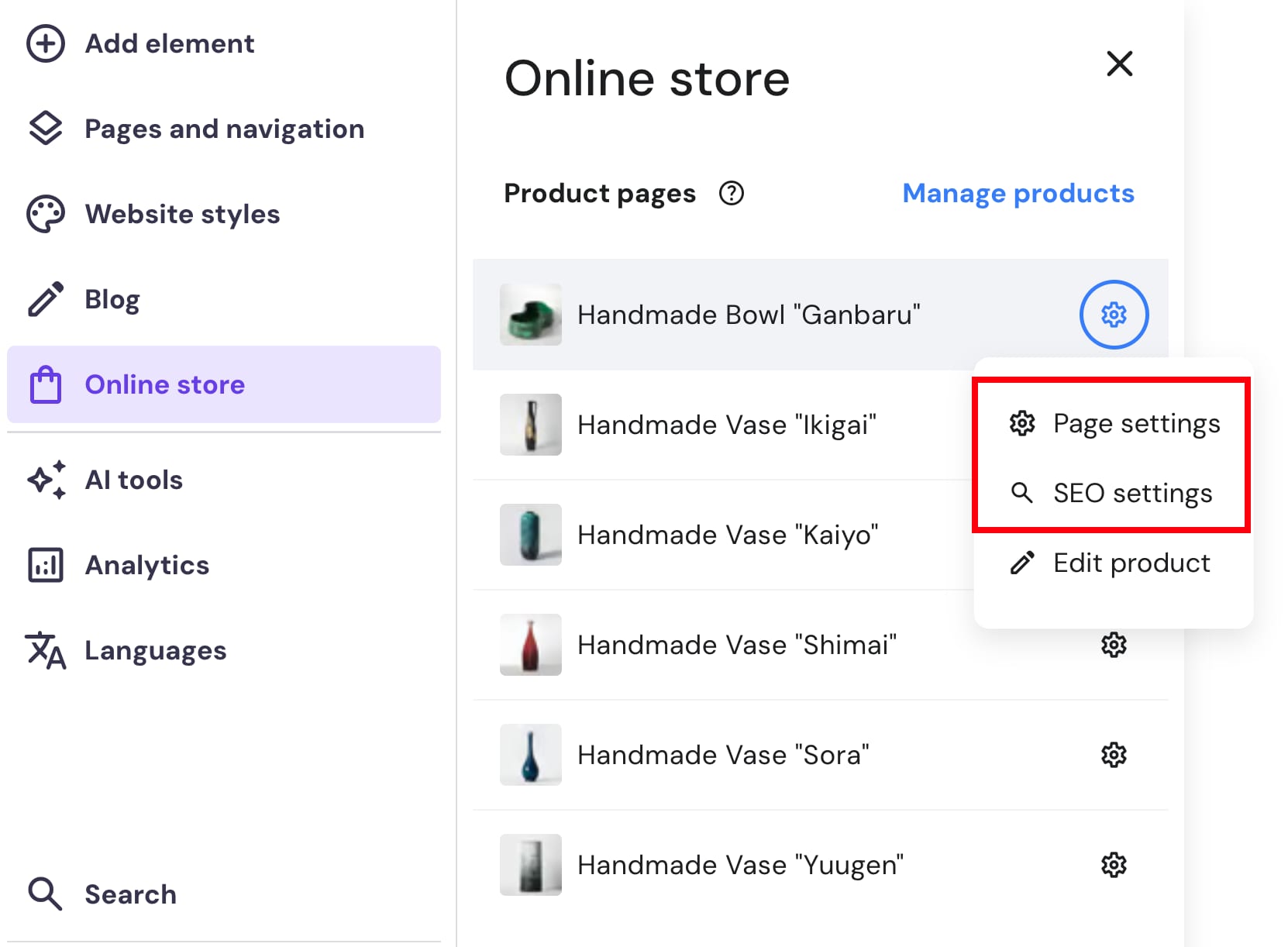
To edit the settings of a particular product page, click on Online store on the left and access the following:
-
General settings: page URL, password
-
SEO settings: meta title and description of a page, keywords, the option to hide a page from search engines
Now you know how to access the store management area in Hostinger Website Builder!