There are two ways to customize colors in Hostinger Website Builder:
Global Styles Settings
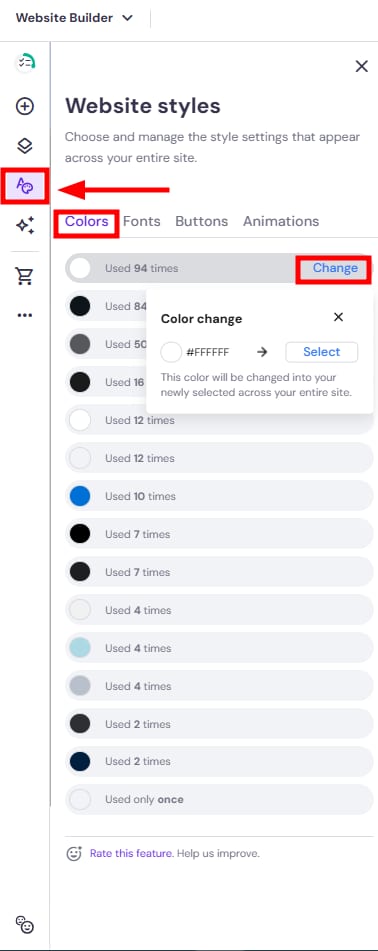
Within the editor, expand the Styles panel on the left and open the Colors tab. Here, you’ll find all colors that are used across your website. The most frequently used colors appear at the top of the list. Click on Change next to any color, then Select, pick a new color and click Accept, and it will replace the previous color all across your website:
Remember that you can still edit the appearance of individual elements and sections manually anytime (see below).
Local Style Settings
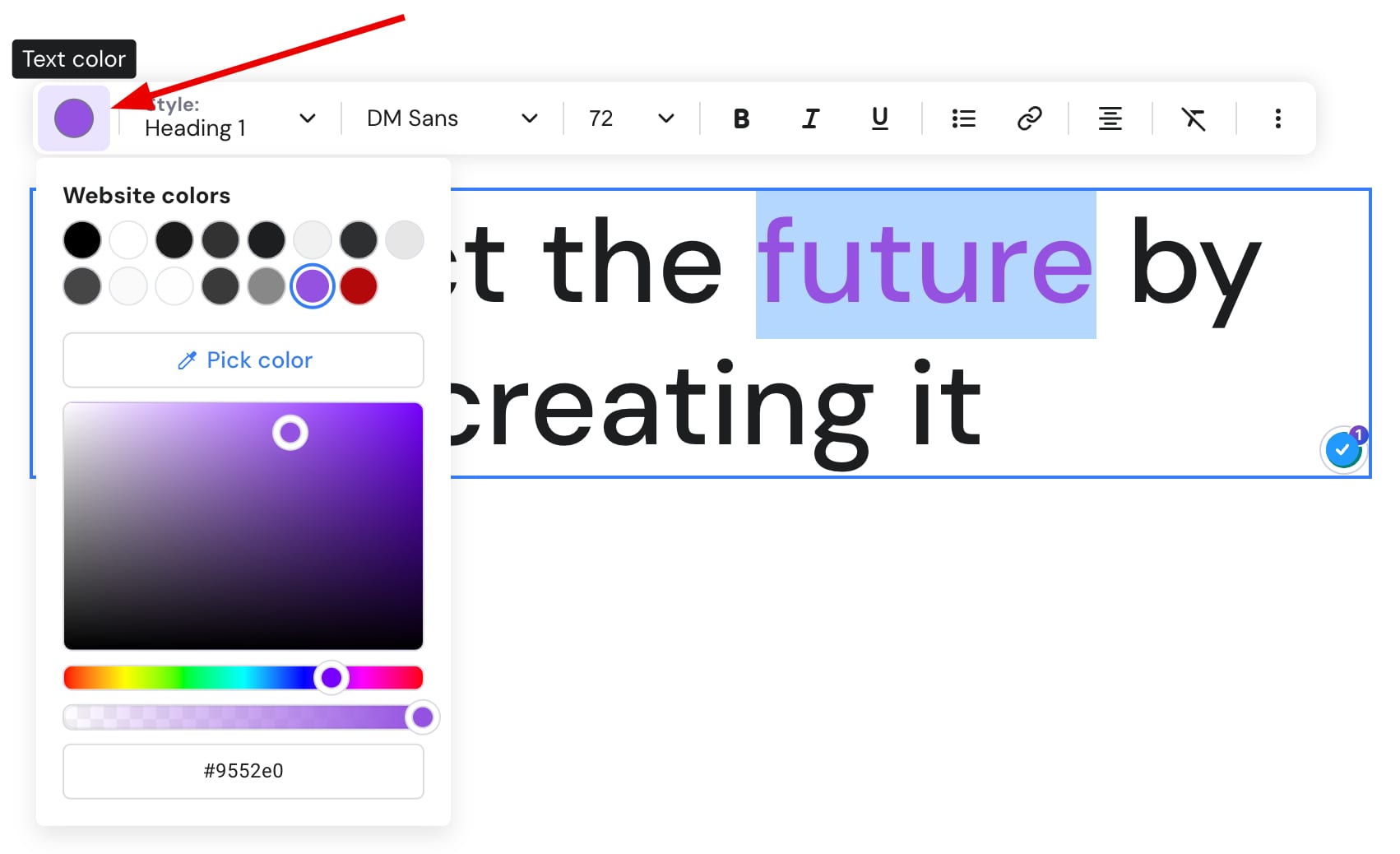
Click once on a preferred element, select Edit, and change its color individually. For example, click once on a text element and select Edit text on the top left corner. Then, select (highlight) a portion of text you’d like to change the color of and click on the color picker (if you double-click the text, the color picker will show up from the start):
Learn more:
-
Customize the style of the website’s navigation menu
-
Change the section background
-
Customize text color in the online store