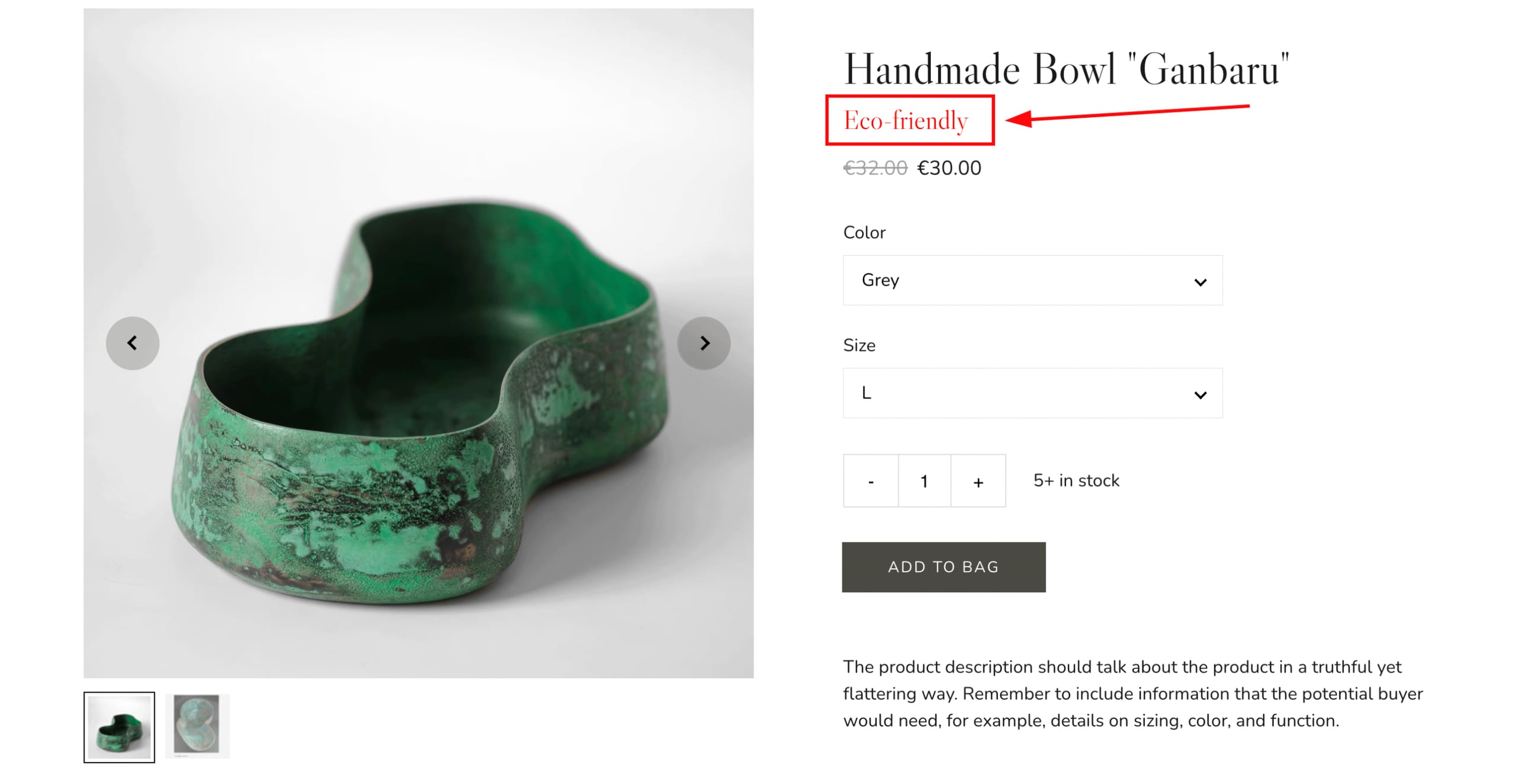
Learn how to change text color in the following areas of your online store:
-
-
Ribbon Color
-
“Add to Bag” Button Color
-
Change the Product Title Color Individually
-
Change the Pagination Color Individually
-
-
Single Product Section and/or Product Page
-
Product Description Color
-
“Add to Bag” Button Color
-
Change the Product Title Color Individually
-
Change the Product Subtitle Color Individually
-
Product List Section
Click on the product list section, select Edit section, and change the text color in the Style tab:
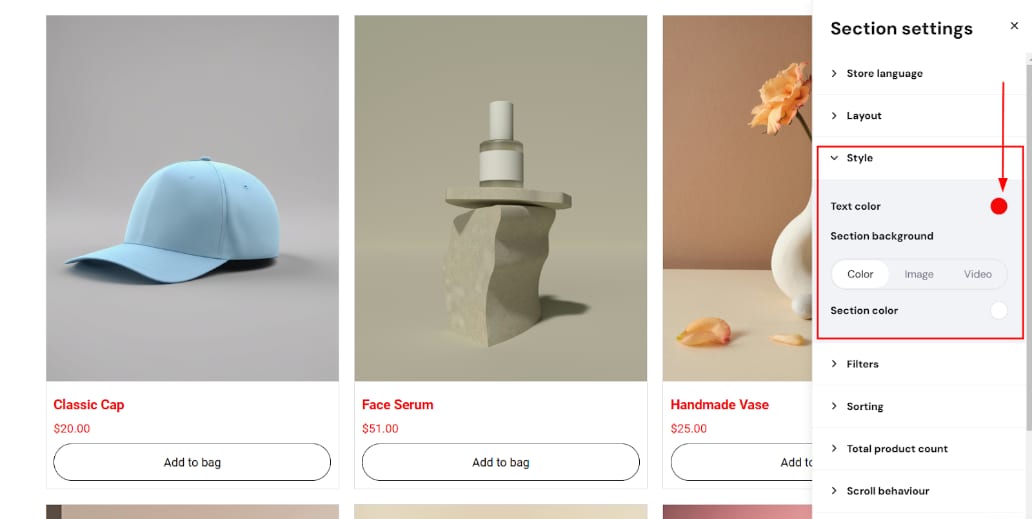
Changing the text color in the style settings will affect the product title, price, and pagination buttons. If there’s a sale price, the original price will always be a shade lighter.
Ribbon Color
Click on the product list section, select Edit section, and change the ribbon color in the Ribbons tab:
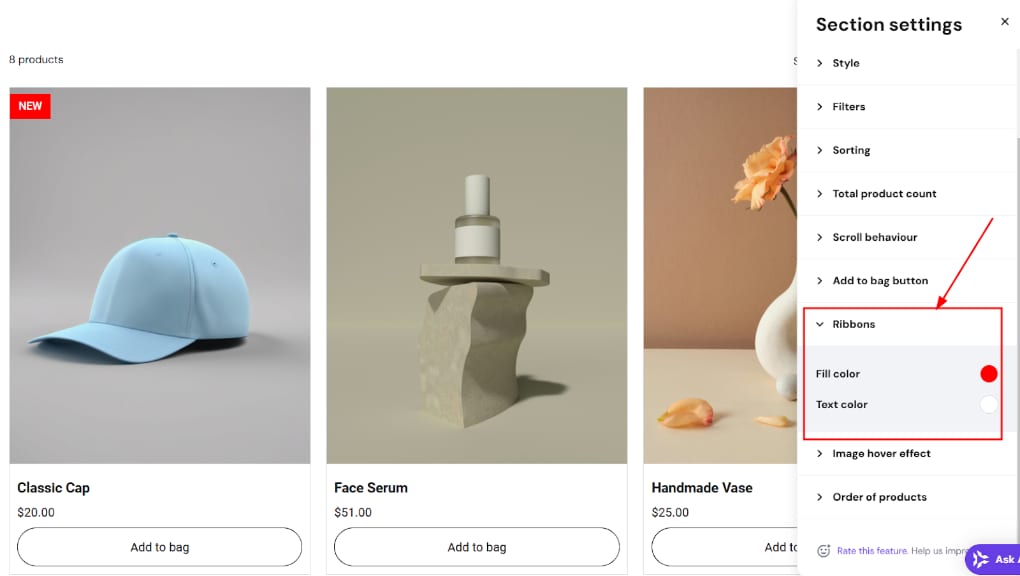
NOTE: You can add a ribbon in the product management area
“Add to Bag” Button Color
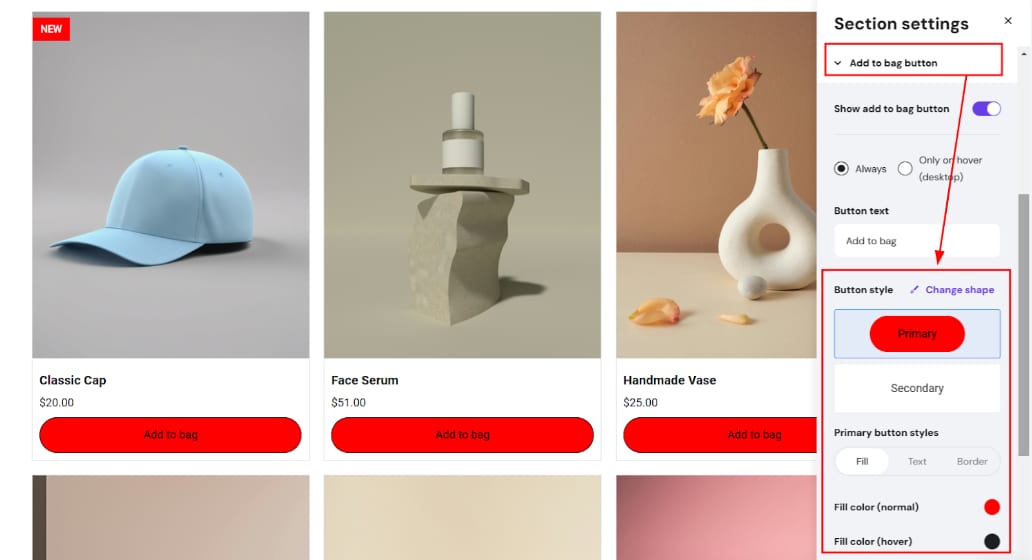
Click on the product list section, select Edit section, and change the button color in the Add to bag button tab:
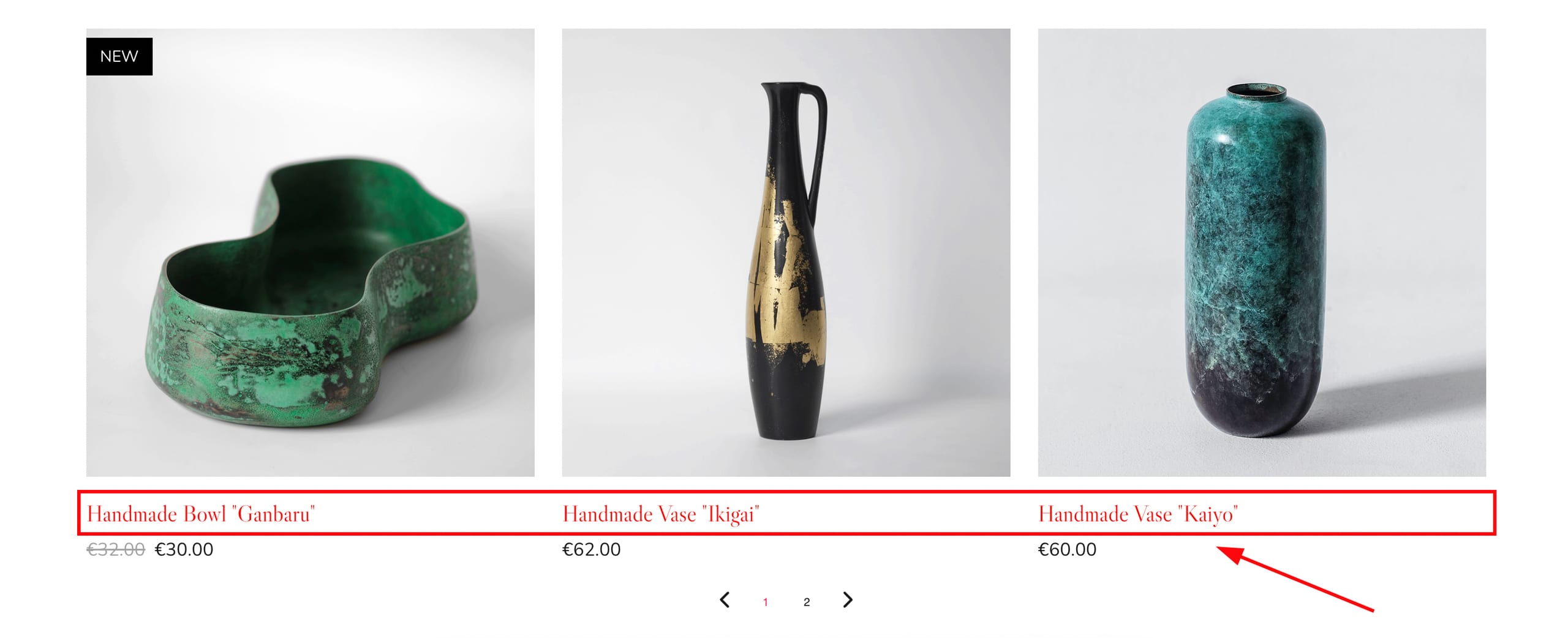
Change the Product Title Color Individually
Copy the below code, replace the HEX code with the preferred one, and paste it into the Custom code field in your website’s integrations settings:
<style>
/*Product list: Product title*/
.product-list-item__title {
color: #FF0000 !important;
}
</style>
Change the Pagination Color Individually
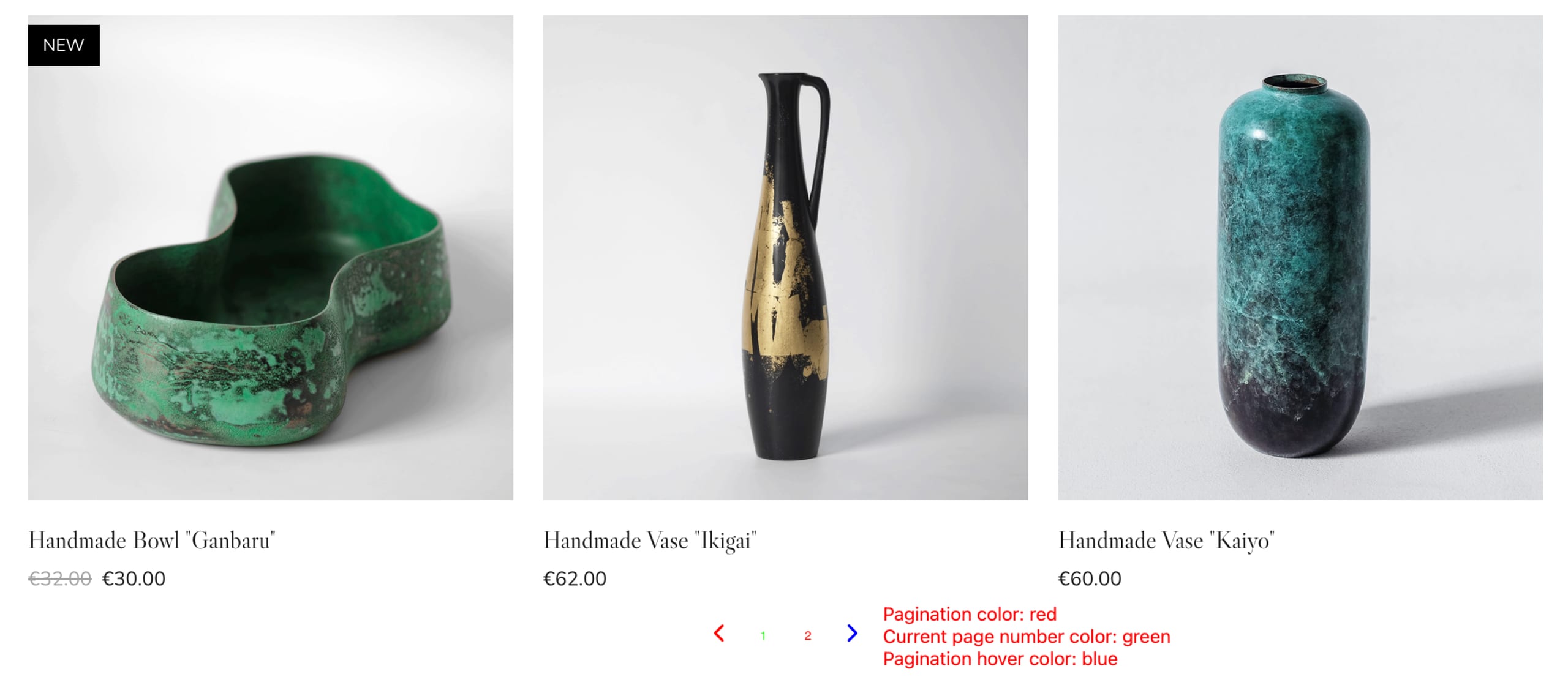
Copy the below code, replace the HEX codes with the preferred ones, and paste it into the Custom code field in your website’s integrations settings:
<style>
/*Product list: Pagination color*/
.pagination__button{
color: #FF0000 !important;
}
/*Product list: Current page number color*/
.pagination__trigger--current{
color: #00FF00 !important;
}
/*Product list: Pagination hover color*/
.pagination__button:hover, .pagination__button:active{
color: #0000FF !important;
}
</style>
Single Product Section and/or Product Page
Click on the product section, select Edit section, and change the color in the Style tab:
-
Text color
-
Arrows color on product images
-
Arrows color in the product gallery
-
Section background color (or set image background)
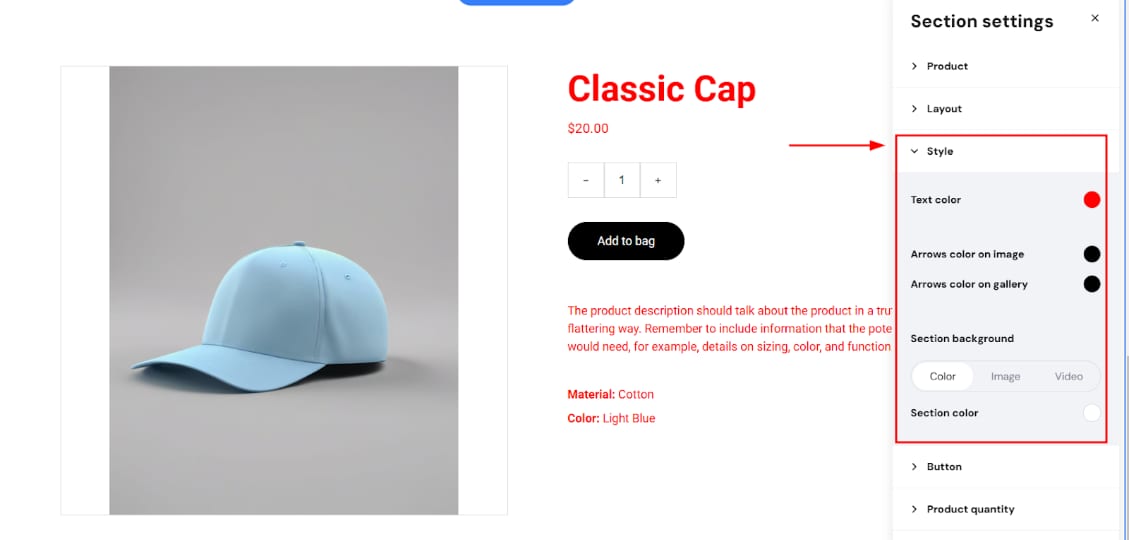
Changing the text color in the style settings will affect the product title, subtitle, price, product options, and description. If there’s a sale price, the original price will always be a shade lighter.
Product Description Color
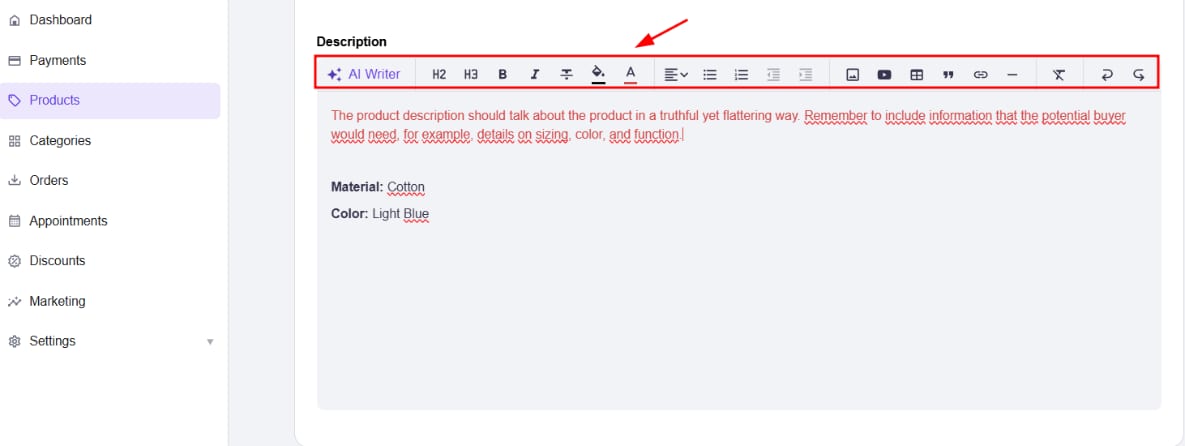
In the product management area, find the description field and change the color using text editing tools:
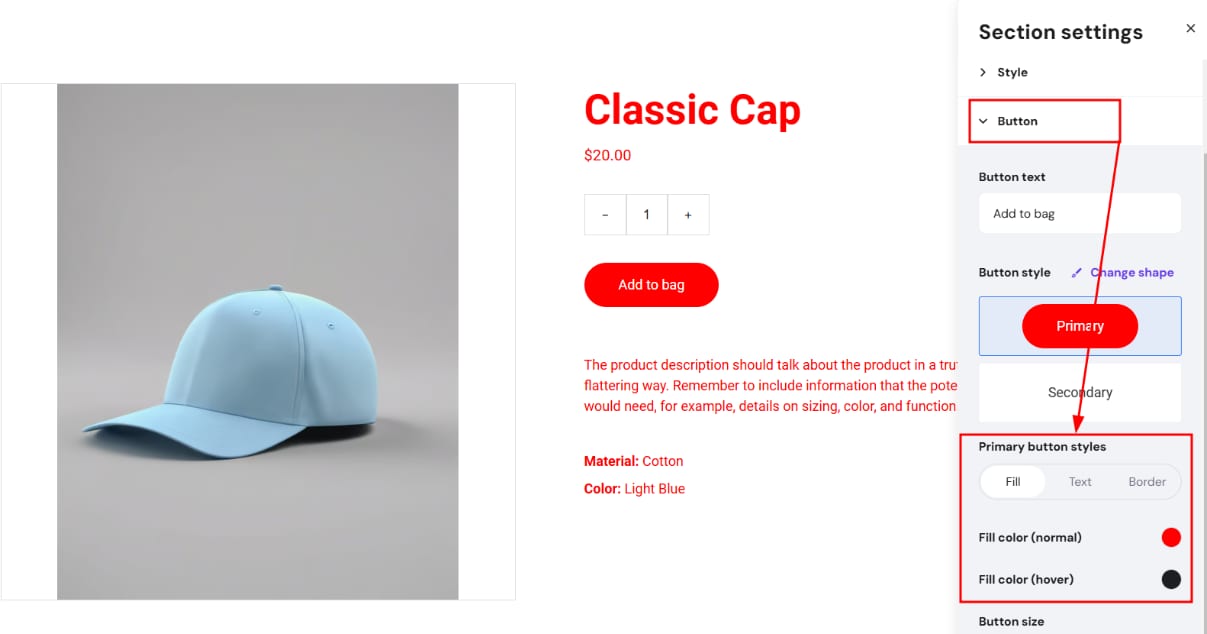
“Add to Bag” Button Color
Click on the product list section, select Edit section, and change the button color in the Button tab:
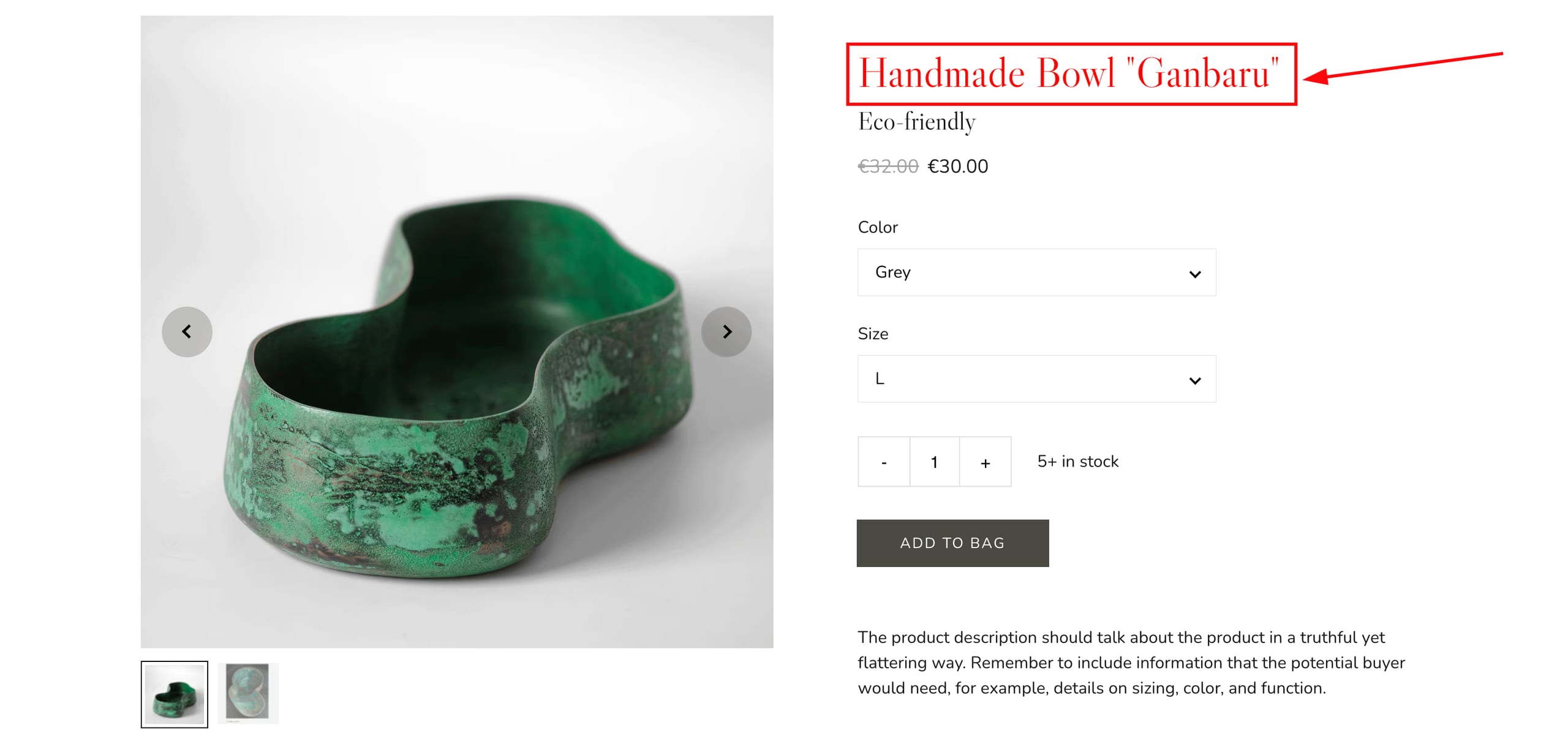
Change the Product Title Color Individually
Copy the below code, replace the HEX code with the preferred one, and paste it into the Custom code field in your website’s integrations settings:
<style>
/*Single product: Product title*/
.block-product__title {
color: #FF0000 !important;
}
</style>
Change the Product Subtitle Color Individually
Copy the below code, replace the HEX code with the preferred one, and paste it into the Custom code field in your website’s integrations settings:
<style>
/*Single product: Product title*/
.block-product__subtitle {
color: #FF0000 !important;
}
</style>