A header is the uppermost section of your website. It can also be called a menu bar, a navigation menu, or similar.
If you can’t see the header section in Hostinger Website Builder, all your website pages are likely hidden from the navigation menu 💡
Click on the header section to reveal its settings:

There are the main options:
-
-
Edit header(the first button from left to right):

-
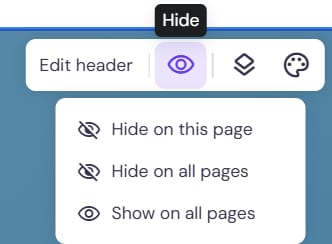
Hide the header(the second button from left to right, the Eye icon):

-
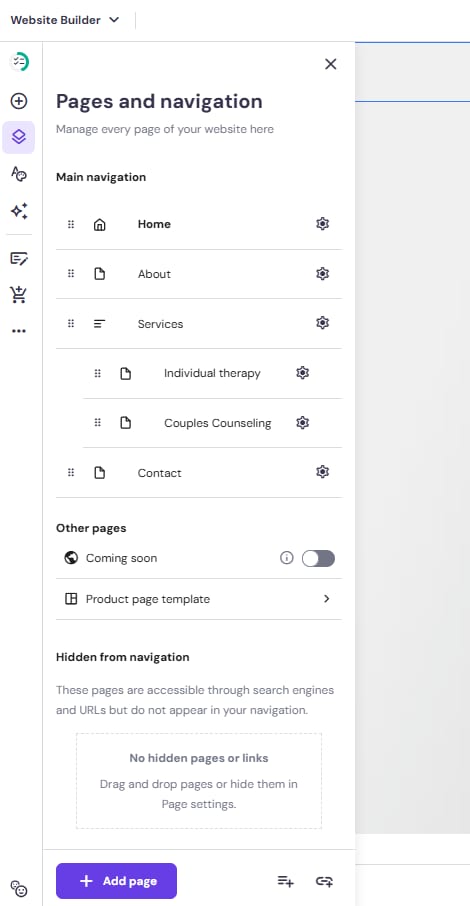
Edit navigation (the third button from left to right, the Layers icon):

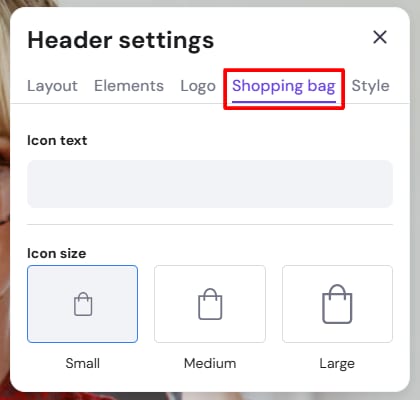
- Edit shopping bag — this option is visible only after enabling the eCommerce platform on your site:

-
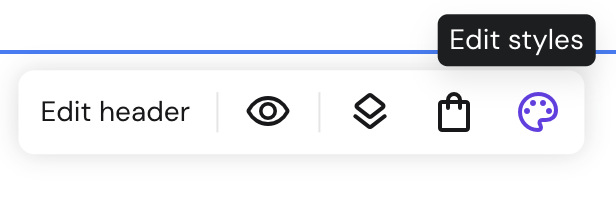
Edit styles (the fourth or fifth button from left to right, the Colour palette icon. By editing the Header section, you can also edit navigation links and styles, including colours and fonts.):
-

Edit header |
Click on Edit header to customize the following:
|
Edit navigation |
Click on the header section and then on the Edit navigation icon: it’ll expand the Pages panel on the left. Here, you can add, rename, sort, hide, or remove menu items and links. |
Edit shopping bag |
Click on the header section, and then click on the shopping bag icon. Here, you can enable or disable the shopping bag, as well as change its title and size. NOTE: This option is visible only after enabling the eCommerce platform on your site |
Edit styles |
Click on the header section, and then click on the Colour palette icon. Here, you make style changes to Header, Buttons and Social icons. It’s possible to make changes for Normal and Hover links text colours. You can change the navigation items text font and colours here. You can also pick the colour of the Header background and toggle its transparency. |
And that’s it! Now you know how to define the settings of your website’s header section 😊