The Billing section in hPanel allows you to manage your Hostinger service renewals, view your invoice history, and update your payment details. This guide covers how to navigate your subscriptions, payments, and saved payment methods to keep your services running smoothly.
Navigate to the Billing section
To access your billing details, log in to your hPanel, click on the profile icon in the top-right corner, and select Billing.
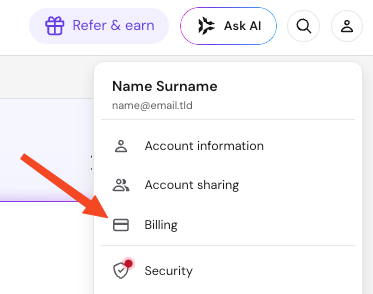
You will find the following options on the sidebar: Subscriptions, Payment History and Payment Methods.
Manage subscriptions
The Subscriptions page lists all services associated with your account. The main list displays the following information.
- Service name: The type of service and its specific plan tier if applicable.
- Associated domain: The domain name connected to the service. For hosting plans with multiple websites, only one domain is listed as a reference.
- Expiration date: The final date of the current billing cycle.
- Auto-renewal status: A toggle switch to enable or disable automatic renewals. When auto-renewal is enabled, Hostinger automatically charges your saved payment method before expiration (27 days prior for domains, 14 days for yearly plans, and 1 day for monthly plans).
- Renewal price: The base cost to renew the service before taxes, shown in your account currency.
- Status indicator: Displays whether a service is active, pending setup, expired or canceled. Services pending setup display a button to initiate the order configuration.
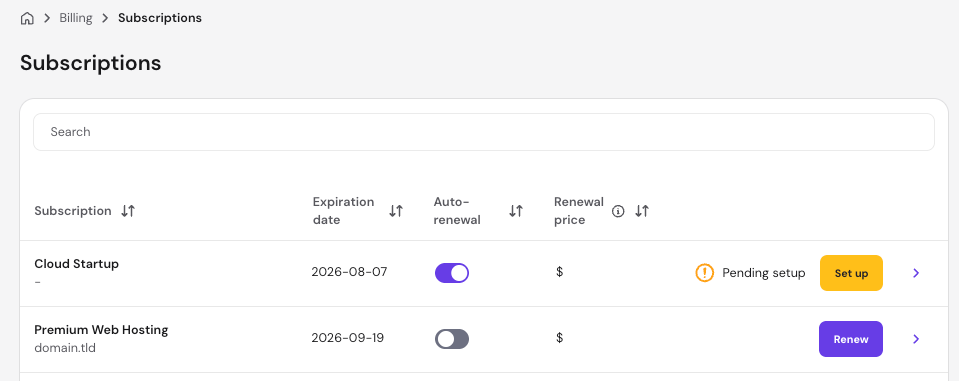
Clicking the arrow (❯) next to any subscription opens the subscription details drawer. A status card shows the current renewal state, next charge amount, billing period, and renewal date. The available actions depend on the status of the service:
- Active: Click Cancel subscription at the bottom of the drawer to stop future automatic renewals. The service remains active until the expiration date.
- Cancelled: Click Resume subscription to re-enable auto-renewal, or click Renew to extend the service manually.
- Expired: Click Renew to reactivate the service.
The lower portion of the details drawer contains the service status, expiration date, renewal price, taxes and fees, subscription ID, the option to change the billing cycle (if auto-renewal is enabled), and options to upgrade or downgrade the service if applicable.
View payment history
The Payment History page displays a record of all completed transactions. You can view refunded invoices by selecting the Refunded History tab. Each entry includes:
- Payment ID: The unique identification number required to locate a transaction or initiate support requests.
- Subscription ID: The unique identifier assigned to the specific product. A single subscription can have multiple associated payments over time, such as renewals and upgrades.
- Service: The specific service and billing period covered by the transaction.
- Paid at: The date the transaction was processed.
- Amount: The total amount processed for the entry.
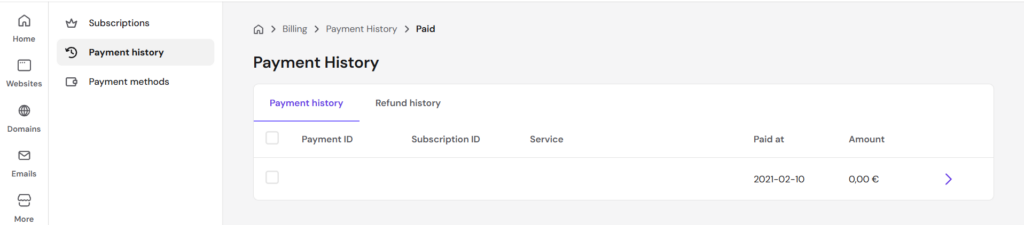 Clicking the arrow (❯) next to a payment opens additional details, an amount breakdown, and the option to download the invoice as a PDF file.
Manage payment methods
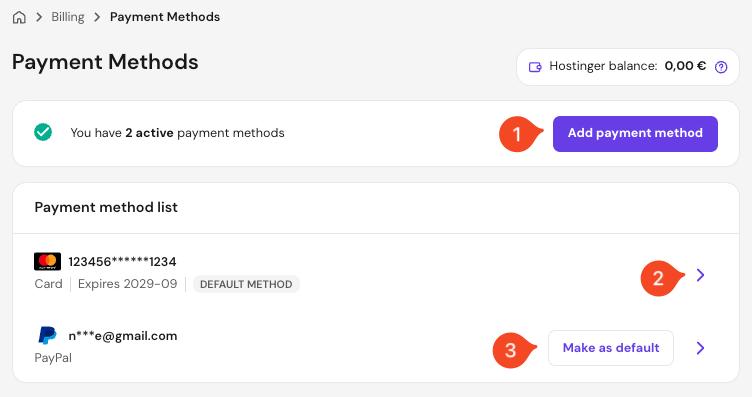
The Payment Methods page allows you to check your available Hostinger balance and manage your saved credit cards or digital wallets.
Saved payment methods enable one-click purchases and ensure that auto-renewal functions properly for your active services. In this area, you can:
- Add a new payment method.
- Click the arrow (❯) on an existing payment method to remove it.
- Change the default payment method if multiple methods are saved.
NOTE
- For security reasons, your payment method details are masked.
Managing these billing configuration options helps you track your expenses easily and ensures all your Hostinger services remain active and uninterrupted.