If your current hosting plan offers more resources than required, you can easily downgrade to a lower tier directly through hPanel. This allows you to optimize your hosting costs while keeping your website online and fully functional.
Before you start
- Ensure your resource usage does not exceed the limits of the target plan.
- The downgrade applies only to the selected hosting plan; other purchased services in the account remain unaffected.
How to downgrade your hosting plan
To downgrade your hosting plan, follow these steps:
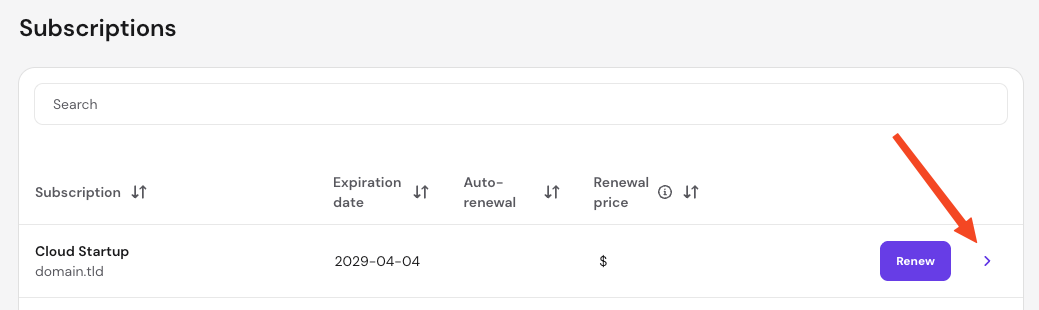
- Go to hPanel → Billing → Subscriptions.
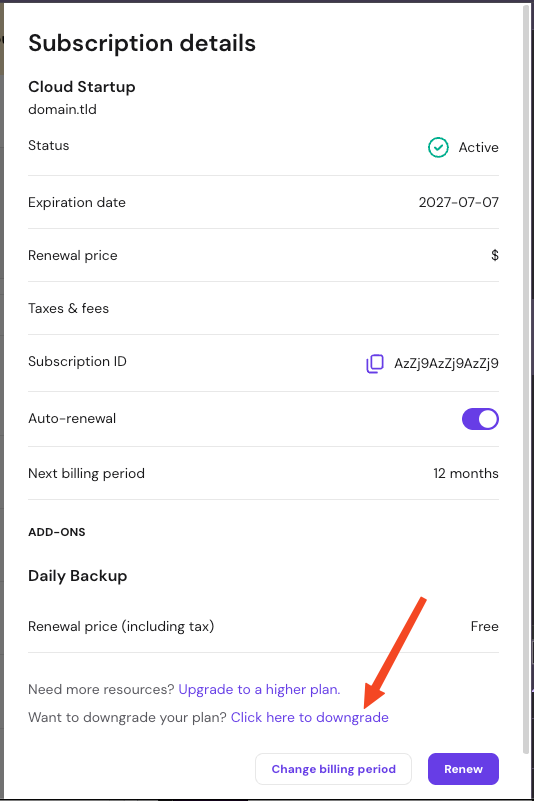
- Locate the hosting plan you wish to change and click the arrow (❯) to manage the subscription.

- Click on the Downgrade option.

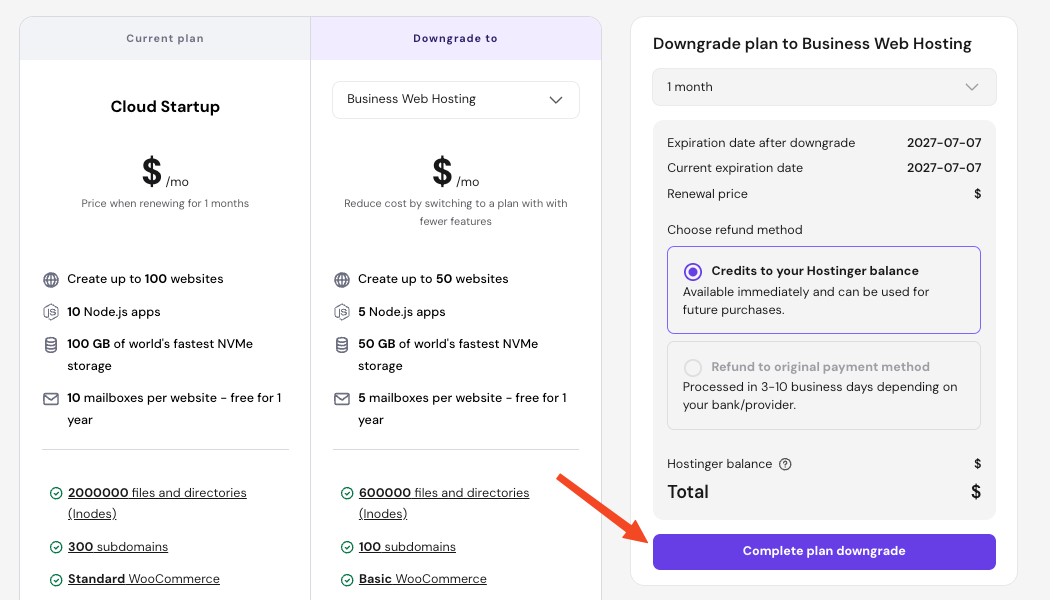
- Review the available hosting plan options by clicking on the dropdown below Downgrade to. If enabled, you may change the billing cycle and select a refund method.
- Confirm the selection by clicking Complete plan downgrade.

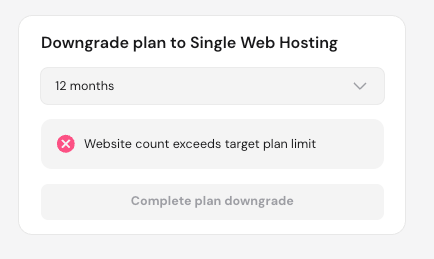
If a downgrade is not possible to the selected new plan, a notification explaining the reason appears and the button to downgrade is disabled.
Hosting plan changes after downgrading
When processing a hosting plan downgrade, the system applies the following logic to your account.
- Billing cycle: The expiration date of your current plan remains the same. The downgrade applies immediately to your current billing period.
- Proration credits: The system calculates the price difference based on the unused portion of your higher-tier plan. This prorated amount is credited back as a refund.
- Resource adjustment: Your plan’s resource allocations (such as storage, bandwidth, or website limits) drop to the target plan’s thresholds immediately upon confirmation.
Successfully downgrading your hosting plan helps you balance your budget while maintaining your online presence. You can now manage your updated resources and balance directly from your dashboard.
NOTE
- If the entire credit amount is automatically consumed by active account adjustments, your remaining added balance will be zero.