Top 10 WordPress alternatives compared for 2026
May 22, 2026
/
Larassatti D. & Miglė C.
/
19 min Read
As a website creation tool, WordPress is highly flexible, widely supported, and backed by a massive ecosystem of themes and plugins. But it’s not the right fit for everyone.
Some users find managing updates, plugins, and security patches more involved than they’d like. Others simply want a platform that’s purpose-built for their specific goal – whether that’s publishing a newsletter, launching an online store, or building a design portfolio – without piecing together plugins to get there.
Here are the 10 best WordPress alternatives, each suited to a different type of website and user:
- Hostinger Website Builder. Best for beginners who want an all-in-one website builder with hosting and a domain included.
- Ghost. Best for bloggers and publishers who want a fast, content-focused CMS with built-in newsletters and memberships.
- Medium. Best for writers who want to publish immediately without setting up or maintaining a website.
- Drupal. Best for large organizations that need advanced customization, security, and scalability.
- Joomla. Best for developers and businesses that need a flexible, open-source CMS with strong multilingual support.
- HubSpot Website Builder. Best for marketers and small businesses who want a no-code builder with integrated CRM and analytics.
- Blogger. Best for casual bloggers who want a completely free, no-maintenance blogging platform.
- Wix. Best for small businesses and beginners who want an intuitive drag-and-drop editor with plenty of templates.
- Squarespace. Best for creatives and small businesses who prioritize beautiful design and a polished all-in-one experience.
- Webflow. Best for designers and developers who want pixel-level design control with a built-in CMS.
Each platform has different strengths, pricing, and trade-offs. Let’s break down what each one offers, who it’s best for, and how much it costs so you can find the right fit for your project.
1. Hostinger Website Builder
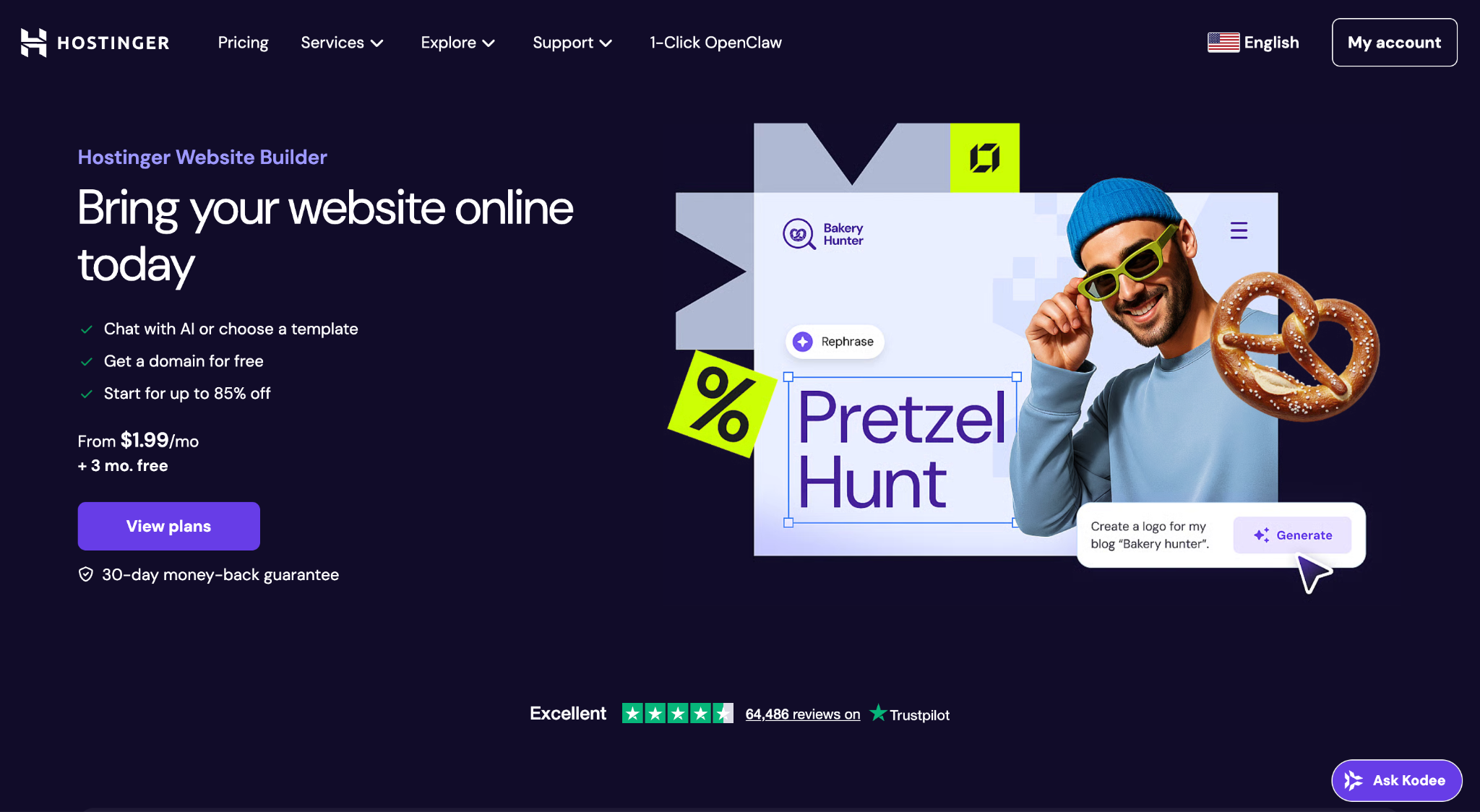
Hostinger Website Builder is a drag-and-drop website builder that lets you launch a professional site online quickly without coding.
The builder includes an AI tool that generates a full site layout from a brief description of your business. Alternatively, you can choose from over 150 responsive website templates covering multiple use cases, including online stores, portfolios, business showcases, booking websites, or link in bios.
From there, you customize everything with a visual editor – move sections, swap images, or edit text. It’s not as flexible as WordPress when it comes to code-level customization, but for most simple to moderate websites, it covers what you need.
Hostinger Website Builder also comes with built-in SEO tools and additional AI-powered features. It also integrates seamlessly with Hostinger Reach, our beginner-friendly email marketing platform.
To understand the differences between WordPress and website builders in general, the biggest one is simplicity: a website builder handles the technical side for you, while WordPress gives you more control at the cost of a steeper learning curve.
Hostinger Website Builder pros:
- Very easy to use. The drag-and-drop editor and AI site generator make setup fast, even for complete beginners.
- All-in-one pricing. Hosting, SSL, and a free domain for the first year are included in every plan – no separate purchases needed.
- Mobile-optimized templates. All websites created with Hostinger Website Builders are mobile-responsive. Alternatively, you can specifically edit how your site looks on mobile devices using the mobile editor interface.
- Built-in AI tools. Beyond the site generator, the Business plan includes an AI blog writer, an AI logo maker, and an AI image generator to help you create content and optimize your layout faster.
- Zero transaction fees on ecommerce. You can sell digital and physical products without Hostinger taking a cut of your sales.
- 24/7 customer support. Live chat support is available around the clock on all plans, which is helpful for beginners who need guidance during setup.
Hostinger Website Builder cons:
- Less customizable than WordPress. You’re working within the builder’s design system, so there’s a ceiling on how much you can change.
- Not built for highly complex or enterprise-grade sites. If you need advanced features like custom databases, multi-level user roles, or hundreds of dynamic pages, you’ll outgrow this website builder.
Hostinger Website Builder pricing:
Hostinger Website Builder offers two plans – Premium and Business. The Premium plan starts at $2.99/month (for a 48-month term), while the Business plan starts at $3.79/month and adds ecommerce features like an online store functionality with zero transaction fees. Both plans include hosting, and if you sign up for the yearly bundles, you’ll get a free domain for the first year and a lifetime SSL certificate.

2. Ghost
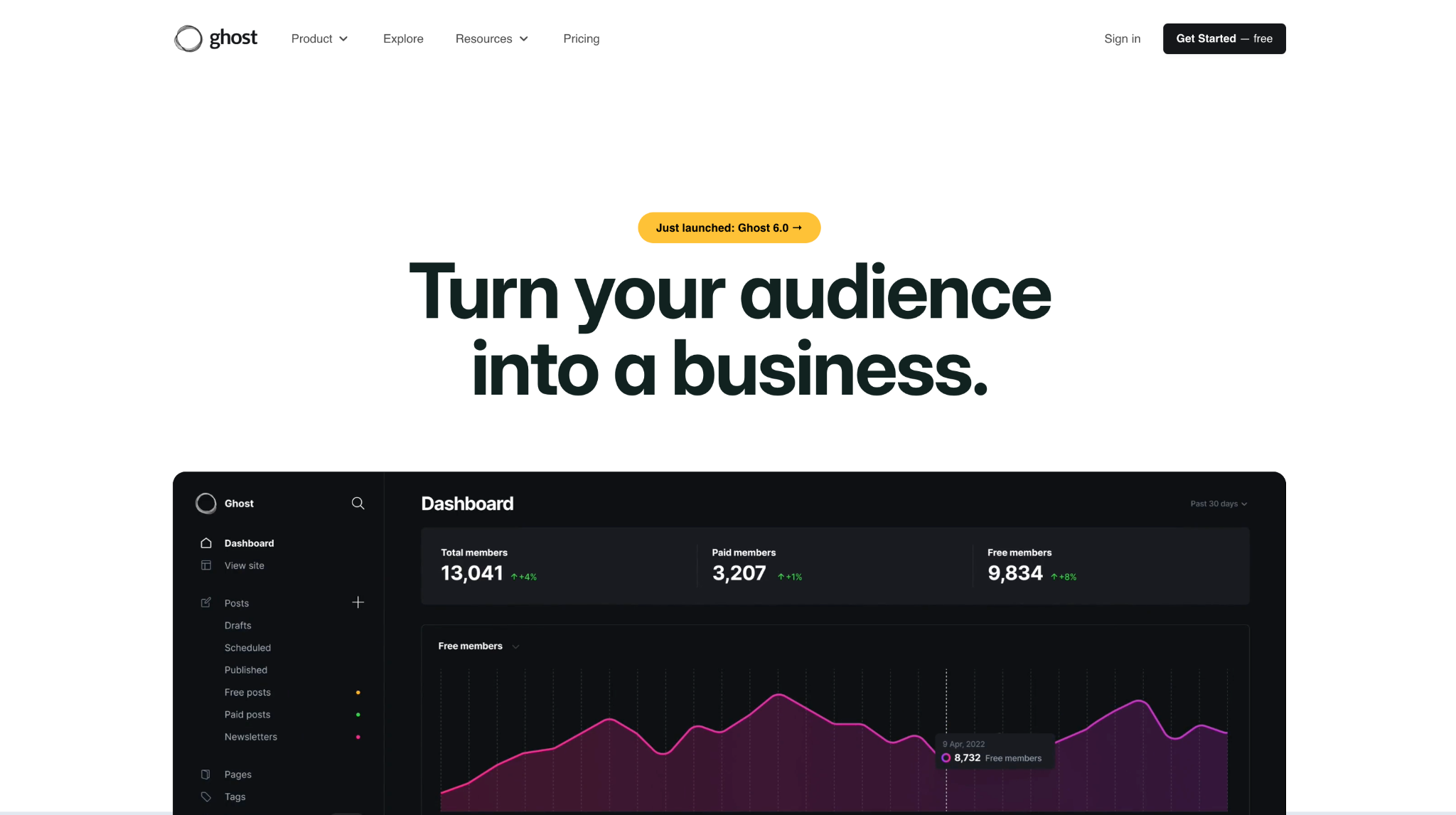
Ghost is an open-source content management system (CMS) designed specifically for professional bloggers, journalists, and publishers. Where WordPress tries to be everything to everyone, Ghost stays focused on one thing: publishing content fast, with a clean, distraction-free writing experience.
Ghost runs on Node.js, which gives it a speed advantage over WordPress’s PHP-based architecture. Pages load faster, and the admin interface feels snappier. It also ships with built-in features that WordPress requires plugins for – including email newsletters, membership subscriptions, and SEO tools.
The trade-off is flexibility. Ghost doesn’t have a plugin ecosystem, so the built-in feature set is all you have to work with. Theme customization requires editing Handlebars templates and CSS, which means some coding knowledge is helpful – especially if you self-host.
Ghost pros:
- Clean, writing-first editor. Ghost’s editor supports rich content blocks – images, galleries, embedded videos, code snippets – without the clutter of a general-purpose page builder.
- Built-in subscriptions and newsletters. Collect free and paid members, send newsletters, and manage everything from one dashboard – no plugins needed.
- Fast performance and strong SEO. Ghost generates clean code, automatic sitemaps, and structured data out of the box, which helps with search engine rankings.
- Zero platform fees on revenue. Ghost doesn’t take a percentage of your membership or subscription income – you only pay Stripe’s standard processing fee.
- Headless CMS capability. Ghost’s Content API lets you use it as a backend while building a custom frontend with any framework, giving developers more flexibility.
- Active open source development. Ghost releases regular updates, including recent additions such as ActivityPub support for the open social web, demonstrating a consistent investment in the platform’s future.
Ghost cons:
- Minimal theme and plugin options. Ghost has a smaller selection of themes compared to WordPress, and there’s no plugin marketplace to extend functionality.
- Self-hosting requires technical skill. Running Ghost on your own server means managing updates, security, backups, and email delivery configuration.
- Smaller community. Finding answers to niche questions or hiring Ghost developers is harder than with WordPress’s massive community.
Pricing:
Ghost offers two paths: managed hosting through Ghost(Pro) or free self-hosting.
Ghost(Pro) managed plans start at $15/month (billed annually) for the Starter tier, which includes hosting, updates, and email delivery. The Publisher plan costs $29/month, and the Business plan costs $199/month – each increasing staff seats, member limits, and email volume.
Self-hosting is free, but you’ll need your own server – specifically a VPS that supports Node.js, since Ghost is built on it. Hostinger VPS offers a pre-installed Ghost template, so setup takes just a few clicks rather than conducting a manual command-line installation. The pricing starts at $8.79/month.

3. Medium
Medium is an online publishing platform, so you won’t get a custom domain, custom design, or a site you control. Instead, you’ll get instant access to an audience of millions of readers and a clean, distraction-free writing experience.
For writers who want to focus entirely on writing and skip everything technical, Medium removes every barrier. There’s no hosting to manage, no design to worry about, and no plugins to configure. You write, hit publish, and your post goes live on a platform with built-in readers and social-sharing features.
That said, the control you have will be minimal. Your content lives on Medium’s platform, subject to its rules. Additionally, monetization works through Medium’s Partner Program rather than your own payment setup. If you want to learn more about the trade-offs, our comparison of WordPress vs Medium covers the key differences in depth.
Medium works best as a complement to a main website for blogging rather than a replacement for one. If your primary goal is getting your ideas in front of people quickly, it’s hard to beat. But if you need branding, ecommerce, or full ownership of your content, you’ll want to look at other options from our list of the best blogging platforms.
Medium pros:
- Zero setup or maintenance. Sign up, start writing, and publish immediately – no hosting, domains, or software to manage.
- Built-in audience. Medium’s recommendation engine and follower system help your writing reach readers who are already on the platform.
- Clean reading experience. The design is minimal and consistent, which keeps readers focused on your content rather than the site design.
- Built-in social features. Readers highlight passages, leave responses, and share articles within Medium’s network, creating engagement that you’d need multiple plugins to replicate on WordPress.
- Partner Program monetization. Writers earn money based on members’ reading time without needing to set up payment processing, ad networks, or sponsorship deals themselves.
Medium cons:
- Limited to Medium’s platform. You can’t install custom features, sell products, or control your site structure – your content lives on their platform.
- Custom domains require workarounds. Publishing on your own custom domain name on Medium requires additional setup and isn’t straightforward by default.
- Constrained monetization and branding. Earnings come through Medium’s Partner Program, and branding options are limited to basic publication settings.
Medium pricing:
Medium is free to use for writers. You can create an account and publish unlimited articles without paying anything.
For readers, Medium offers a membership at $5/month or $50/year, which removes article paywalls and gives access to all content on the platform. Writers earn money through the Partner Program based on member reading time, not through their own subscription setup.
This is a fundamentally different model from WordPress or any self-hosted platform. You’re not paying for hosting and tools – but you’re also not building an asset you fully own.
4. Drupal
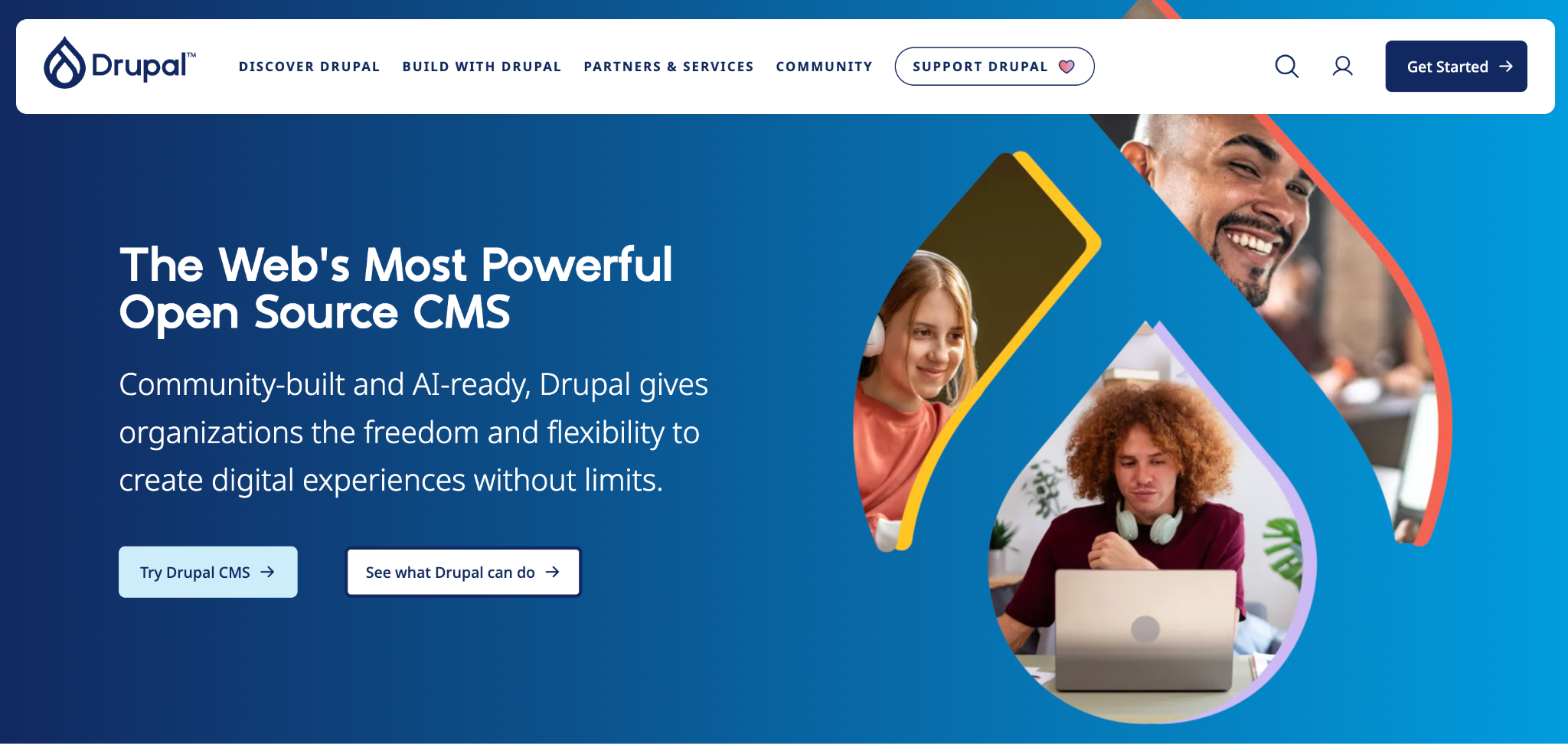
Drupal is a powerful open-source CMS designed for complex, large-scale websites that require advanced security, extensive customization, and the ability to handle heavy traffic. Think government websites, universities, large media outlets, and enterprise platforms – sites where WordPress’s plugin-dependent architecture might struggle with performance or security requirements.
Drupal’s strength is its modular architecture. You build your site from modules (similar to WordPress plugins, but more deeply integrated into the core), and the system gives you fine-grained control over content types, user roles, taxonomies, and workflows.
It also has a strong security track record – the Drupal Security Team actively monitors and patches vulnerabilities, which is why organizations with strict compliance requirements often choose it.
The downside of Drupal is the complexity. Building and maintaining a Drupal site typically requires developer resources, and the initial setup takes significantly longer than WordPress or a website builder. If you don’t have a development team or the budget to hire one, Drupal is likely overkill.
Our Drupal vs WordPress guide covers the key differences in usability, flexibility, and cost.
Drupal pros:
- Highly customizable and scalable. Drupal’s modular system handles complex content structures, custom workflows, and high-traffic websites without performance issues.
- Enterprise-grade security. A dedicated security team and strict coding standards make Drupal a go-to for organizations with regulatory or compliance needs.
- Active developer community. Thousands of contributed modules and a well-documented API mean developers rarely hit a wall when building custom features.
- Advanced content modeling. Drupal lets you define custom content types, fields, relationships, and taxonomies with a level of detail that most other CMS platforms can’t match without plugins.
- Multisite management. A single Drupal installation supports multiple websites sharing the same codebase, which simplifies maintenance for organizations running several properties.
- Strong accessibility standards. Drupal follows WCAG accessibility guidelines and includes built-in features for creating accessible websites – a requirement for government and public sector projects.
Drupal cons:
- Steep learning curve. Drupal requires PHP, HTML/CSS knowledge, and familiarity with its architecture – it’s not a DIY platform for non-developers.
- Requires developer resources. Building, customizing, and maintaining a Drupal site almost always requires hiring a developer or having one on your team.
- Slower to launch. The initial setup and configuration take more time than WordPress, especially for custom content types and permissions.
Pricing:
Drupal’s core software is free. The real costs come from hosting, development, and ongoing maintenance.
To demonstrate, Hostinger’s Drupal hosting starts as low as $2.99/month. This covers simpler use cases, such as small-business sites, personal blogs, portfolios, and low-traffic informational pages. The plan includes a one-click Drupal installer, a free domain for the first year, and an SSL certificate.
If your project needs stronger resources to power complex modules, custom content types, or higher traffic, you can also host a Drupal instance on a VPS for dedicated CPU, RAM, and full root access – starting at $8.79/month.
Enterprise-level sites often need managed hosting that costs over $100/month. Meanwhile, developer costs for a custom Drupal build can even reach thousands of dollars, depending on complexity.
This makes Drupal’s total cost of ownership higher than WordPress for most use cases. It’s an investment that pays off for organizations with complex needs, but it’s not the right fit for smaller budgets or simple sites.
5. Joomla
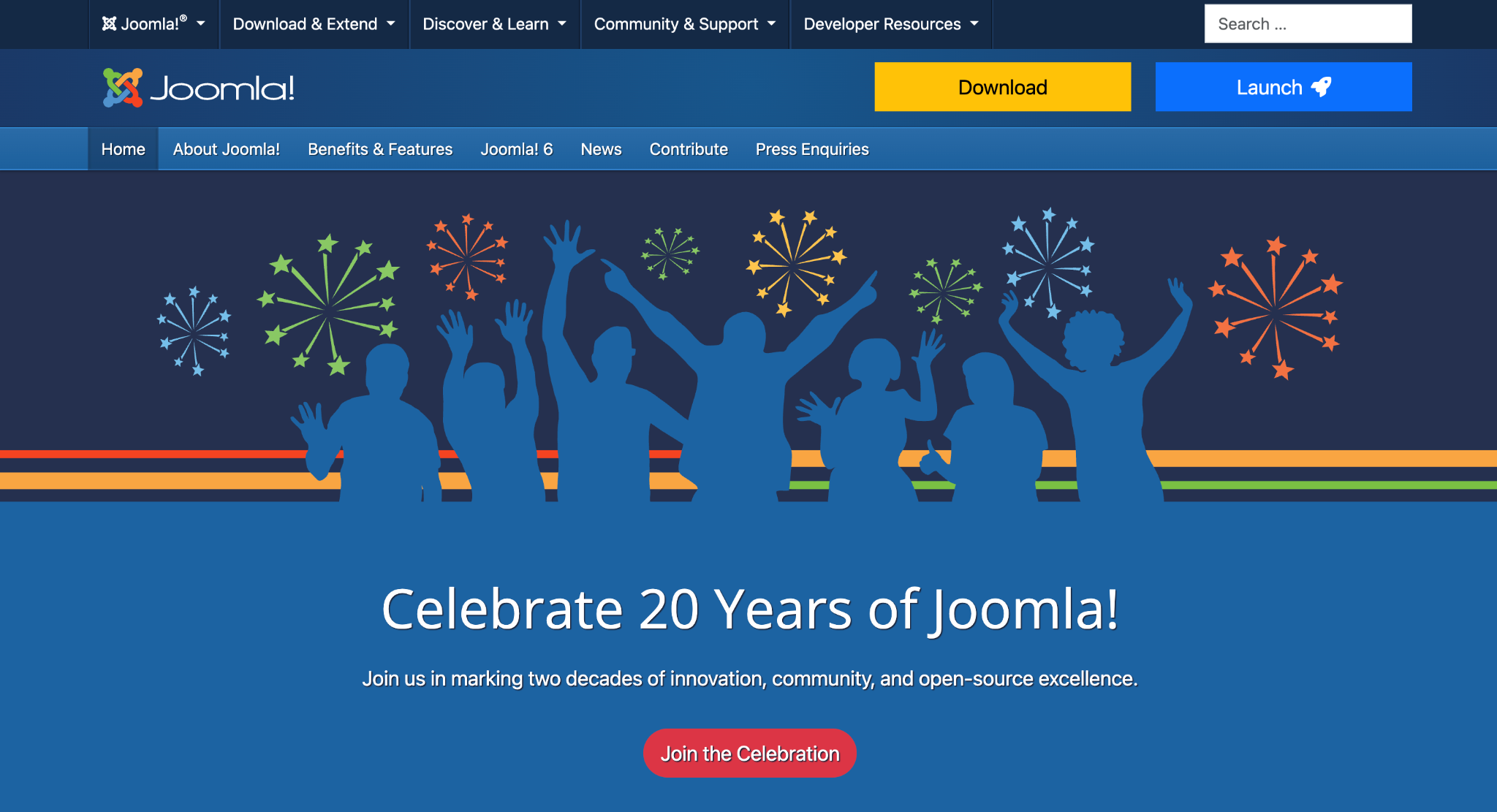
Joomla is a free, open source CMS that sits between WordPress’s beginner-friendliness and Drupal’s enterprise-level power. It’s a solid choice for developers and businesses that need more built-in content management features than WordPress offers out of the box – especially multilingual support.
Where WordPress requires a plugin for multilingual content, Joomla includes it natively. You can set up multiple languages during installation, and the system handles language switching, translated menus, and localized content without extra tools. This makes Joomla particularly useful for businesses serving audiences in different regions.
Joomla also gives you granular control over user permissions, content categories, and templates. It’s flexible enough for everything from corporate websites to community portals and online magazines. But that flexibility comes with a learning curve – the admin panel has more options and settings than WordPress, which means new users need more time to get comfortable.
For a deeper comparison, our Joomla vs WordPress guide breaks down where each CMS excels and which is better for different use cases.
Joomla pros:
- Strong built-in multilingual support. Native language management means you don’t need additional plugins to create and manage a multilingual website.
- Flexible content management. Advanced category structures, custom fields, and granular user permissions give you more control over complex content.
- Large extension marketplace. Thousands of extensions add ecommerce, forums, social features, and more to your site.
- Granular access control. Joomla’s built-in Access Control List (ACL) system lets you define detailed user roles and permissions – useful for sites with multiple contributors or membership levels.
- Strong community forums and documentation. While smaller than WordPress, Joomla’s community maintains active forums, detailed documentation, and regular international events for users and developers.
Joomla cons:
- Steeper learning curve. The admin interface is more complex than WordPress, and new users often need time to understand the menu structure and settings.
- Smaller community than WordPress. There are fewer tutorials, themes, and developers available compared to the WordPress ecosystem.
- Requires technical skill for hosting and maintenance. Like WordPress, you need to manage your own hosting, updates, and security patches.
Joomla pricing:
Joomla is free to download and use. The costs come from hosting, a domain name, and any premium extensions or templates you choose.
Hostinger’s Joomla hosting starts at $2.99/month and includes a one-click Joomla installer, SSD storage, a free domain for the first year, and an SSL certificate. Premium Joomla templates typically cost$30–100 on top of that.
This cost structure is similar to WordPress – free software, paid hosting, and extras – but WordPress has a larger ecosystem of affordable themes and plugins to choose from.
6. HubSpot Website Builder
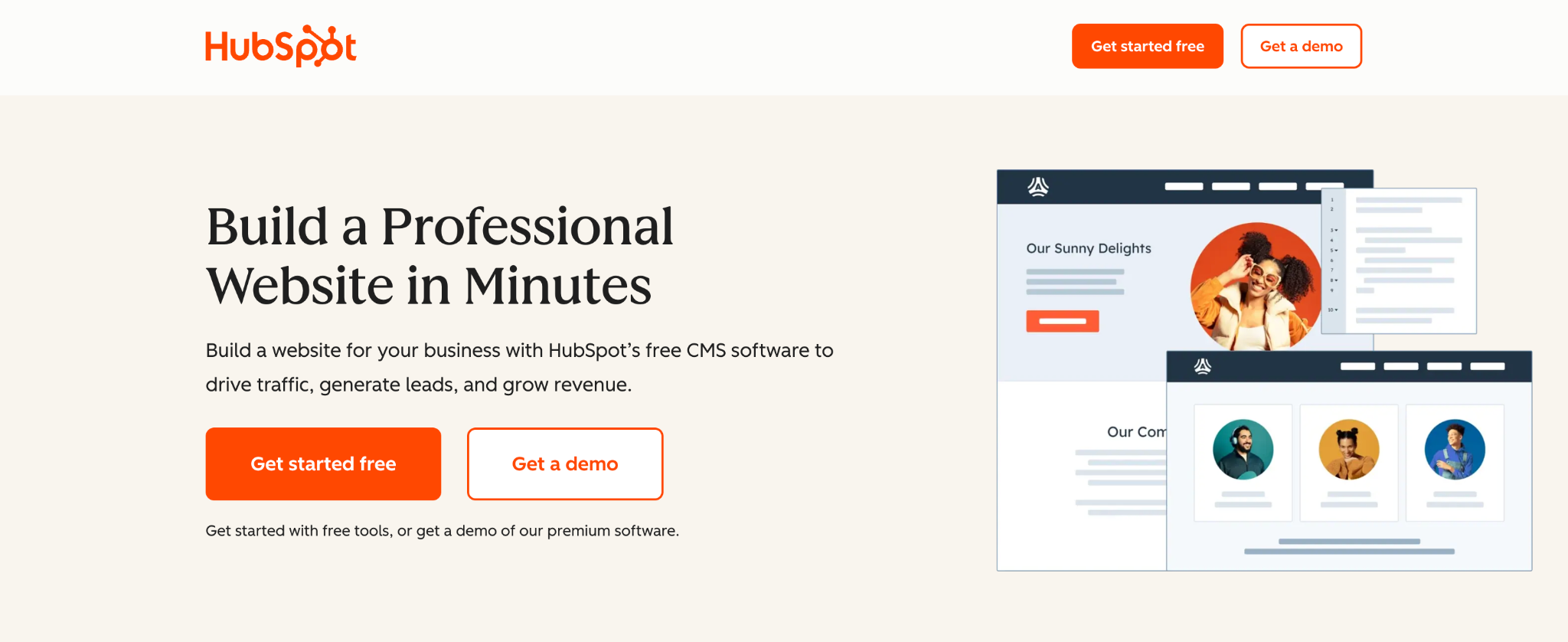
HubSpot Website Builder is a no-code, drag-and-drop tool built into the HubSpot Content Hub. What makes it different from most website builders is its direct connection to HubSpot’s CRM – every form submission, page visit, and interaction automatically feeds into your contact database without extra configuration.
The free plan lets you build up to 30 website pages and 30 landing pages with basic templates, built-in SEO settings, and traffic analytics. HubSpot branding appears on the free tier, but it’s a genuine no-cost option for testing or creating a simple site – something WordPress doesn’t offer unless you use the limited WordPress.com free plan.
HubSpot’s builder works well for marketers and small business owners who want their website and marketing tools in one place. The builder itself is straightforward, with prebuilt modules for forms, calls to action, and content sections.
Where it falls short is design flexibility – you’re working within HubSpot’s template framework, and the creative freedom doesn’t match what you’d get from WordPress or other similar website builders.
HubSpot Website Builder pros:
- Diverse template gallery. HubSpot’s marketplace has hundreds of free and premium templates across industries, all built to work with the drag-and-drop editor.
- Free plan available. The free tier includes website hosting, SSL, basic SEO tools, and CRM integration – no credit card required.
- Integrated analytics and CRM. Website traffic, form submissions, and user behavior flow directly into HubSpot’s CRM for tracking and follow-up.
- Built-in lead capture tools. Forms, pop-ups, and calls-to-action are native to the platform, so you don’t need third-party form plugins or lead generation tools.
- A/B testing on higher plans. The Professional tier lets you test two versions of a page to see which performs better – a feature WordPress requires a separate plugin for.
- Automatic security and hosting. HubSpot handles SSL certificates, CDN delivery, uptime monitoring, and security patches, so there’s nothing to manage on the server side.
HubSpot Website Builder cons:
- Limited design customization. The drag-and-drop editor covers the basics, but advanced layout changes or unique designs require custom theme development.
- Advanced features are expensive. The free and Starter tiers are limited – features like smart content personalization, A/B testing, and advanced SEO require the Professional plan.
HubSpot Website Builder pricing:
HubSpot Content Hub has four tiers:
- Free. Includes up to 30 pages, basic templates, SEO settings, and CRM integration. Shows HubSpot branding.
- Starter. $15/month per seat. Removes HubSpot branding and adds premium hosting features, more design options, and email/chat support.
- Professional. $500/month (includes 3 seats). Adds smart content, advanced SEO recommendations, A/B testing, and custom reporting.
- Enterprise. $1,500/month (includes 5 seats). Adds multi-site management, advanced permissions, and custom objects.
For small businesses and solo creators, the free and Starter tiers provide a functional starting point. But if you need advanced marketing features, the costs add up quickly compared to WordPress with a few premium plugins.
7. Blogger

Blogger is a free blogging platform owned by Google. It’s one of the oldest platforms on this list, hence the basic interface, dated template selection, and limited new features. This platform still does one thing well: it lets you publish a blog with zero cost and almost zero setup.
Because Blogger runs on Google’s infrastructure, you don’t need to worry about hosting, security, or server maintenance. You sign in with your Google account, pick a template, and start writing. It also integrates naturally with Google’s ecosystem – AdSense for monetization, Google Analytics for tracking, and Google Search Console for SEO.
That said, template customization is restricted to a small number of layouts. There’s no plugin system, no built-in ecommerce, and no modern design tools. If you want a blog that looks polished and professional, Blogger isn’t the right choice. But if you want a free, low-maintenance platform to share your writing, it works great.
For more details on how the two compare, check out our Blogger vs WordPress breakdown.
Blogger pros:
- Completely free. No hosting fees, no subscription costs – Google handles everything.
- Google ecosystem integration. Built-in support for AdSense, Analytics, and Search Console makes setup simple for Google users.
- Zero maintenance. Google manages hosting, security, and uptime – you don’t need to install updates or manage a server.
- Reliable uptime. Since Blogger runs on Google’s infrastructure, your blog benefits from the same reliability and speed as other Google services.
- Simple learning curve. The interface is basic by modern standards, but that simplicity makes it one of the easiest platforms to learn for first-time bloggers.
Blogger cons:
- Very limited design options. The template library is small and outdated, and customization beyond basic color and layout changes requires editing HTML directly.
- No advanced functionality. There’s no plugin ecosystem, no ecommerce tools, and no way to build anything beyond a basic blog.
Blogger pricing:
Blogger is completely free. Google provides hosting, SSL, and a blogspot.com subdomain at no cost.
The only potential expense is a custom domain name if you want to use your own web address instead of yourname.blogspot.com. You can register a domain through a registrar like Hostinger for around $10-15/year, depending on the extension you choose. And then, connect it to your Blogger site.
8. Wix
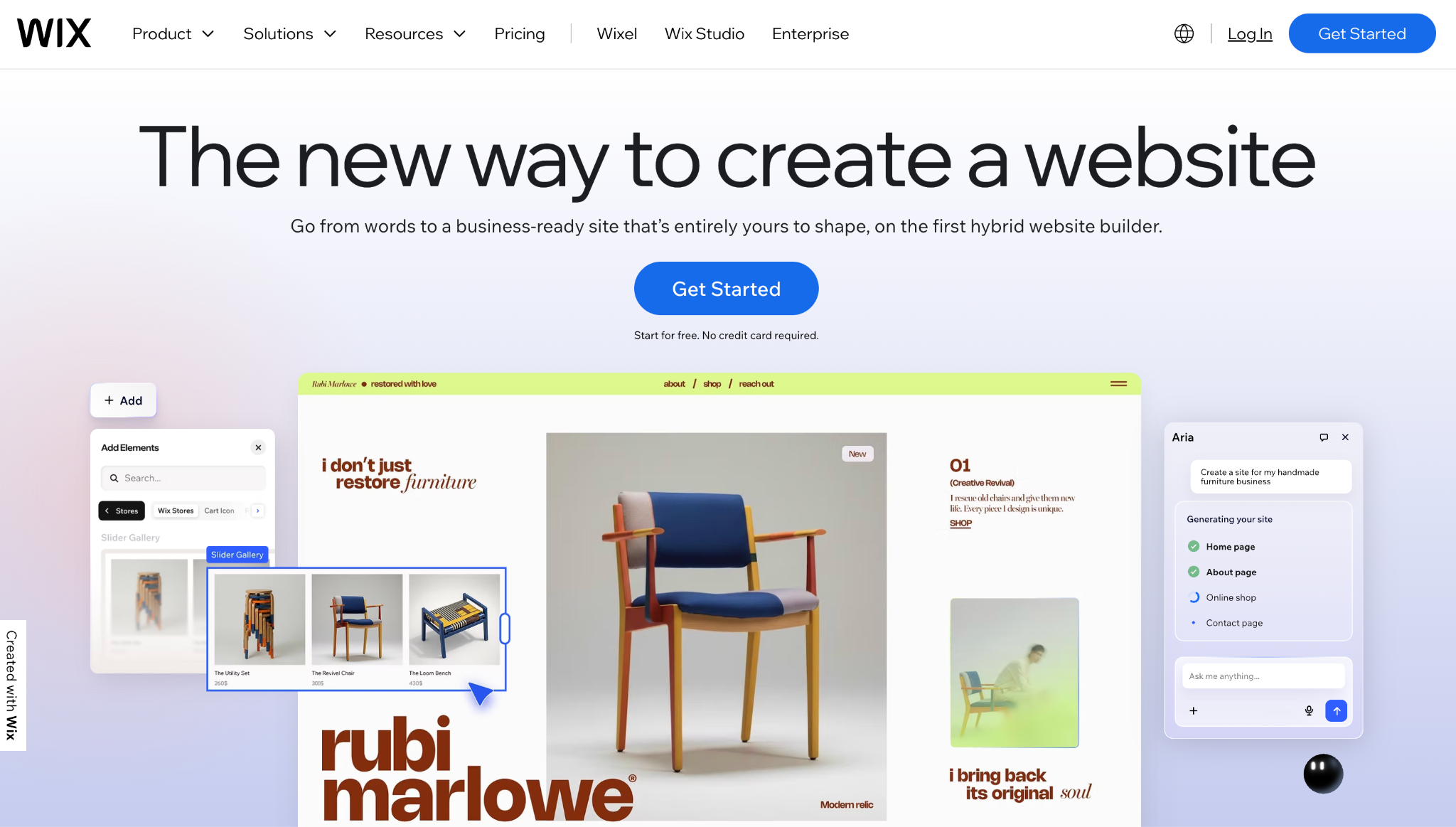
Wix is a drag-and-drop website builder that lets you create a website without coding. It’s one of the most popular WordPress alternatives for beginners and small businesses, thanks to its visual editor, large template library, and app marketplace.
The editor gives you true design freedom – you drag elements anywhere on the page, resize them, layer them, and position them exactly where you want. This is different from WordPress’s block-based editor, which follows a more structured layout. Wix also offers an AI website builder that generates a starter site based on your answers to a few questions, which speeds up the initial setup.
The trade-off is that once you choose a template, you can’t switch to another without rebuilding your site. And while Wix handles hosting and security automatically, you have less control over your site’s backend compared to WordPress.
To understand the full picture, our Wix vs WordPress comparison covers design, SEO, pricing, and more.
Wix pros:
- Intuitive visual editor. The freeform drag-and-drop interface makes designing a site feel natural, even for complete beginners.
- Extensive template library and apps. Over 900 templates plus hundreds of third-party apps let you add functionality like scheduling, live chat, and online stores.
- Built-in hosting and security. Wix manages hosting, SSL, and updates automatically – no separate server management needed.
- AI website generator. Wix’s AI builder creates a starter site based on a few questions about your business, speeding up the initial design process.
- Built-in booking and event tools. Wix includes native scheduling, event management, and restaurant ordering features – tools that WordPress requires separate plugins for.
- Free plan with no time limit. You can build and test your entire site on the free plan before committing to a paid tier, though it includes Wix branding and a subdomain.
Wix cons:
- Limited backend customization. You can’t access server-side code or modify the underlying architecture, which limits advanced functionality.
- Costs increase with advanced features. Ecommerce, marketing tools, and extra storage require higher-tier plans, and some third-party apps charge additional monthly fees.
- SEO nuances are harder to control. While Wix’s SEO has improved, power users still find certain technical SEO settings more limited than on WordPress.
Wix pricing:
Wix has a free plan that lets you publish a site with Wix branding and a Wix subdomain. The premium version has four paid tiers:
- Light. Starts at $17/month, letting you remove Wix ads and connect a custom domain, and includes 2 GB of storage.
- Core. With a $29/month (billed annually) charge, you’ll get 50 GB of added storage, ecommerce tools, and marketing features – the best value for most users.
- Business. Unlocks 100 GB storage, advanced ecommerce, and automated sales tax, starting at $39/month.
- Business Elite. The highest tier version starts at $159/month to unlock unlimited storage, priority support, and the full feature set.
9. Squarespace
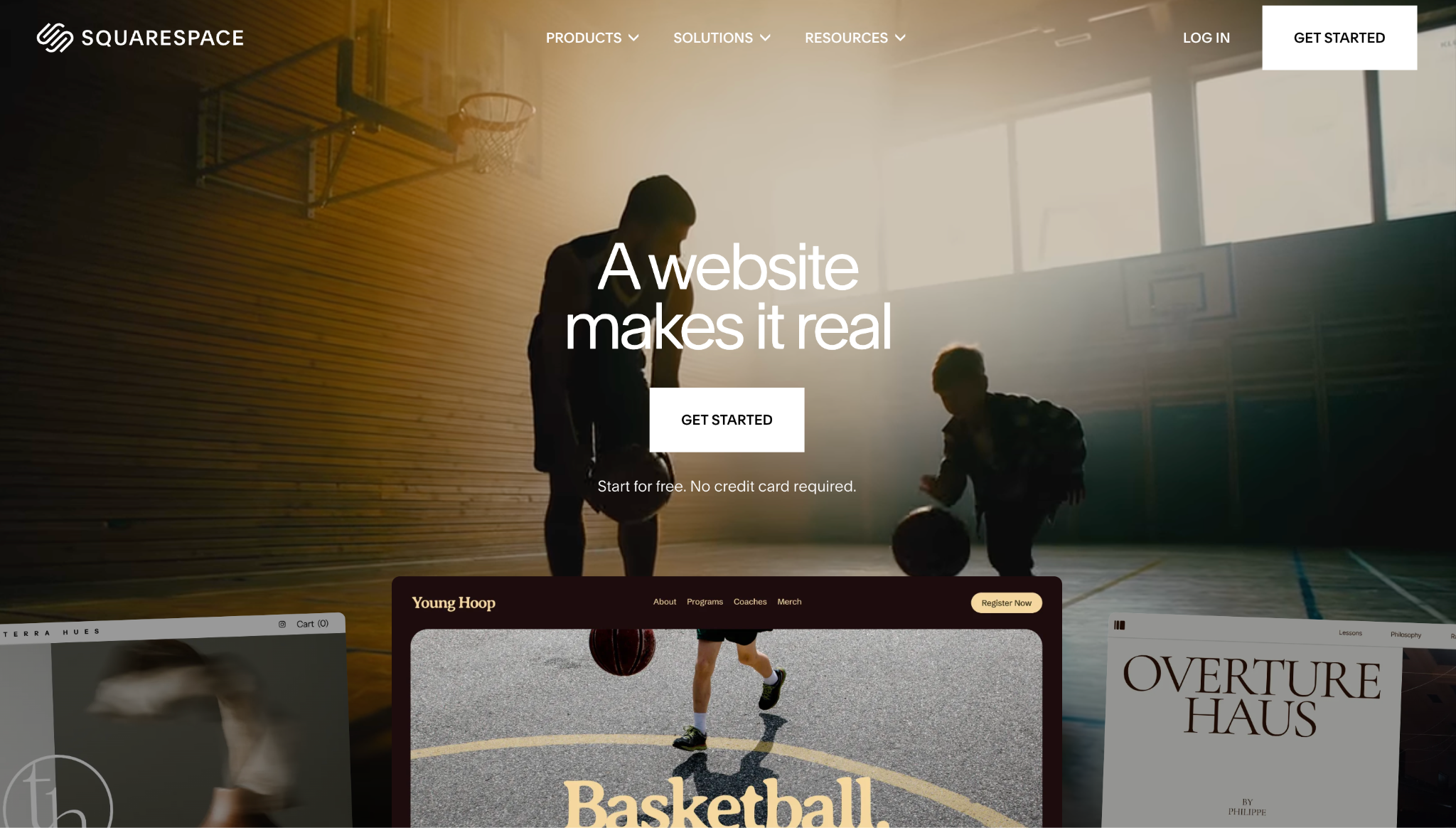
Squarespace is an all-in-one website platform known for its design-forward templates. If visual quality is your top priority, Squarespace consistently delivers some of the most professionally designed templates of any website builder.
The platform handles hosting, security, and domain management in one package. Its Fluid Engine editor lets you customize layouts with a good balance of creative freedom and structure – less freeform than Wix, but more guided and consistent. Squarespace also includes blogging tools, ecommerce features, and integrations with third-party services.
Squarespace is particularly popular among photographers, designers, restaurants, and small businesses seeking a visually striking online presence. The trade-off is flexibility – you’re working within Squarespace’s design system, and extending functionality beyond what’s built in requires custom code injection or third-party integrations.
Our Squarespace vs WordPress guide explores the differences in customization, pricing, and which is better for specific use cases.
Squarespace pros:
- Award-winning design templates. Squarespace’s templates set a high bar for visual quality, and they’re all mobile-responsive out of the box.
- Fully hosted with reliable support. Hosting, SSL, CDN, and 24/7 customer support are included in every plan – no third-party setup needed.
- Solid blogging and ecommerce. Built-in tools for blog publishing, product listings, appointment scheduling, and email campaigns cover the needs of most small businesses.
- Unlimited bandwidth and storage on all plans. Even the cheapest plan has no caps on traffic or file uploads, so you don’t need to worry about outgrowing your plan’s resource limits.
- Built-in email marketing. Squarespace Email Campaigns lets you design and send newsletters that match your website’s look, without connecting a separate email tool.
- Free custom domain for the first year. All annual plans include a domain name at no extra cost, simplifying your initial setup and reducing year-one expenses.
Squarespace cons:
- Less extensible than WordPress. If Squarespace doesn’t have a built-in feature, your options for adding it are limited.
- Ecommerce plans are pricier. The Basic plan charges a 2% Squarespace transaction fee on sales, and accessing lower credit card processing fees requires the Plus plan.
- Customization stays within Squarespace’s framework. Advanced design changes require CSS or JavaScript code injection, and some layout decisions are locked to the template structure.
Squarespace pricing:
Squarespace offers four plans:
- Basic. Starts at $16/month, includes unlimited bandwidth and storage, mobile-optimized templates, and basic ecommerce (with a 2% Squarespace transaction fee).
- Core. Starts at $29/month, adds advanced analytics, unlimited contributors, 0% transaction fees on physical product sales, and custom code injection.
- Plus. Starts at $49/month, lowers credit card processing fees, and adds advanced analytics – best for growing online stores.
- Advanced. Starts at $99/month, further reduces processing fees and adds unlimited video storage.
10. Webflow
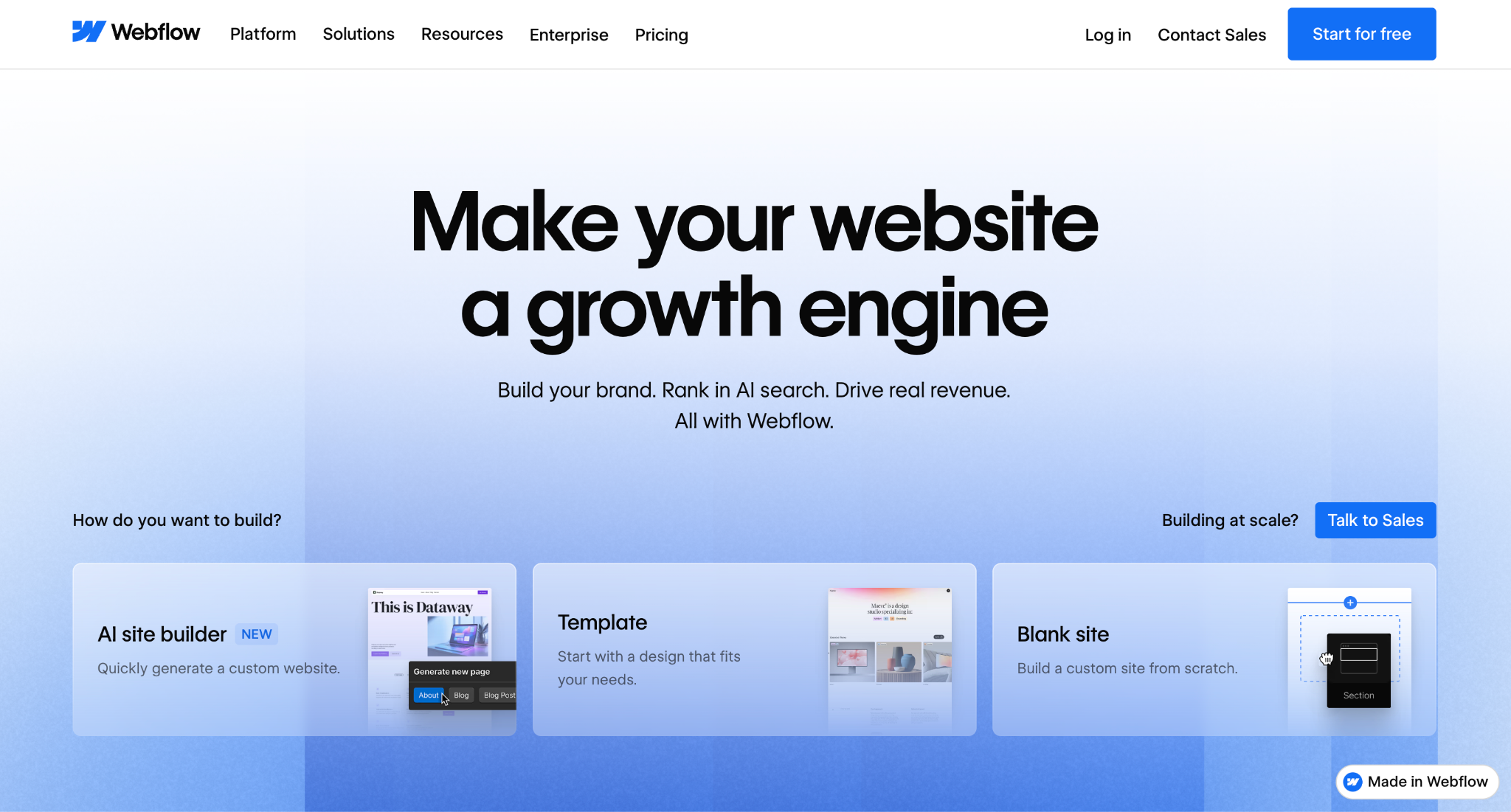
Webflow is a visual web design tool that combines a no-code design canvas with a built-in CMS and hosting. It gives you the level of design control that usually requires writing HTML and CSS – but through a visual interface instead of code.
This makes Webflow a favorite among web designers and front-end developers who want to create custom, responsive websites without relying on WordPress themes or page builders. The CMS allows you to structure dynamic content – blog posts, portfolio items, team members – with custom fields and collections, similar to WordPress custom post types but managed visually.
That said, Webflow’s learning curve is real. Its editor uses web development concepts – flexbox, grid, and responsive breakpoints – so users without a design background may find it overwhelming.
Check out our Webflow vs WordPress comparison for a closer look at how the two platforms differ in design, CMS capabilities, and cost.
Webflow pros:
- Pixel-level design control. Create custom layouts, animations, and interactions visually – without writing code – that match what hand-coded websites achieve.
- Built-in CMS with flexible content structures. Define custom collections and fields to manage dynamic content, similar to custom post types in WordPress.
- Hosting with performance optimization. Webflow sites are hosted on AWS with a global CDN, automatic SSL, and fast load times.
- Export-ready code. Webflow generates HTML, CSS, and JavaScript that you can export and host elsewhere if you outgrow the platform.
- Built-in responsive design tools. The editor lets you customize layouts separately for desktop, tablet, and mobile breakpoints, giving you precise control over how your site looks on every screen size.
- Interactions and animations without code. You can build scroll-triggered animations, hover effects, and page transitions using a visual interface – effects that typically require custom JavaScript on WordPress.
Webflow cons:
- Steep learning curve for non-designers. The interface uses web design concepts like flexbox, CSS grid, and responsive breakpoints, which can overwhelm beginners.
- Higher costs for feature-rich sites. Site plans, workspace plans, and optional add-ons (localization, A/B testing) stack up quickly for growing projects.
- Smaller community and extension ecosystem. Webflow has no plugin marketplace – integrations rely on custom code embeds, Zapier, or third-party tools.
Webflow pricing:
Webflow uses two separate billing systems – Site Plans for hosting your live site and Workspace Plans for collaboration and staging.
Site Plans (billed annually):
- Starter. Free, with your site published under a Webflow subdomain, 2 pages, 50 CMS items, and 1 GB bandwidth.
- Basic. $14/month with a custom domain, up to 150 pages, and 10 GB bandwidth. No CMS features.
- CMS. $23/month, adds dynamic content management with 2,000 CMS items, 50 GB bandwidth, and site search.
- Business. $39/month with 10,000 CMS items, 2.5 TB bandwidth, and 300 pages. Higher CMS item tiers are available at additional cost.
Ecommerce Site Plans start at $42/month (Standard) with a 2% transaction fee, and go up to $235/month (Advanced) with no transaction fee.
Compared to WordPress, Webflow’s costs are higher, especially for ecommerce. But the pricing makes the most sense for design-focused projects where creative control matters more than raw cost efficiency.
Factors to consider when choosing a WordPress alternative
Choosing the right platform comes down to what you need your website to do. Your goal shapes everything – from the features you need to the level of complexity you’re willing to handle. Here are five factors to evaluate before switching.
Ease of use is the first consideration. If getting online fast is the priority, hosted builders like Hostinger Website Builder, Wix, and Squarespace handle the technical side for you. If you’re comfortable with code or willing to learn, Webflow, Ghost, and Drupal offer more control at the cost of a steeper learning curve.
Customization needs matter because every platform has a ceiling. Website builders cover most standard business needs, but for complex projects – membership sites, multi-vendor marketplaces, advanced data handling – open source platforms like Joomla or Drupal give you more room. Webflow bridges the gap for design-focused projects.
Ecommerce capabilities vary more than you’d expect. Hostinger Website Builder and Wix include built-in store features. Squarespace handles small to mid-sized shops well. Webflow supports ecommerce but at a higher price. Ghost, Medium, Blogger, and Drupal don’t have native ecommerce, so you’d need third-party tools or a separate platform.
Budget is often the deciding factor. Free options like Blogger, Medium, and self-hosted Joomla or Drupal cost nothing upfront but come with trade-offs in control, scalability, or setup effort.
Hostinger Website Builder strikes a good balance of affordability, rich features, and ease of use for beginners. HubSpot and Webflow deliver more specialized value but at higher prices.
Lastly, migration compatibility is worth thinking about early. Moving from WordPress to open-source platforms like Joomla, Drupal, or Ghost is relatively smooth, as they support standard export formats.
Migrating to closed platforms like Wix or Squarespace is harder – you may need to rebuild parts of your site manually. Medium is a different case entirely: since it’s a publishing platform rather than a website you own, migration is less about rebuilding and more about accepting limited control over your content and branding.
Optimizing your workflow with a WordPress alternative
Switching platforms changes how you work day to day, not just how your site looks. Here are four ways to make the transition smooth:
- Set up your content pipeline first. Decide where content lives, who creates it, and how it gets reviewed before you start publishing. Ghost and HubSpot include built-in editorial roles, while builders like Wix and Squarespace keep things simpler – though team collaboration features vary by plan.
- Connect your tools early. Most alternatives integrate with popular services through native connections. Link your email marketing, analytics, and CRM from the start so you don’t have to retrofit later.
- Know what maintenance looks like. Hosted builders like Hostinger Website Builder, Wix, Squarespace, and Webflow handle updates, security, and server maintenance automatically. Self-hosted platforms like Ghost, Joomla, and Drupal still require manual updates and backups, though less frequently than a WordPress site running dozens of plugins.
- Optimize your site performance. Compress images before uploading, limit heavy scripts, and use your platform’s built-in caching and CDN. Our website optimization guide covers practical steps that apply across platforms.
The best WordPress alternative isn’t the one with the most features – it’s the one that matches your skill level, budget, and the type of site you’re building. Start with what you need now and choose a platform that grows with you.
All of the tutorial content on this website is subject to Hostinger's rigorous editorial standards and values.


Larassatti Dharma is a content writer with 4+ years of experience in the web hosting industry. She has populated the internet with over 100 YouTube scripts and articles around web hosting, digital marketing, and email marketing. When she's not writing, Laras enjoys solo traveling around the globe or trying new recipes in her kitchen. Follow her on LinkedIn

Miglė Cicėnaitė-Jocė is a Product Manager for Hostinger's Website Builder. She is on a mission to redefine website creation, focusing on the AI flow and its features, and is always eager for product feedback and market insights to improve the user experience. Follow her on LinkedIn.