Every Hostinger Horizons contact form works natively within the platform without requiring external email services or database setups. When a visitor submits a form, Hostinger Horizons automatically saves the submission to a Data collection and sends an email notification to your specified address.
This guide helps you resolve issues if your contact form is missing, submissions are not appearing, notifications are failing, or errors occur during submission.
Before you start
- Hostinger Horizons and Hostinger Website Builder are two completely separate platforms. The instructions below apply strictly to Hostinger Horizons.
- Hostinger Horizons forms separate environments by design: submissions made in Preview mode are saved under Test data, while real visitor submissions appear under Live data.
Troubleshooting Common Contact Form Issues
The contact form is not showing on the website
If your form is missing from your live page, check the following details:
- Publish the website – The form will only appear online after you publish your site. In the Hostinger Horizons editor, click Publish in the top-right corner.
- Verify domain connection – Hostinger Horizons does not support A and AAAA records. If you point your domain via external nameservers (like Cloudflare or GoDaddy), you must add a CNAME record pointing your domain to Hostinger.
- Clear browser cache – Your browser might load a cached version of your site. Test the page using an incognito or private browsing window.
- Check Hostinger Reach embedded forms – If you used an embedded form instead of a native form, ensure the form is status Activated inside Hostinger Reach, and confirm you pasted both required code snippets into your prompt.
Form submissions are not appearing
If submissions seem to be missing, check your data environments:
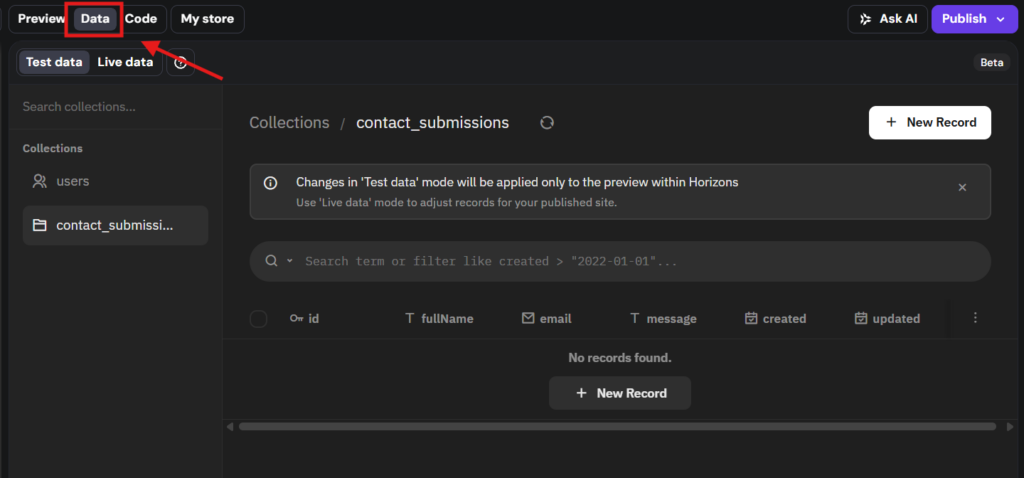
- In the Hostinger Horizons editor, click the Data toggle at the top.

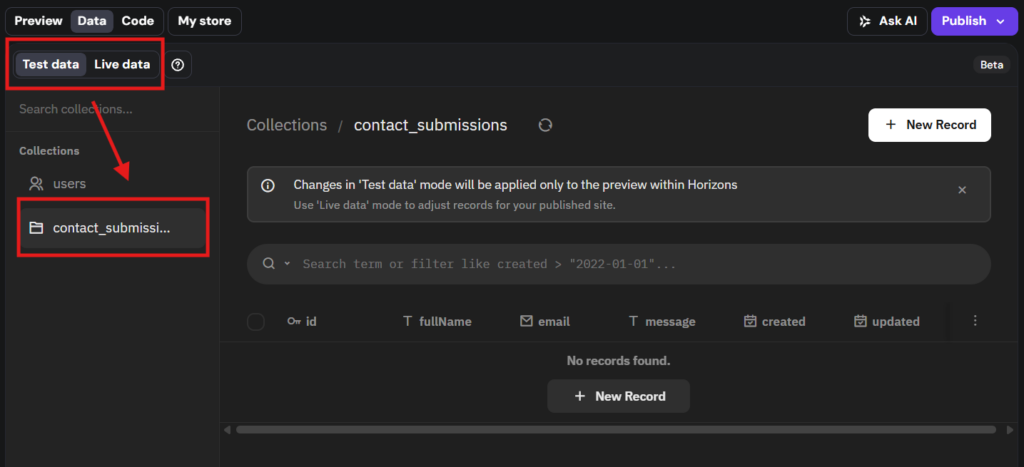
- Open the relevant collection, such as Contact Submissions.
- Switch between the Test data and Live data tabs. Test submissions appear under Test data, while real visitor submissions appear under Live data.

Email notifications are not arriving
Hostinger Horizons routes notification emails through its built-in infrastructure. If you do not receive them, walk through these checks:
- Verify the prompt configuration – Hostinger Horizons only sends emails if a recipient address was explicitly included when creating the form. If missing, submit a prompt like: “Update my contact form to send an email notification to your@email.com whenever a new form is submitted.”
- Check the spam folder – If found there, mark the message as Not Spam.
- Verify MX records – If you use a custom domain name for your notification email, confirm your mailbox is active and receiving mail. You can use DNS Checker to confirm your MX records point to your correct mail provider.
- Configure email authentication records – If notifications consistently land in spam and you use Hostinger Email with external nameservers, you must manually add the required SPF, DKIM, and DMARC text records at your DNS provider.
The form shows an error upon submission
If an error message appears when visitors click submit, follow these technical troubleshooting steps:
- Use the Ask to Fix option – If Hostinger Horizons displays an error in the preview pane with an Ask to Fix button, click it to let the AI apply a solution.
- Undo recent prompts – Locate the last working version in your chat history, click Restore, and confirm. This rolls back the code to a stable state.
- Provide technical logs – If the error persists, right-click the preview page, select Inspect, and open the Network and Console tabs. Trigger the error again, copy the failed request URL, payload, and response message, and send these details directly to Hostinger Horizons in a new prompt.
Following these verification steps ensures your contact forms function correctly and capture every visitor inquiry seamlessly.