While building your project with Hostinger Horizons, you might encounter technical issues, such as failed network requests or script errors in the preview window. This guide covers how to use the automated fix tools and how to provide the AI with the technical context needed to resolve complex bugs.
Step 1 – Use the Ask to Fix feature
When Hostinger Horizons detects an error in your preview, it often provides an automated solution directly in the interface.
- Locate the error message in the preview window.
- Click the Ask to Fix button. This action requires credit usage.
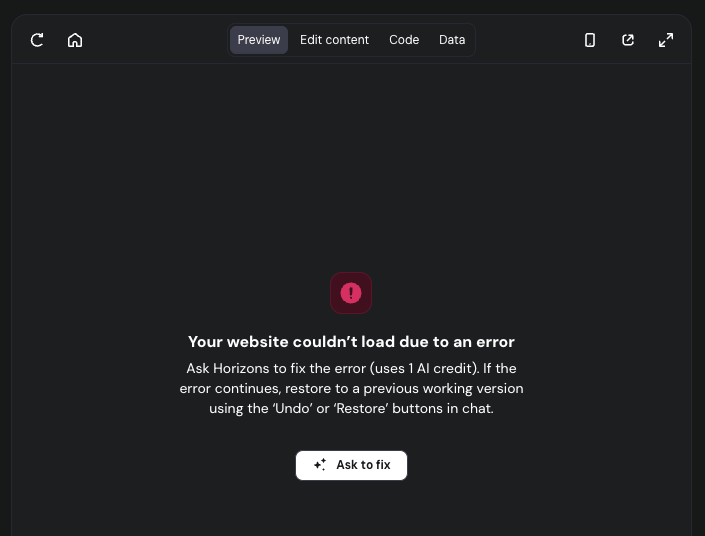
- Wait for the AI to process the request.
- If the fix fails, do not repeat the same request. Repeatedly asking for the same fix can create additional errors or break other parts of your website. If the first try fails, proceed to providing manual context or undoing the change.
Step 2 – Create a technical log
If the automated fix fails, you can improve the AI’s success rate by providing a “repro bundle”, that is, a clear description of the error backed by technical data from your browser.
- Open the site preview, right-click anywhere, and select Inspect.
- Go to the Network tab and perform the action that triggers the error.
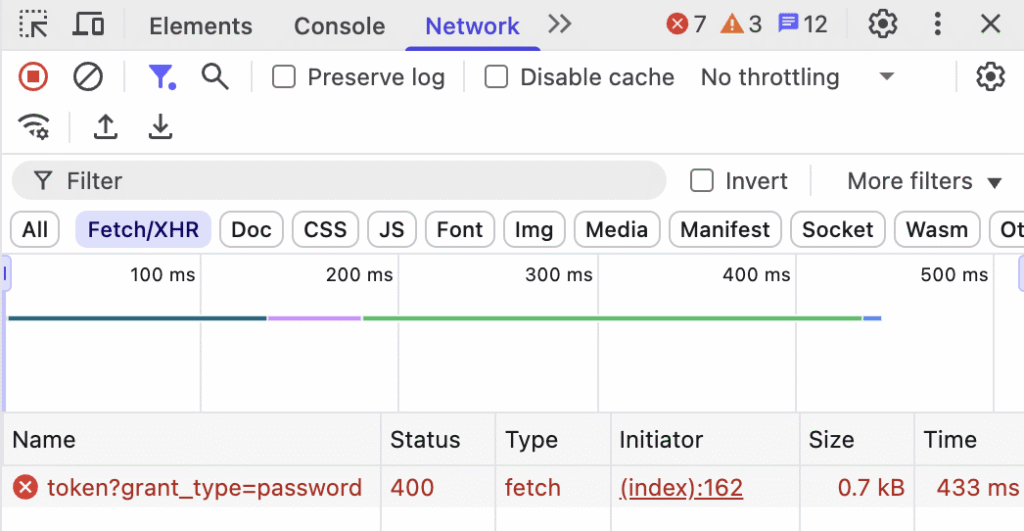
- Click on the failed request (usually highlighted in red) and copy the following:
- Request URL
- Request Payload (the data sent)
- Response (the error message from the server)
- Go to the Console tab and copy the most recent error logs as text.
- Send a new message to Hostinger Horizons including the exact steps you took, what happened, and the logs you copied.
Example of an effective diagnostic message:
When I click the “Submit” button, I get a console error Network request failed. The Network tab shows a POST request to /api/save with payload { id: 101 } and a response { “error”: “database_connection_failed” }. Please fix this connection logic.
Using these logs allows the AI to better address any technical issues. If providing logs does not resolve the issue, consider restoring your project to a previous stable state to avoid further complications.
NOTE
- If you have provided the AI with detailed logs and the issue persists across different versions of your project, you can get further support by clicking Ask Kodee in the Horizons platform and sharing both the reproduction steps and the logs you collected.