Node.js Web Apps Hosting allows you to deploy modern web applications built with popular JavaScript frameworks like React, Vue.js, and Angular directly to Hostinger with automatic builds and deployments. Yes, Hostinger supports Node.js applications on Business and Cloud hosting plans. This guide will show you how to deploy your Node.js application step-by-step.
Which Hosting Plans Support Node.js Web Applications?
Node.js web applications are available on the following Hostinger hosting plans:
- Business Web Hosting
- Cloud Startup
- Cloud Professional
- Cloud Enterprise
- Cloud Enterprise Plus
If you’re currently on a different plan, you can upgrade your hosting plan through hPanel to access Node.js support.
What You’ll Need
- A Business hosting plan or Cloud hosting plan (Cloud Startup, Cloud Professional, Cloud Enterprise, or Cloud Enterprise Plus)
- A Node.js app built with a supported framework
- Either a GitHub repository or compressed project files
Supported Frameworks and Technologies
Your Node.js app must be built with one of these frameworks:
- Frontend-supported Applications
- React
- Vue.js
- Angular
- Vite
- Parcel
- Preact
- Next.js
- Nuxt.js
- Astro
- Svelte
- SvelteKit
- Backend-supported Applications
- Next.js
- Express.js
- NestJS
- Nuxt.js
- Fastify
- Astro
- SvelteKit
Supported Node.js versions: 18.x, 20.x, 22.x, 24.x
In addition to the listed frameworks, Hostinger also supports an “Other” type for Node.js applications that don’t use a specific detectable framework.
- Auto-assigned: If Hostinger cannot detect your framework automatically, your app will be assigned the “Other” type.
- Manual selection: You can also select “Other” manually from the framework dropdown during setup.
Deploying from a GitHub Repository
Step 1 – Access the Node.js Web App section
Log in to your Hostinger hPanel, navigate to Websites on the sidebar, and click Add Website:
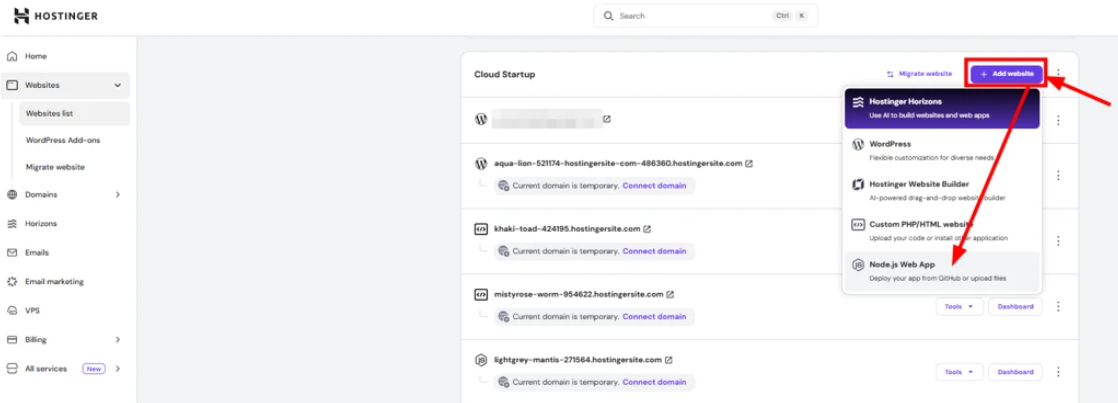
Step 2 – Select Node.js Web App
Choose Node.js Apps from the available options.
Step 3 – Choose GitHub Integration
Select Import Git Repository:
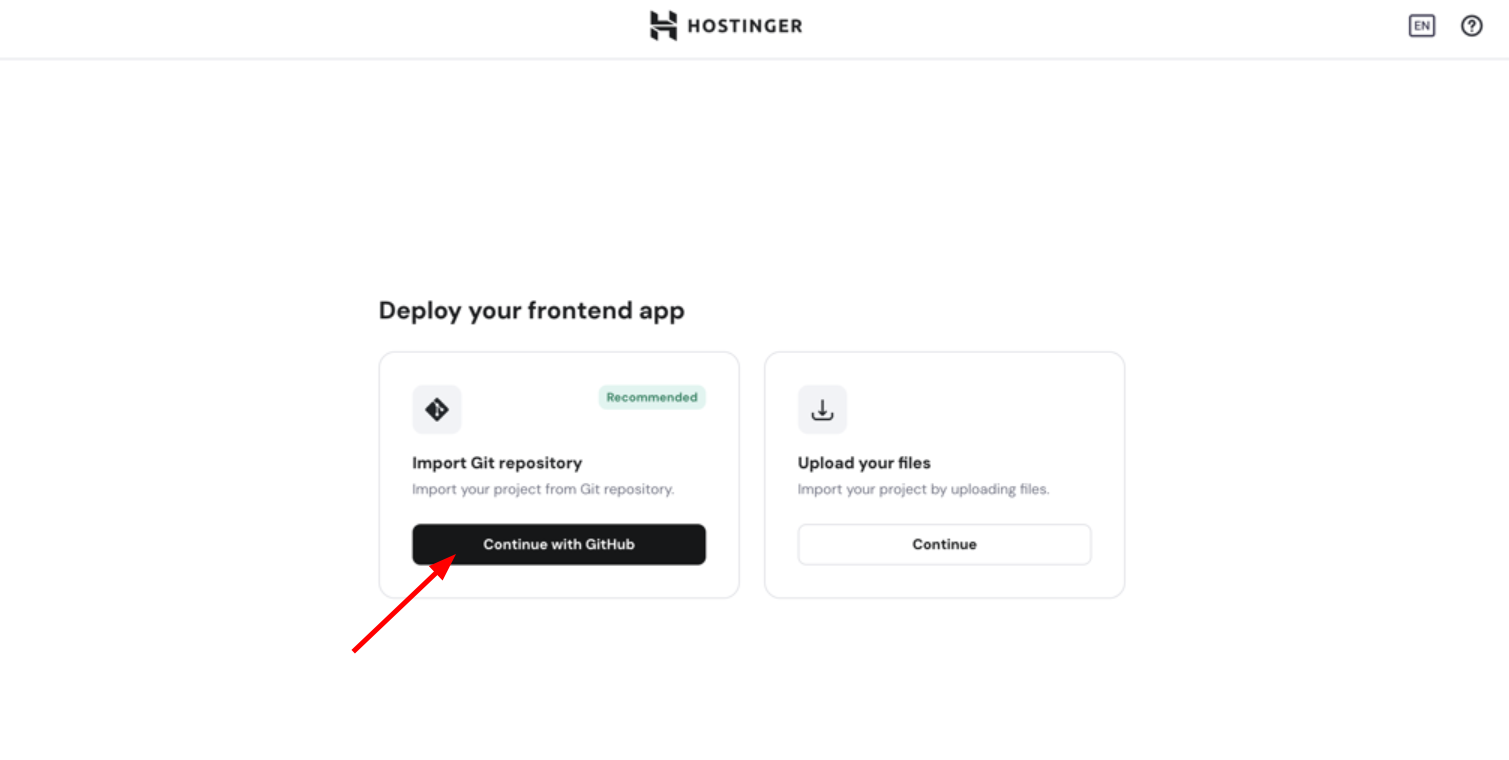
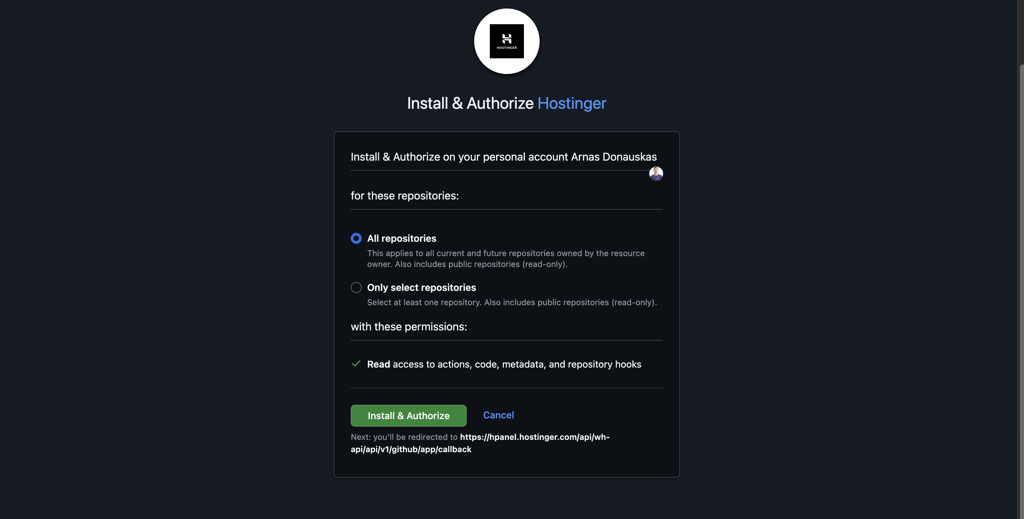
Step 4 – Authorize GitHub Access
You’ll be redirected to GitHub. Click Authorize to allow Hostinger to access your repositories:
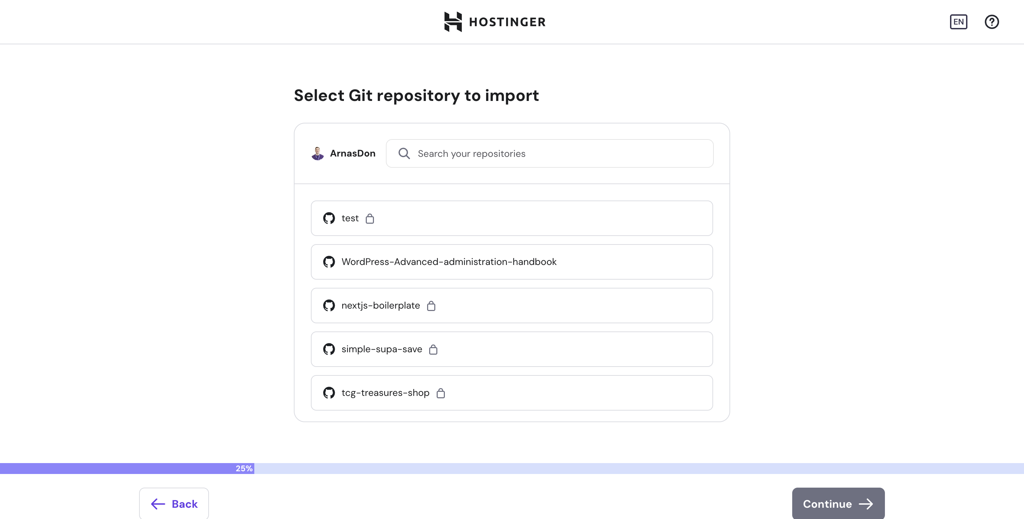
Step 5 – Select Your Repository
Choose the repository containing your Node.js app:
Step 6 – Configure Build Settings
The system will automatically detect your framework and suggest build settings where you can modify them.
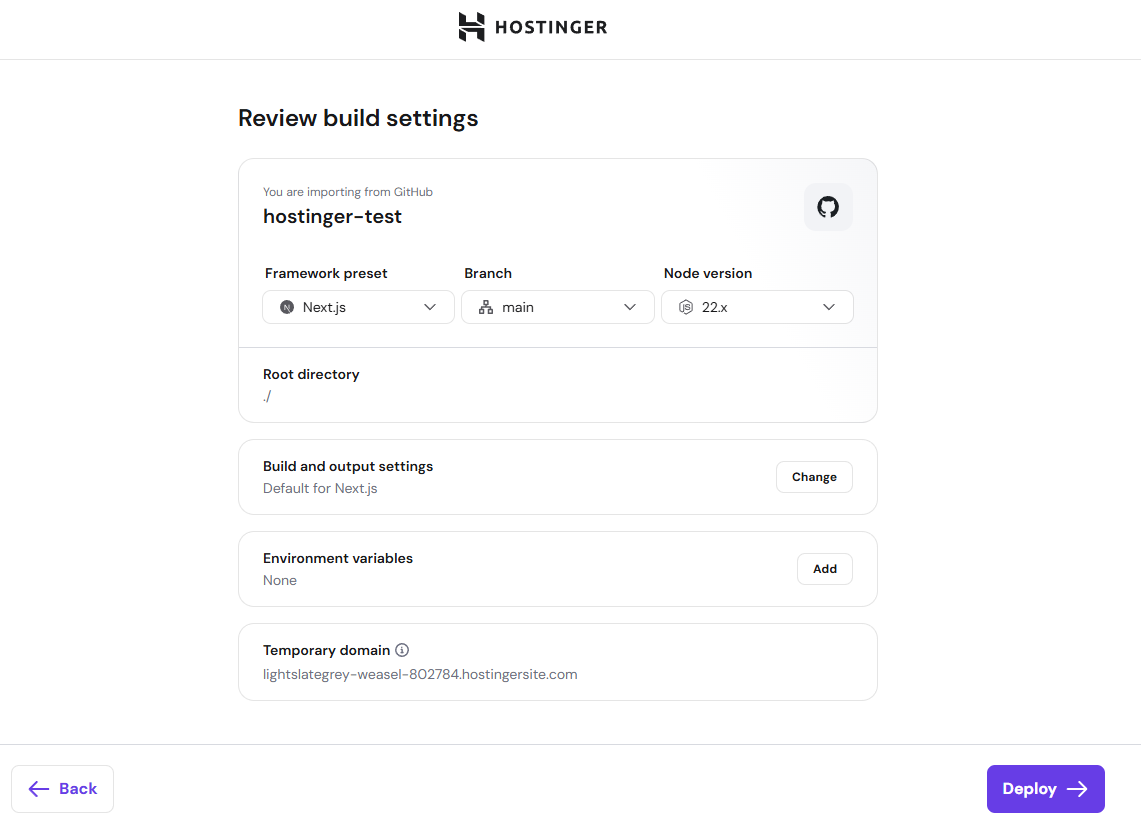
If your framework type is “Other”:
When “Other” is selected, Hostinger’s detection script will try to gather as much configuration information as possible. However, some settings may need to be filled in manually:
- Output directory — Enter the folder where your app’s build files are generated. Common values:
dist,build,out, or.next. - Entry file — Enter the main file that starts your application (e.g.,
index.js,server.js). This is only required if your application needs it.

If you’re unsure of these values, check your project’s package.json or build configuration file.
Step 7 – Deploy Your Website
Click Deploy to start building your application.
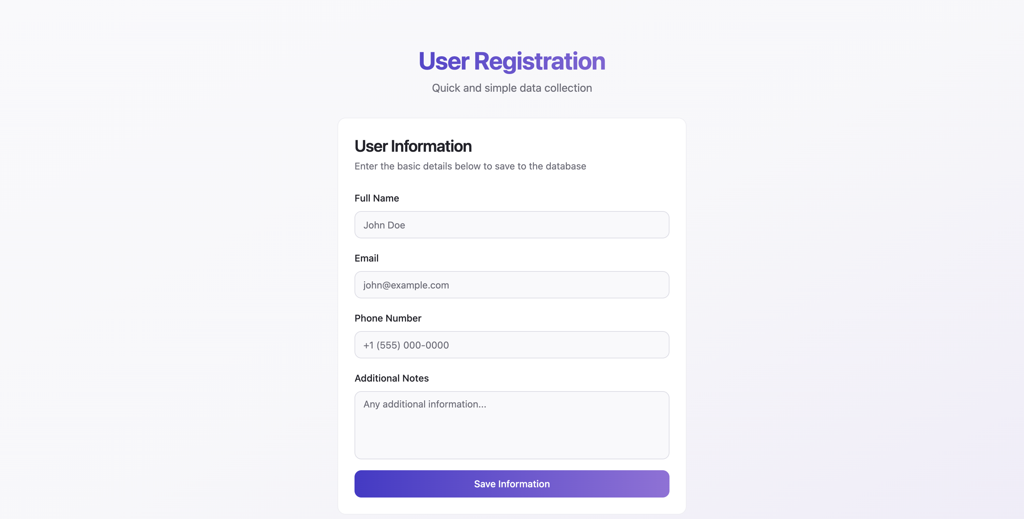
Your Node.js app is now live! 🚀
Once the deployment is complete, you will see a preview screenshot of your built website. This gives you a quick visual confirmation that the deployment was successful before navigating to your site.

Deploying by Uploading Files
Step 1 – Access the Node.js Apps Section
Log in to hPanel, go to Websites, and click Add Website:
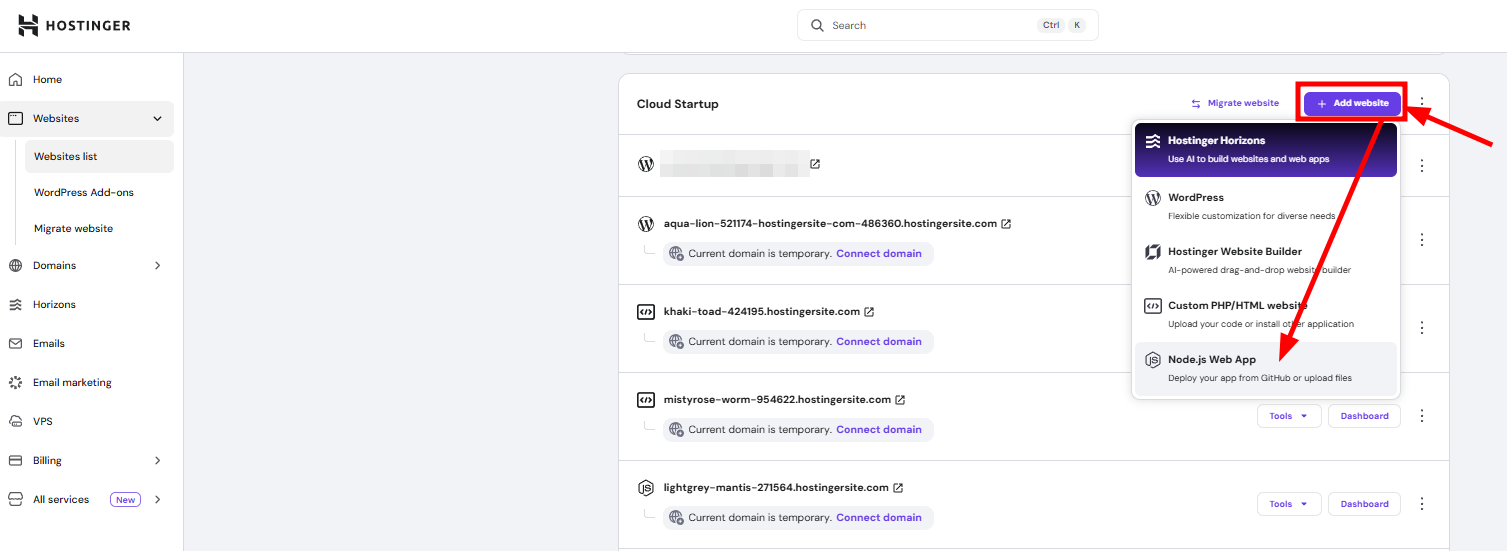
Step 2 – Select Front-End Application
Choose Node.js Apps from the options.
Step 3 – Choose File Upload
Select Upload your website files:
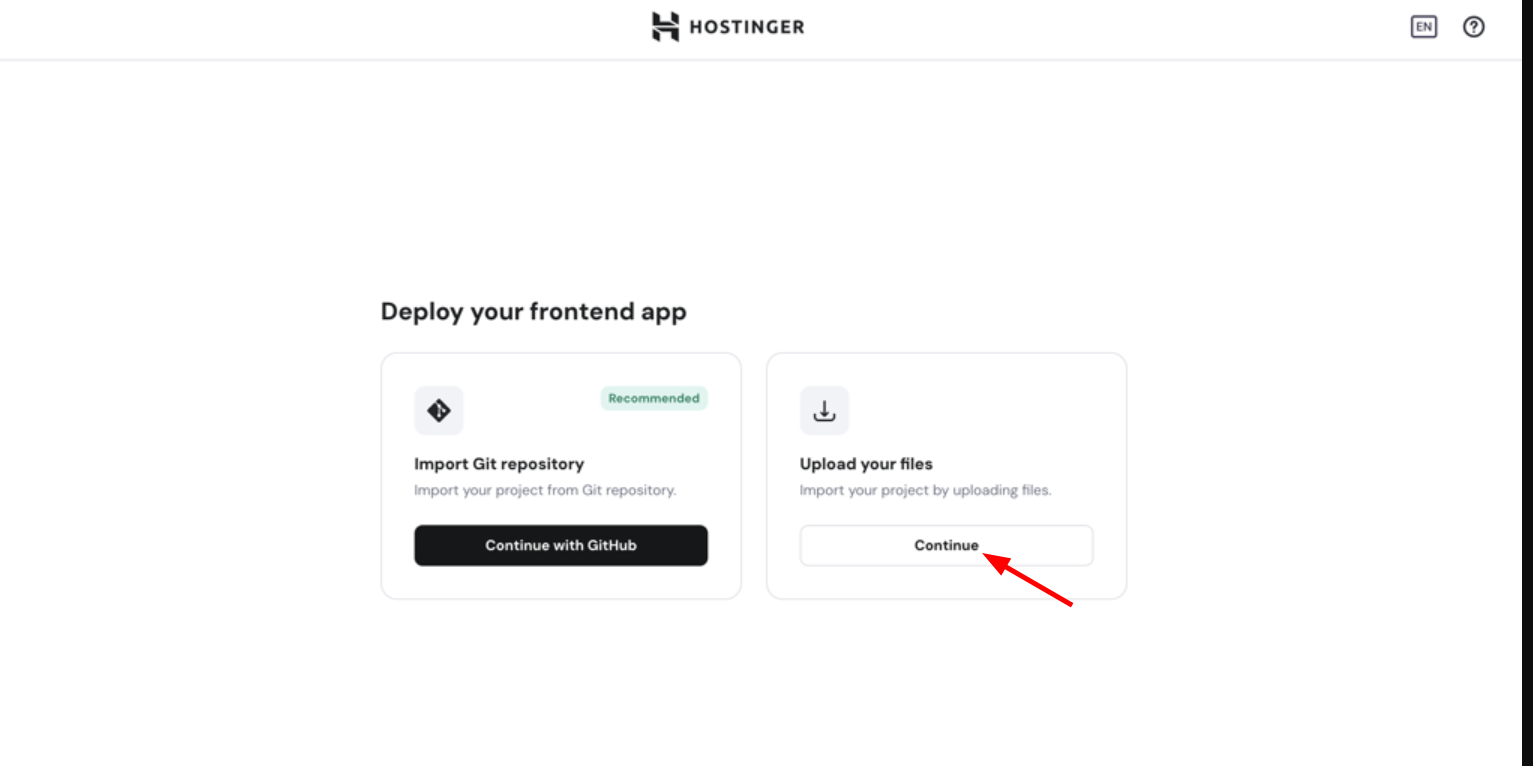
Step 4 – Upload Your Project
Upload a compressed file (.zip) containing your Node.js app.
Step 5 – Configure Build Settings
Confirm or edit the auto-detected build settings:
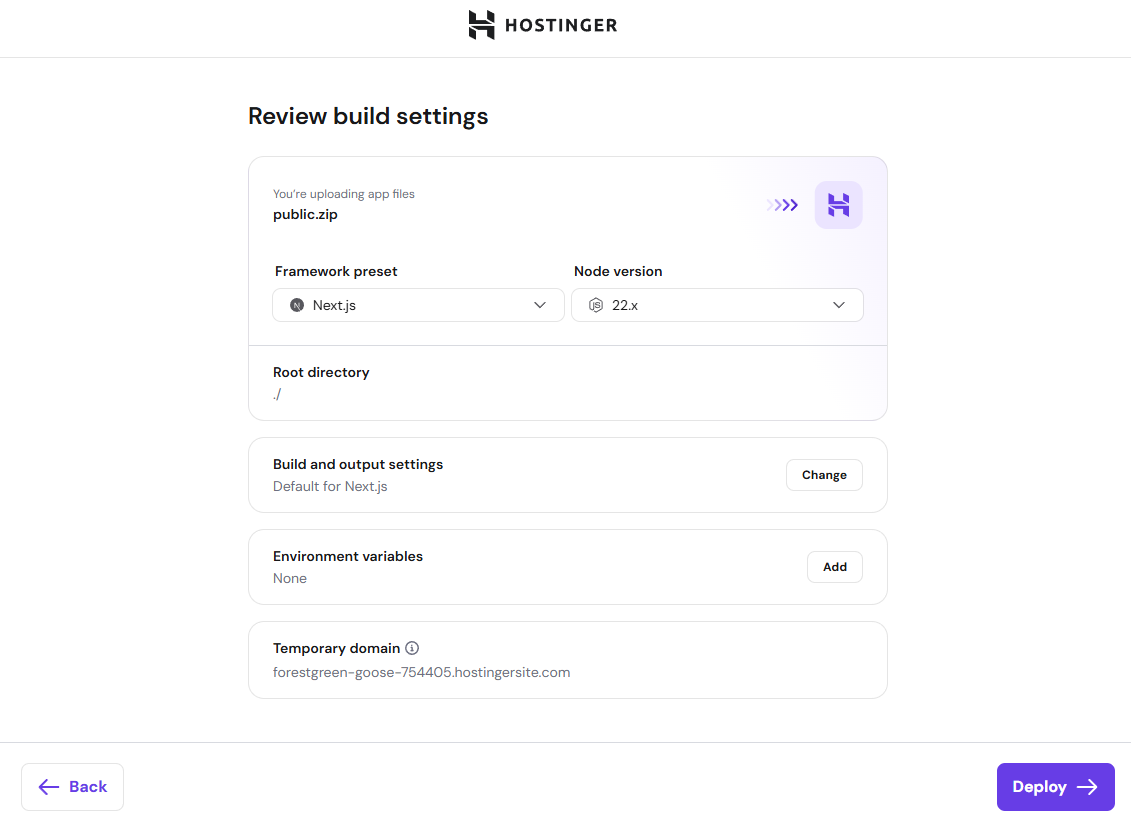
If your framework type is “Other”:
When “Other” is selected, Hostinger’s detection script will try to gather as much configuration information as possible. However, some settings may need to be filled in manually:
- Output directory — Enter the folder where your app’s build files are generated. Common values:
dist,build,out, or.next. - Entry file — Enter the main file that starts your application (e.g.,
index.js,server.js). This is only required if your application needs it.
If you’re unsure of these values, check your project’s package.json or build configuration file.
Step 6 – Deploy Your Website
Click Deploy to build and launch your application:

Your website is now ready to use!
Once the deployment is complete, you will see a preview screenshot of your built website. This gives you a quick visual confirmation that the deployment was successful before navigating to your site.
Managing Your Node.js App
The Node.js Website Dashboard has features to help you quickly access important information:

1. GitHub Repository Quick Link
If your app is deployed via GitHub, the dashboard now shows a direct link to the connected GitHub repository. Click it to open the repo in a new tab — useful for quickly checking your code, branches, or recent commits without leaving hPanel.
2. Last Deployment Details
The dashboard now displays detailed information about your most recent deployment, including:
• Deployment status (success or failed)
• Timestamp of the last deployment
• A quick link to view the full deployment log
This replaces the need to navigate to the Deployments section just to check the latest build status.
3. Quick Links to Key Features
New quick navigation links have been added to the dashboard so you can jump directly to:
• Deployments
• Environment Variables
• Settings & Redeploy
• File Manager
4. Resource Usage Graphs
The dashboard now includes average resource usage graphs for the most important plan limits, including CPU, RAM, and I/O. These graphs give you a quick visual overview of how your Node.js app is consuming hosting resources — without needing to navigate to the full Resource Usage section.
If any metric approaches the red dotted line (your plan’s limit), consider optimizing your app or upgrading your plan.
5. Restart
The dashboard includes a Restart button when you click Running for server-side Node.js applications. Use this to restart the server process directly from hPanel — no full rebuild or redeployment needed.
File structure after deployment
For Node.js applications that generate back-end build files (e.g., Express.js, Next.js, Nuxt.js, NestJS), build output is stored outside of public_html:
• Build files location: /home/{username}/domains/{domain}/nodejs
• .htaccess location: /home/{username}/domains/{domain}/public_html/.htaccess — automatically created to handle routing and serve content correctly.
If your application was previously deployed with build files inside public_html, they will be moved automatically on the next build.
• This change applies to back-end frameworks only. Front-end-only apps (React, Vue, Angular) are not affected.
• If you encounter a 403 error after redeployment, check that the
.htaccess file in public_html is correctly routing to the nodejs directory. Redeploying the application regenerates this file.Database Connect Wizard
The Node.js dashboard includes a Database Connect Wizard to help you connect your application to an external database.
Supported providers:
- Supabase
- MongoDB Atlas
How it works:
- Locate the Database Connect Wizard section in your Node.js dashboard.

- Select your database provider (Supabase or MongoDB Atlas).

- Follow the numbered steps shown in the guide.
- Enter the required connection values — these are automatically saved as environment variables in your deployment.
- The project rebuilds automatically after setup to apply the new configuration.


For manual database connection setup, see:
- Connecting a Supabase database to a Hostinger Node.js application
- Connecting a Hostinger MySQL database to a Node.js application
Vulnerability Monitoring
Hostinger Node.js hosting includes automatic vulnerability monitoring for your application’s dependencies. To access it, you can go to Security -> Vulnerabilities
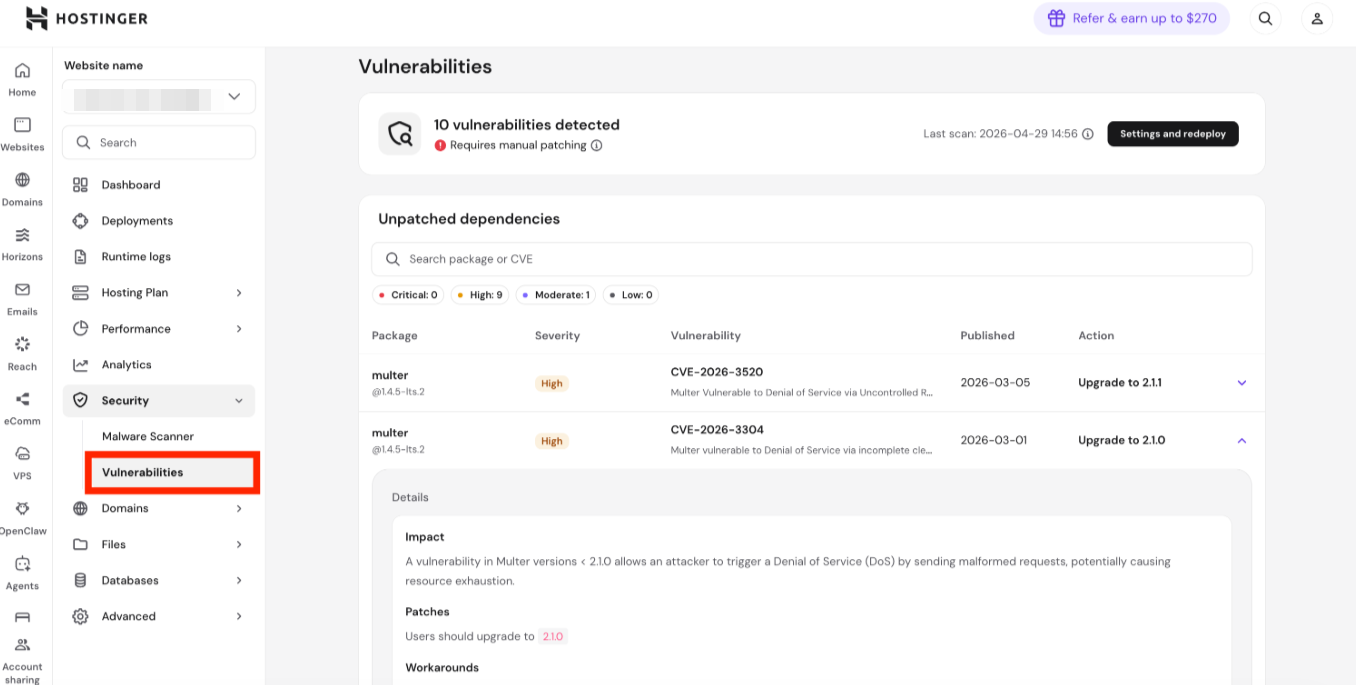
What it does:
- Scans deployed applications for vulnerable npm packages
- Reports affected package names, available fixed (secure) versions, and severity levels
- Automatically scans all newly deployed applications
- Applications deployed before this feature launched are scanned on their next deployment
What to do when a vulnerability is detected: Update the affected package to the fixed version listed in the report, then redeploy your application.
Hostinger supports automated vulnerability patching for Node.js apps deployed via GitHub. When a vulnerability is detected, you can apply an auto-fix directly from the Vulnerabilities page — no manual package hunting needed.
How auto-fix works:
- On the Vulnerabilities page, select one or more vulnerabilities and click Auto-fix (or Auto-fix all to fix in bulk)

- Hostinger opens a pull request on your connected GitHub repository with the recommended package update

- Review and merge the PR on GitHub — nothing is pushed to your branches without your action
- Once merged, a new deployment triggers automatically and the vulnerability is marked as fixed


Important notes:
- Auto-fix is only available for apps deployed via GitHub — file upload deployments are not supported
- Not all vulnerabilities have an auto-fix available. For those that don’t, update the affected package manually and redeploy
- Auto-fix requires the Hostinger GitHub App to have write access to your repository. If write access has not been granted, an error will appear when you attempt to create a pull request — you will need to approve the permission update via the email sent by GitHub on Hostinger’s behalf
- You still review and merge every PR; Hostinger will not push changes directly to your branches or access your secrets or environment variables
Frequently Asked Questions
1. I already have a domain added at Hostinger. How do I deploy Node.js to it?
Currently, Node.js websites must be deployed as a new website. Here’s the process:
- If the domain is already added to your hosting plan, make sure to remove the website first before adding the website. Note: Make sure to download backup before removing the website.
- Click Add Website and select Frontend web app
- Choose your deployment method (GitHub or file upload)
- Once deployment is completed, it will be active in the website that you added.
2. How do I remove or undeploy my Node.js website?
Currently, there’s no feature to “Stop” or “Delete” buttons for Node.js deployments. The recommended way to fully take your app offline is to remove the entire website from hPanel. This action will delete all associated deployments and take your app offline.
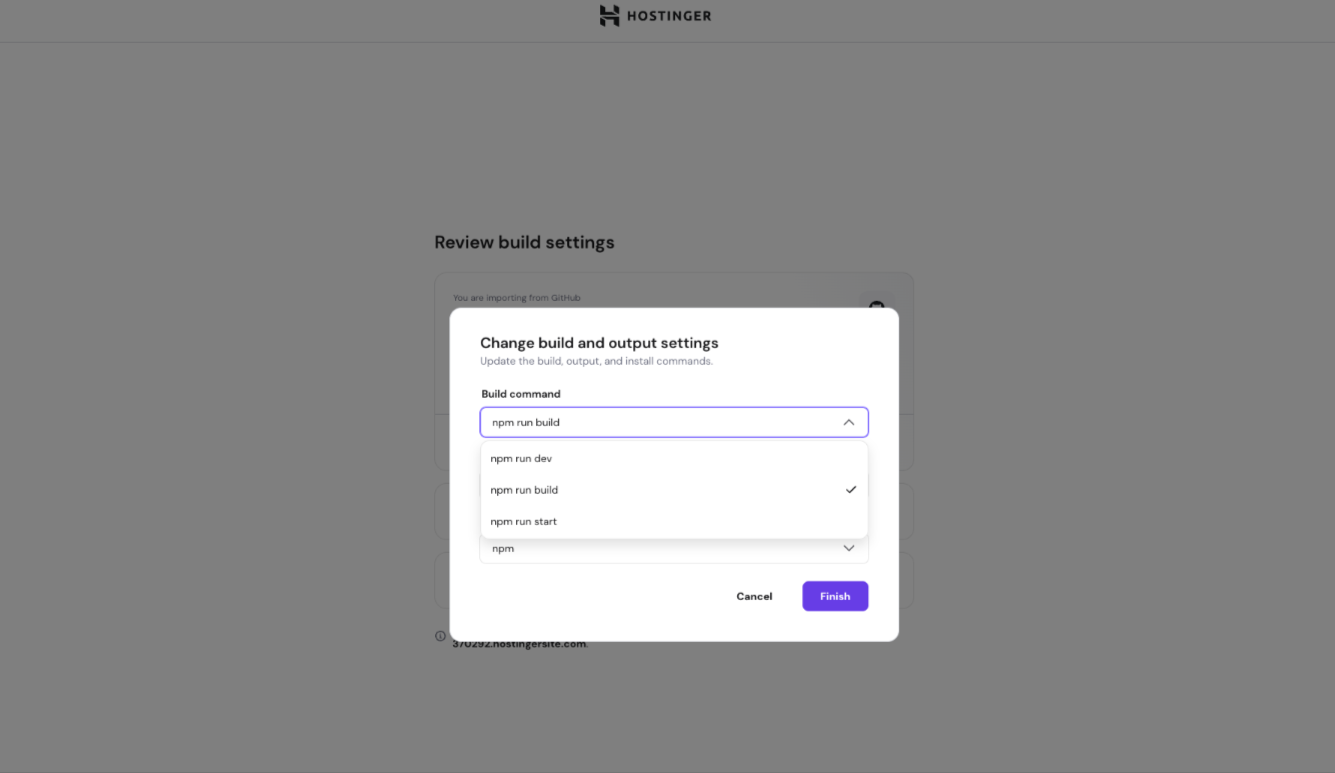
3. What npm commands can be run?
You don’t need to run npm commands manually via SSH or install NPM separately – it’s already pre-installed by Hostinger.
The npm build commands available to you are visible in the Build settings dropdown during application setup.
That’s it! Now you’ve learned how to deploy a Node.js app in Hostinger using either GitHub integration or direct file upload. If you have any questions or need further assistance, feel free to reach out to our support team via live chat 24/7 – we’re always here to help! 💜