When adding a website to your hosting plan, you may get the following message: Already used at Hostinger
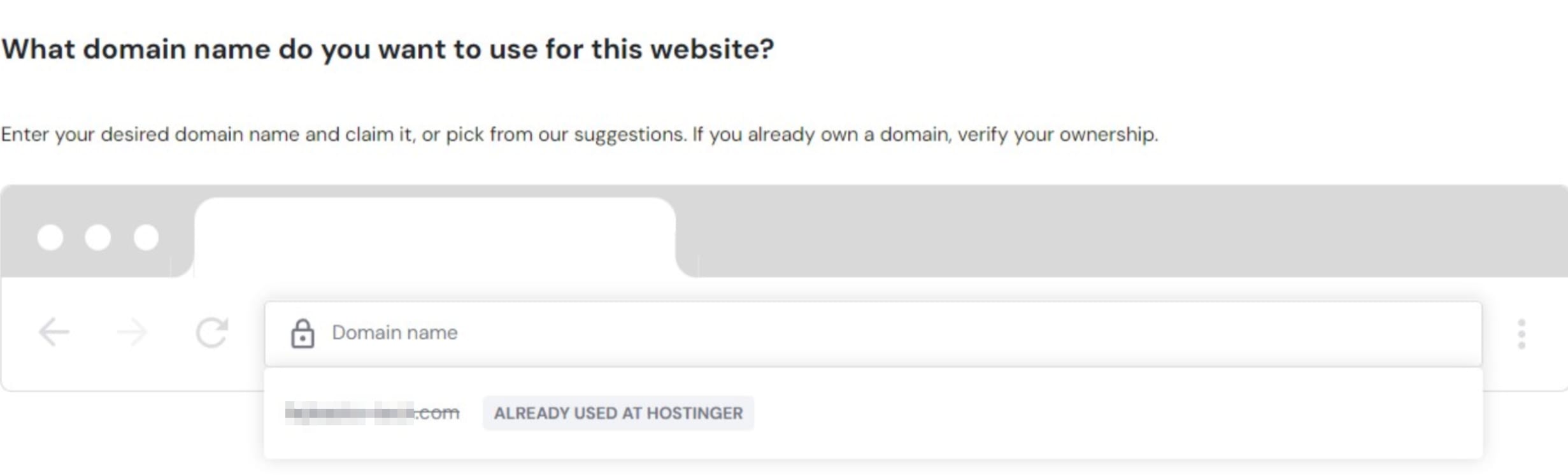
This error appears when the domain you’re trying to use is already associated with a website on Hostinger – either on a different account or on another hosting plan within the same account.
For technical and security reasons, each domain can only be connected to one website (and hosting plan) at a time. To connect the domain to your new website, you’ll need to free it up from its current hosting plan first. This is possible as long as your hosting plan is active or suspended due to non-payment.
Follow the steps below for your situation.
If the domain was purchased through Hostinger and registered to your account, you can now reclaim it directly — no need to contact support.
- When you see the
Already used at Hostingererror, select the domain you want to use. - A confirmation modal will appear explaining that the domain will be connected to your current website, and removed from the previous Hostinger account.
- Click Continue to reclaim the domain.
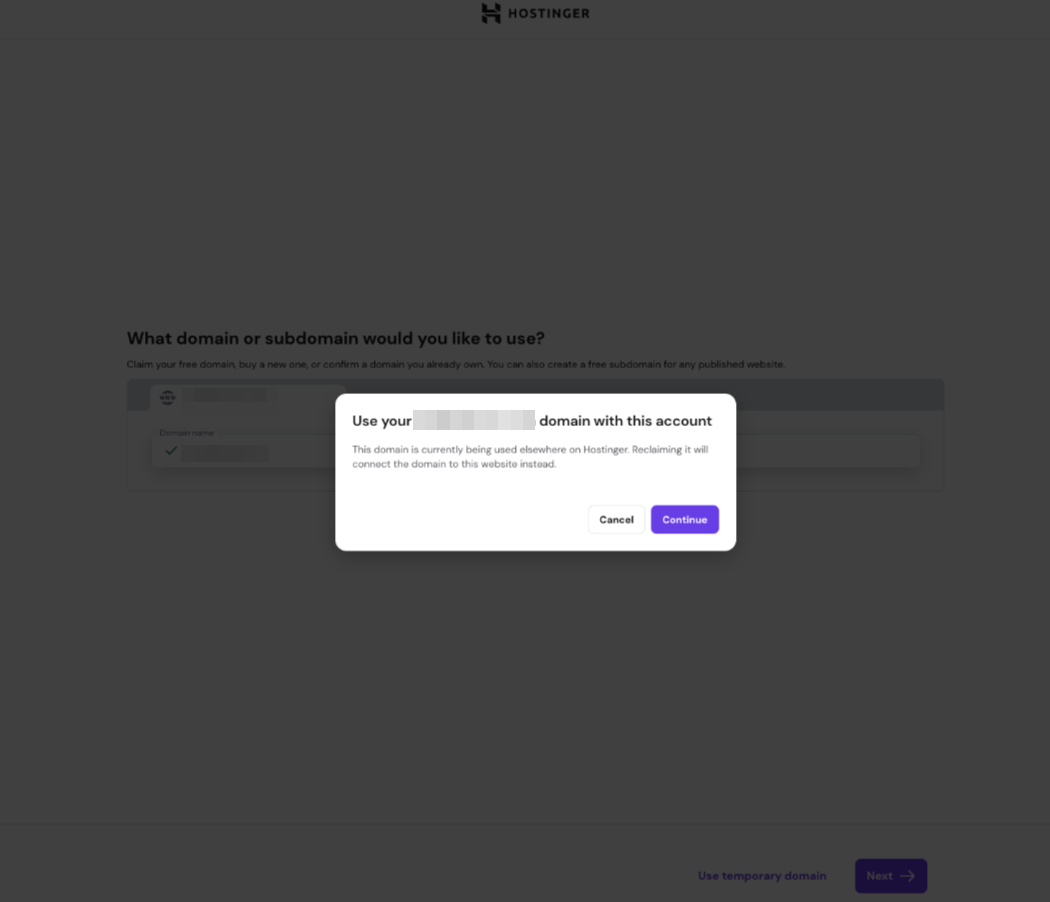
What happens to the previous account? They’ll receive an email notification, and their website files will be automatically moved to a temporary domain — so their content is not lost.
The domain is on a different Hostinger account
If you manage multiple Hostinger accounts, the domain may be connected to a website on one of your other accounts.
1. Log in to the Hostinger account where this domain is currently used.
2. Go to ‘Websites list’ and find the website this domain is connected to; you can use the search bar.
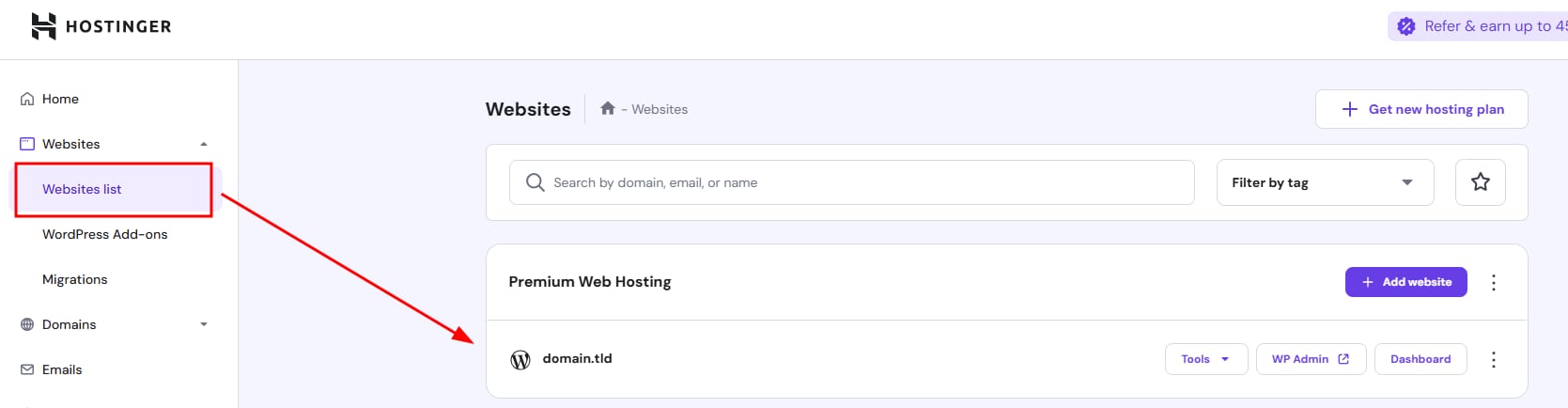
3. Delete the website to free up the domain. P.S. Before deleting it, save a backup copy of the website if you need it.
4. Return to the account where your new website is and connect the domain.
The domain is on another hosting plan within the same account
The domain may already be associated with a website on a different hosting plan in the same account.
1. Go to ‘Websites list’ and find the website this domain is connected to; you can use the search bar.
2. Delete the website to free up the domain. P.S. Before deleting it, save a backup copy of the website if you need it.
3. Once freed up, connect the domain to your intended website