Peppermint.sh is an open-source helpdesk solution offering a feature-rich platform, focused on ease of use and accessibility, especially designed for teams. At Hostinger, you can easily set up Peppermint.sh with just a few clicks using the Ubuntu 24.04 64bit with Peppermint.sh VPS template.
Accessing Your Peppermint.sh Installation
To access Peppermint.sh, open a web browser and navigate to:
https://your-vps-ip:1000Make sure to replace your-vps-ip with the actual IP address of your server.
Next, log in to the Peppermint.sh interface using the credentials provided in your hPanel:
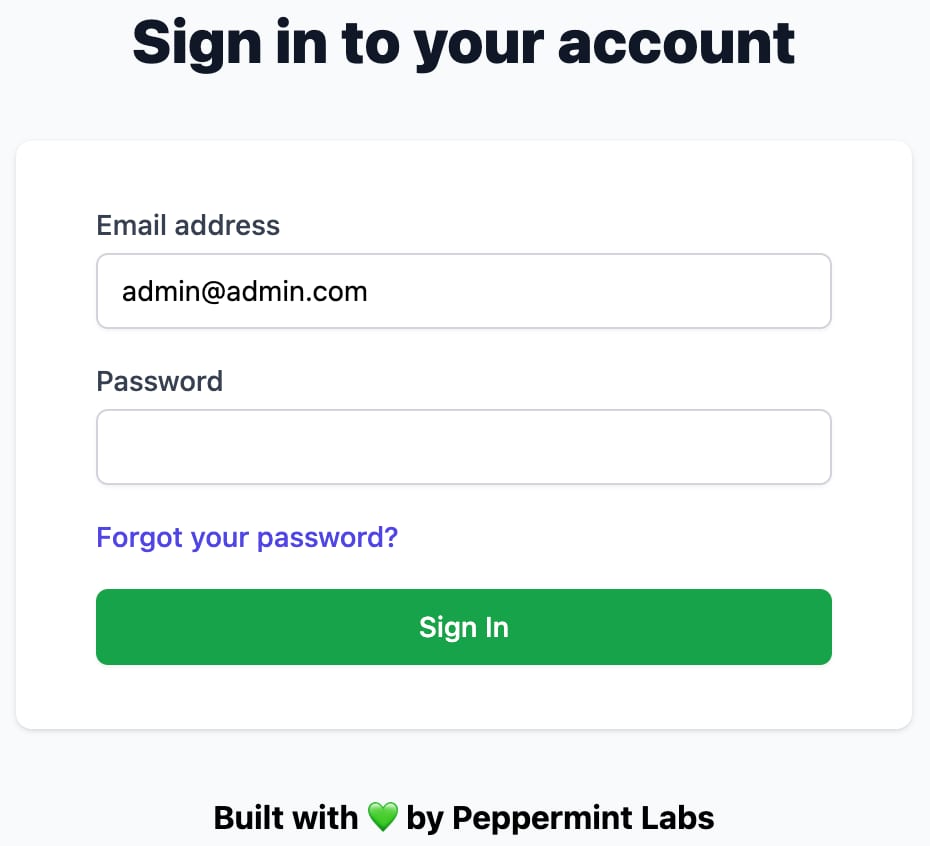
For enhanced security, change your credentials after logging in for the first time 🔒
Exploring Peppermint.sh
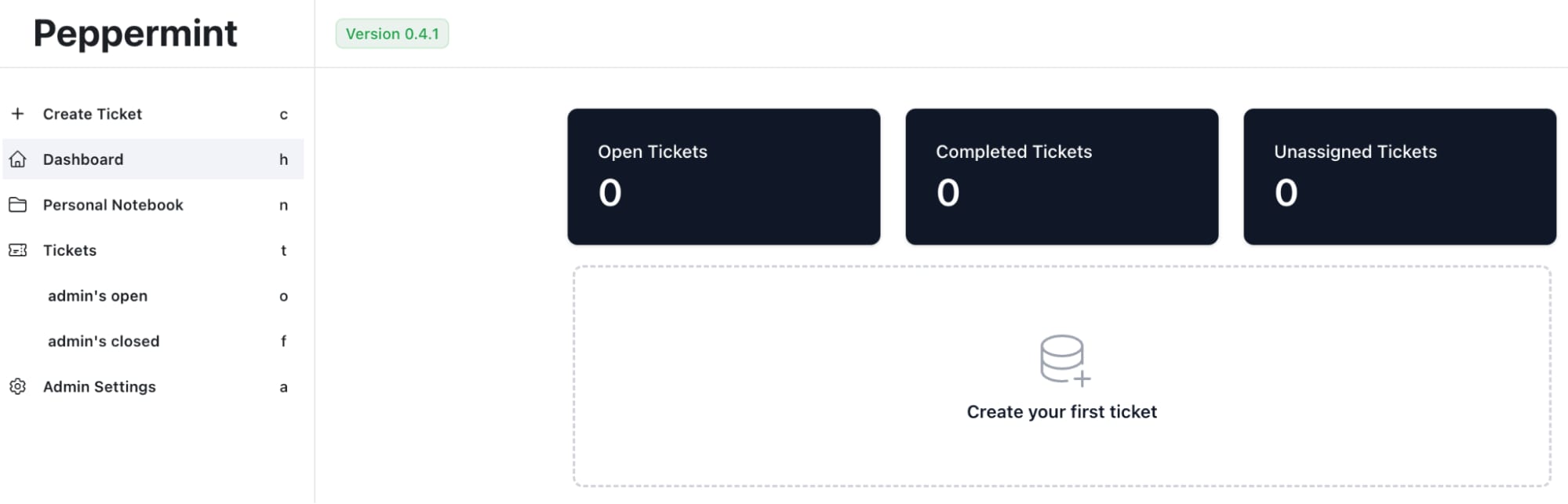
Once logged in, get familiar with Peppermint.sh’s interface. Check out the dashboard, ticketing system, user management, and other features:
Configuring Your Helpdesk
-
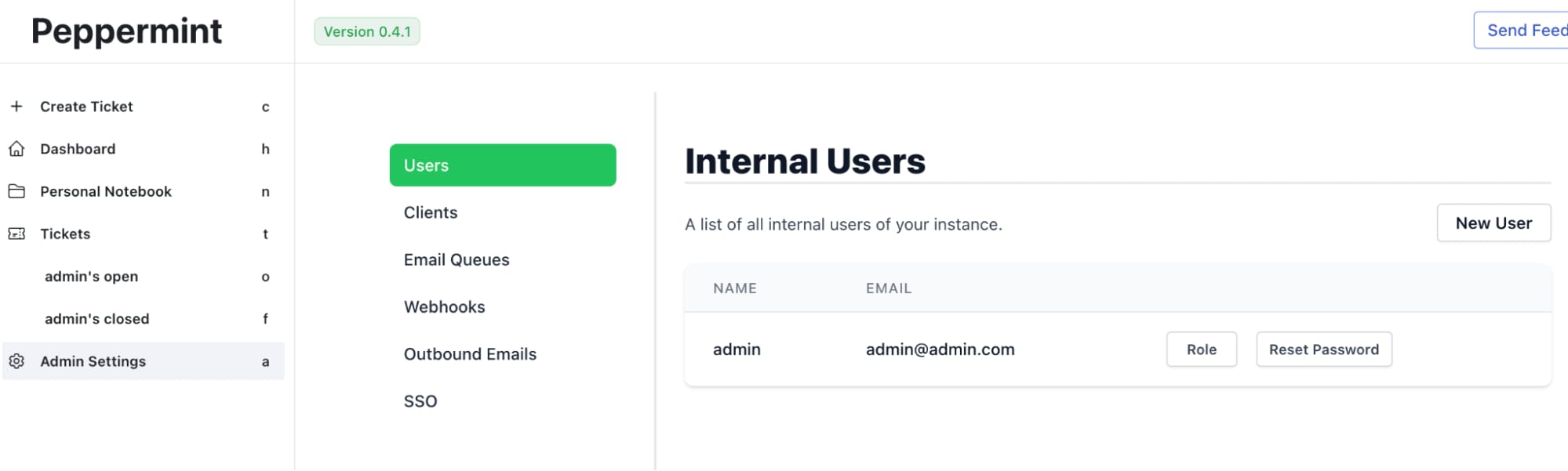
Set Up users and teams – create user accounts for your team members. Assign roles and permissions as needed

-
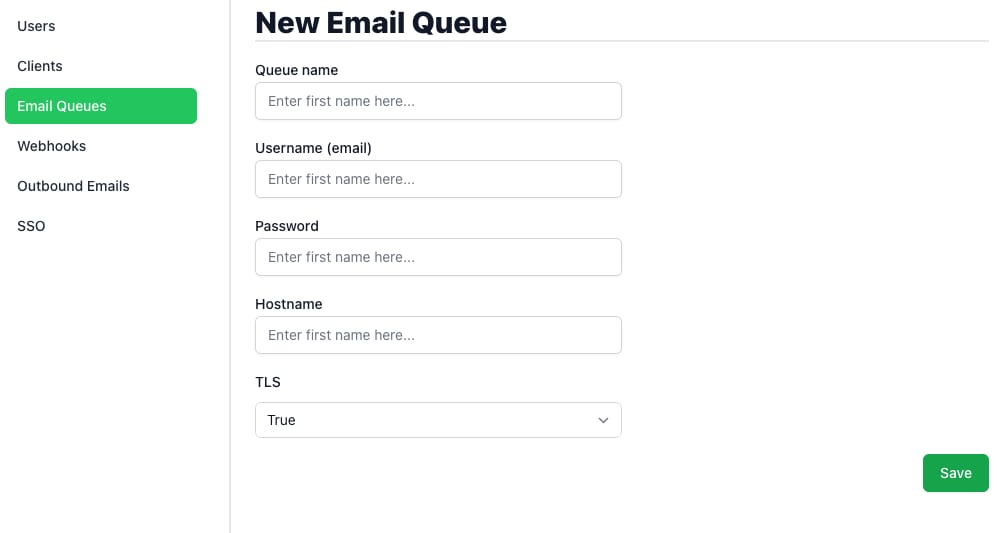
Set up email integration – add your email settings to receive and respond to tickets via email

-
Third-party Integrations – leverage any available integrations with other tools and platforms used by your team to streamline your workflow
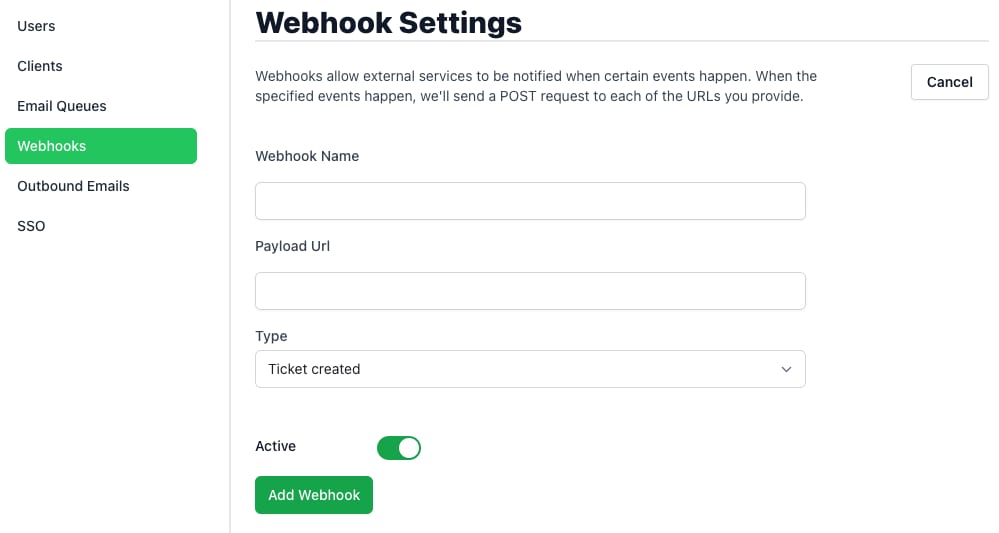
With Peppermint.sh on your Hostinger VPS, setting up an efficient and user-friendly helpdesk system is straightforward. Peppermint.sh offers a robust set of features that can enhance your team’s customer support capabilities.
For more detailed information and best practices, refer to the Peppermint.sh documentation 💡