If you have joined our Referral Program and want to change the PayPal account to where the payments need to be sent, follow these steps:
Step 1 – Add the new PayPal account
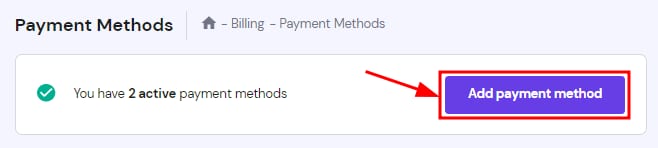
Go to the Billing → Payment Methods page on your hPanel and click on Add payment method:
Next, choose PayPal and click on PayPal Checkout to link your new PayPal account.
NOTE
-
The PayPal account will only be charged in case you set it as the default payment method or use it to pay manually
Step 2 – Change the PayPal account for referral payments
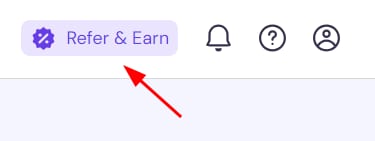
Go to the Referrals page by clicking the Refer & Earn button:
Next, select My Referrals:

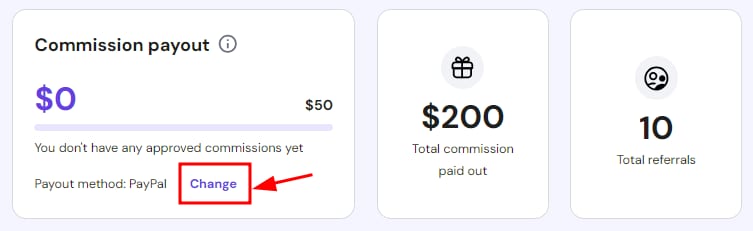
On the Commission Payout section, click on the Change button:
On the pop up, choose Change to PayPal from the dropdown list and click Select:
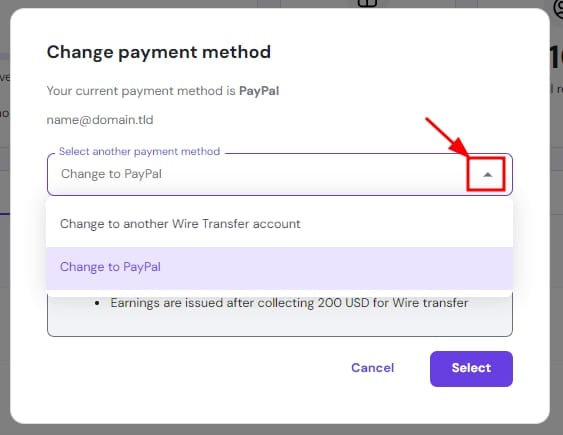
On the window that will open, select your new PayPal account and click on Change to confirm. From now on, your commission rewards will be sent to the new payment method, considering the following thresholds:
-
For PayPal, earnings are issued after collecting 50 USD.
-
For wire transfer, earnings are issued after collecting 200 USD.