Once you create a product in Hostinger Website Builder, the product page is created automatically. Learn more 👇
How to Access Product Pages
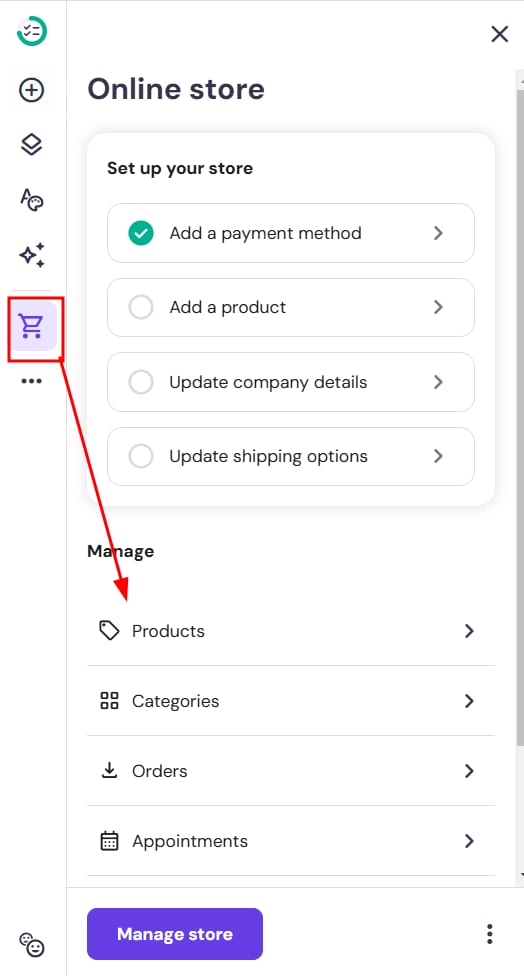
To find all your product pages, access the website builder and expand the Online store panel on the left:
Click on the product in question to open its page:
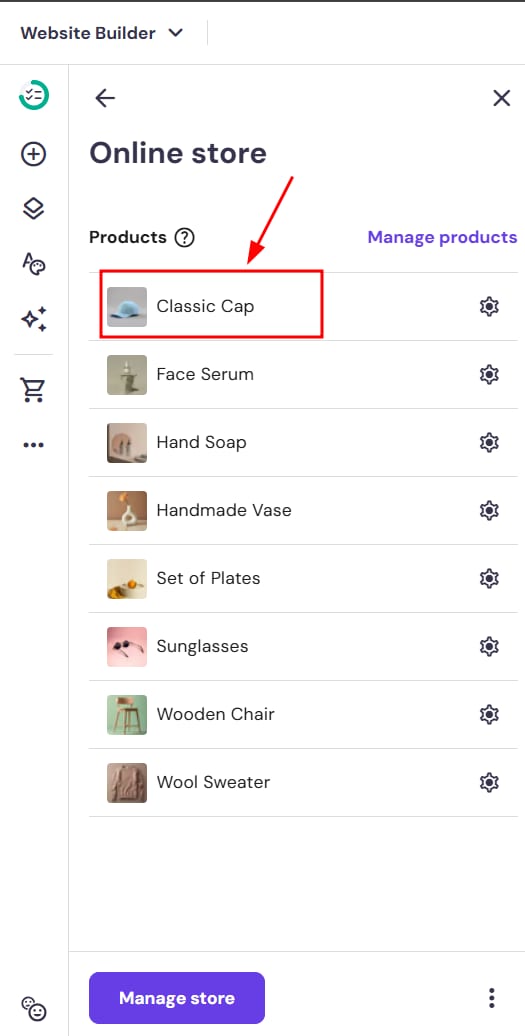
Here, you can edit the main product section, as well as add more sections and customize them however you like!
How to Access Product Page Settings
Expand the Online store panel on the left and click on the settings wheel next to the product title:
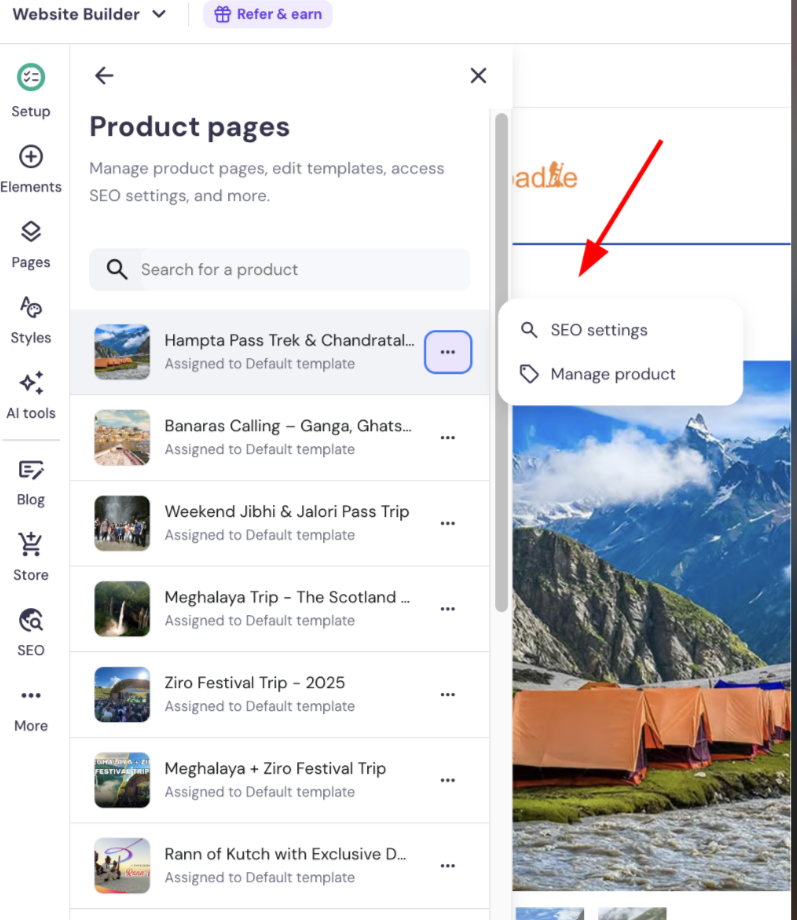
Here, you’ll find the following options:
|
SEO settings |
|
|
Manage product |
|
How to Customize Product Pages
You can customize every product page individually. Expand the Online store panel on the left, and click on the product page to open it:
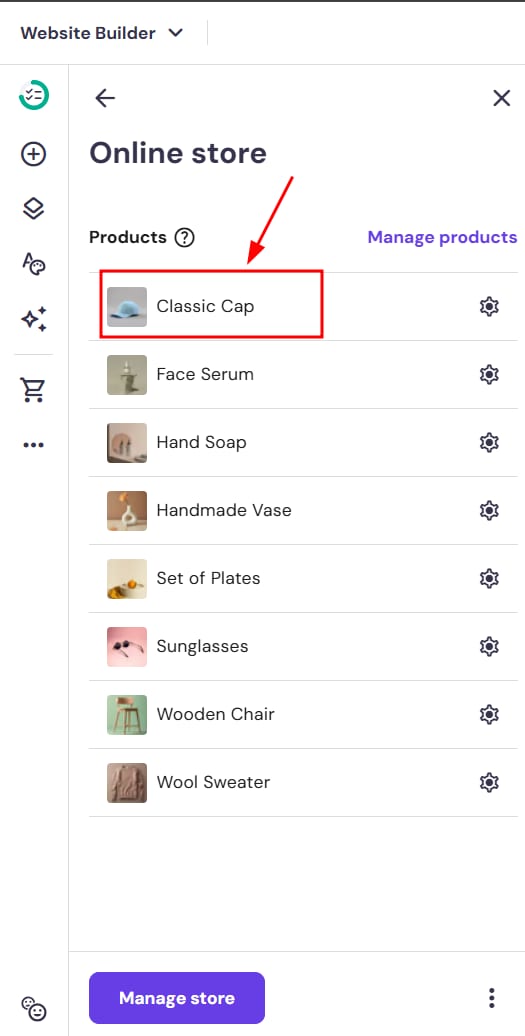
Click on the product section to reveal its settings menu and select Edit section:
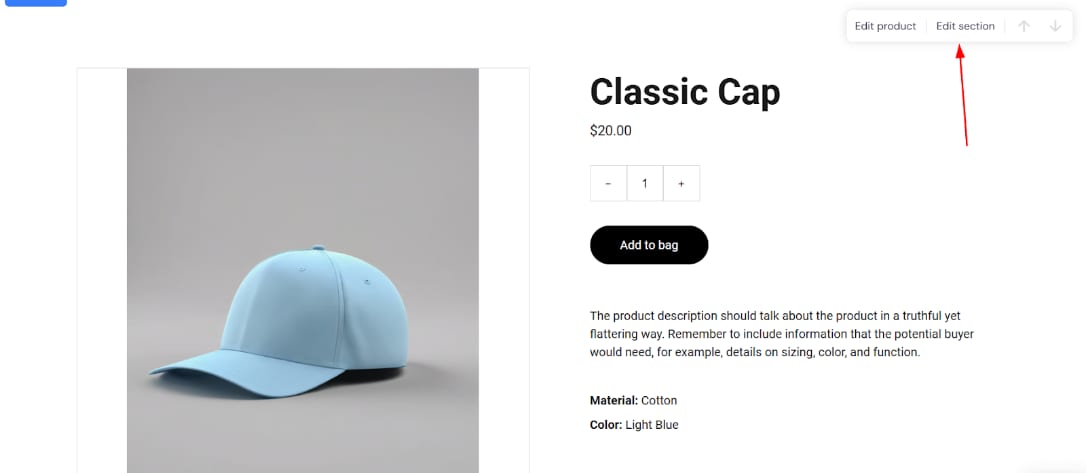
Here, you can customize the following areas of the product section:
|
Product |
|
|
Layout |
|
|
Style |
|
|
Button |
|
|
Enable quantity picker |
|
You can also customize each of your product pages individually by adding more sections and placing various elements within them.