Keywords are important for SEO because they help search engines understand the content and context of a webpage. By including relevant keywords in the content, metadata, alt tags, and URLs, website owners can signal to search engines what the page is about, making it more likely to rank well for relevant queries.
It is important to select your keywords thoroughly and not to use them excessively (i.e., you should not mention the same keywords in the content, meta information, and alt texts of the page) because this can harm your website’s SEO.
If you use Hostinger Website Builder and wish to add keywords to your website pages, follow these steps:
-
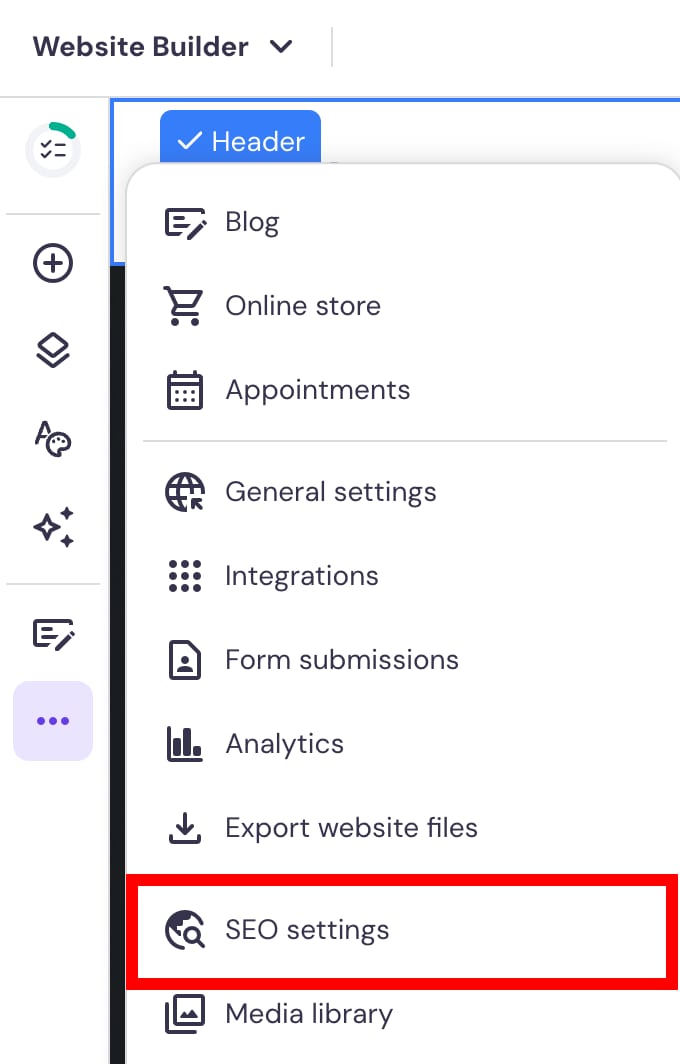
Within the builder, click on the three dots on the left to access Website Settings.
-
Once the menu opens up, click on SEO settings.

-
Select the page in question:
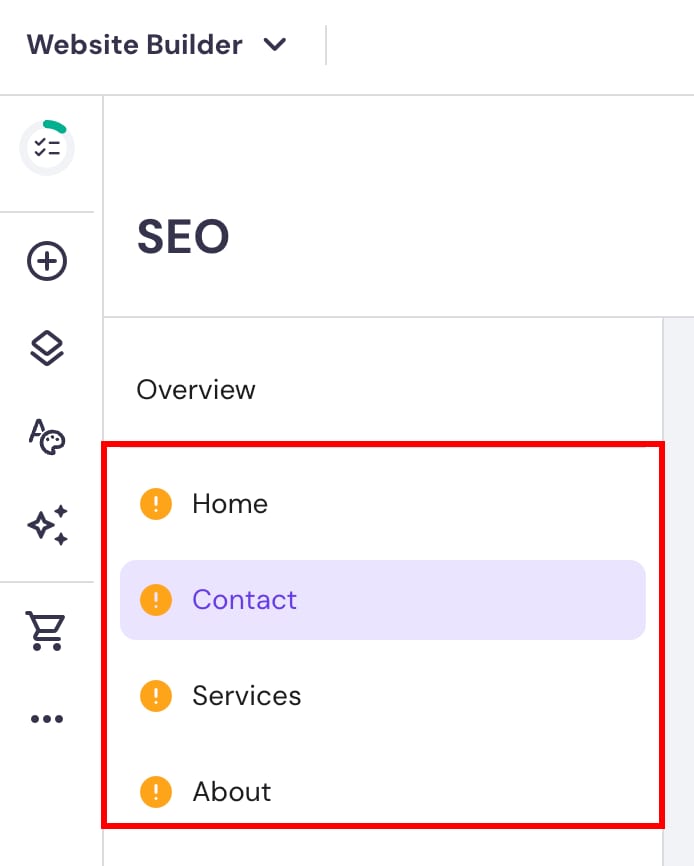
4. On the right at the top, you will see AI SEO Assistant. Click on Generate new SEO info:
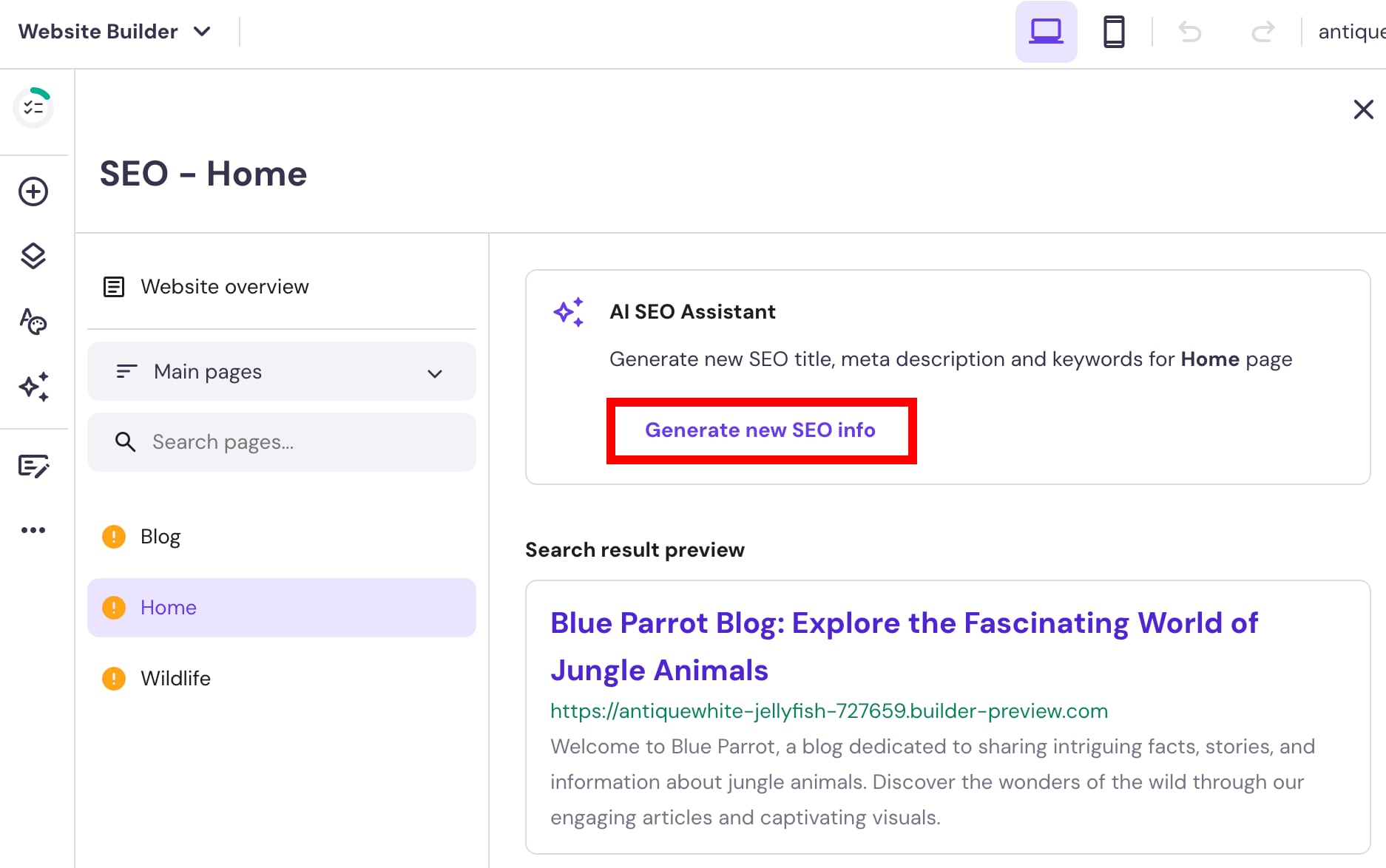
5. Follow the guide and fill in the Page description on the next page. The AI Assistant will then suggest a bunch of keywords for your page from which you can select three.
6. Review the generated Search Engine Appearance and click Finish.
If it’s a product page, refer here: Product SEO Settings 💡