While using Hostinger Website Builder, there are several ways to integrate WhatsApp into your website 👇
Add a Floating WhatsApp Chat Bubble
Within the builder, open the integrations settings and find the WhatsApp field. Insert your phone number and a default message there:
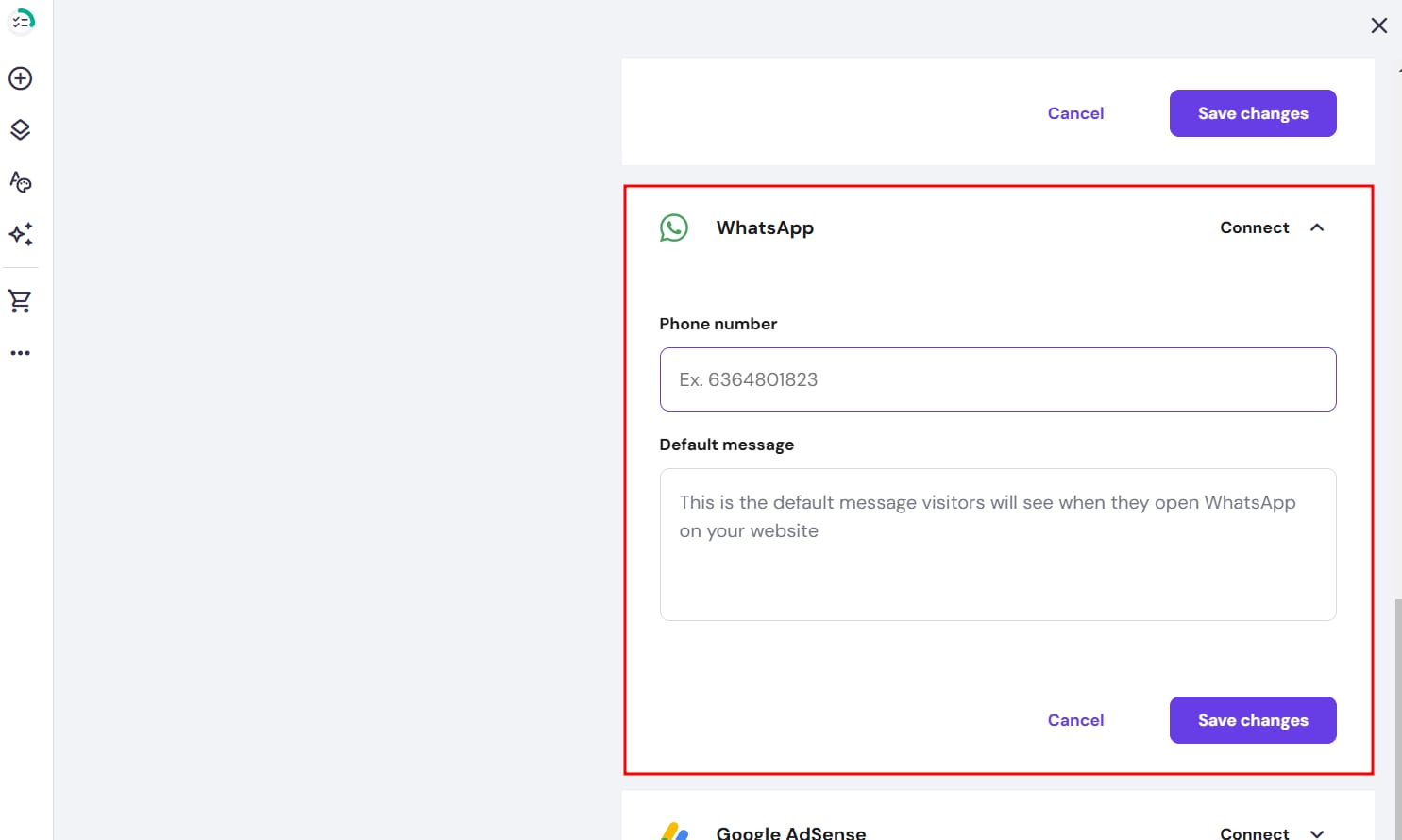
In the phone number field, insert numbers only, including your country code (e.g., 37061234567, where 370 is the country code). No extra symbols are needed 💡
Finally, save the changes and update your website.
Note: by default, it is not possible to replace the WhatsApp icon to a personalized image.
Add the WhatsApp Icon
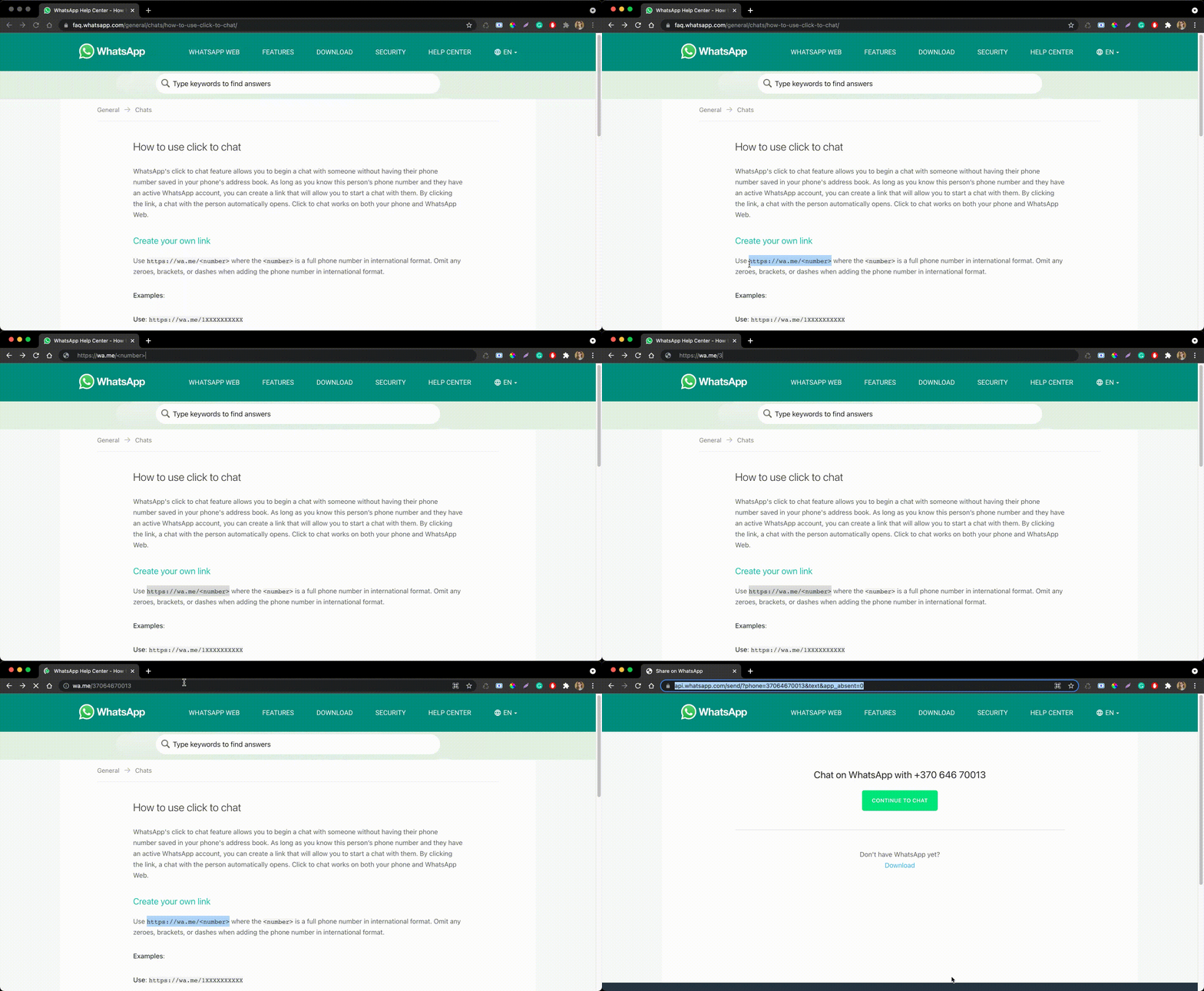
Create a WhatsApp link following these instructions:
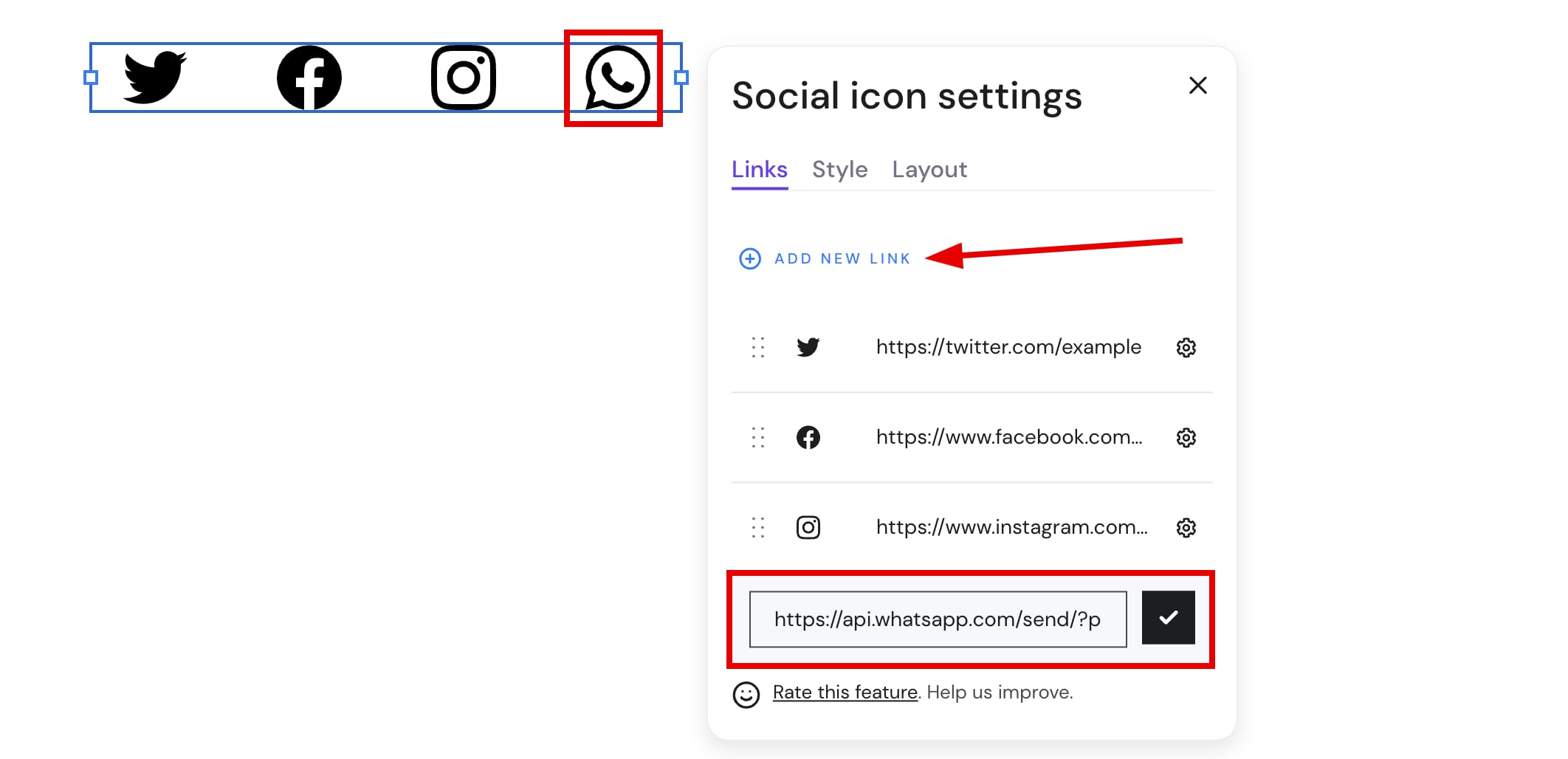
Add a social icons element to your website. Click on the element and select Edit social icons. Click on Add new link and insert your WhatsApp link there:
Once you’re done, update your website.
With the help of custom code, you can also integrate other third-party widgets into your website. For example, these widgets are free or have free trials:
Chat on WhatsApp button on product pages
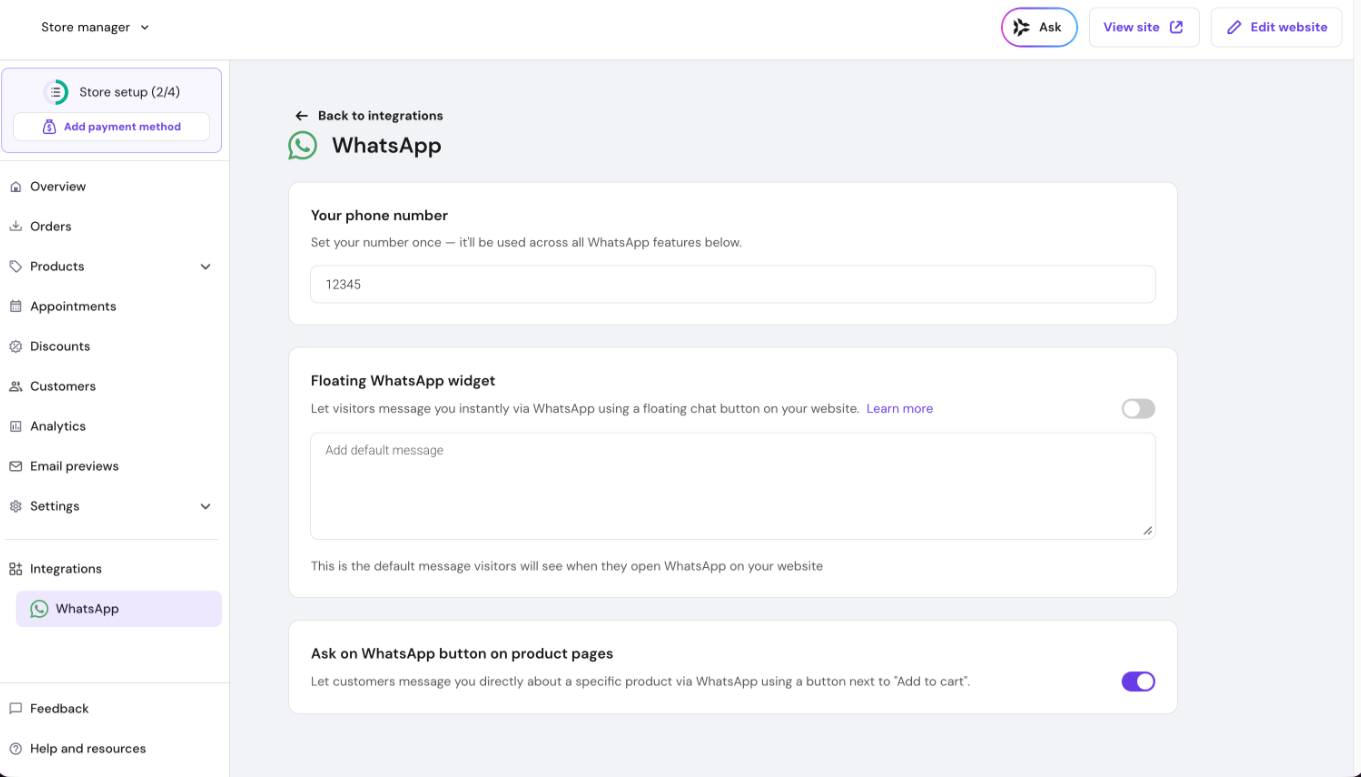
Store owners can add a Chat on WhatsApp button to all product pages. When enabled, the button appears next to the Add to Bag button on every product page.
When a customer clicks the button, WhatsApp opens with a pre-filled message containing the product title, selected variant, and a link to the product page.
How to enable:
Go to Store Manager → Settings and configure the WhatsApp number in the store settings.
This feature is available to all customers globally.