At Hostinger, SSH access is available for Premium or above hosting plans!
You created an FTP password when setting up your hosting plan. This FTP password is also your SSH password. If you change the FTP password, it’s also automatically set as the SSH password.
If you wish to have different SSH and FTP passwords, you may change only the SSH password on hPanel by following these steps:
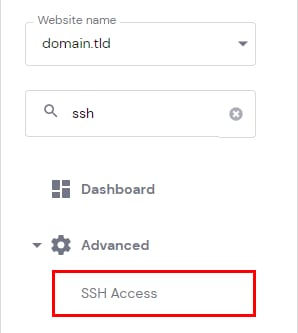
In the Websites section, click on Manage next to the site in question. Search for SSH Access on the sidebar and click on it:
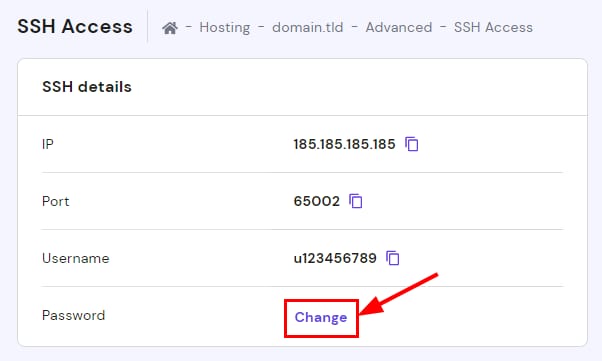
Click on Change next to Password:
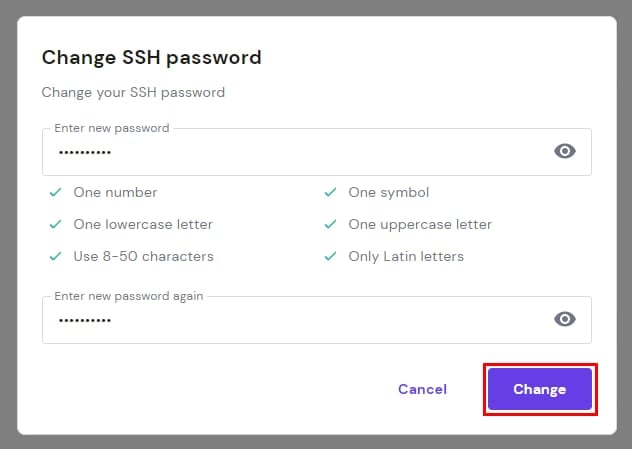
You will be prompted to generate a new password containing numbers, symbols, uppercase, and lowercase letters. Once done, click Change:
That’s it! Now, you have a new password to access all of your account’s files via SSH.
To use SSH, make sure to enable it first 💡