The WordPress Overview on hPanel is a convenient tool to manage all the important information about your website. You can find it by opening Websites → Dashboard, searching for WordPress Overview on the sidebar, and clicking on it.
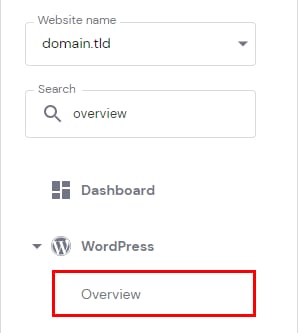
NOTE: If you’ve installed WordPress manually and don’t see these buttons, you can enable WordPress Overview manually.
Once there, you will be presented with these sections:
-
Dashboard – the main section of WordPress Dashboard; here you can see all the information about your website.
-
Security – here, you can manage your themes and plugins, including checking their current versions, updating, and disabling them without access to the WordPress Admin Dashboard.
-
AI Troubleshooter – automated troubleshooting to make sure your website is always in prime condition.
-
Staging – create a staging environment for your WordPress website (available on Business/Business WordPress plans or above)
-
Copy website – here, you can copy the website’s content to another domain or subdomain.
-
Presets – you can create a preset of a WordPress website that could be re-used multiple times to create new websites for your clients.
-
Learn – here, you will find useful video tutorials and Webinars from Hostinger Academy (this section might not be visible for some brands).
As well as these options:
-
A button to update the website information, such as name and database, so the latest changes are reflected on the Overview
-
If you have WordPress installed on one or more subdomains, a drop-down list will appear from which you will be able to select which WordPress website you want to manage
Dashboard
This page provides you with all the required information for your website with the most important configurations.
Core
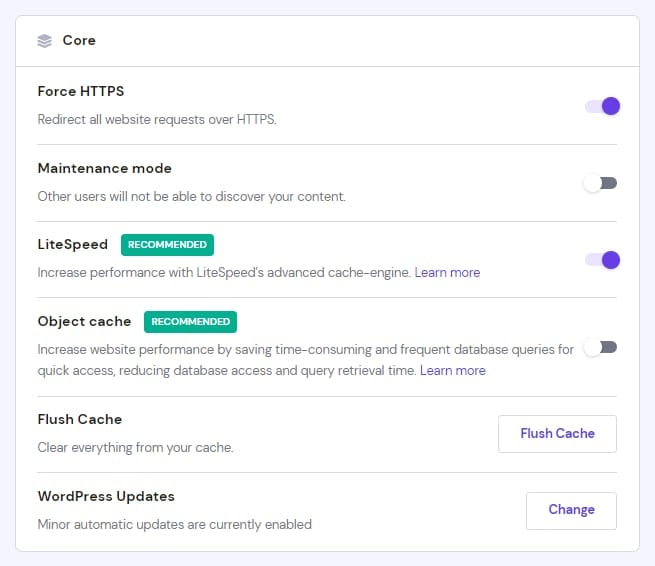
Here, you can easily do the following:
-
Force HTTPS – makes your website work with secure HTTPS protocol by adding forcing rules to the .htaccess file (requires an SSL certificate).
-
Turn on Maintenance mode – very useful when you are making changes to your website and don’t want your visitors to see your website temporarily. An alternative to this is using a maintenance plugin.
-
Enable the LiteSpeed cache plugin (highly recommended).
-
Enable Object cache if you have a Web Business plan or greater.
-
Flush Cache – clears your server cache. It is useful when recent changes are not reflected on your website.
-
WordPress updates – here, you can manage your updates settings: only update minor versions, don’t update, or always update to the latest version .
Speed & Security
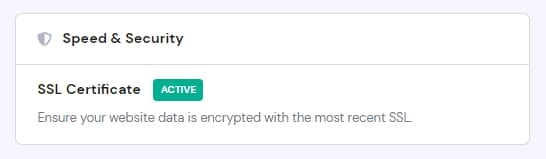
Here you can see if SSL is active on your website or enable it to improve your website security.
Site Installs
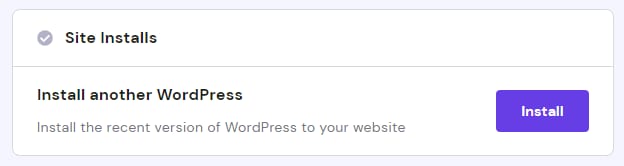
In this section, you can easily install another WordPress for your domains or subdomains.
Right Side Section
In WordPress → Overview → Dashboard, you’ll also find additional tools on the right.
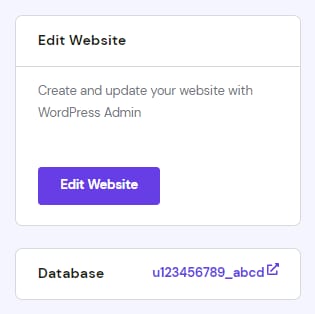
Edit Website and Database
Here you can find a shortcut straight to /wp-admin, which will not require you to enter the password, as well as which database is used for the website and a shortcut to open it in phpMyAdmin.
If you use the Safari browser, make sure to allow pop-ups for all the features to work properly: Allow or block pop-ups in Safari on Mac 💡
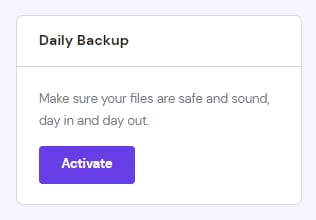
Daily backup
You can enable daily backups here if they are not already included in your hosting plan.
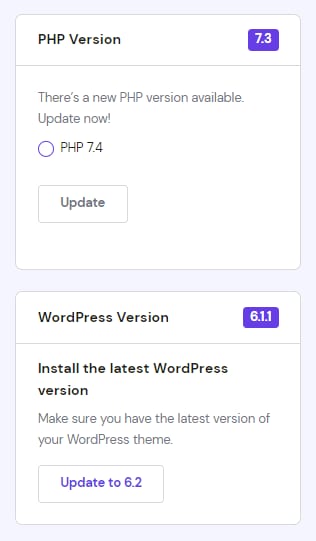
PHP version and WordPress version
This section provides you with the PHP version and WordPress version numbers, as well as the ability to update manually if needed.
NOTES
-
If you already have the recommended versions, you won’t see the update option.
-
Alternatively, you can change the PHP version from the PHP Configuration page.