The phpMyAdmin tool is one of the most popular ways to manage your database’s content. To access it on your Web or Cloud hosting plan, you can use any of the following alternative paths:
Option 1 – From the Databases Management Page
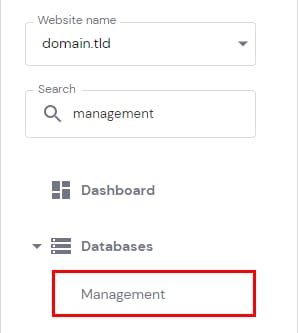
Navigate to Websites → Dashboard, search for Databases Management on the sidebar and click on it:
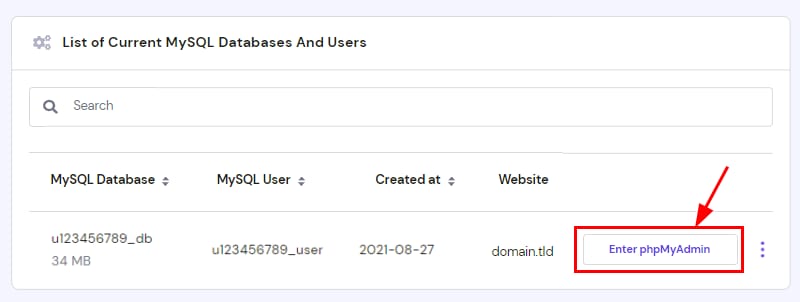
Select the database and click on phpMyAdmin:
Option 2 – From the phpMyAdmin Page
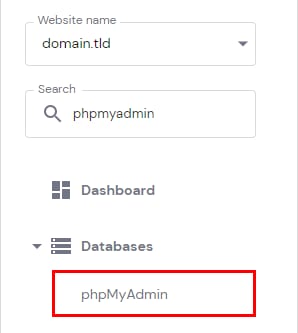
Navigate to Websites → Dashboard, search for phpMyAdmin on the sidebar and click on it:
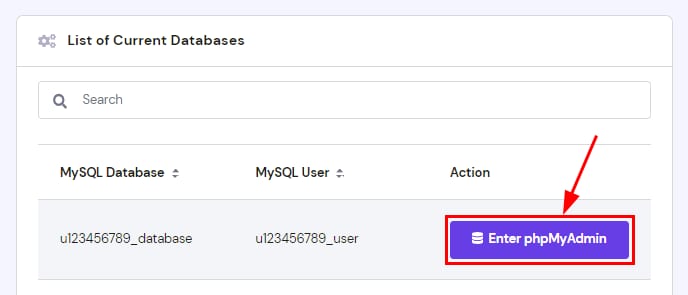
Next, click on Enter phpMyAdmin next to the database:
Option 3 – From the WordPress Dashboard
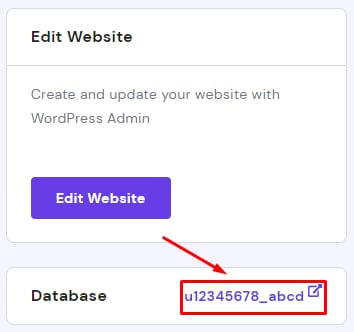
If you are using WordPress Dashboard, you can easily jump to phpMyAdmin by clicking on your database just below the Edit website section:
Option 4 – Using a Direct Link
Accessing phpMyAdmin via a direct URL makes accessing the database easier for developers or collaborators as they won’t need to enter your Hostinger account.
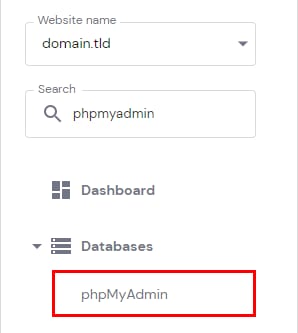
To obtain the direct link to your phpMyAdmin, navigate to Websites → Manage and search for phpMyAdmin on the sidebar:
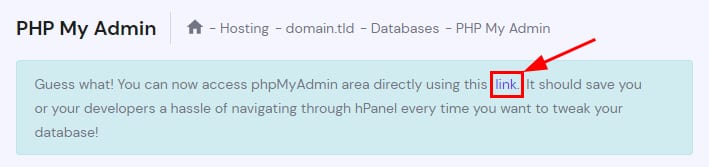
Next, click on the link mentioned on the top banner. This is the link you can share to access directly:
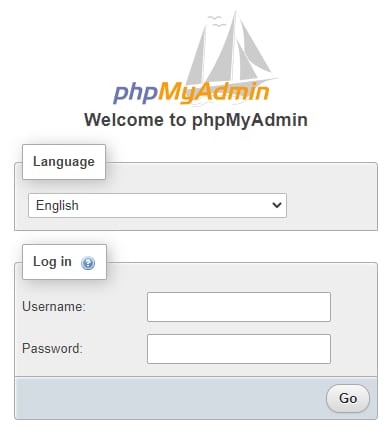
It will open the phpMyAdmin login page on a new tab:
-
Select the language from the dropdown list
-
Enter your database username and password
-
Click Go
You will not be required to enter your database name, as it is associated with your database username.
That’s it! Now you know the different ways to access your database using phpMyAdmin at Hostinger 😊