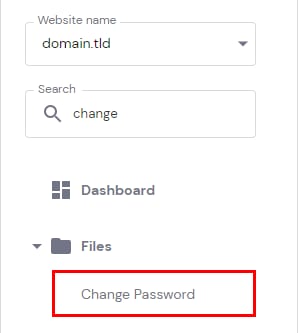
Your hosting password is used to connect to your hosting via FTP or SSH. This password can be quickly changed through your website’s hPanel by accessing Websites → Dashboard, searching for Change password on the left sidebar, and clicking on it:
Enter a new strong password or generate it by clicking on the wand icon, confirm it and click Submit:
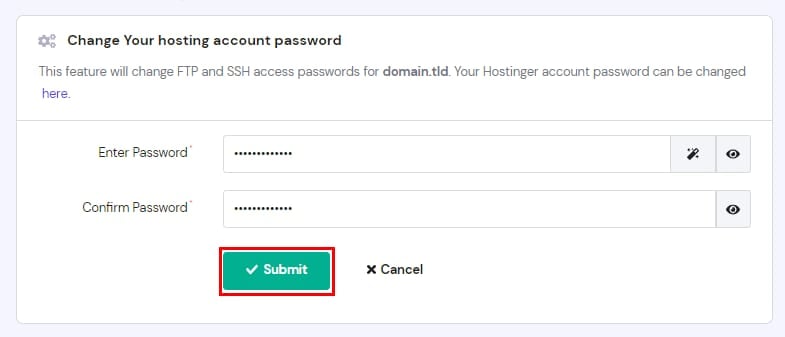
That’s it, your password is updated.
NOTES
-
Changing the password of your hosting plan will also change your default FTP password. If you want to change the password of addon domains or additional FTP accounts, you can do this from the FTP Accounts page.
-
If you have SSH access, the SSH password is the same as the FTP password of your main domain. You can change this setting by creating an SSH-only password.
-
FTP and SSH are not available for websites created with Hostinger Website Builder.
-
To change the password of your Hostinger account, go to the Account Information section.