If you have different email address managing Merchant Center account, you might not be able to identify account out of the box:
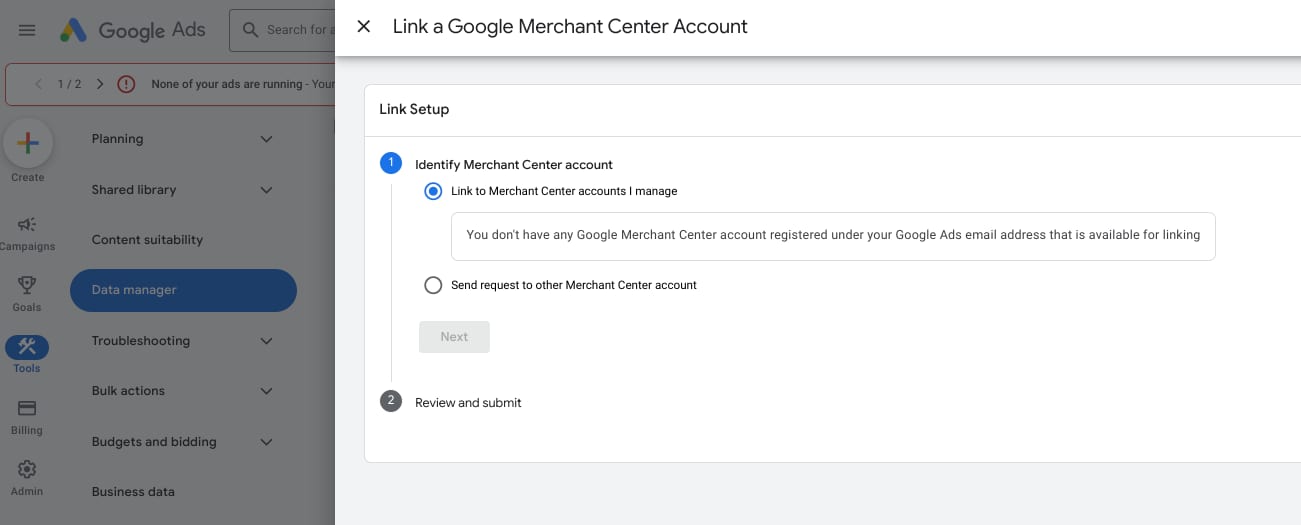
In order to fix this, please refer to the steps below:
-
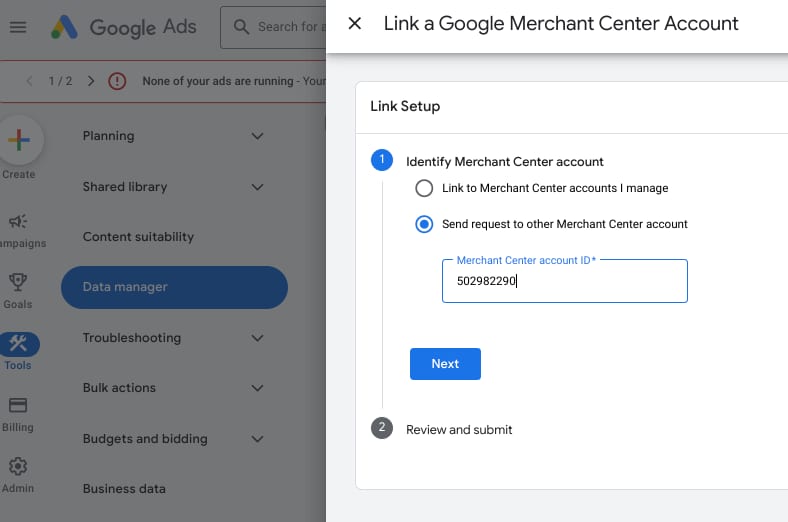
On your Google Ads account, navigate to “Tools” and “Data Manager”. After that select “Google Merchant Center” and add your account ID:

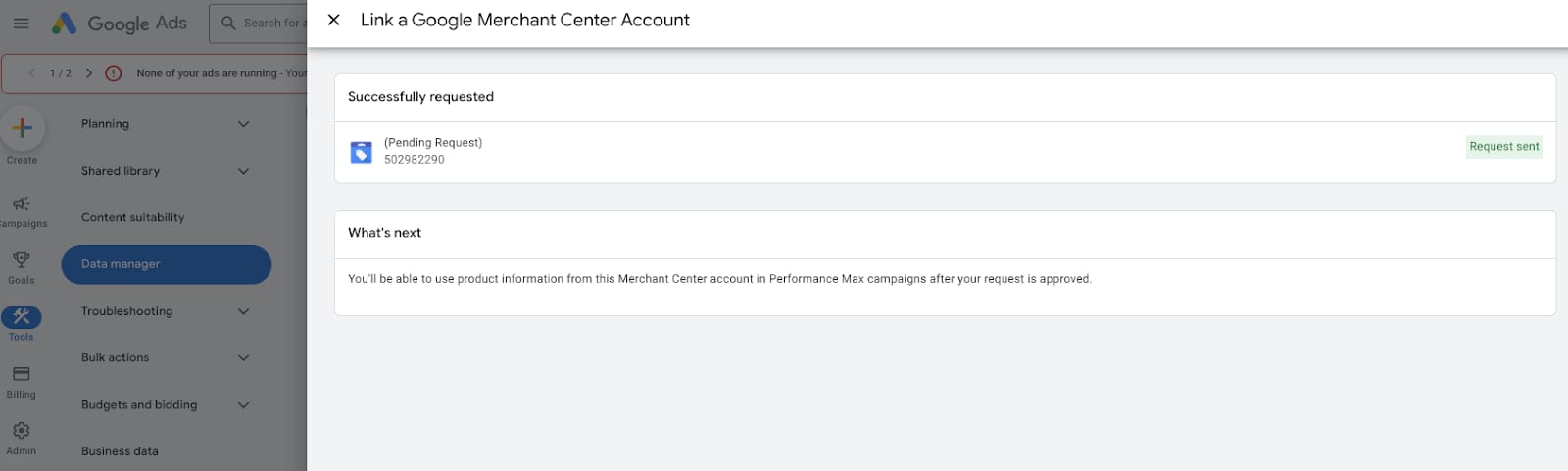
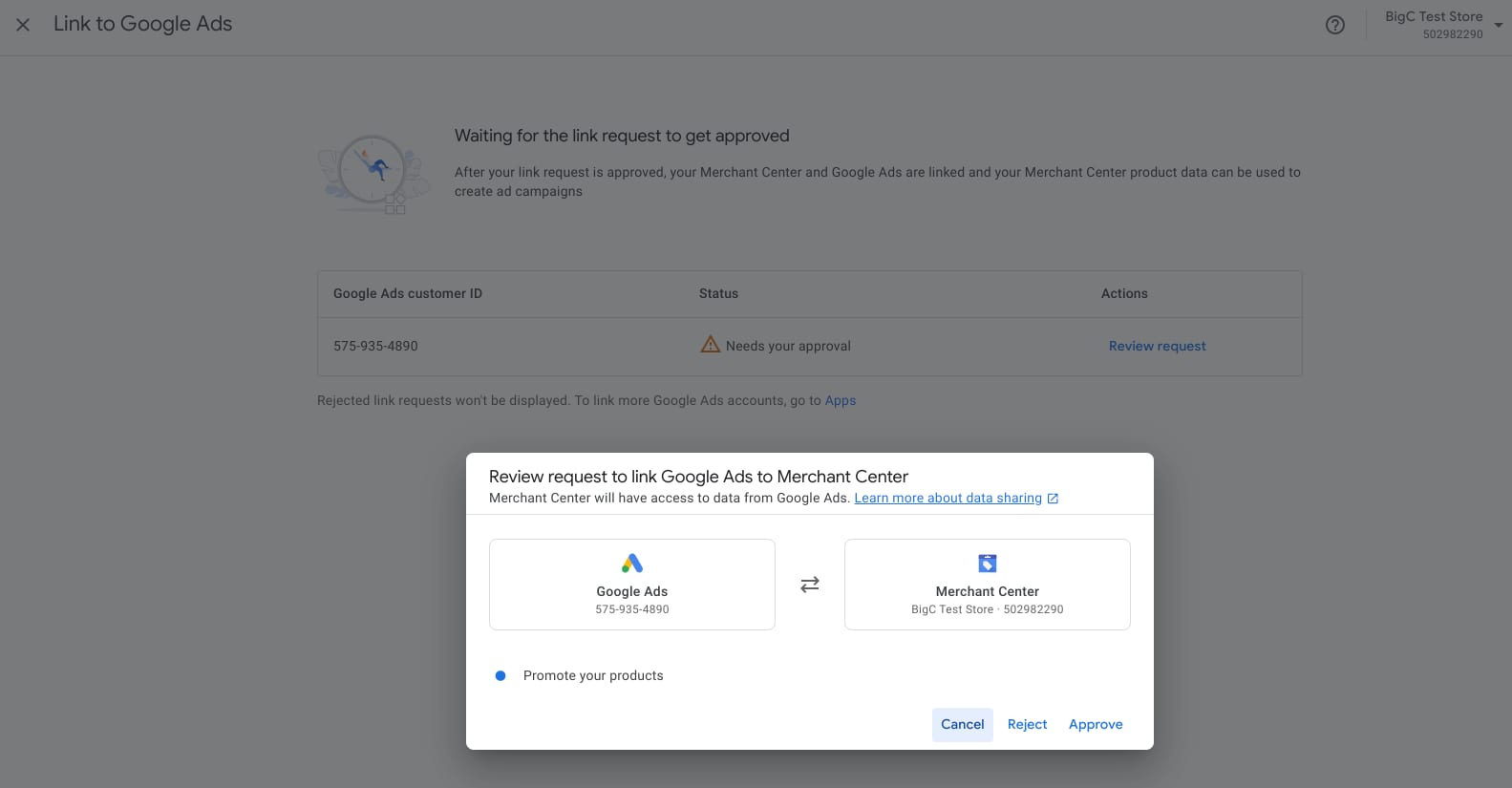
2. Navigate to your Merchant Center account and approve the link:
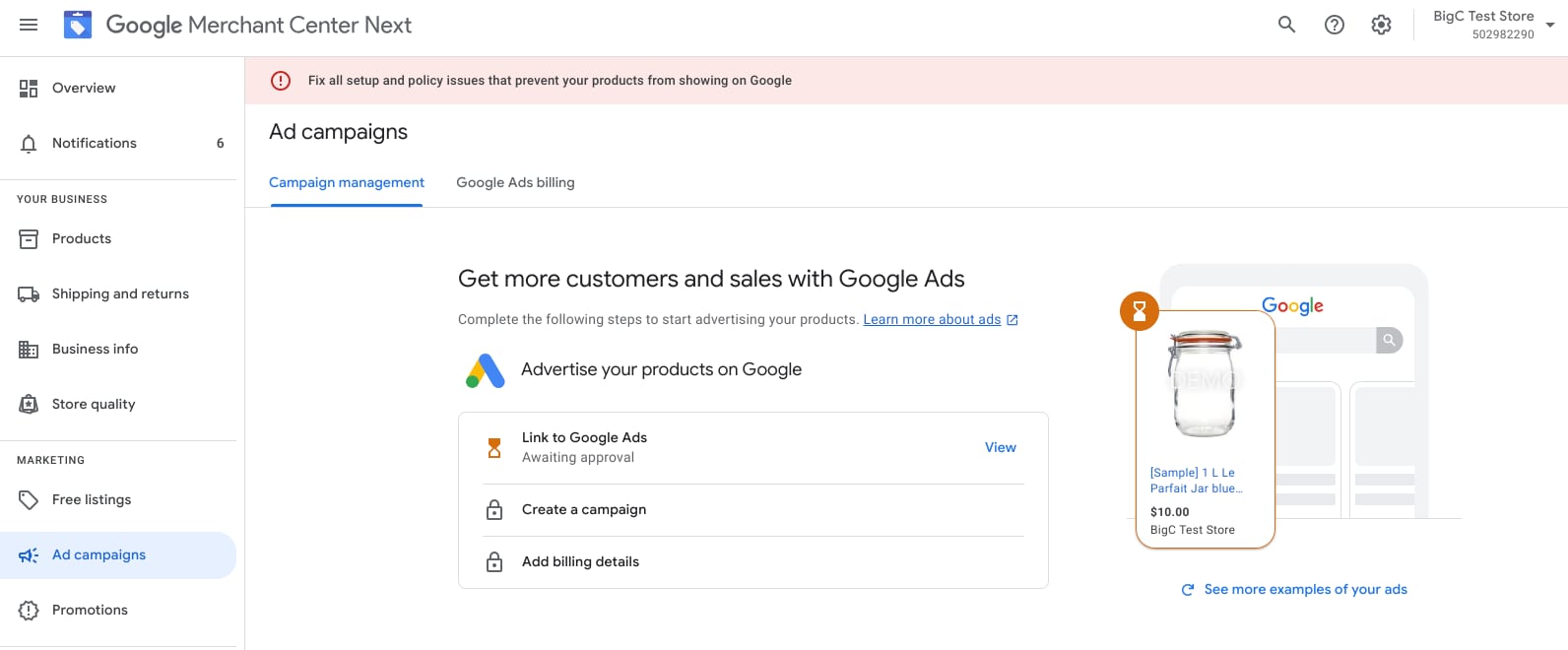
3. Once approved, navigate back to Google Ads and continue with linking the products to the PMax campaign:
You can also refer better to the steps here (can be checked from step 3 onwards) regarding navigating to “Campaigns” tab and link the PMax campaign to the Merchant Center product feed.