If your goal is to drive customers to sign up for your newsletter or provide their contact information, please continue onward with this guide. Your set up will involve one step – creating a Google Ads App account.
-
Log in to your Hostinger account and select the website you want to promote.
-
On the left side menu, select “More settings” and choose “Integrations”:
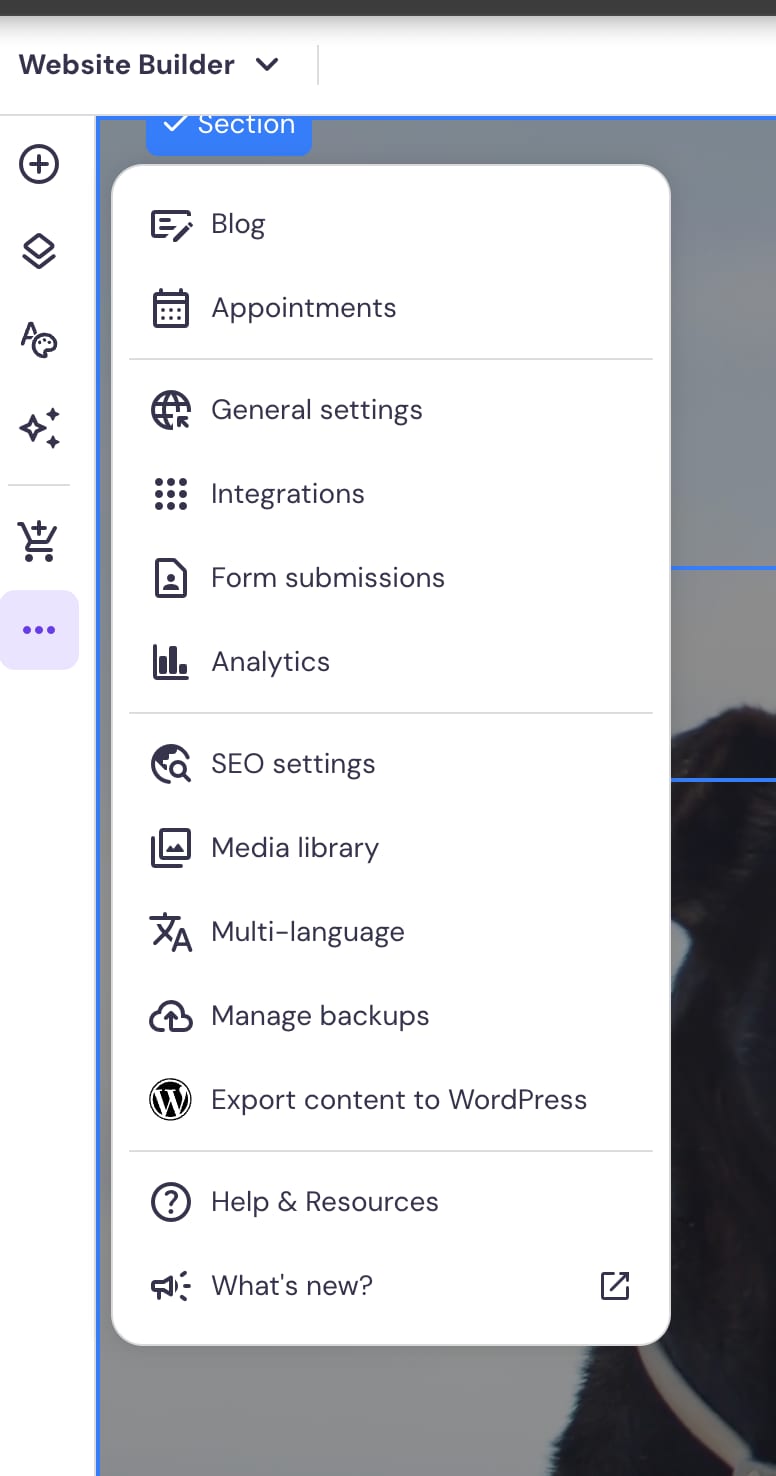
3. From “Integrations” section select “Google Ads App” and click “Open”.
4. You will be redirected to the Google login page where you can select your Google account you’d like to connect with Google Ads App or create a new one.
5. Once the account is selected, you will be redirected back to Google Ads app set up. Choose “Get started”.
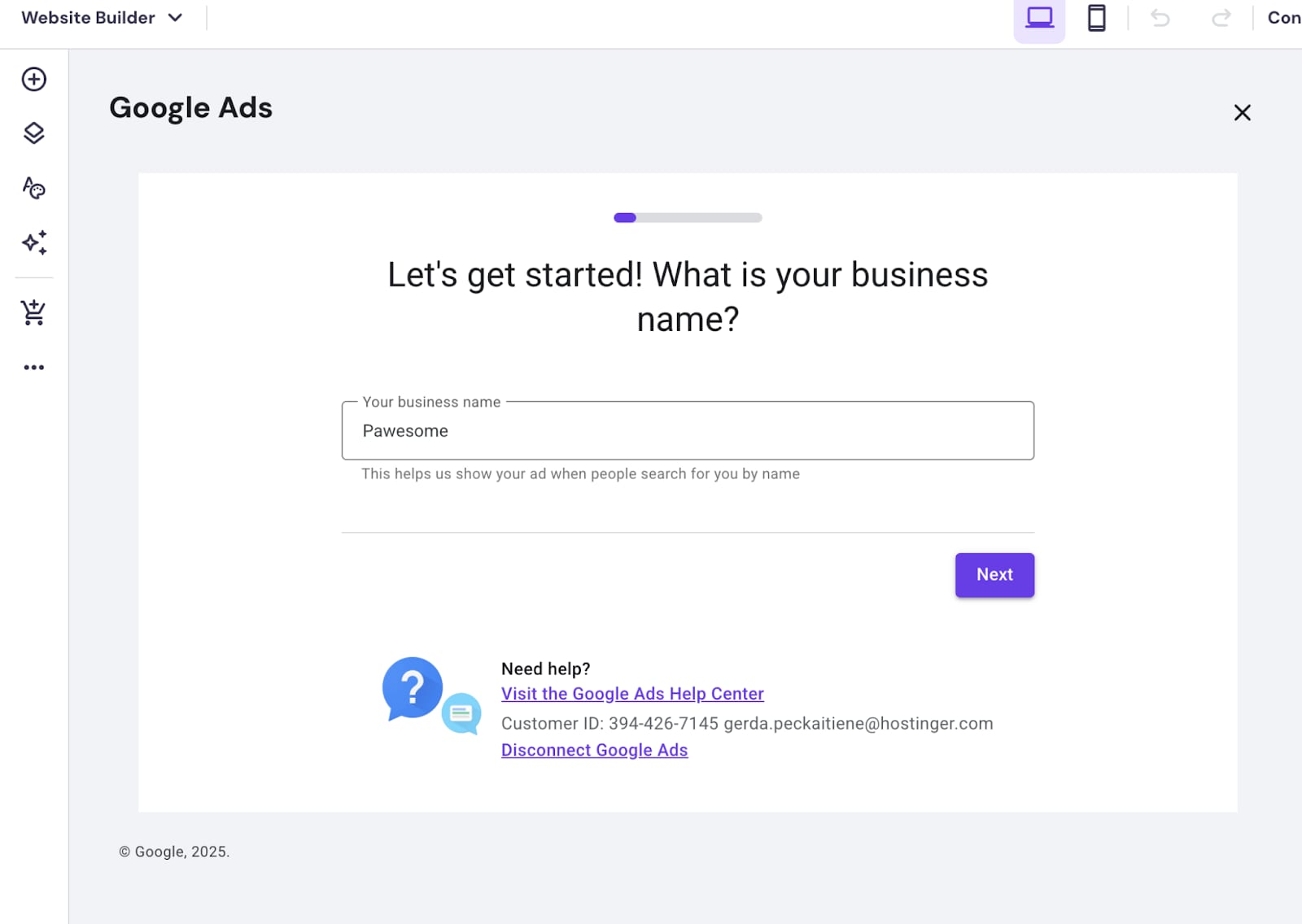
6. In the next step you will be asked to provide your brand or business name. Add one and press “Next”:
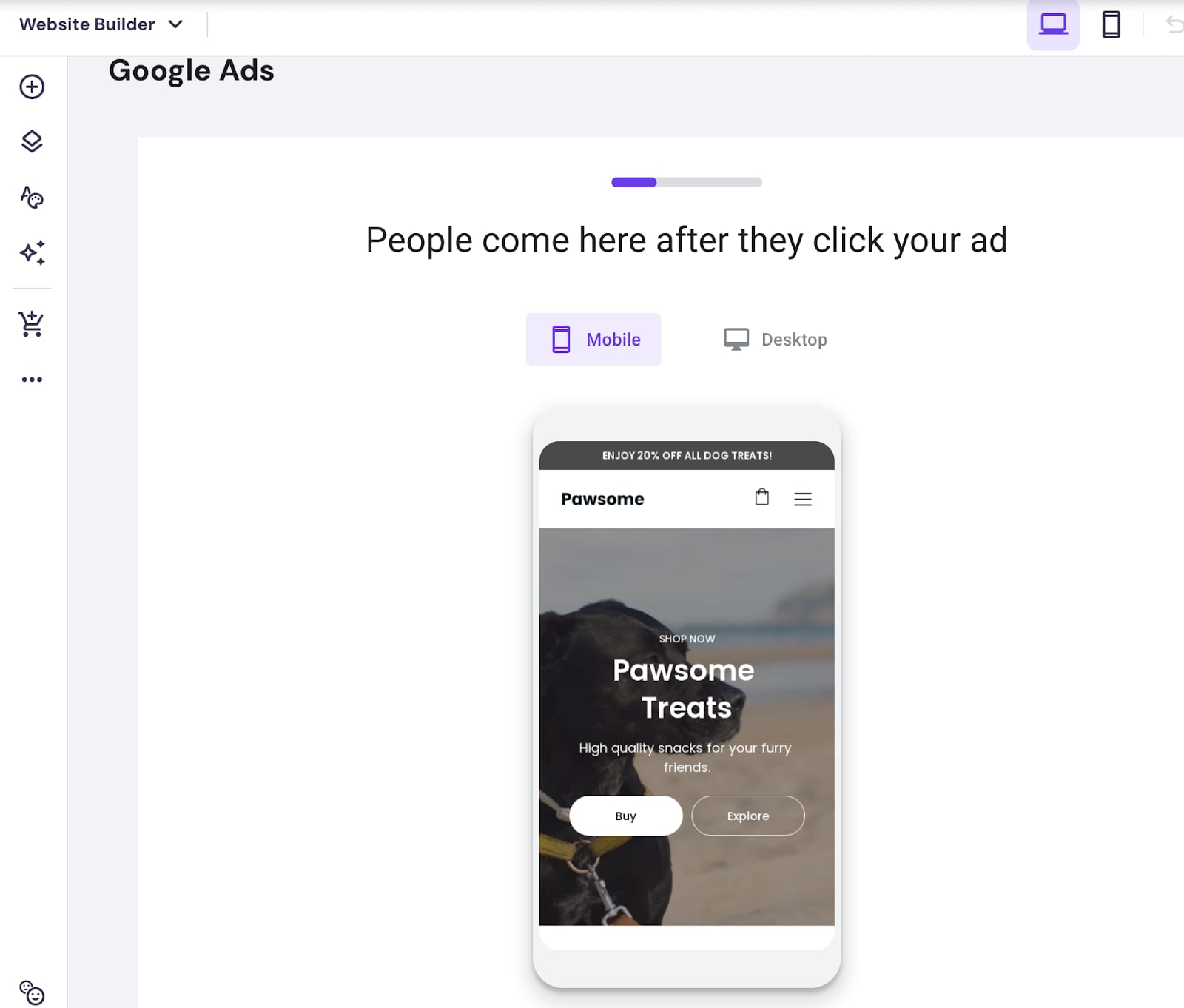
7. Confirm the landing page of your website – this is where customers will be redirected to after they will click on the ad:
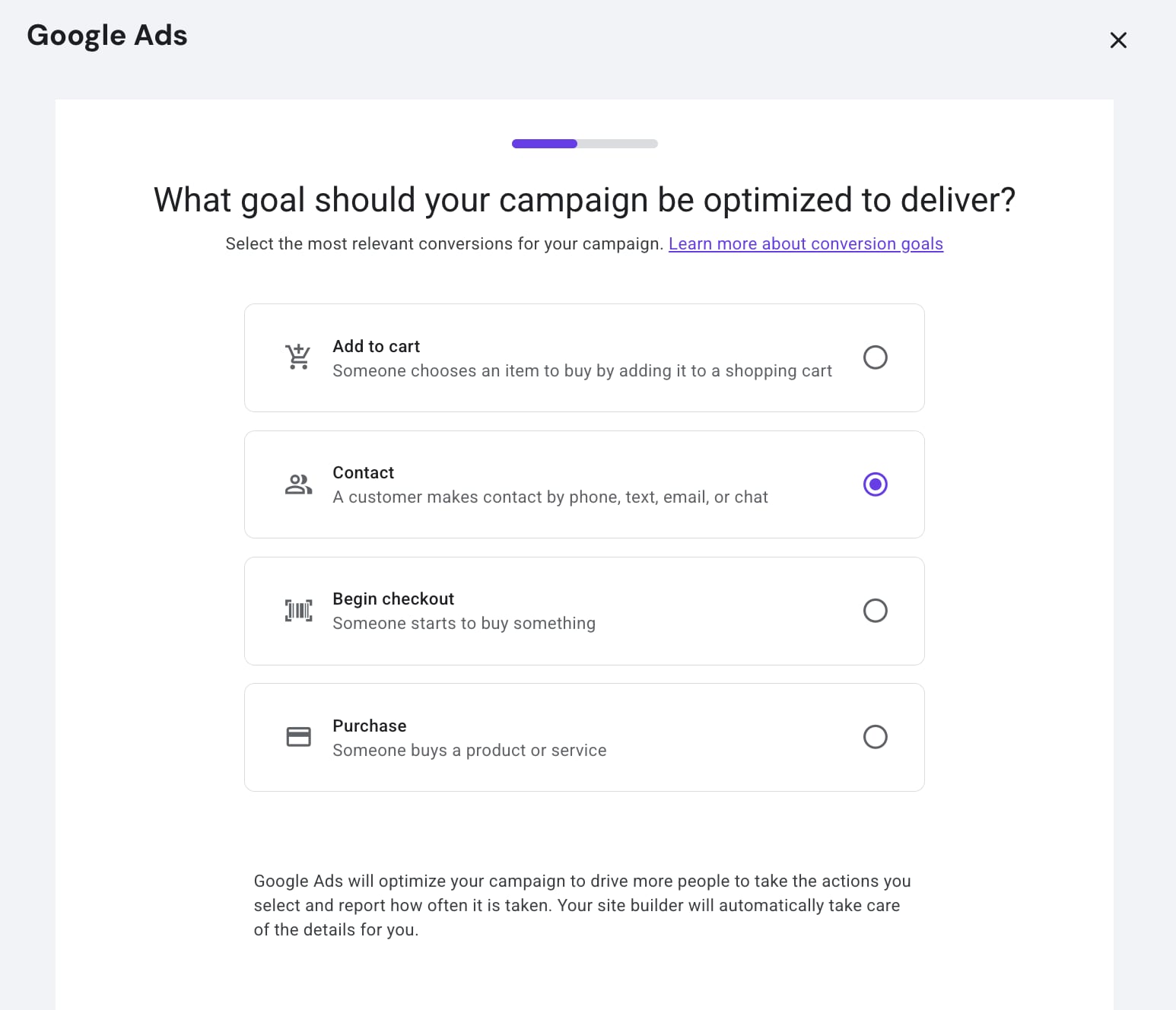
8. Select your campaign goals. More details on how to correctly set goals can be found here:
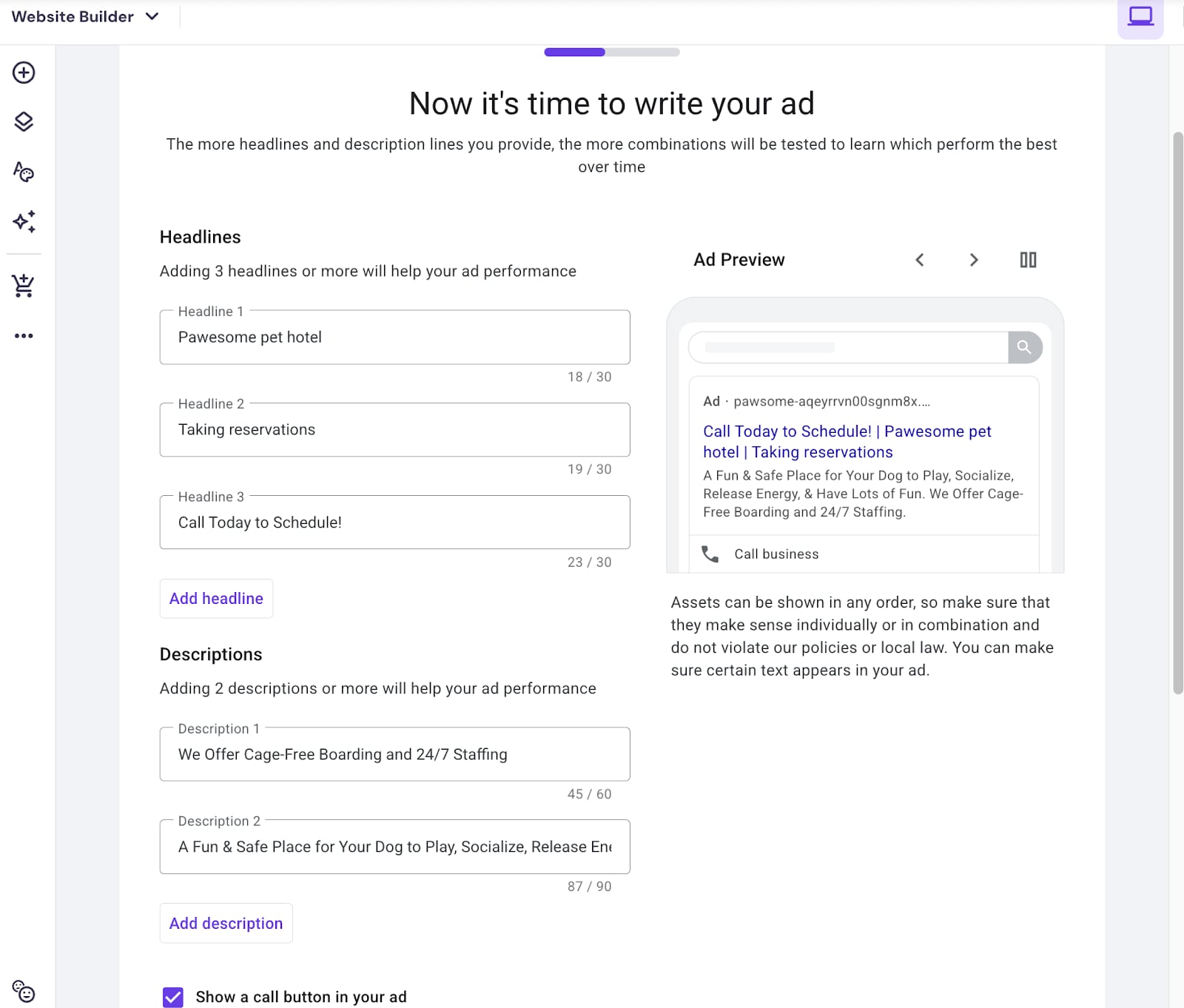
9. Add details about your add:
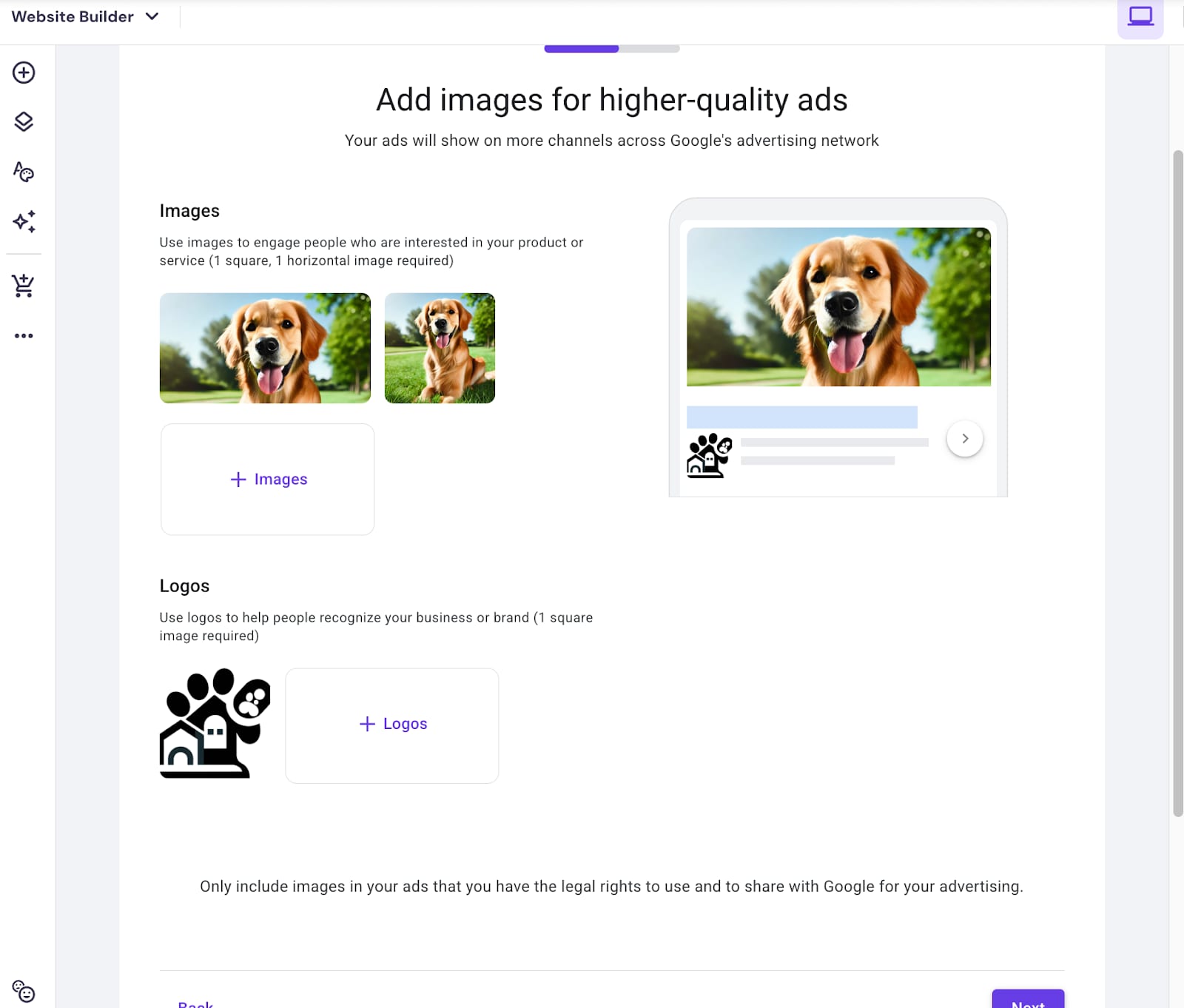
10. Make sure you add images and logo, representing your business. If you do not have your business logo, feel free to use Hostinger AI logo generator:
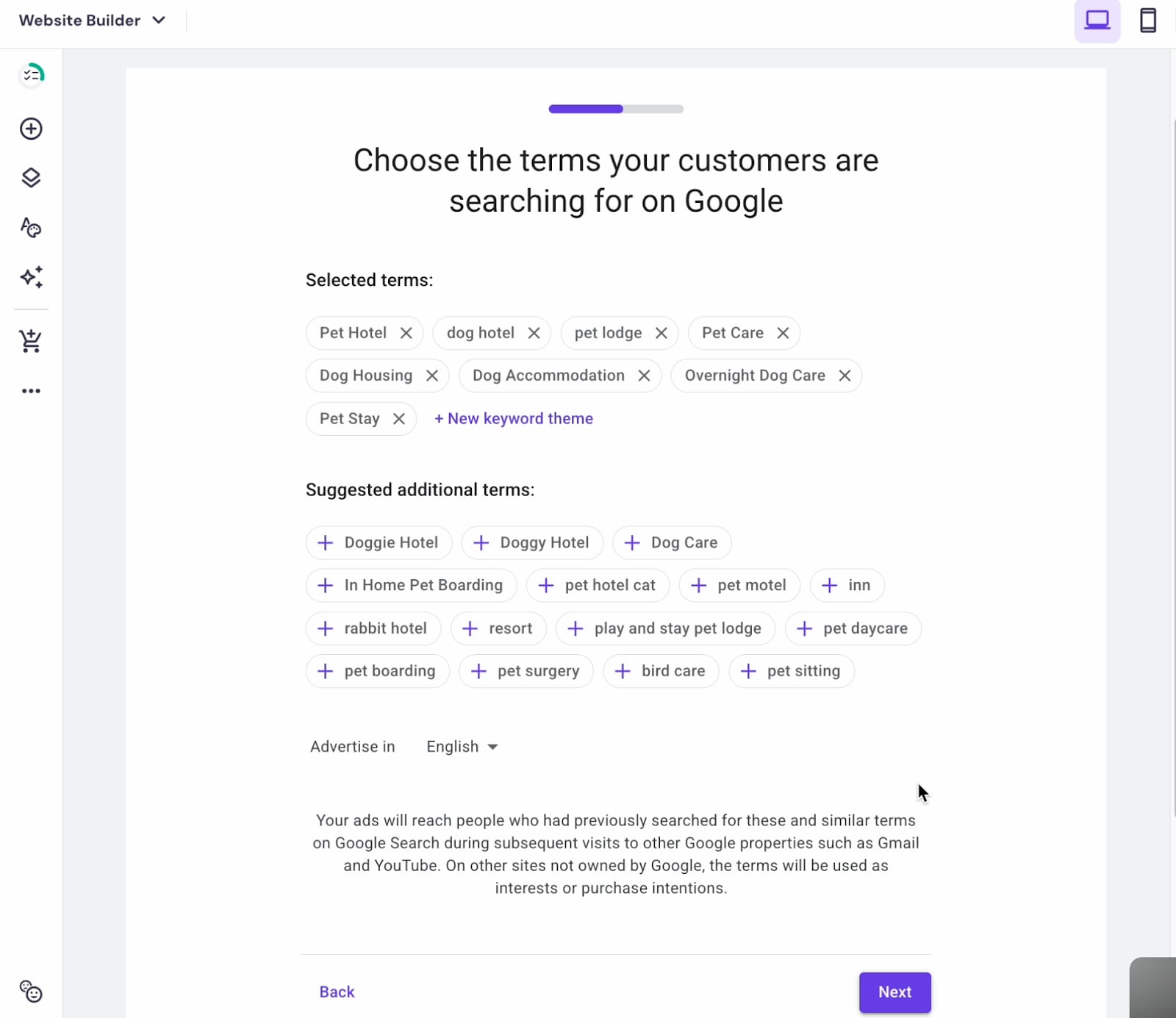
11. Select keywords that are relevant for your business or add new ones:
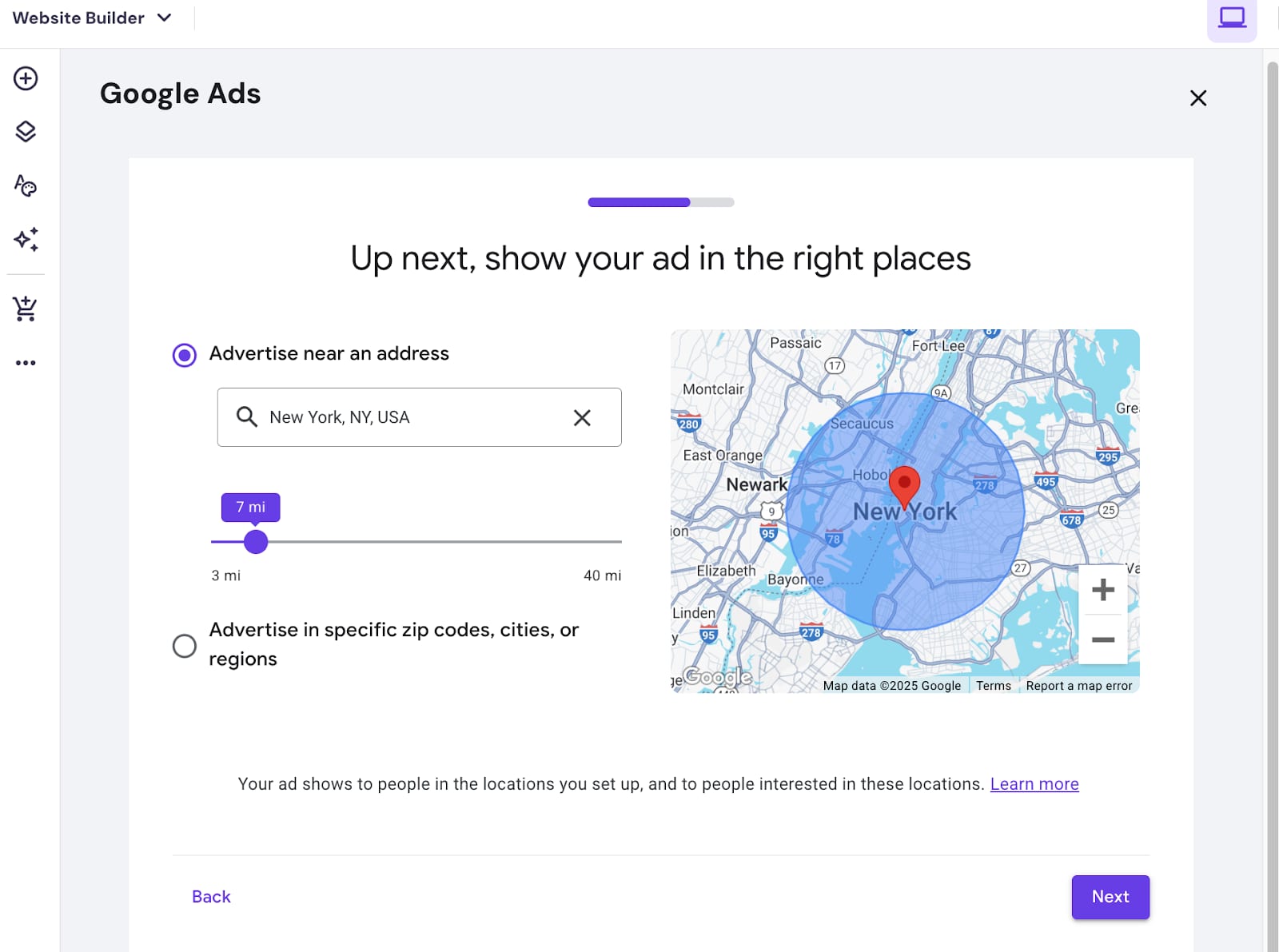
12. Select advertising location:
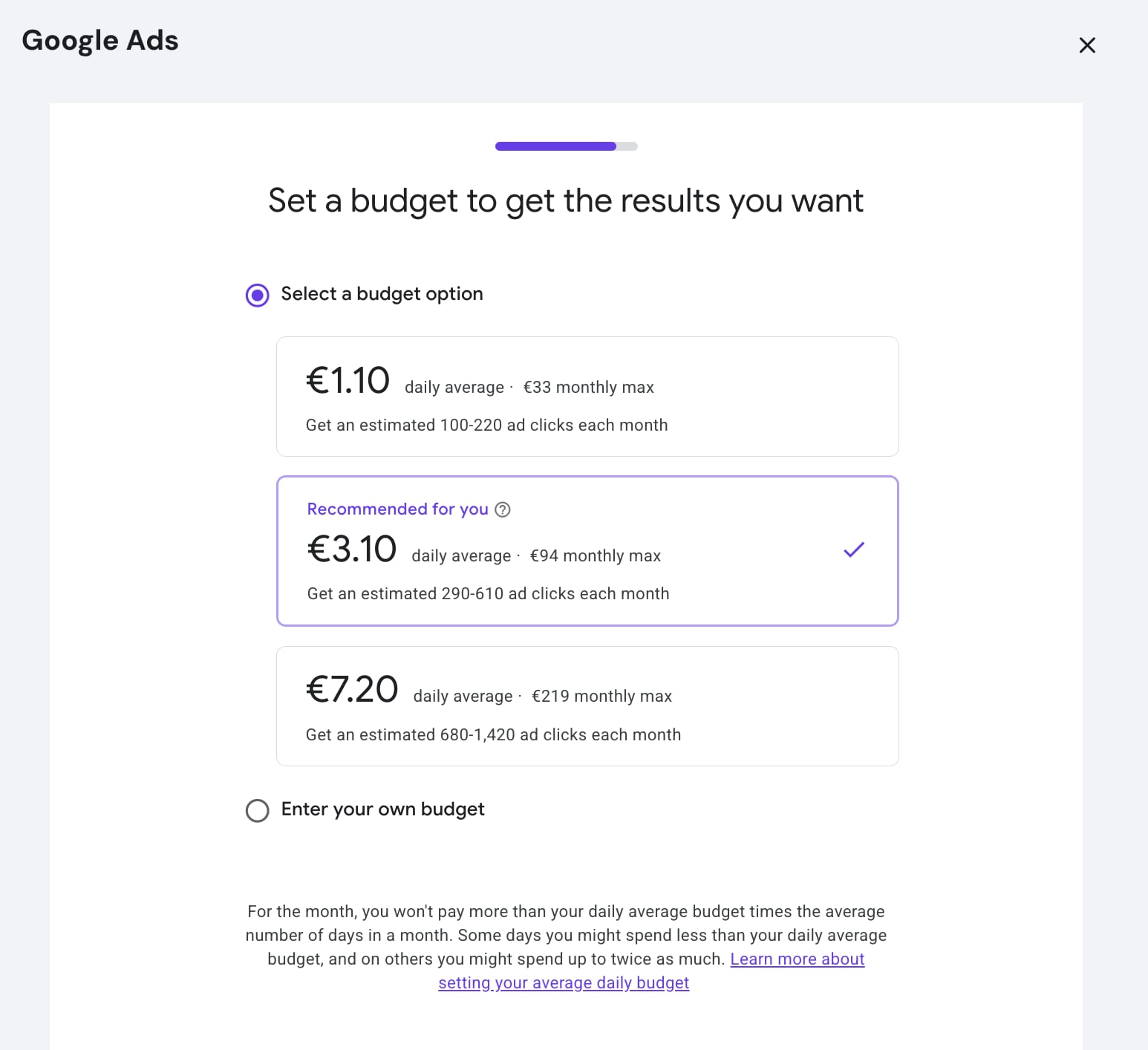
13. Set a budget to get the results you want by following recommendations or adding your own:
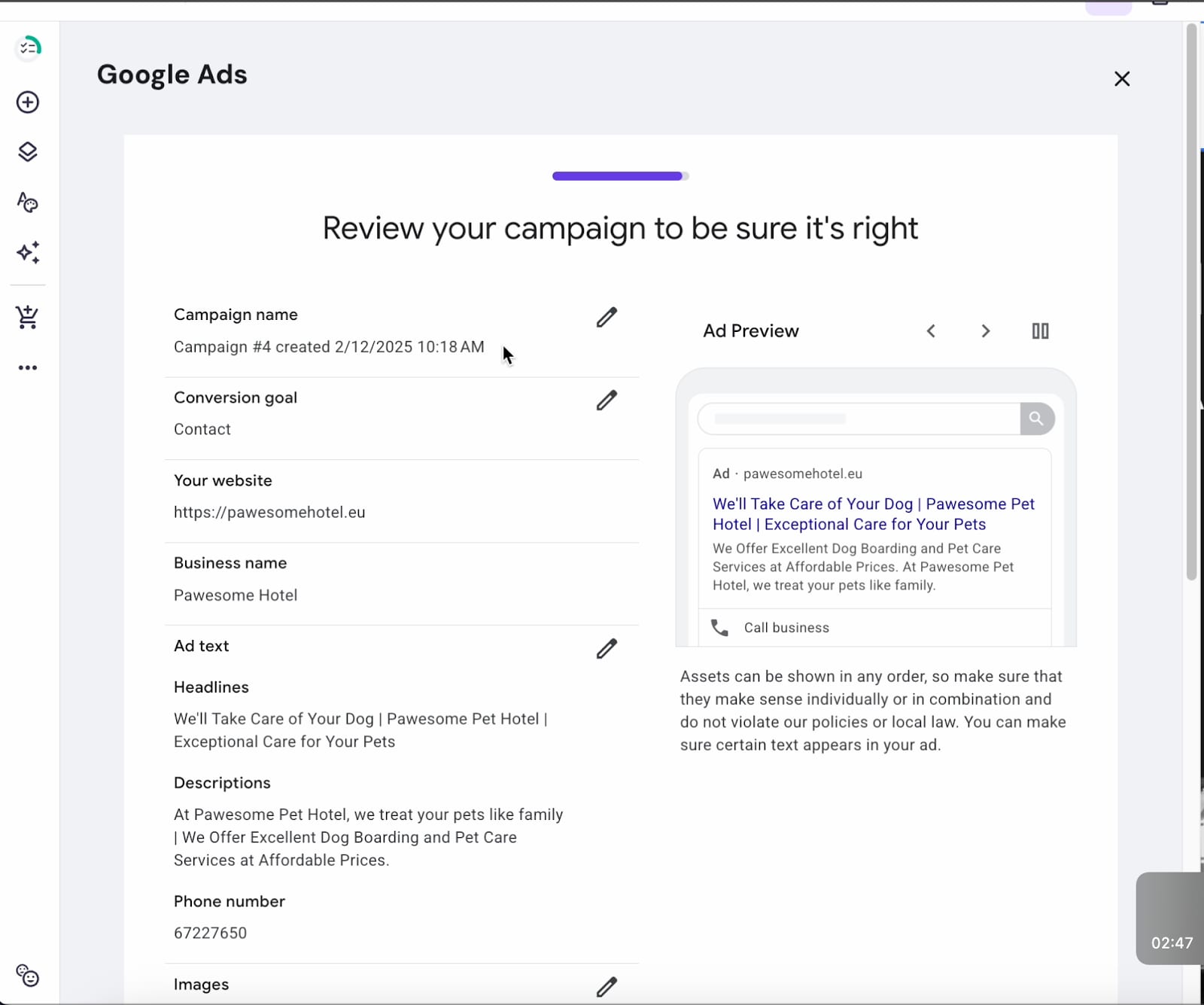
14. Review your campaign’s details and add Billing data. You’re ready to go!
If you are looking for ways to use Google Ads while selling products online or boost your website’s performance while using Google Ads, refer to the respective articles.