WordPress categories vs. tags: What are the differences?
Dec 18, 2025
/
Ninad P.
/
6 min Read

Suppose you wanted to start a blog and share your passion for food with the world. You plan to publish all kinds of content – recipes, restaurant reviews, and even culinary travel stories.
Now this might just work if you have 10 blog posts. However, as you grow your blog, visitors might struggle to find specific dishes or dietary options.
WordPress categories and tags can help here. As part of WordPress’s taxonomy system, they’re designed to structure your content. In this article, we’ll go over the key differences between categories and tags and show you how to use them effectively.
Categories vs tags: A quick glance
Both WordPress taxonomies improve navigation and help visitors find what they’re looking for. Categories handle the top-level organization, while tags group related nuances across different categories.
Think of it in terms of a food blog. Categories, in this context, are the main sections:
- Appetizers
- Main Courses
- Desserts
Meanwhile, tags function more like a recipe index that highlights specific ingredients or special features:
- dairy-free
- 30-minute meal
- low-carb
Let’s say we have two recipes:
Grilled Shrimp Skewers
Category: Appetizers
Tags: 30-minute meal, low-carb, gluten-free
Baked Salmon with Asparagus
Category: Main Courses
Tags: 30-minute meal, low-carb, dairy-free
Here, you can see how both recipes (despite being in different categories) share the same tags: 30-minute meal and low-carb.
This is one of the key benefits of using tags alongside categories – they create cross-category connections based on specific attributes. For example, a reader can click the 30-minute meal tag if they’re short on time and want to see quick recipes across all categories.
| Aspect | Categories | Tags |
| Usage | Categories organize the site’s main structure with broad topics. For our recipe blog, that would be something like Appetizers, Main Courses, and Desserts. | Tags connect posts with specific details or keywords, which in the case of the recipe blog, could be gluten-free, quick-meals, vegan, etc. |
| Hierarchy | Hierarchical (can have parent and child structures) | Non-hierarchical (flat, no child tags) |
| Requirement | WordPress requires at least one category (even if it is Uncategorized). | Optional (can have zero or multiple tags) |
| URL structure | Often used to create URL structure (for example, /appetizers/italian/bruschetta-recipe/) | Usually not used to structure URLs |
| SEO impact | Contributes to a clear site hierarchy and user navigation | Groups related content and increases the internal linking potential |
Now, let’s delve deeper into both categories and tags to understand them better.
What are WordPress categories?
Categories exist to group your content into broader topics, helping readers identify what your website is about and locate specific articles.
A visitor who clicks on the Recipes category on a food blog expects to see posts about how to cook various dishes, such as Quick and easy vegetarian fried rice or Classic 5-minute omelet.
When to use categories
Categories are major content buckets. Each post must belong to at least one category so visitors immediately know which broad topic it falls under.
If you specialize in more than one main subject (for instance, cooking and travel), categories can help differentiate those areas.
For example, a single post about a must-visit pizzeria in Rome might naturally belong to two major subjects – Restaurant Reviews and Travel Guides. Some bloggers decide to pick just one primary category, while others assign both. The better approach is to have just one category since you don’t want to confuse the readers and search engines.
How to create and assign WordPress categories
Go to Dashboard → Posts → Categories.
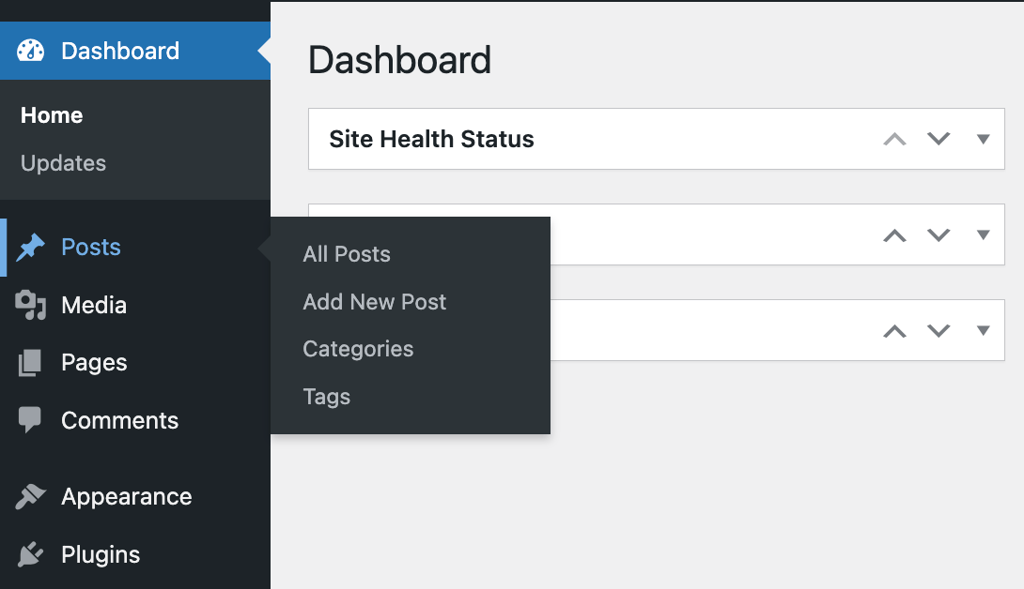
You’ll see an area to add new categories on the left and a list of existing ones on the right. You can also edit WordPress categories here.
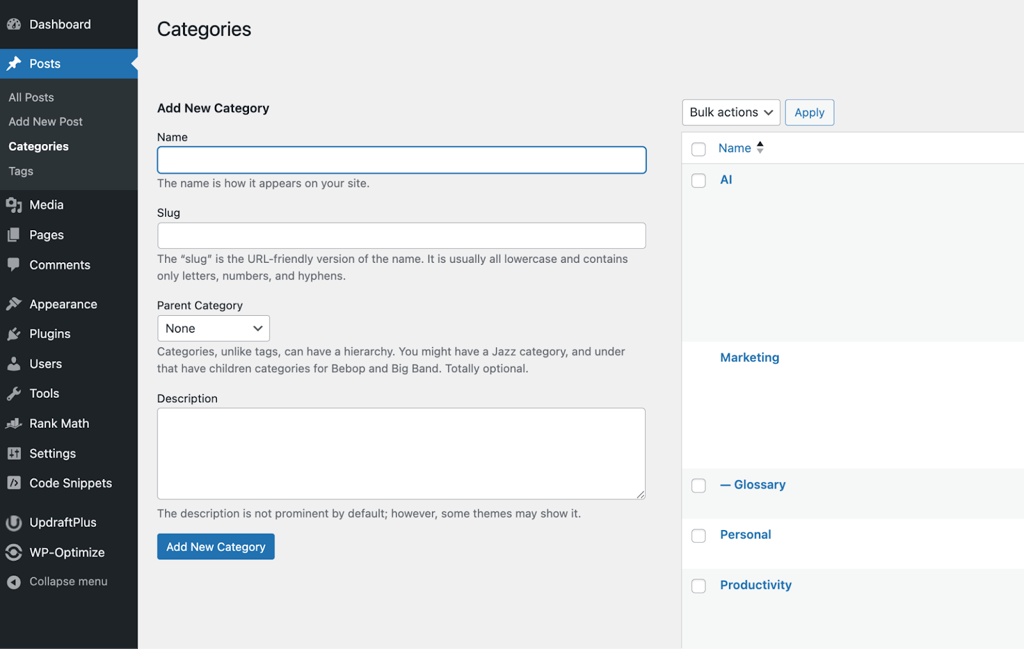
Enter the category Name (for example, Recipes or Restaurant Reviews). The Slug can remain empty unless you want a custom URL path.
If you’re making a subcategory, add the Parent Category from the drop-down menu. For instance, you can create Italian as a subcategory of Recipes.
You can also add a Description for the category, as some themes display them on the archive pages.
Once finished, click Add New Category. The new category should appear on the right side.
To assign a category while writing a post, go to Categories in the right panel of the block editor. In the classic editor, categories are at the bottom of the page.
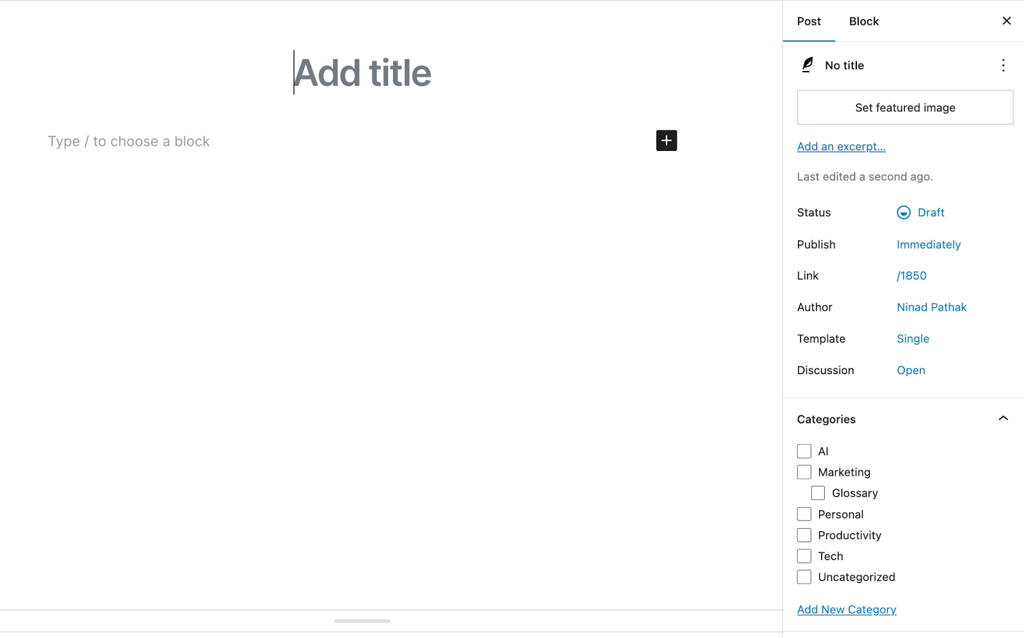
Check the box next to the relevant category and Publish your changes.
Best practices for using categories on your WordPress site
Organizing content with categories is easy with these best practices:
- Use a single category per post. While WordPress allows you to assign as many categories as required, it’s best to stick to just one category per post to avoid confusing the readers. Also, if your post seems to fit into multiple categories, you may have created overlapping categories. Which brings us to our next point.
- Choose meaningful category names. A category should be broad enough to group multiple posts but not so broad that it becomes vague. If a category can only have a few posts, it might be too specific to be useful. But if way too many of your blog posts can fit in the category, it’s too broad.
- Use subcategories sparingly. Subcategories help refine broad subjects, but multiple nested levels can appear complicated. Stick to one or two levels.
- Conduct periodic reviews. As your website grows, revisit your category list and see if any should be merged, renamed, or deleted to keep the structure efficient.
What are WordPress tags?
WordPress tags work like labels – unlike categories, they’re not hierarchical.
If you have a blog post titled Quick and easy vegetarian fried rice filed under the Recipes category, you can add relevant tags like vegetarian and 15-minute. This helps readers instantly find recipes that match their dietary needs or time constraints.
When to use tags?
Tags highlight specific details that appear across multiple posts.
Unlike categories, which define what the post is about, tags surface recurring themes, features, or keywords that help users find related content.
For example, if you frequently write about vegetarian dishes, vegetarian makes a good tag because it can apply to multiple posts.
If a detail is unique to one post, it doesn’t need a tag. If most of your posts share the same tag, it makes more sense to create a category instead.
Remember: tags should add value by connecting related content, not clutter your site with unnecessary labels.
How to create and assign WordPress tags
While you can create tags on the fly while you’re on a post, you need to know where tags are stored so you can create/edit them in a single place. This helps when you have too many tags, and you want to edit or delete them in bulk.
Go to Dashboard → Posts → Tags.
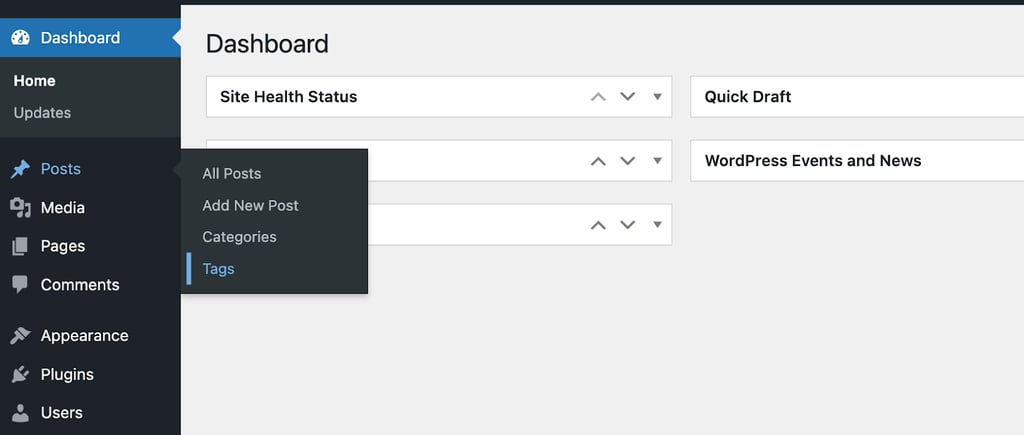
You’ll see a field to add new tags on the left and a list of existing tags on the right.
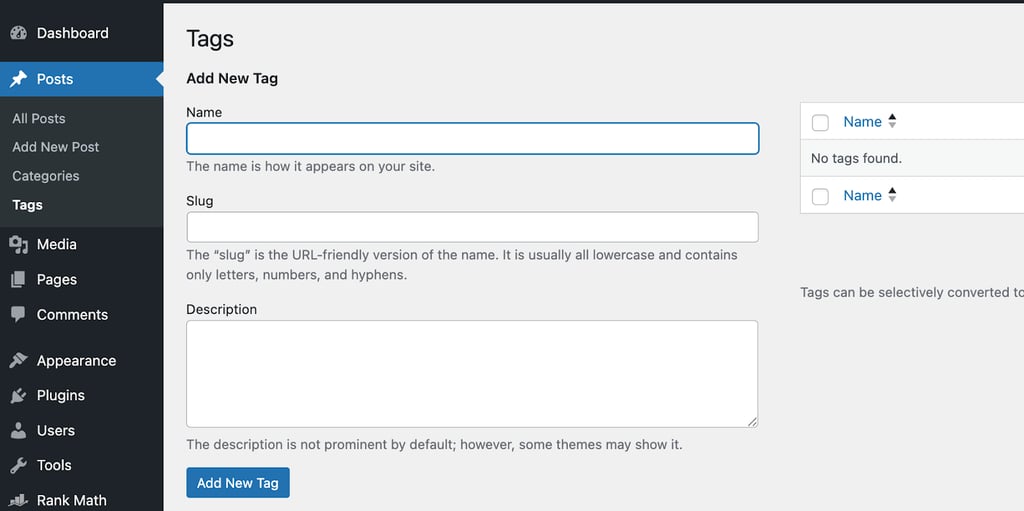
Similar to managing a category, you can enter the tag name. Then, adjust the slug and provide a description if needed.
Click Add New Tag, and it should now appear on the right side.
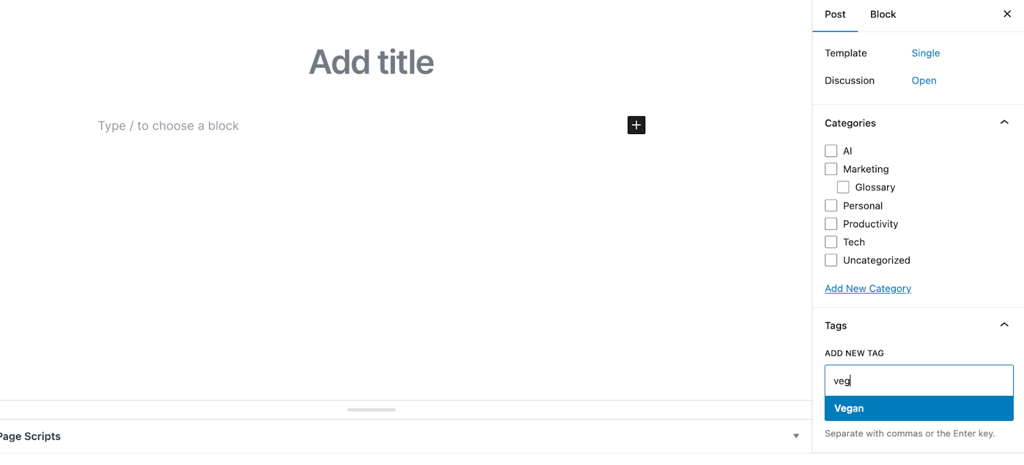
To add a tag when writing a post, navigate to Tags in the block editor’s right panel and select the tags you want to assign.
Best practices for using tags on your WordPress site
Here are some simple tips to keep your tags meaningful:
- Aim for two to five relevant tags per post. Adding a long list of tags to every post is counterproductive. It can clutter your tag archives and undermine user experience.
- Use consistent spelling. If you decide on gluten-free as a tag, avoid using variations like gluten free or glutenfree. Consistency helps both search engines and readers navigate your content.
- Don’t duplicate categories. If Recipes is a category, using recipes as a tag is redundant. Stick to distinct and specific terms for tags.
- Create tags for recurrent details. A detail that appears in multiple posts might deserve its own tag so readers can easily find similar content. For a food blog, tags like dairy-free, stir-fry, or dessert can be handy.
- Avoid single-use tags. Tagging one post as a delicious dish and never using it on other posts defeats the purpose of a tag, which is to connect related content.
How categories and tags affect SEO
Using categories and tags effectively helps both users and search engines understand your content.
Here are some ways WordPress categories and tags help:
- Clear site architecture. Categories define broad subjects, while tags connect related topics, showing the depth of your site and giving your site a well-defined structure that users, as well as search engines, follow.
- Better user engagement. When visitors can quickly find relevant content using categories and tags, they’re more likely to browse around your site. Lower bounce rates and longer session times can signal to Google that your content is valuable.
- Stronger internal linking. Linking to category or tag archive pages within articles helps users discover related content and guides search engine crawlers deeper into your site.
- Organized archive pages. Every category and tag generates an archive page listing relevant posts. Keeping these pages well-structured ensures they remain useful rather than cluttered with loosely related content.
- Passes link juice. Search engines crawl your site by following links and passing ranking power to key pages. To get the most out of this, avoid creating unnecessary or overlapping categories and tags and ensure each one has a clear purpose.
Conclusion
Creating a well-organized WordPress site makes your content easy to navigate, engaging, and accessible for your readers.
This is where categories and tags can help. You can use categories to structure broad topics into a clear hierarchy and tags to highlight specific details in your posts.
When used strategically, categories and tags make your site user-friendly and help you rank higher on search engines.
Difference between categories and tags FAQ
What is the purpose of tags in WordPress?
Tags help identify shared features among different posts. For example, on a food blog, only plant-based recipes should be tagged vegan. This way, users looking for vegan options can easily find them.
How do you use tags and categories in WordPress?
Categories let you group posts into broad subjects, making readers aware of your website’s main focuses. Tags, on the other hand, allow you to add markers that highlight common aspects of a post compared to other posts on your website.
Why is organizing posts using categories and tags important and useful?
A well-structured site improves user experience by allowing seamless navigation. It also benefits SEO by helping search engines interpret your content’s relevance, making it easier to index and rank your pages effectively.
All of the tutorial content on this website is subject to Hostinger's rigorous editorial standards and values.


Ninad Pathak is a content marketer and strategist who helps B2B SaaS and DevTools startups turn complex tech jargon into engaging, high-converting content. With over six years of experience, he’s helped 30+ startups grow their online presence through SEO content and social media. When he’s not breaking down technical topics, he’s probably on a road trip, chasing sunsets, or getting lost on a hiking trail. Follow him on LinkedIn.


Comments
0 responses