What is FTP? A beginner’s guide to File Transfer Protocol
May 14, 2026
/
Domantas G.
/
5 min Read
FTP (File Transfer Protocol) is a standard network protocol used to transfer files between a computer and a server over the internet or a local network. It helps you upload, download, and move files like documents, images, videos, or website files from one place to another.
Think of it this way: if you have a file on your computer that you want to send to a server or another computer, FTP provides the connection that makes the transfer possible. It can be used through command-line tools or FTP software, also called an FTP client.
Here’s how the pieces work together:
- Protocol. The set of rules that tells computers how to communicate when transferring files.
- Client. Your computer, device, or FTP application – the one requesting, uploading, or downloading files.
- Server. The computer that stores the files and controls access to them.
- Transfer. The process of copying a file from the server to the client, or from the client to the server. The file usually stays in its original location unless you delete or move it separately.
FTP works because both computers follow the same rules for packaging, sending, and receiving files. This makes it useful for moving everything from small text documents to large website files.
Check out this video that walks through the process to learn more about how FTP actually works in practice.


What is FTP used for
FTP is used to move files between a local computer and a remote server. It’s especially useful when you need to upload, download, organize, or update files directly on a server.
Common FTP uses include:
- Website development. Upload website files, images, themes, plugins, and code to a web server.
- File sharing. Transfer large files between computers, team members, or external collaborators.
- Backups. Download copies of important website files or store backups on a remote server.
- Media distribution. Move large video, audio, or image files without relying on basic browser upload tools.
- Server management. Upload configuration files, update software files, or manage folders on a remote server.
FTP is also helpful for bulk transfers because many FTP clients let you move multiple files at once. Some tools can also resume interrupted transfers, so you don’t always need to start over when the connection drops.
How does FTP work
FTP works by establishing a connection between two parties that need to communicate on the network. To do that, users need permission by providing credentials to the FTP server. Some public FTP servers may not require credentials to access their files, a practice that is common in so-called anonymous FTP.
There are two distinct communication channels while establishing an FTP connection. The first one is called the command channel, which initiates the instruction and response. The other one is called a data channel, where the distribution of data happens.
To get or transfer a file, an authorized person will use the protocol to request changes in the server. In return, the server will grant that access. This session is known as the active connection mode.
The distribution in active mode might face a problem if a firewall is protecting the user’s machine. The firewall usually does not allow any unauthorized sessions from an external party.
If that issue occurs, the passive mode is used. In this mode, the user establishes both the command and the data channel. The server then asks to listen rather than attempt to create a connection back to the user.
How to use FTP
You can use FTP via three main approaches: command-line tools, web browsers, or dedicated FTP client software.
A simple method is using a command-line FTP, such as using the Command Prompt for Windows or the Terminal on Mac/Linux. Developers still use this today to transfer files using FTP.
A user can also use a web browser to communicate with the FTP server. A web browser is more convenient when users want to access large directories on the server. Yet, it’s often less reliable and slower than using a dedicated FTP program.
Today, the most common way to use FTP, especially for a web developer, is to use an FTP client.
An FTP client provides more freedom than the command line and a web browser. It is also easier to manage and more powerful than the other methods.
Using a client also offers more features. For example, it allows users to transfer a large file and use the synchronizing utility.
How to connect to Hostinger with FTP
To connect to Hostinger via FTP, you’ll need to create an FTP account in your Hostinger dashboard and then use an FTP client to connect with those credentials.
There are many FTP clients to choose from, including free open-source applications and premium options. If you’re looking for great options, check out our guide to the best free FTP clients for Windows, Mac, and Linux.
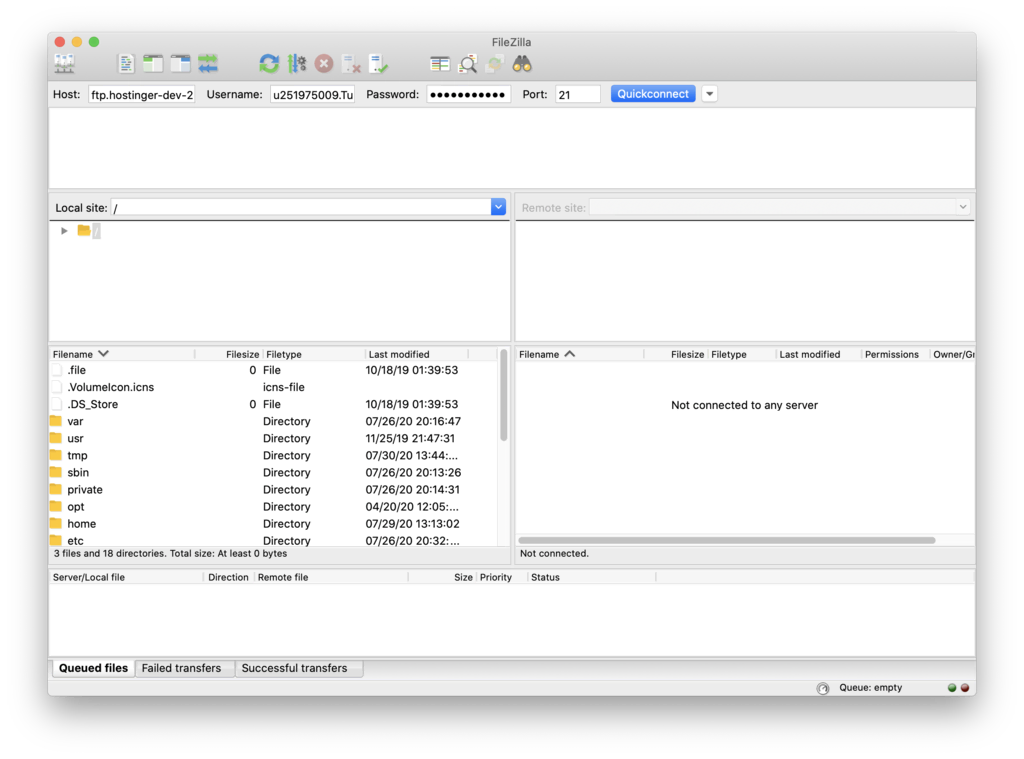
For this article, we’ll use FileZilla, a popular, open-source FTP client.
First, we’ll need an FTP server, which we can set up using our Hostinger account.
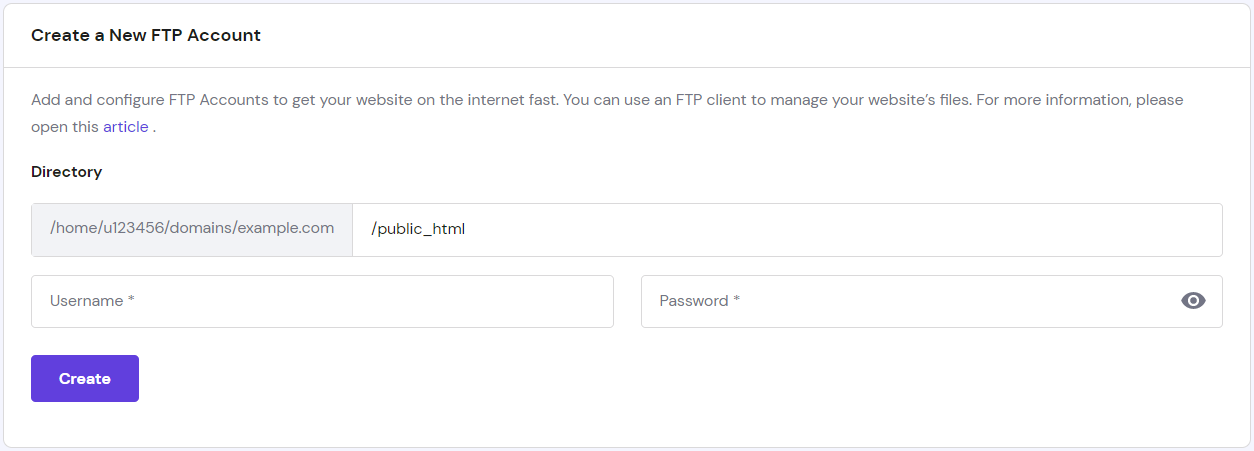
- Log in to your Hostinger account and navigate to Websites on the left sidebar. Choose a website and click Dashboard.
- Find FTP Accounts on the left sidebar under Files, and click on it.
- Create a new FTP account by filling out a new username and password.

- You’ll see new FTP servers (Hostname) under the list of active FTP accounts.

- In FileZilla, insert the host, username, and password, and hit the Quickconnect button. You can also fill in the port number. Otherwise, port 21 is used by default.

- The status window will tell you if you are logged in to the FTP server. As you can see in the Remote site window, the server has these files.


Is FTP safe
Standard FTP is not considered safe by default because it doesn’t encrypt the connection between your computer and the server. This means data can be sent in plain text, including usernames, passwords, and transferred files.
For example, if someone intercepts the connection, they may be able to see your login details or access the files being transferred. This is why regular FTP is not recommended for sensitive data or website management over public networks.
For safer file transfers, use secure alternatives like SFTP or FTPS. These protocols encrypt the connection, helping protect your files and login credentials during transfer.
FTP vs SFTP
FTP and SFTP are both used to transfer files between a client and a server, but they handle security differently.
FTP transfers files over a network, usually through port 21, but it doesn’t encrypt data by default. This makes it faster to set up, but less secure.
SFTP stands for Secure File Transfer Protocol. It transfers files through an encrypted SSH connection, usually using port 22. This helps protect your login details and file data while they move between your computer and the server.
For most website owners, SFTP is the better choice. It offers the same core purpose as FTP – moving files between your computer and server – but adds stronger protection for sensitive information. Learn more about how to use SFTP with our comprehensive guide.
Should you use FTP
You should use FTP if you need to transfer large files, manage website files, or move multiple files efficiently between computers.
It’s particularly useful for developers, web designers, or anyone who needs reliable file transfers with resume capabilities and cross-platform compatibility. Just make sure to use encrypted versions like SFTP to keep your data secure during transfer.
If you’re ready to get started, learn how to create an FTP account and begin transferring files today.
All of the tutorial content on this website is subject to Hostinger's rigorous editorial standards and values.

Domantas leads the content and SEO teams forward with fresh ideas and out of the box approaches. Armed with extensive SEO and marketing knowledge, he aims to spread the word of Hostinger to every corner of the world. During his free time, Domantas likes to hone his web development skills and travel to exotic places.