12 best Cursor alternatives for web development with AI
May 18, 2026
/
Simon L. & Dainius K.
/
16 min Read
Cursor is an AI-powered code editor that helps you write, edit, and debug code fast, with the ability to understand your full codebase and manage multiple files at once.
It’s a popular choice due to its strong agent mode and deep project awareness but it’s not the right fit for everyone. Its switch to credit-based pricing made costs harder to predict, and being a VS Code fork means you’re locked into one editor rather than using AI across the tools you already know.
Some developers also want stronger data privacy, while non-developers want to build web apps through conversation rather than code. Whatever your reason for exploring options, there are strong alternatives worth considering.
The strongest Cursor alternatives include Hostinger Horizons for building web apps without code, GitHub Copilot for AI assistance inside your existing editor, and Windsurf for AI-powered coding that remembers your project between sessions.
Other strong options include Zed for raw speed, Trae AI for free access to premium AI models, and Tabnine for teams that need to guarantee code never leaves their network.
1. Hostinger Horizons

Best for: no-code AI web app development with built-in hosting.
Hostinger Horizons no-code AI builder takes a completely different approach from Cursor. Instead of helping you write code line by line, it lets you build entire web applications through a conversational AI chat.
You describe what you want, and the platform generates a working app complete with frontend design, backend logic, and deployment.
What makes Horizons stand out from other no-code builders is its integrated backend. Most AI app builders handle the visible parts of your site (buttons, forms, layouts), but leave you to wire up databases, authentication, and storage separately.
Horizons builds auth and data storage directly into the platform, so you can add user accounts, logins, and basic data handling just by describing what you need.
For more complex backend requirements, Horizons also integrates with Supabase for production-grade databases and Stripe for payments.
Key features:
- AI-driven web app development. Describe what you need in plain language, and the AI builds your app from the ground up.
- Integrated backend. Native auth and data storage built in, plus Supabase integration for production-grade databases when you need them.
- All-in-one platform. Hosting, SSL, content delivery network (CDN), custom domain, and a professional email address come bundled with every plan.
- Version control and sandbox testing. Roll back to any previous version with one click, and test changes in a sandbox before publishing.
Limitations:
- Not designed for highly custom applications that require granular code control (though the Hobbyist plan and above unlock a code editor).
- The credit-based system means each AI interaction costs a credit, so complex projects can burn through them quickly.
Pricing:
Free 7-day trial (5 messages) with paid plans starting from $6.99/month.

2. GitHub Copilot
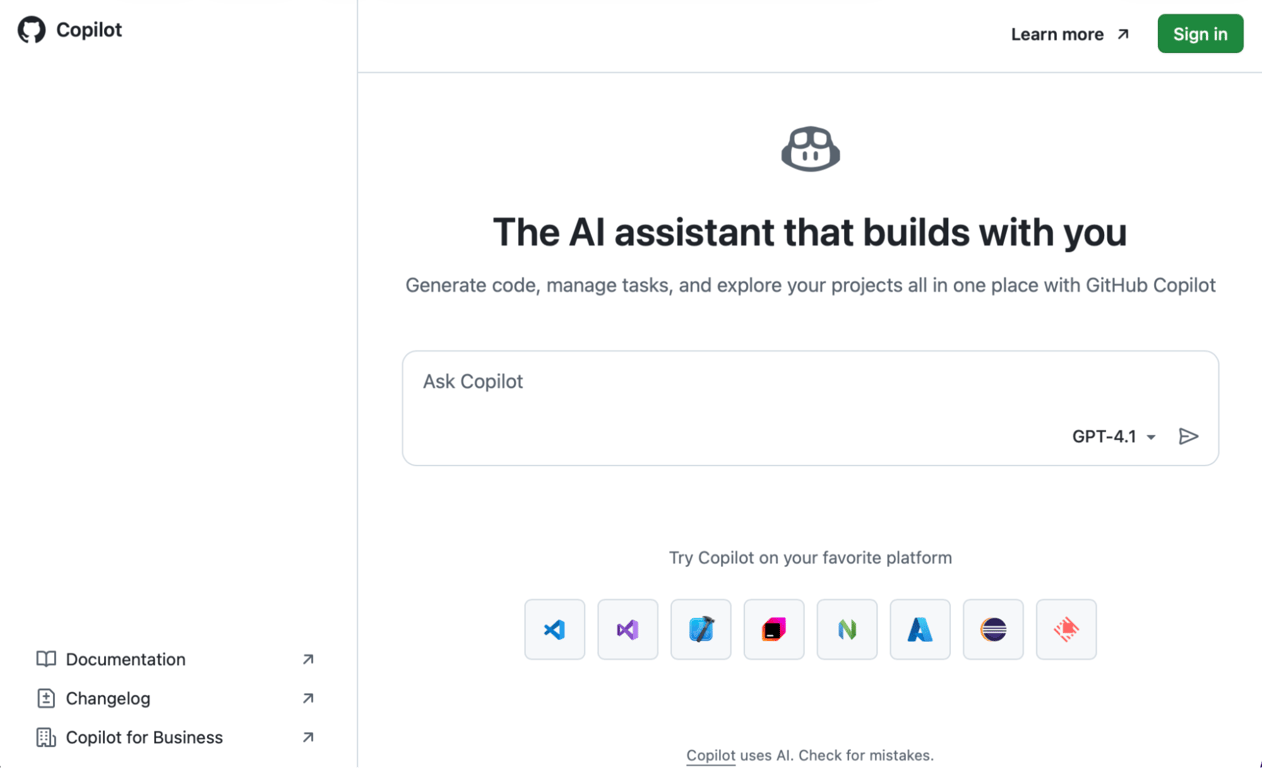
Best for: developers who want AI code assistance inside their current editor.
The biggest practical advantage GitHub Copilot has over Cursor is that you don’t have to switch editors. Copilot runs as a plugin inside VS Code, JetBrains, and other popular options, so your existing setup stays exactly the same and you can start using GitHub Copilot within minutes.
Where Copilot really shines is inside the GitHub ecosystem. It can review pull requests, suggest fixes directly on GitHub.com, and understand your repository’s structure when making suggestions. For teams already using GitHub for version control, nothing else integrates as tightly.
One thing to keep in mind: GitHub has periodically paused or limited new sign-ups for Copilot’s paid individual plans as it works through the infrastructure demands of AI-heavy features.
Key features:
- Works in your existing coding environment. VS Code, JetBrains, Neovim, Xcode, Eclipse, and Visual Studio are all supported. No editor switching required.
- Agent mode. Handles multi-step tasks autonomously, generating plans and making coordinated edits across files.
- PR code review. Reviews pull requests and suggests fixes directly on GitHub, which is unique among AI coding assistants.
- Free tier that’s actually useful. 2,000 completions and 50 premium requests per month covers light daily use.
Limitations:
- Copilot is a plugin, not a standalone editor. It depends on your editor’s capabilities, so the experience varies between VS Code, JetBrains, and Neovim.
- Less effective on smaller or newer codebases where it doesn’t have enough context to make strong suggestions.
- The free tier’s 50 premium requests per month runs out fast if you rely on chat or agent mode regularly.
Pricing:
Free tier available, Pro at $10/month, Pro+ at $39/month, Business starting at $19/user/month
3. Tabnine
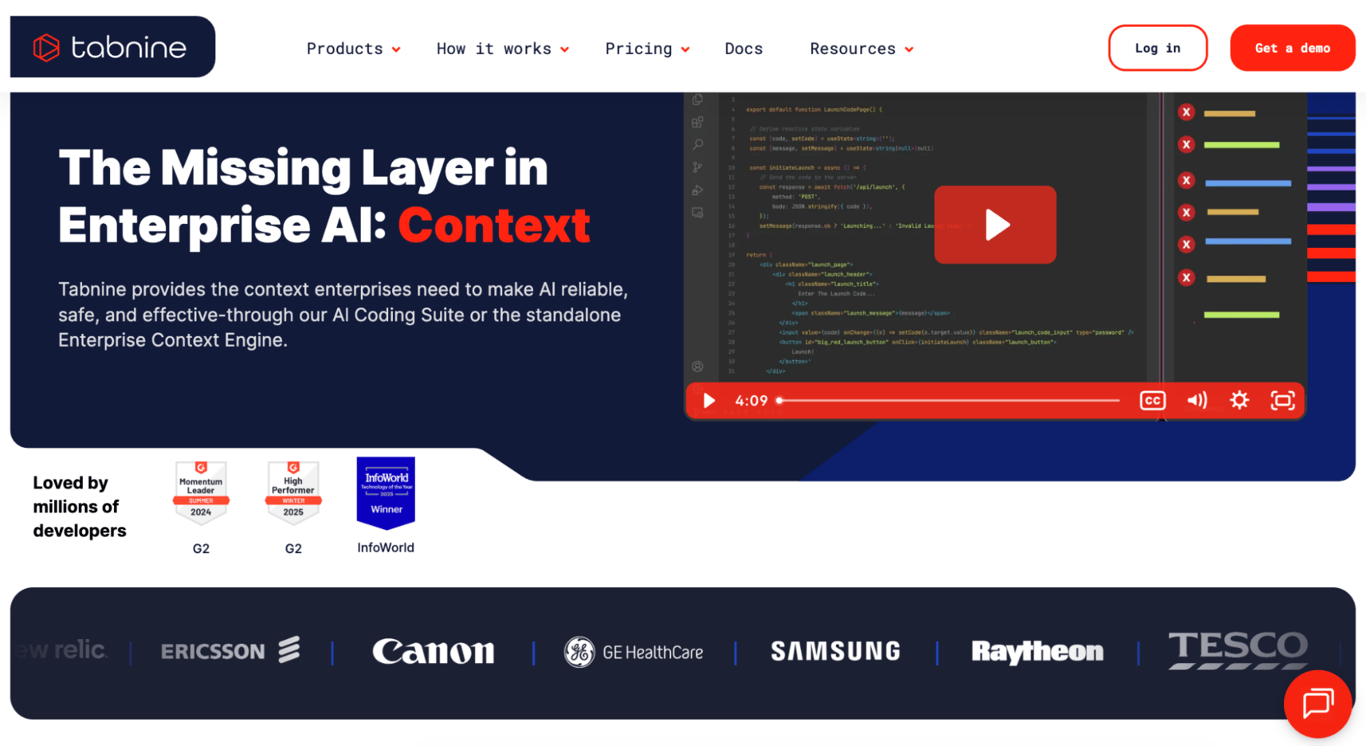
Best for: regulated industries where code must never leave the network.
If your organization has compliance requirements that prevent code from touching external servers, Tabnine is built specifically for you.
It’s the only AI coding assistant on this list that can run completely on your own servers with no internet connection required. The zero data retention policy is contractually guaranteed, not just a checkbox in settings.
This makes Tabnine the go-to choice for teams in finance, healthcare, defense, and government. It’s SOC 2 Type II certified and integrates with VS Code, JetBrains, Neovim, and Eclipse, using both its own models and third-party ones like GPT and Claude.
The trade-off is scope. Tabnine focuses on code suggestions, AI chat, and test generation rather than the kind of autonomous multi-file editing you’d get with Cursor or Windsurf. There’s no free tier, so you’ll need to talk to sales.
Key features:
- Contractual zero data retention. Your code is never stored, never logged, and never used for model training.
- Runs on your own servers. No internet connection needed, no external API calls, no data leaving your network.
- Supports third-party models alongside Tabnine’s. Use GPT, Claude, or other AI models within the same editor experience.
- SOC 2 Type II certified. With SSO, admin dashboards, and flexible deployment options for enterprise security teams.
Limitations:
- Suggestions are more conservative and predictable than Cursor’s, which is by design for enterprise use but can feel limiting for fast-paced individual work.
- Doesn’t offer autonomous multi-file editing or agent-style workflows. It assists while you drive.
- Smaller community and fewer online resources compared to more consumer-facing tools like Copilot or Cursor.
Pricing:
Enterprise plans starting from $39/user/month, custom pricing for larger deployments
4. Trae AI

Best for: getting Cursor-like features without paying for them.
Trae AI is ByteDance’s answer to Cursor, and the pitch is simple: you get access to Claude, GPT, DeepSeek, and Gemini without paying anything. It’s a VS Code fork, so your extensions and keybindings carry over, and the learning curve is essentially zero.
Builder Mode is the headline feature. It’s an AI agent that takes a plain-language description and generates the entire project: file structure, code, configuration, and wiring between components.
For quick prototypes and minimum viable products (MVPs), it saves genuine time. There’s also a Figma-to-code workflow where you upload design mockups and get working React components.
The elephant in the room is data privacy. ByteDance owns Trae, and your code routes through their servers. For side projects and open-source work, that’s probably fine. For proprietary code or client work, think carefully.
Community sentiment on Reddit echoes this: great for prototyping, mixed reviews for production use.
Key features:
- Builder Mode. Autonomous project generation from natural language, handling frontend, backend, and configuration.
- Premium AI models at no cost. Claude, GPT, DeepSeek, and Gemini are available on the free tier.
- Figma-to-code. Upload design mockups and get working React components directly in the editor.
- Cloud coding option. Build in the browser without installing anything, handy for quick experiments on unfamiliar machines.
Limitations:
- Your code routes through ByteDance servers. No local-only option for AI features.
- Context memory weakens during long conversations. On projects with 50+ files, suggestions become less relevant.
- No way to use local models for offline work like you can with Zed or VS Code.
Pricing:
Free, paid plans from $3/month (Lite) to $10/month (Pro)
5. DeepSeek
Best for: developers who want a capable AI model they can run locally or integrate anywhere.
DeepSeek is less of a tool and more of a building block. Its open-source models deliver strong coding performance at a fraction of the cost of closed-source alternatives.
It combines both conversational and step-by-step reasoning capabilities into a single model, so you get thoughtful problem-solving alongside standard code generation.
Since the models are fully open, you can run them on your own machine, customize them for your specific projects, or plug them into practically any editor via API.
That flexibility is what sets DeepSeek apart. You could use it inside Cursor as a cheaper model provider, run it locally through Ollama for complete privacy, integrate it via API into a custom workflow, or just use DeepSeek’s web chat for quick coding questions. Few other options on this list give you that kind of flexibility.
The practical downside is that DeepSeek doesn’t come with an editor. It’s the engine, not the car. You’ll need to pair it with something else (VS Code, Zed, or a command-line tool) to get a complete development environment.
Key features:
- Open-source models. Run on your own machine, customize for your projects, or deploy on your own servers for full control.
- Strong performance. DeepSeek matches or exceeds many paid AI models on coding tasks, with both conversational and reasoning modes in one package.
- Works everywhere. Available as a web chat, an API you can plug into any editor, or a local model through Ollama and LM Studio.
- Extremely affordable API. If you don’t want to self-host, the pay-as-you-go API pricing undercuts most competitors significantly.
Limitations:
- No dedicated developer environment or editor. You need to pair it with another tool.
- Running the larger models locally requires a decent GPU with enough memory, which isn’t cheap.
- When not self-hosting, your code is processed on DeepSeek’s servers, so review their data handling policies if privacy is a concern.
Pricing:
Free for web chat and older models with pay-as-you-go API pricing.
6. Replit
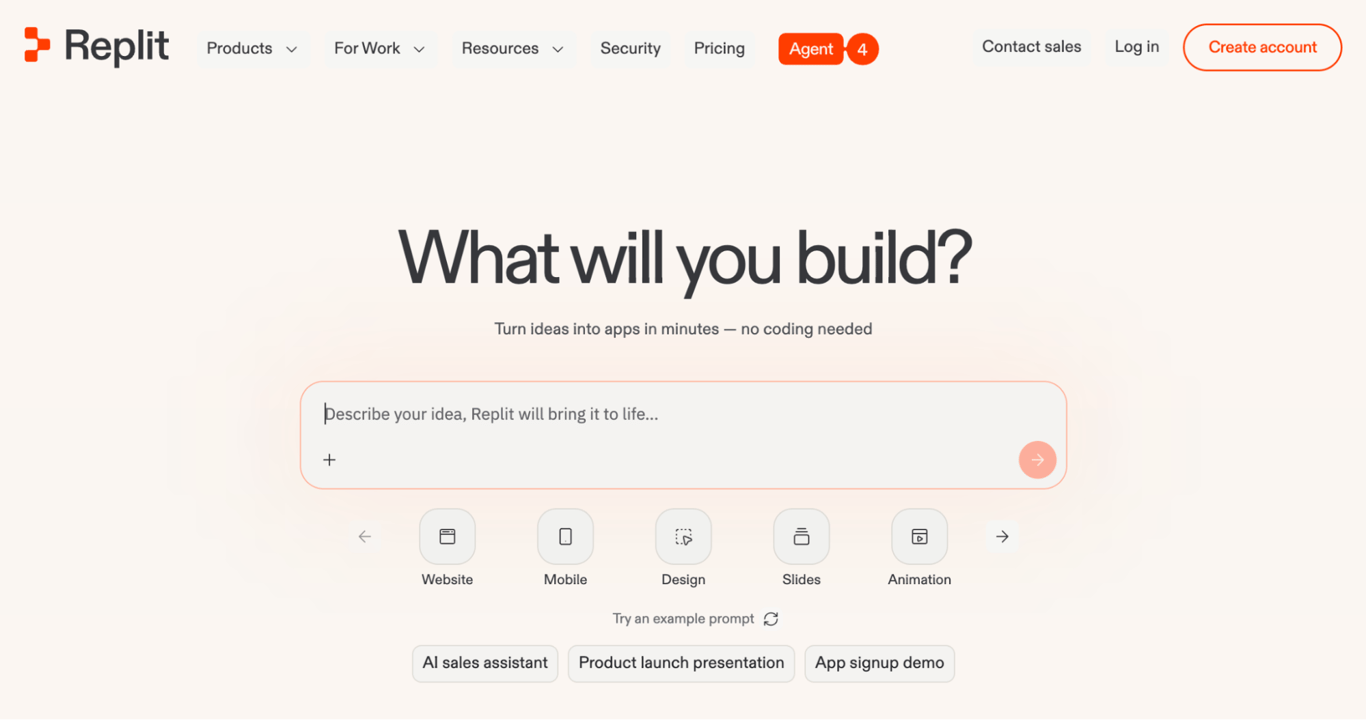
Best for: teams and solo developers who want a full development environment in the browser.
Most AI coding tools assume you have a local dev setup. Replit doesn’t. It’s an entire development platform that runs in your browser: editor, runtime, AI assistant, collaboration tools, and deployment, all in one tab.
You can start building on a Chromebook at a coffee shop and ship a production app without ever installing anything.
Replit’s Agent 3 is what makes it more than just an online code editor. It can autonomously debug React components, add error handling, write unit tests, and pull current documentation via web search.
The extended thinking mode handles complex architectural decisions, and the platform’s real-time multiplayer lets multiple people edit the same project simultaneously.
The downside is you need to watch your usage closely. Replit’s effort-based pricing means every Agent interaction costs credits, and heavy users regularly report monthly bills well above their base subscription.
Set spending limits on day one, and if the costs become a concern, there are several Replit alternatives that handle pricing differently.
Key features:
- Zero-setup development. Everything runs in the cloud. Open a browser, start building, deploy when ready.
- Agent 3. An autonomous AI assistant that builds, debugs, writes tests, and deploys apps independently.
- Instant deployment. Ship directly from the platform with built-in hosting and custom domains.
- 50+ language support. Build in Python, JavaScript, TypeScript, Go, Ruby, and dozens of other languages without configuring anything.
Limitations:
- Usage costs are unpredictable since agent interactions, always-on deployments, and autoscale features all add charges beyond your subscription.
- You’re tied to Replit’s cloud environment. Less flexibility than desktop editors for custom tooling, and performance can lag on larger projects.
- The AI agent can get stuck in loops during debugging, and failed operations still consume credits.
- Migrating a mature project off Replit to your own hosting requires extra work since the platform handles infrastructure its own way.
Pricing:
Free starter plan, with paid plans ranging from $20/month to $100/month for up to 15 builders.
7. Lovable
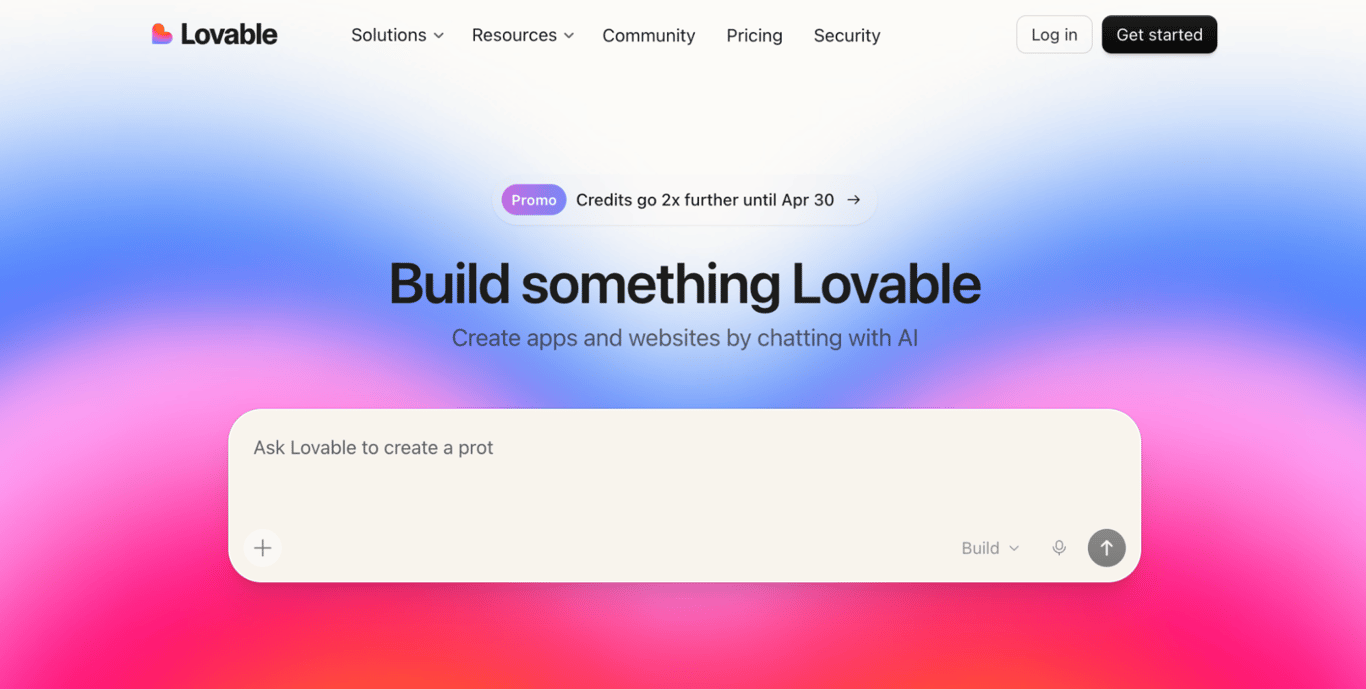
Best for: non-technical founders who need a working MVP they can hand off to developers later.
What separates Lovable from other AI app builders is the quality of its output. It generates clean React and TypeScript code with a modern stack (Tailwind CSS, Vite) that developers actually want to work with.
Lovable’s native Supabase integration handles databases and authentication, and two-way GitHub sync means you can export your code and continue working in a traditional development environment anytime.
The biggest gotcha is debugging loops. When the AI gets stuck on an error, the automated “Try to Fix” feature can burn through credits rapidly as it goes in circles. Monitor those cycles closely. Other Lovable alternatives are also worth considering if that’s a dealbreaker.
Key features:
- Fast prompt-to-app generation. Describe what you want and get a working React/TypeScript application with frontend and backend in minutes.
- Native Supabase integration. AI-generated database schemas, authentication, and backend logic without manual configuration.
- Two-way GitHub sync. Edit code in Lovable or locally. Changes stay in sync automatically.
- Exportable, production-quality code. React, Tailwind CSS, Vite, and TypeScript. You own the code and can deploy it anywhere.
Limitations:
- Complex applications with multiple user roles and intricate backend logic are hard to get right through prompting alone. You’ll hit walls on anything beyond a straightforward MVP.
- Debugging loops drain credits fast. The AI can get stuck fixing bugs it created, and each attempt costs a credit.
- The generated UI tends to look similar across projects, giving apps a recognizable “vibe-coded” aesthetic that may need design work to stand out.
Pricing:
Free tier available with paid plans starting at $25/month.
8. Zed
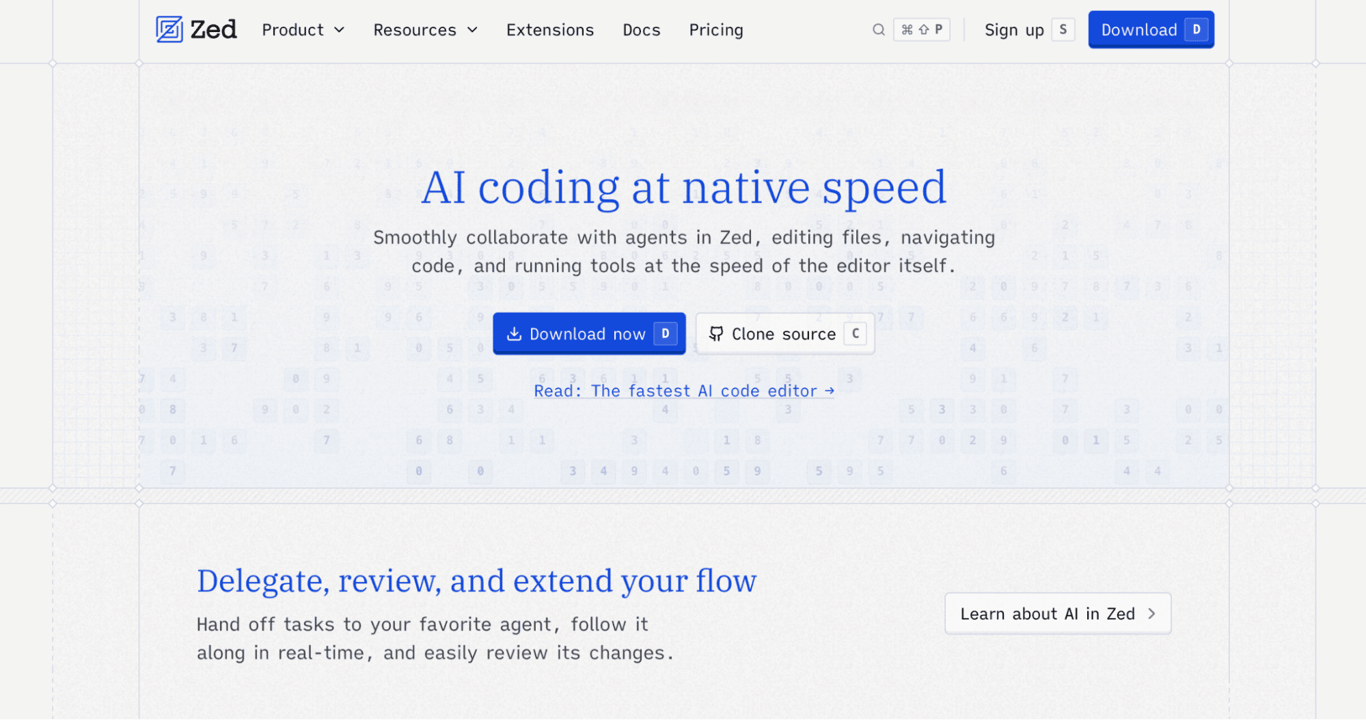
Best for: developers frustrated with slow editors who want native performance and AI built in.
If you’ve ever watched VS Code or Cursor stutter while searching through a large project, Zed will feel like a revelation. Built in Rust by the team that created Atom, it renders directly through the GPU instead of running inside a browser engine like most editors.
File searches, scrolling through thousand-line files, and opening massive projects all happen in milliseconds rather than seconds.
Zed’s AI assistant lets you hand off tasks, watch the agent navigate your codebase in real-time, and review all changes before committing them. It supports Claude, GPT, Gemini, and other models through Zed’s hosted service, your own API keys, or fully local models through Ollama.
That last option means you can have a fast editor with AI coding assistance and zero data leaving your machine.
The real-time collaboration feature is worth highlighting. Instead of screen-sharing over Zoom, you and a teammate can both edit the same file with voice chat and shared cursors. It uses the same collaboration technology that powers the AI features, so it feels native rather than bolted on.
Key features:
- Blazing-fast performance. Sub-millisecond response times, even on large projects. Built natively rather than on top of a browser engine like most editors.
- AI assistant with live following. Delegate tasks, watch the AI work in real-time, and review all changes before they’re applied.
- Flexible AI options. Zed-hosted models, bring your own API keys, or run locally with Ollama for total privacy.
- Real-time multiplayer. Voice chat and shared cursors for pair programming without screen sharing.
Limitations:
- No remote SSH development. If you edit files on remote servers, you’ll miss VS Code’s Remote-SSH extension.
- Open source (GPL licensed), but AI usage beyond the $5 included monthly tokens is billed at API list price plus 10%, which can add up during heavy use.
- Newer than VS Code and Cursor, so the extension ecosystem and community resources are smaller.
Pricing:
Free plan includes an editor and your own AI keys, while Pro starts at $10/month and includes $5 of token credits with usage-based billing beyond that.
9. Claude
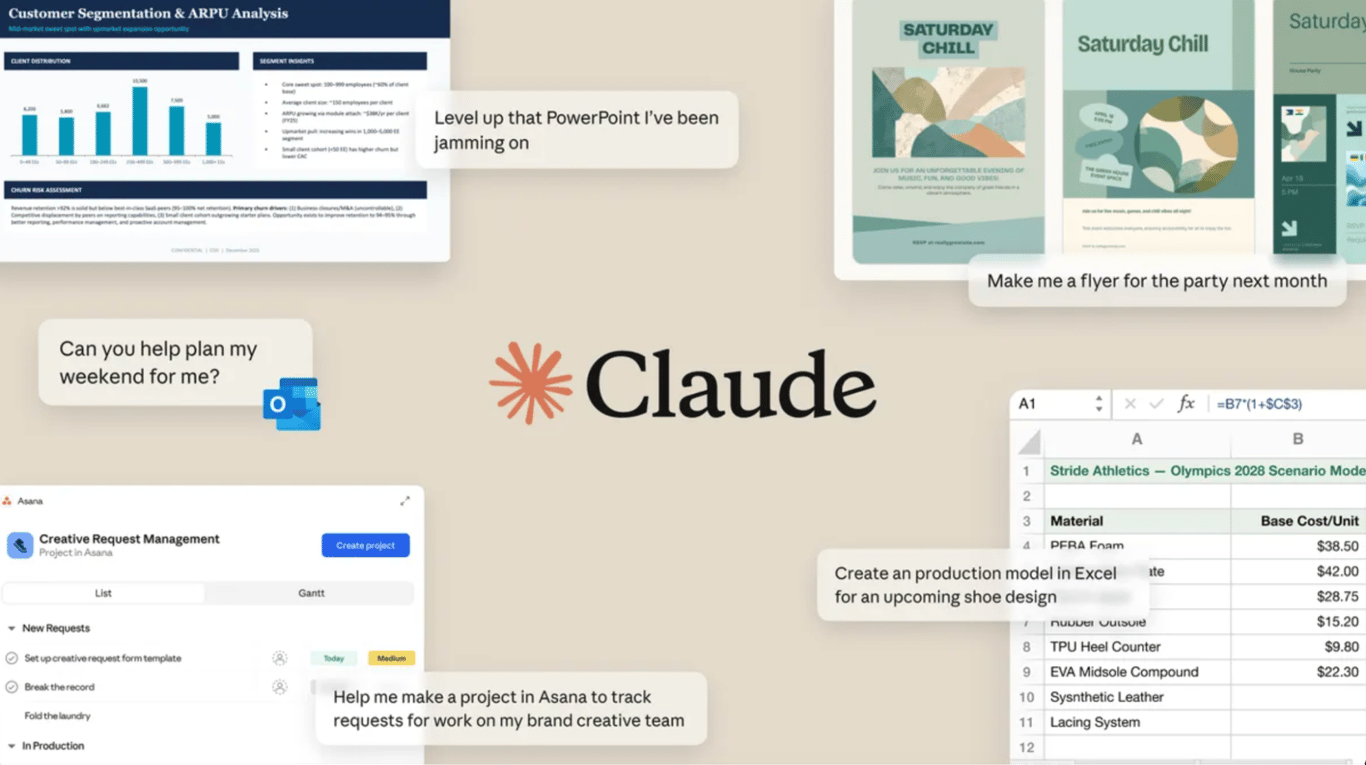
Best for: thinking through complex problems before writing code.
Most tools on this list help you write code faster. Claude helps you write better code by thinking through the problem first.
Its reasoning capabilities are genuinely strong: you can paste in a complex codebase, ask it to explain the architecture, identify potential issues, and propose solutions, and it’ll give you a thoughtful analysis rather than just autocompleting the next line.
The conversational interface makes Claude especially valuable for architectural decisions, debugging tricky issues, and understanding unfamiliar codebases.
Many developers use it alongside their primary editor, asking Claude to reason through the hard parts and then implementing the solutions in Cursor, VS Code, or Windsurf.
Anthropic also offers Claude Code, a separate command-line tool that reads entire projects, runs commands, and manages edits across multiple files with your approval at each step.
Key features:
- Strong reasoning. Excels at understanding complex code, explaining architectural decisions, and solving multi-step problems that trip up other AI tools.
- Large context windows. Can process entire codebases in a single conversation, making it useful for big-picture analysis.
- Claude Code. A command-line tool that reads entire projects, runs commands, and handles edits across multiple files. Separate from the chat interface.
- Web search and memory. Search the web for current documentation and maintain context across conversations with opt-in memory.
Limitations:
- The chat interface isn’t built into any editor. You’ll use it in a browser alongside your current platforms, or access Claude as a model provider through tools like Cursor.
- Claude Code works from the command line, so it’s best suited for developers comfortable with that environment.
- Tends to over-explain and generate more code than you asked for, which means more time reviewing output.
Pricing:
Free tier for chat, Pro at $20/month includes Claude Code, and Max at $100–$200/month for higher usage limits
10. Windsurf Editor
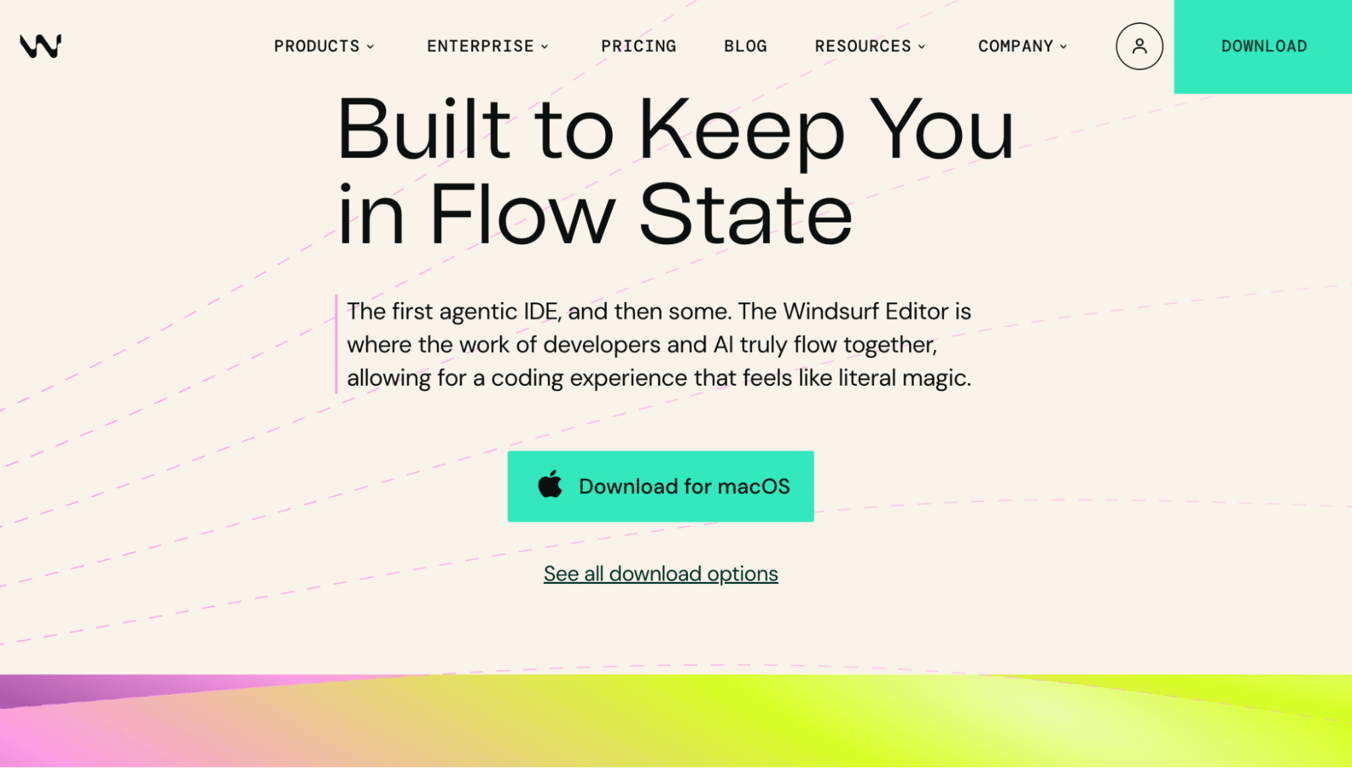
Best for: developers who want autonomous AI coding with persistent project memory.
Windsurf (formerly Codeium) is Cursor’s closest direct competitor. Both are AI-powered code editors that can autonomously handle complex, multi-file coding tasks.
Windsurf’s differentiator is Memories, a feature that remembers your project context between sessions. Where Cursor requires you to re-establish context each time, Windsurf picks up where you left off.
Cascade, Windsurf’s AI assistant, can read your entire project, make coordinated edits across files, and even preview web apps directly inside the editor.
Windsurf also offers beta app deployment through Netlify and has a strong security posture with SOC 2 Type II certification and zero data retention defaults for Teams and Enterprise plans.
Windsurf has a daily and weekly usage allowance system instead of monthly credits, which means you can’t front-load heavy usage on sprint days. So if you tend to work in bursts, Cursor’s monthly pool might actually work better for you.
Key features:
- Memories. Retains your codebase context between sessions, so you don’t have to re-explain your project every time.
- Cascade. AI assistant that makes coordinated edits across multiple files with full project awareness.
- In-editor previews and deploys. Preview web apps and ship beta deployments via Netlify without leaving the editor.
- SOC 2 Type II certified. With FedRAMP High availability and zero data retention defaults for team and enterprise users.
Limitations:
- Daily and weekly usage caps limit your ability to do heavy work in bursts. If you tend to sprint through projects, a monthly pool (like Cursor’s) may suit you better.
- Smaller extension ecosystem than VS Code and Cursor, so you may find gaps in language or framework support.
- The full autonomous AI experience only works in the Windsurf Editor. Plugins for VS Code and JetBrains offer autocomplete and chat but not Cascade.
Pricing:
Free tier, Pro at $20/month, Teams at $40/user/month, Max at $200/month.
11. Qodo
Best for: catching bugs and security issues before code reaches production.
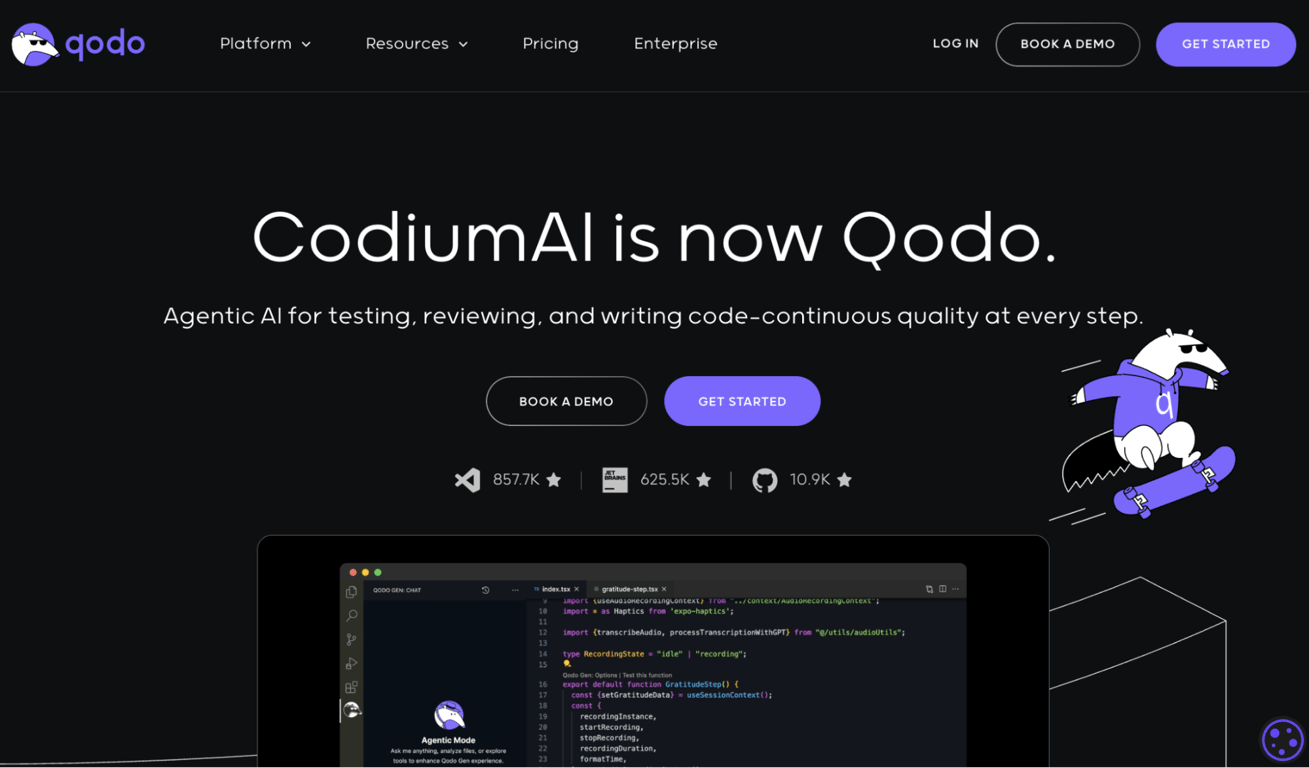
Qodo fills a gap that none of the other tools on this list address. While everything else here helps you write code, Qodo helps you verify it.
Its flagship product, Qodo Merge, reviews code changes before they go live, checking for security vulnerabilities, missing tests, policy violations, and overall quality.
Qodo also offers Qodo Gen for test generation and code suggestions inside your editor, and Qodo Command for automating tasks from the command line. Think of it as a quality layer that sits on top of your existing development workflow.
This makes Qodo complementary to whatever coding tool you use, not a replacement. A common workflow is writing code in Cursor or Windsurf, then running it through Qodo before merging.
Qodo offers both VS Code and JetBrains extensions for in-editor quality checks, so you can catch issues while you’re still writing code rather than waiting for review.
Key features:
- Code review before merge. Scans code changes for security vulnerabilities, dependency risks, and policy violations before they go live.
- Automated test generation. Creates meaningful tests based on what actually changed in the code.
- Quality scoring. Gives you a clear signal on whether a set of changes meets your team’s quality standards.
- Development environment extensions. VS Code and JetBrains plugins let you run quality checks while you’re still writing code.
Limitations:
- Reviews existing code rather than generating new code. You’ll need a separate tool for writing.
- Less valuable for solo developers who don’t use code review workflows.
- Newer platform with a smaller community and fewer third-party integrations than established tools.
Pricing:
Free tier available (30 PR reviews/month) with Teams from$30/user/month depending on tier.
12. VS Code
Best for: developers who want maximum flexibility and don’t want to be locked into any single AI provider.
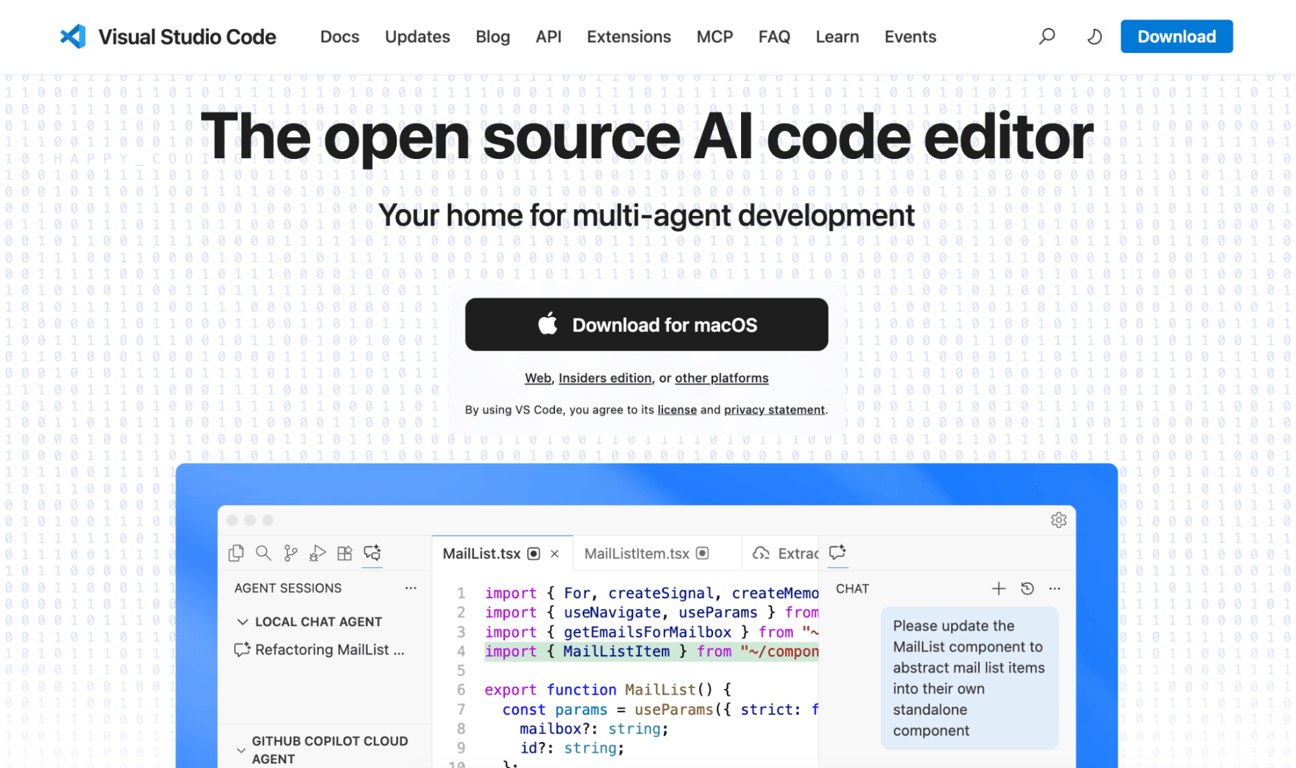
VS Code is one of the most popular code editors for a reason: it does everything, and if it doesn’t, there’s an extension for it. For AI-assisted development specifically, this means you can install GitHub Copilot, Continue.dev, Cline, or any other AI assistant and swap between them depending on the task.
The key advantage over Cursor is freedom. Cursor locks you into their editor and their credit system. With VS Code, you pick the AI tools that work for you, configure them however you want, and switch providers if something better comes along.
The extension marketplace has thousands of options for every language, framework, and development workflow.
VS Code also has capabilities that many AI-focused editors lack, like Remote-SSH for editing files on remote servers, container-based development environments, and deep Git integration.
It uses a bit more system resources than native editors like Zed, but it’s still free, fast enough for most projects, and backed by the largest developer community in the world.
Key features:
- Unmatched extension ecosystem. Thousands of extensions for languages, frameworks, debugging, theming, and AI. If it exists, there’s probably a VS Code extension for it.
- Multi-AI flexibility. Run GitHub Copilot, Continue.dev, Cline, or other AI assistants side by side and switch between them.
- Remote development. SSH into servers, develop inside containers, or connect to cloud environments directly from the editor.
- Completely free. No subscription, no credits, no usage limits on the editor itself.
Limitations:
- AI features require finding, installing, and configuring extensions. It takes more setup time than editors with built-in AI.
- Uses more system resources than lightweight native editors like Zed.
- No built-in autonomous AI coding. You’ll need extensions like Cline or Continue.dev to get the kind of hands-off AI assistance that Cursor offers out of the box.
Pricing:
Completely free, with optional paid extensions
How to choose the best tool for coding with AI
The best AI coding tool depends on your skill level, budget, privacy needs, and whether you prefer working in the cloud or on your own computer.
Here’s how to think through each factor.
Start with your skill level. If you’re non-technical and want to build a web app, tools like Hostinger’s no code app builder will get you much further than a traditional code editor. If you’re an experienced developer, a dedicated AI editor or a command-line tool like Claude Code will feel more natural.
There’s nothing wrong with starting with a no-code tool and graduating to code-level tools as your needs grow.
Think about where your code lives. Cloud-based tools like Replit and Lovable keep everything in the browser, which is great for accessibility but means you’re tied to their platform. Desktop editors like VS Code, Cursor, Zed, and Windsurf give you full control over your files.
If you need to work offline or have specific hosting requirements, a desktop editor is usually the better choice.
Budget for actual usage, not sticker price. Almost every AI tool has moved to credit-based or usage-based pricing, and nearly every one has community complaints about unpredictable costs. Start with free tiers (GitHub Copilot Free, Trae AI, VS Code with free extensions) and track your real usage for a month before committing to a paid plan.
Factor in privacy. If you’re working on proprietary code or client projects, know where your data goes. Tabnine guarantees your code stays on your own servers. Zed lets you run AI models locally on your machine. Trae AI and DeepSeek route code through servers in other countries. Read the privacy policy before you start pasting your codebase into any tool.
Don’t ignore the switching cost. Tools that work as add-ons for your current editor (GitHub Copilot, Tabnine) have zero switching cost. Full editor replacements (Cursor, Windsurf, Zed) mean relearning shortcuts, reconfiguring settings, and adjusting muscle memory.
Try any new editor for at least a full week on a real project before deciding.
Match the tool to the task. A quick landing page is perfect for Hostinger Horizons. A complex enterprise application with strict compliance needs might require Tabnine or a local setup with Zed. And sometimes the best approach is combining tools: use Claude to think through architecture, Cursor or Windsurf to write the code, and Qodo to review it before it ships.
What are some of the best AI web development tips?
Getting the most out of AI coding tools comes down to writing better prompts, breaking work into smaller tasks, reviewing output carefully, and combining tools strategically.
Here are some practical tips that apply regardless of which tool you choose.
Write prompts like you’re briefing a junior developer. The single biggest factor in AI output quality is prompt specificity. Instead of “make a login page,” try:
“create a login page with email and password fields, a forgot password link below the form, and a Google sign-in button, using a centered card layout on a light gray background.”
The more context you give upfront, the fewer credits you burn on follow-up corrections.
Build in pieces, not all at once. AI tools produce better results when they’re focused on one task at a time. Build the layout first, then individual components, then data logic, then integrations.
This also makes it much easier to spot and fix problems early, before they cascade through the rest of your project.
Learn enough code to have a conversation. Even if you’re using a no-code builder like Hostinger Horizons, knowing what “React component,” “API endpoint,” and “state management” mean will make your prompts dramatically more effective.
You don’t need to become a developer, but understanding the vocabulary helps, and learning to vibe code effectively is one of the fastest ways to get better results from any AI tool.
Always have a way to undo. AI tools sometimes make sweeping edits that break things. Use Git, the built-in version history, or manual backups. Before asking an AI to make a big change, commit or snapshot your current state. The two minutes this takes will save you hours of debugging.
Don’t ship AI-generated code without reviewing it. Code that works and code that’s good are different things. AI tools can introduce security vulnerabilities, performance bottlenecks, or patterns that will cause maintenance headaches later. Even with no-code builders, test thoroughly before going live. Tools like Qodo can automate parts of the review process.
Keep an eye on what’s new. The AI development landscape changes every few months. New models, pricing shifts, and entirely new tools appear constantly. Staying current on web development trends helps you make better tool choices and avoid overpaying for yesterday’s capabilities.
Start with the most effective tool that gets the job done. It’s tempting to reach for the most powerful option, but many projects don’t need a full code editor or a complex dev environment.
If you can describe what you want and get a working web app with built-in hosting, authentication, and a custom domain, that’s a faster path than setting up a codebase from scratch. Tools like Hostinger Horizons exist specifically for that.
All of the tutorial content on this website is subject to Hostinger's rigorous editorial standards and values.

Simon is a dynamic Content Writer who loves helping people transform their creative ideas into thriving businesses. With extensive marketing experience, he constantly strives to connect the right message with the right audience. In his spare time, Simon enjoys long runs, nurturing his chilli plants, and hiking through forests. Follow him on LinkedIn.

Dainius Kavoliunas is the Head of Product for Hostinger Horizons, with a passion for building innovative solutions. As an expert in product management, he combines deep expertise in UX, experimentation, and data analysis with a technical background to lead product strategy and build strong teams. He is particularly excited about the practical applications of AI and its potential to transform how we work and live. Follow him on LinkedIn.