1-Click OpenClaw is a streamlined solution that simplifies the implementation of personal AI assistants. This feature automates server management, infrastructure updates, and security settings, allowing you to focus entirely on configuring your assistant’s logic and interactions.
With 1-Click OpenClaw, you receive:
- Automated Onboarding: Fast setup for your AI provider and communication channels like WhatsApp or Telegram.
- Integrated AI Models: Use nexos.ai to connect with AI models without manual API key configurations.
- Isolated Environment: Your OpenClaw instance runs within a secure, dedicated Docker container.
- Managed Infrastructure: Hostinger handles all backend security features and automatic software updates.
Prerequisites
- A Hostinger account with access to 1-Click OpenClaw (currently rolling out by region).
- An active Telegram or WhatsApp account for the AI communication channel.
Set up your 1-Click OpenClaw instance
To begin, you must first purchase a plan and configure the basic settings:
- Get your 1-Click OpenClaw plan: Visit the Hostinger page for your brand and select 1-Click OpenClaw.
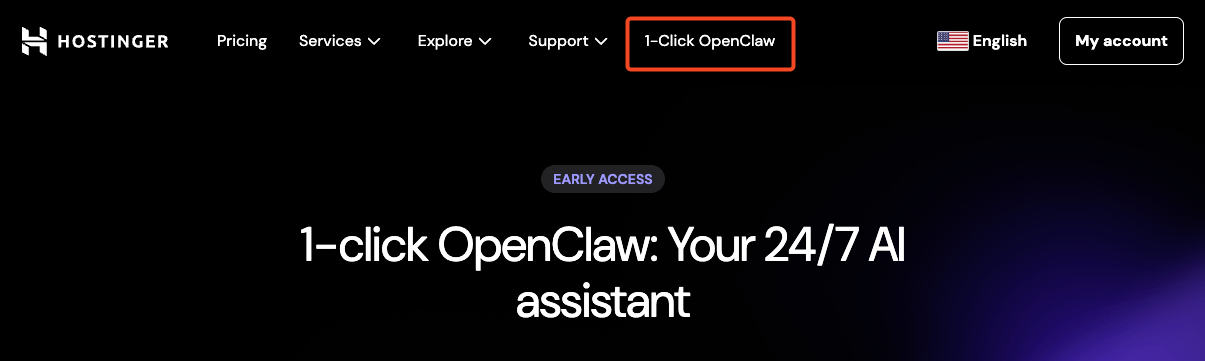
- Scroll down and click on Get OpenClaw. There is only one version for 1-Click OpenClaw. After selecting this option, you will be directed to the cart to proceed with payment.
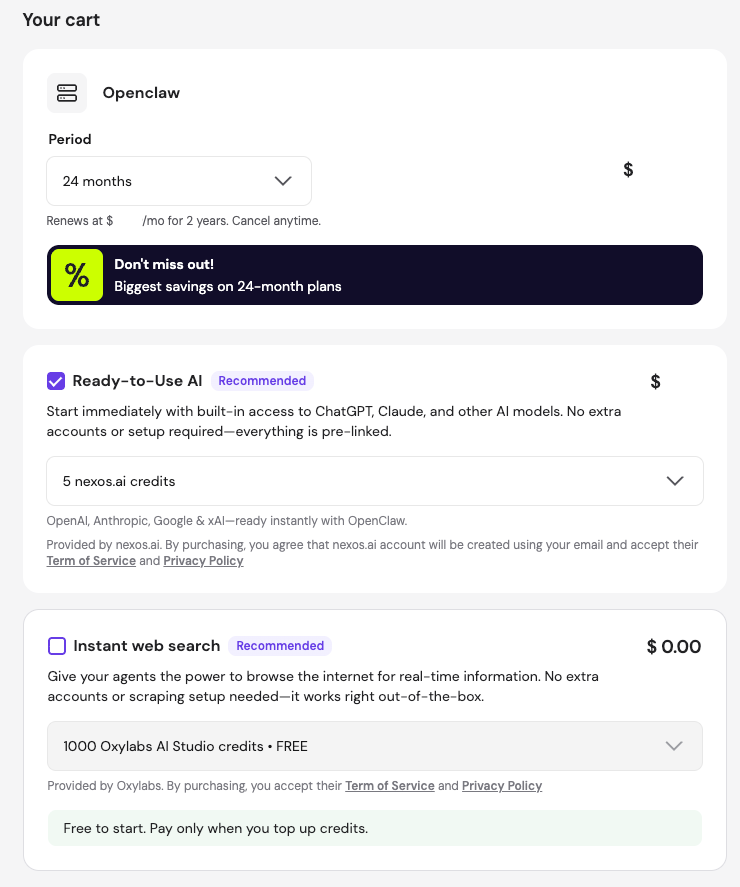
- Select your plan duration and optional add-ons
- Ready-to-use AI: Selected by default; you can add up to 100 nexos.ai credits to start right away.
- Instant web search: Add 1000 free Oxylabs AI Studio credits to empower your agents for internet browsing.
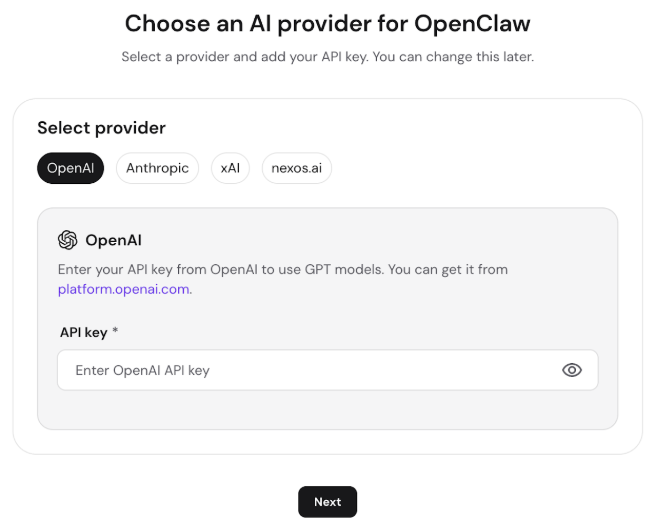
- Configure the AI Provider: If you purchased the version without Ready-to-use AI, enter your externally generated API key during the onboarding process.
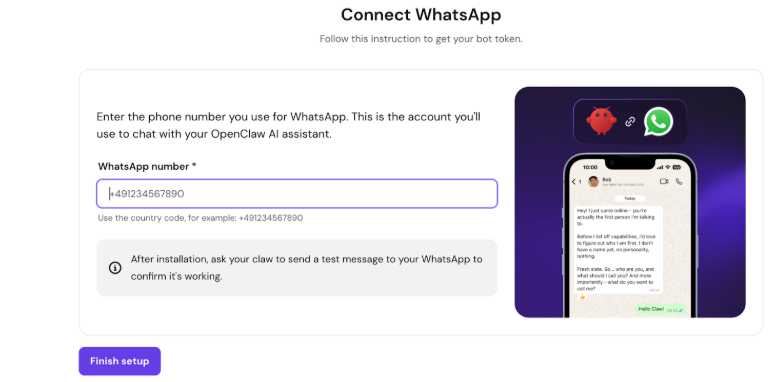
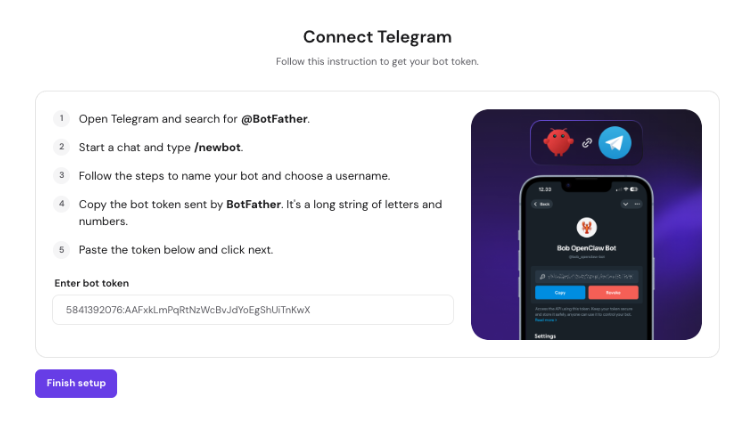
- Select a communication channel: Choose how you want to interact with your assistant. You can select between WhatsApp and Telegram.
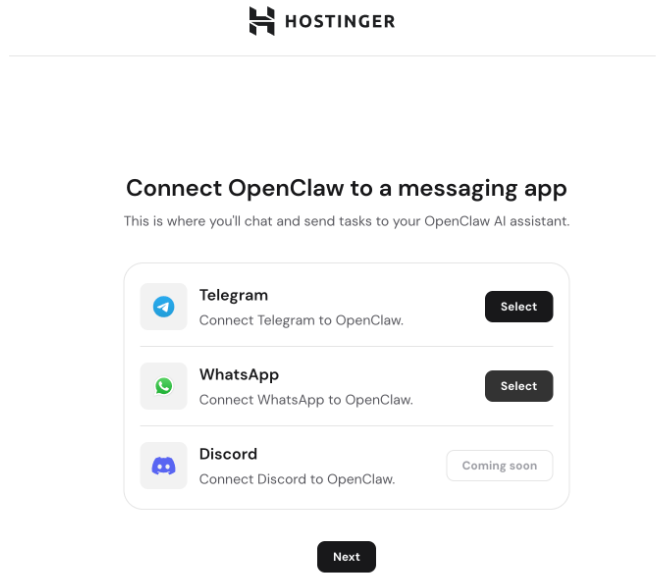
- WhatsApp: Enter your phone number to interact with the assistant via the WhatsApp app.
- Telegram: Follow the prompts to connect your account using BotFather.
- Discord: This option is currently under development.
- If you prefer to connect a messaging app later on, click next to skip this step.
- WhatsApp: Enter your phone number to interact with the assistant via the WhatsApp app.
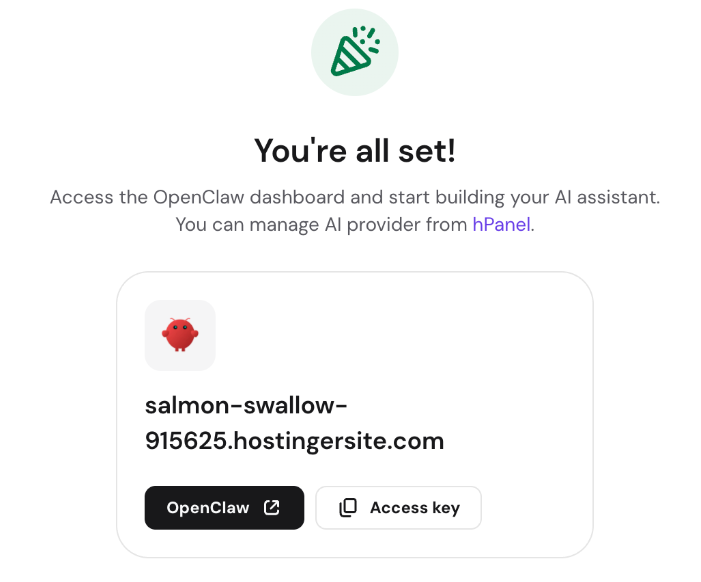
- Finalize the installation: he system will prepare your environment. Once complete, click the OpenClaw button to open the interface, or click Access key to copy your unique token.
Set up your AI preferences
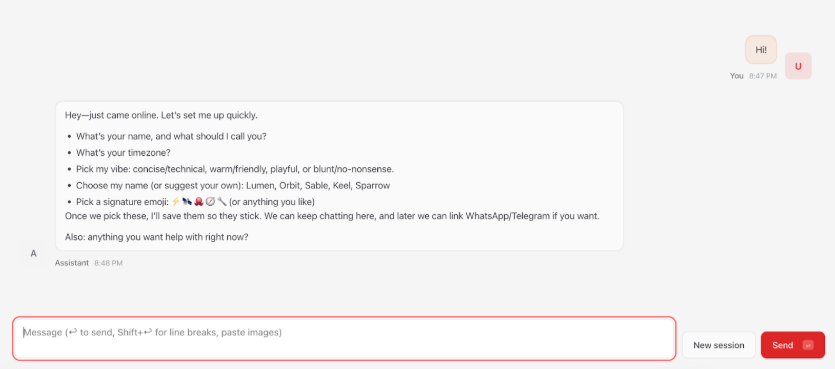
After the environment is prepared, send a message saying “Hi” to your assistant through your chosen messaging app. This begins an initial configuration interview where the AI will ask about your communication preferences and personal setup.
Manage your OpenClaw application
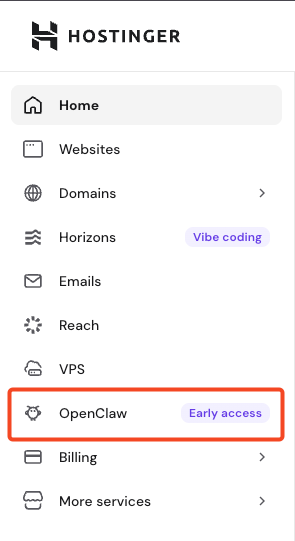
You can manage your 1-Click OpenClaw instances at any time from the OpenClaw section on the Hostinger hPanel side menu.
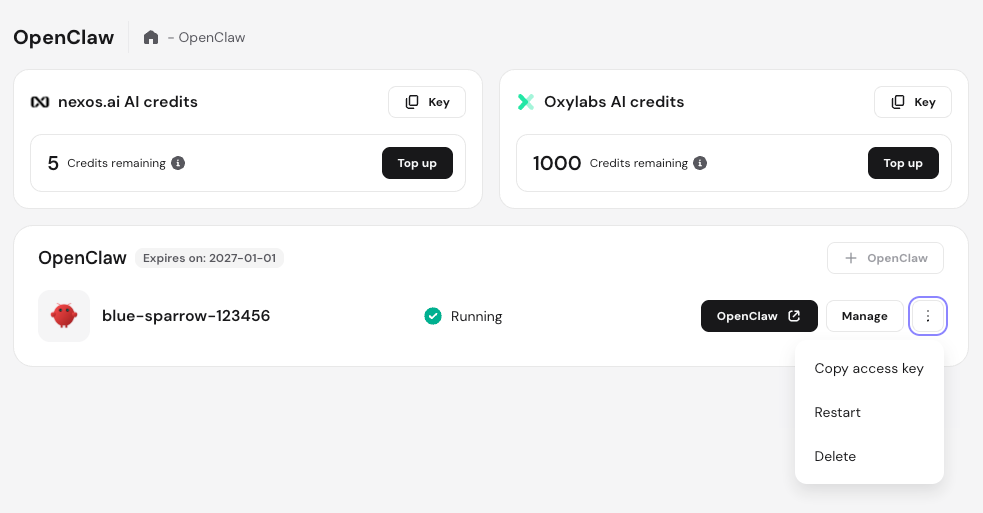
The management page provides the following information and tools:
- Credit balances: Review your nexos.ai and Oxylabs balances, copy their keys, or use the Top up button to add more.
- Installation list: Name, expiration date, and status of all your installations.
- Access environment: Use the primary button to open your OpenClaw application.
- Manage button: Access the 1-Click OpenClaw dashboard to renew your plan or manually add more AI provider keys.
- Options (⋮): Click this to copy your access key, reboot, or delete your application.
By completing these steps, you have successfully deployed a managed AI assistant environment. You can now interact with your OpenClaw instance to automate tasks and streamline your workflow.
NOTE
- If you require full root access or manual server control, we recommend exploring our OpenClaw VPS options and OpenClaw VPS installation guide.