The Ubuntu 24.04 with Cosmos Cloud VPS template comes with Cosmos Cloud pre-installed, allowing you to quickly start managing applications and services on your server through a modern web interface. Cosmos Cloud is a self-hosted platform designed to simplify the deployment and management of Docker-based applications, while also providing built-in networking, security features, and reverse proxy capabilities. With this template, you can access your server dashboard immediately after deployment without performing any manual installation.
Accessing Cosmos Cloud
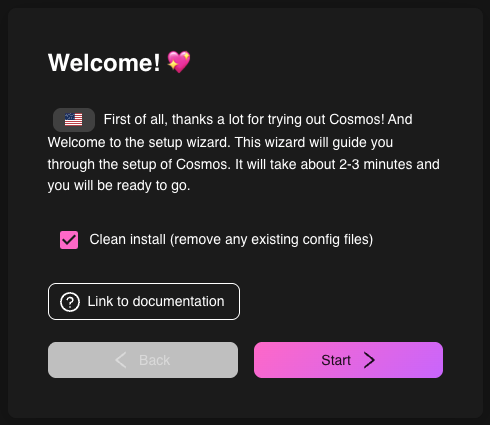
Once the VPS template is deployed, Cosmos Cloud becomes accessible directly through your browser. Open your preferred web browser and navigate to http://your-server-ip, replacing the placeholder with the public IP address of your VPS. The first time you access the interface, Cosmos Cloud will guide you through the initial setup process, allowing you to create your administrator account and configure basic server settings.
Completing the Initial Setup
During the first launch, Cosmos Cloud presents an onboarding wizard that helps configure your environment. You will be prompted to create an administrator account, which will be used to manage applications, containers, and system settings. This account provides full access to the Cosmos Cloud dashboard and allows you to control all services running on your VPS. After creating the account, you will be able to log in and start managing your server through the graphical interface.
Managing Applications and Services
After completing the setup, the Cosmos Cloud dashboard becomes your central control panel for managing applications and services running on your VPS. From the dashboard, you can deploy new applications using Docker containers, monitor system resources, and manage existing services. Cosmos Cloud also provides integrated networking and reverse proxy management, allowing you to expose applications securely and route traffic to different services running on your server.
Security and Networking
Cosmos Cloud includes built-in security and networking tools designed to simplify server management. Through the web interface, you can configure domains, enable secure HTTPS connections, and manage access to your applications. The platform integrates reverse proxy functionality, which helps route incoming traffic to the correct services running inside containers. This approach makes it easier to host multiple applications on the same VPS while maintaining proper security and accessibility.
Next Steps
Once Cosmos Cloud is set up, you can begin deploying and managing your own applications directly from the dashboard. The platform allows you to add new containers, configure networking rules, and monitor system activity in one place. Because Cosmos Cloud runs on top of Docker, you can easily deploy many popular open-source applications and services while keeping your infrastructure organized and manageable.
Conclusion
The Ubuntu 24.04 with Cosmos Cloud VPS template provides a quick and convenient way to start running and managing applications on your server. With Cosmos Cloud already installed and accessible through your browser, you can immediately configure your administrator account, deploy applications, and control your infrastructure through an intuitive interface. This makes it an excellent option for users who want the flexibility of Docker-based deployments combined with a powerful yet easy-to-use management platform.