Kodee is now available directly inside the VPS web terminal. It helps you manage your server by using natural language, so you don’t need to memorize Linux commands or switch between external tools to find setup instructions.
With Kodee in VPS terminal, you can describe what you want to do, and it can help plan the steps, run commands, check logs, troubleshoot issues, apply fixes, deploy applications, and improve your server setup.
Pre-requisites
-
An active Hostinger VPS plan.
-
Root access credentials for your server.
How Kodee in VPS terminal works
Kodee works as an AI assistant inside your server terminal. Instead of typing each command manually, you can explain the task in your own words.
For example, you can ask Kodee to:
- Set up a game server
- Install and configure Docker
- Deploy a website or application
- Create a WordPress site with SSL
- Check why a service is not working
- Read logs and explain errors
- Restart or configure services
- Apply server security improvements
- Help with OS updates or access issues
Kodee is especially useful if you are new to VPS hosting and want to complete server tasks without manually searching for commands or tutorials.
Access the Hostinger VPS terminal
To use the AI assistant, you must first enter the browser-based terminal interface:
-
Log in to your hPanel and navigate to the VPS section.
-
Select the server you wish to manage to open its Overview page.
-
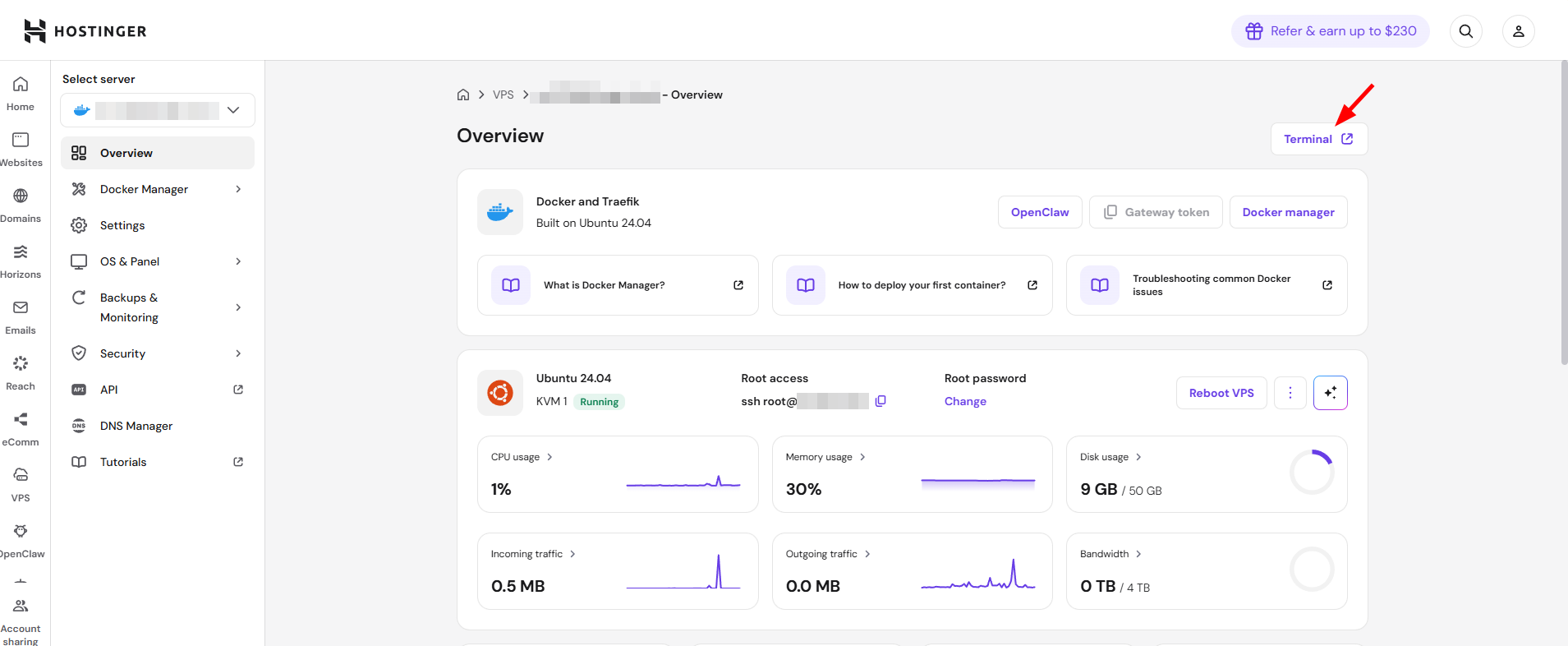
Click the Terminal button located in the top-right corner of the interface.
Log in and activate Kodee
Once the terminal window opens, you must authenticate before interacting with the AI:
-
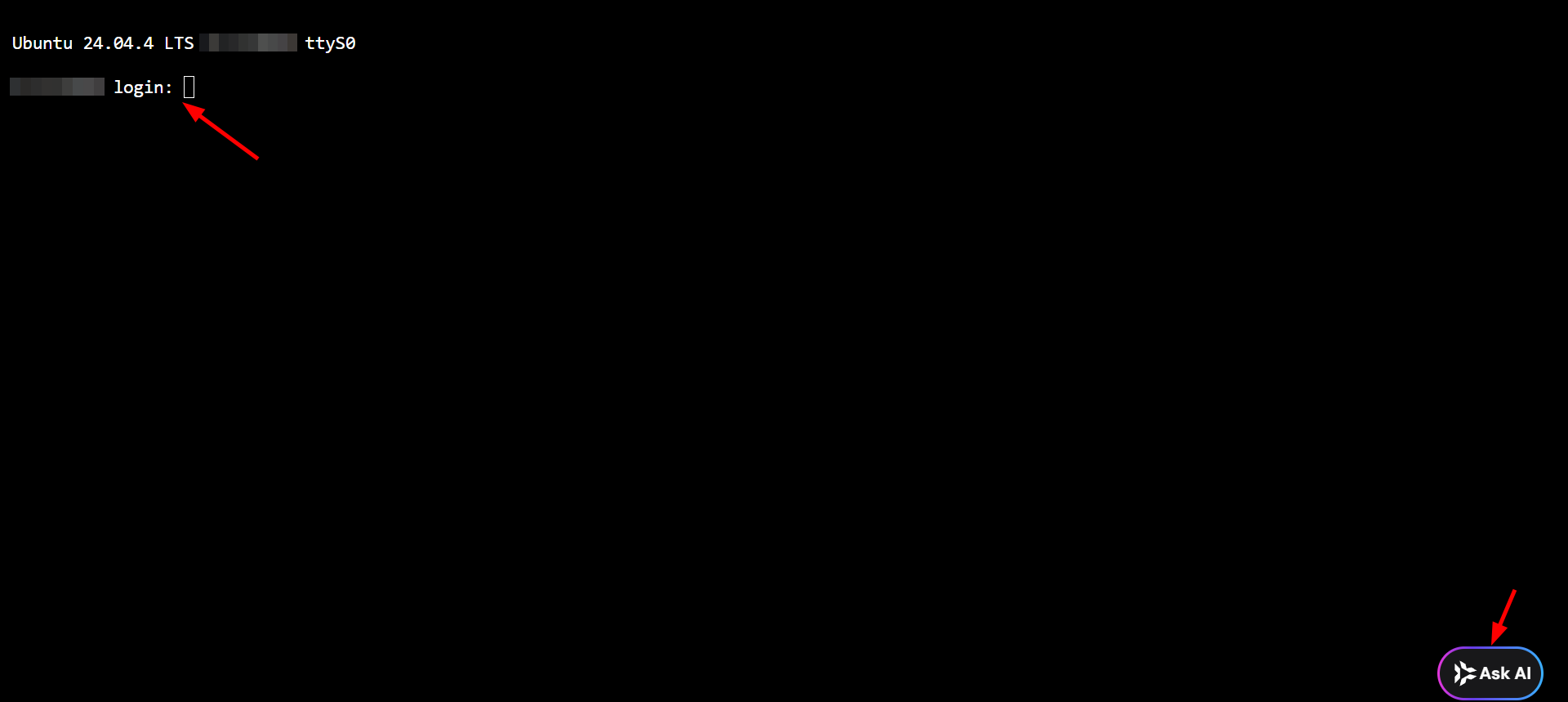
Log in to your server by entering your root username and password.
-
Once logged in, click Ask AI icon in the bottom-right corner to initiate a conversation.
What is the difference between Kodee in hPanel and Kodee in VPS terminal?
Kodee in hPanel helps with VPS management tasks from the Hostinger interface, such as checking server limits, managing domains, configuring firewall settings, creating snapshots, rebooting the VPS, and diagnosing server-related issues.
Kodee in VPS terminal works directly inside the server. This means it can interact with your VPS environment more directly by reading logs and configuration files, running commands, troubleshooting problems, applying fixes, deploying applications, and helping with security tasks.
In short:
- Kodee in hPanel helps you manage your VPS from the control panel
- Kodee in VPS terminal helps you work inside the server itself
Manage your Hostinger VPS with natural language
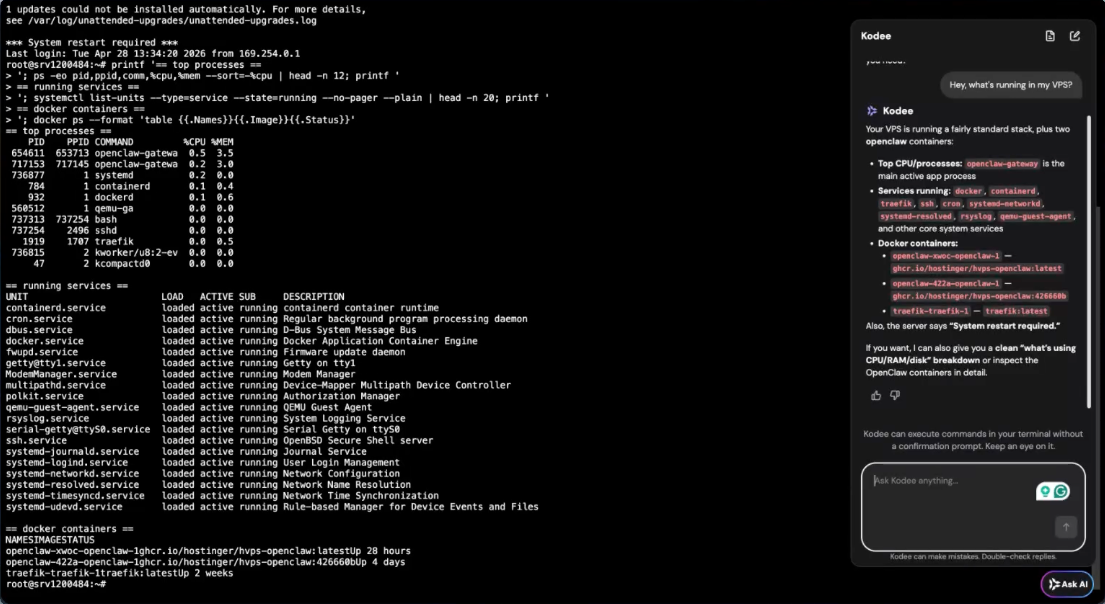
You can now instruct Kodee to perform various technical tasks without manually typing long strings of code. For example:
-
Service Management: Ask Kodee to “Install and configure a CS2 server” or “Set up a web server.”
-
Troubleshooting: Provide Kodee with an error message and ask it to “Debug and fix this service issue.”
-
Performance Monitoring: Ask for a summary of current resource usage or help identifying processes that are slowing down the server.
Kodee VPS Terminal Edition simplifies server management by converting your natural language requests into technical actions. This allows you to focus on your projects while Kodee handles the heavy lifting of system administration.
Best practices when using Kodee
When asking Kodee for help, describe your goal as clearly as possible. You don’t need to know the exact commands, but adding context helps Kodee provide better results.
For example, instead of writing:
Fix my server.
Try:
My website example.com is not opening after I restarted the VPS. Please check NGINX, firewall settings, and logs.
Before making major changes, we also recommend creating a VPS snapshot. This allows you to restore your server if something does not work as expected.