Email templates in Hostinger Mail let you save reusable messages and insert them when composing or replying to emails. This is useful for responses you send frequently, saving you time without sacrificing consistency.
Creating a template
- Log in to Hostinger Mail at https://mail.hostinger.com.
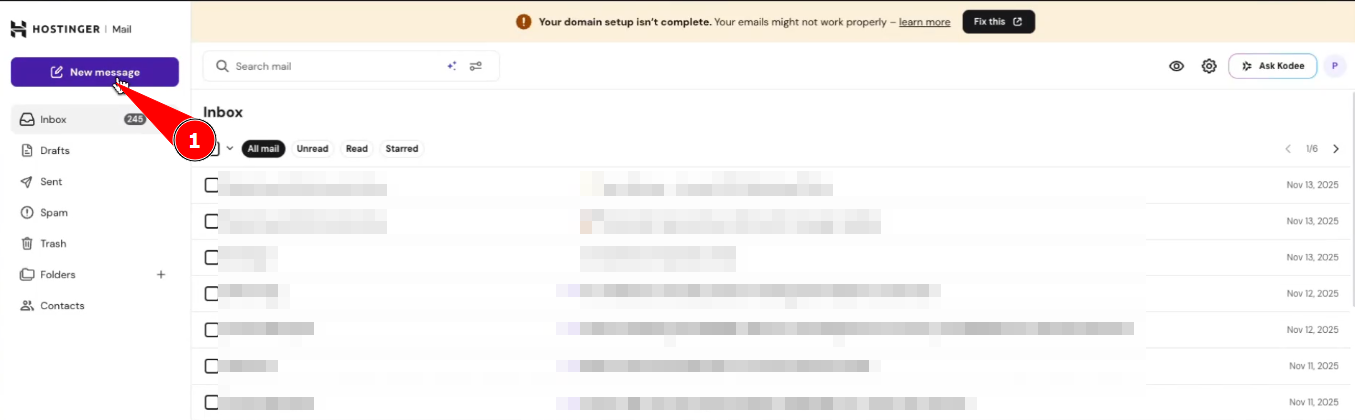
- Click Compose to open a new message window.

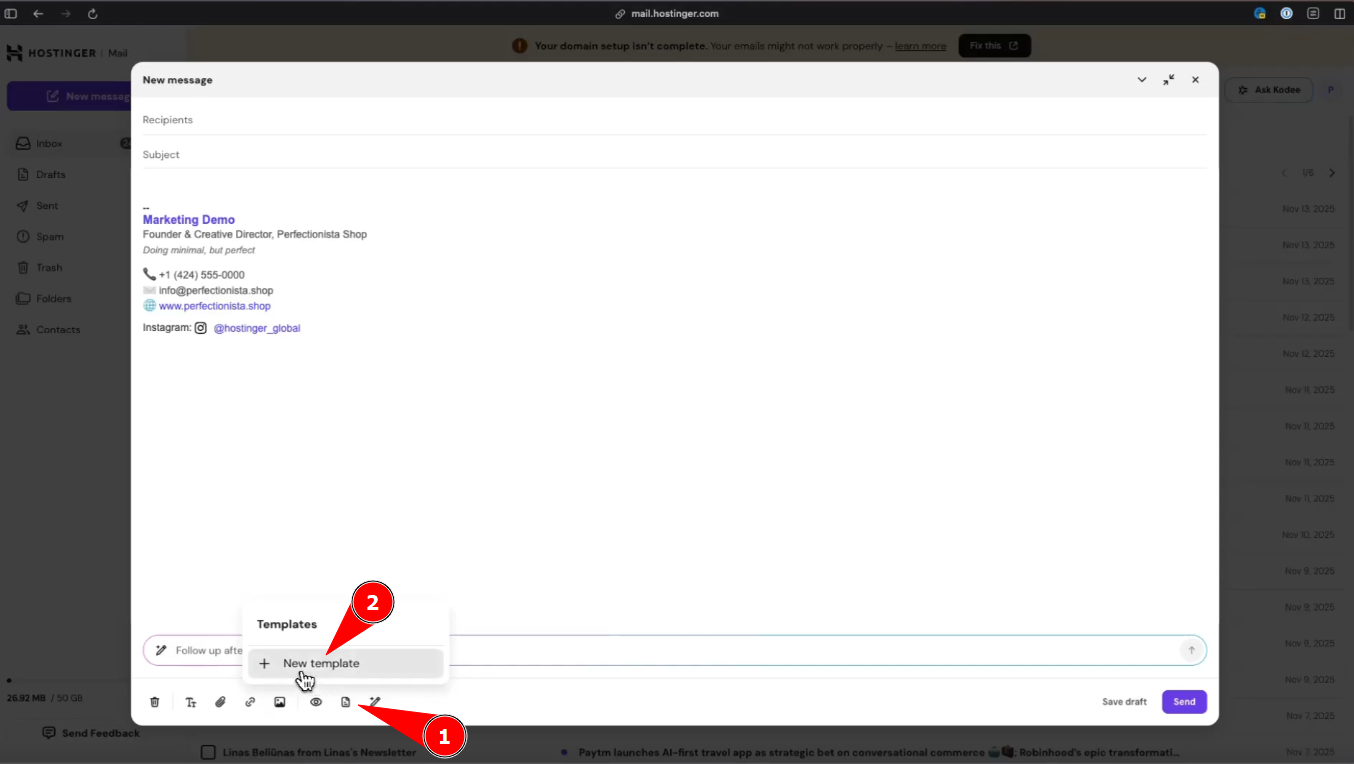
- Open the Templates option from the compose toolbar.

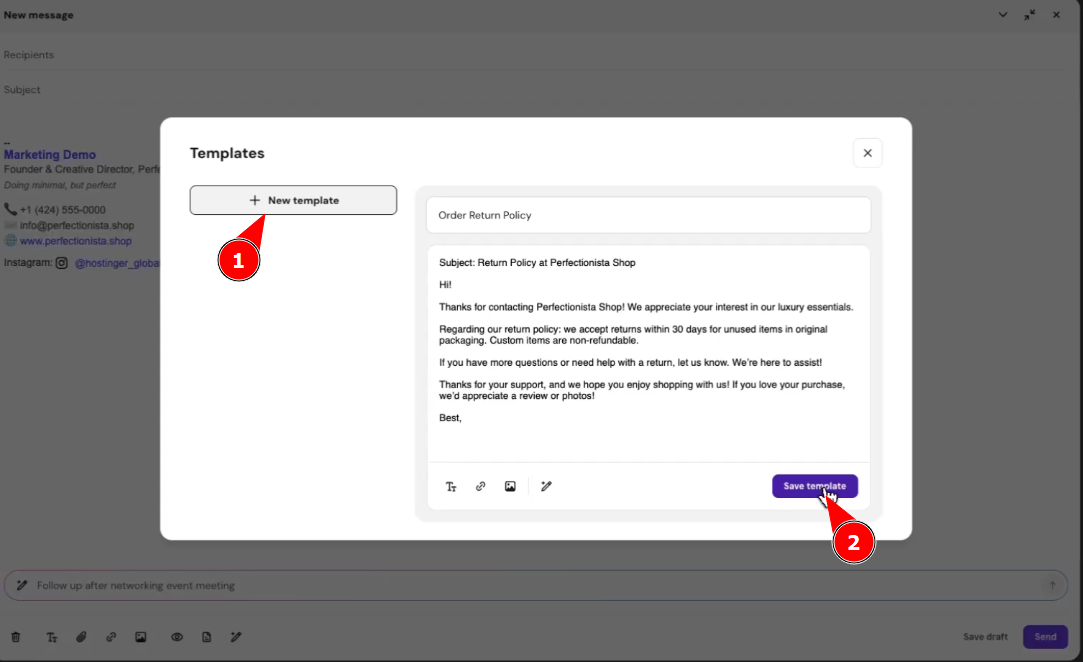
- Select Save as template, enter a name for your template, and save.

Using a template
- Open a new compose window or start a reply.
- Click Templates and select the template you want to insert.
- Edit the message as needed and send.
You can create and reuse as many templates as your hosting plan allows, making it easy to keep your email communication efficient and consistent.
NOTES
- Email templates are not available on the Free and Free Trial plans.
- Business Starter plan: up to 3 templates.
- Business Premium plan: unlimited templates.