Open your Horizons workspace and click Publish in the top-right corner to generate a live URL for your project. Copy your site URL.This guide walks you through the complete process of connecting your Hostinger Horizons WhatsApp customer relationship management (CRM) project to Twilio. You will learn how to retrieve your sandbox credentials, configure webhooks, and launch your live, approved WhatsApp sender. These steps apply specifically to users managing customer communication workflows within the Hostinger Horizons platform.
Follow along with this step-by-step video guide:
Before you start
- You must have an active Hostinger Horizons account and an existing CRM project.
- You need a registered Twilio account.
- A verified Meta (Facebook) Business Manager account is required if you plan to launch a live WhatsApp sender.
Retrieving Twilio credentials
- Log in to your Twilio Console.
- Locate the Account SID and Auth Token on your dashboard interface. Copy these values to a secure location, as you will add them to your Horizons project later.

- Access the Twilio sandbox by navigating to Messaging ❯ Try it out ❯ Send a WhatsApp message.
- Follow the instructions on the screen to join the sandbox. The displayed number serves as your testing environment.
- Save the gathered Twilio Account SID, Twilio Auth Token, and Twilio WhatsApp sandbox number directly into your Horizons project settings.
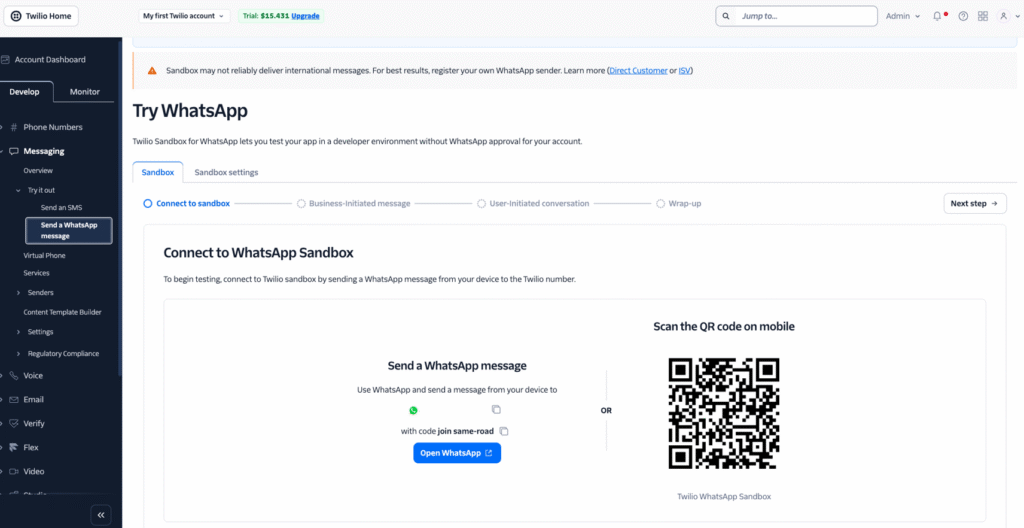
Sandbox access automatically expires after 72 hours per device. You can rejoin the sandbox at any time by resending the designated join code or scanning the provided QR code.
Configuring sandbox webhooks
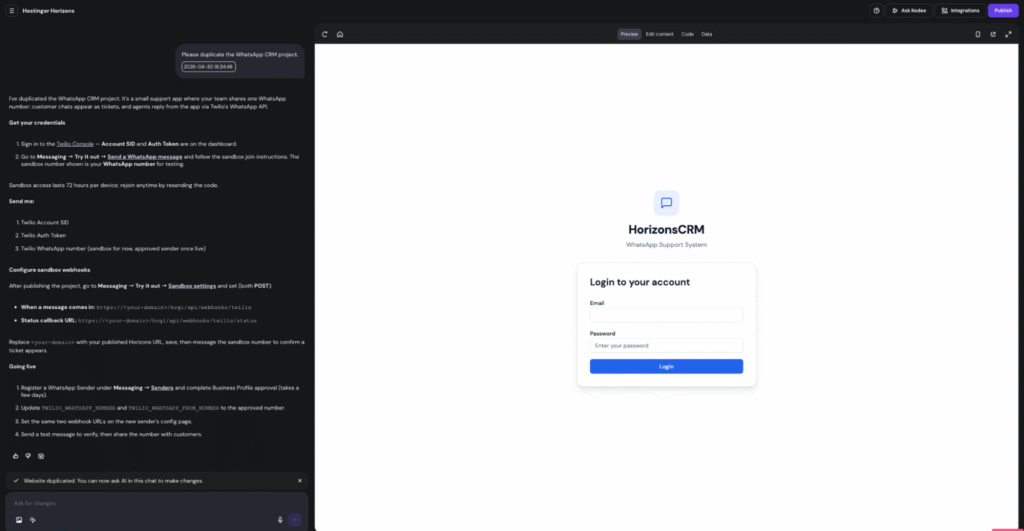
- Open your Horizons workspace and click Publish in the top-right corner to generate a live URL for your project. Copy your site URL.
- Return to the Twilio Console and navigate to Messaging ❯ Try it out ❯ Sandbox settings.
- Locate the Sandbox Configuration area and enter your customized webhook URLs:
- When a message comes in: https://<your-domain>/hcgi/api/webhooks/twilio
- Status callback URL: https://<your-domain>/hcgi/api/webhooks/twilio/status
- Replace <your-domain> in both URLs with your actual published Horizons site URL, and save the updates.

- Access your Horizons Live Data dashboard to set up an administrative account. Navigate to Live Data, click + New Record, enter your administrative details, and log in to your CRM application.


- Test the connection by sending a WhatsApp message to your sandbox number from an independent device.
- Open your Horizons CRM app to verify that a new support ticket has generated from your test message.
- Open the ticket inside the CRM interface and type a reply. The response automatically routes back to the sender via WhatsApp.

Launching your live WhatsApp sender
- Navigate to Messaging ❯ Senders in your Twilio Console and complete the required Business Profile approval process. Twilio will send an email confirmation once the profile is approved.
- Open your Horizons project settings and update the following environment variables with your newly approved live number
- TWILIO_WHATSAPP_NUMBER
- TWILIO_WHATSAPP_FROM_NUMBER
- Open the configuration page for your approved sender within the Twilio Console.
- Set the live webhook URLs using your published Horizons URL:
- When a message comes in: https://<your-domain>/hcgi/api/webhooks/twilio
- Status callback URL: https://<your-domain>/hcgi/api/webhooks/twilio/status
- Send a final test message to your live WhatsApp number to verify end-to-end message delivery.
Your WhatsApp CRM communication system is now successfully connected and ready to manage live support conversations directly through Hostinger Horizons.