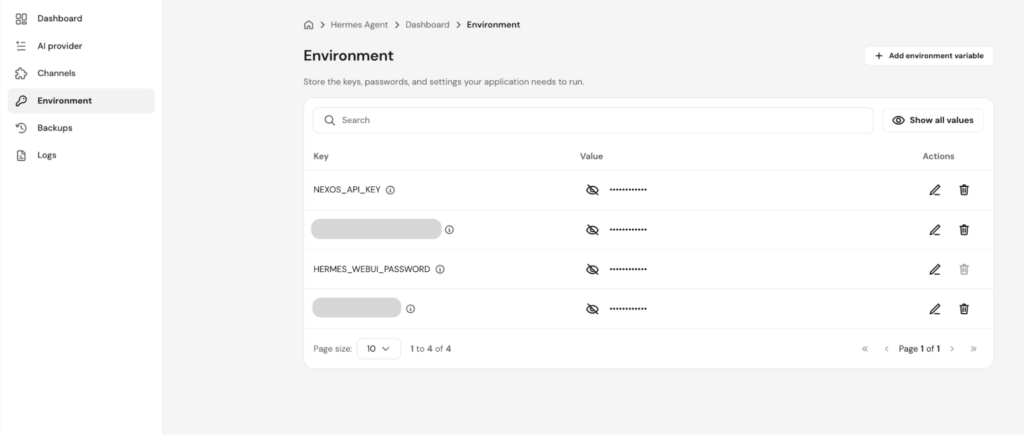
Managed Hermes provides a dedicated Environment feature to securely store all the configuration keys, passwords, and parameters your AI agent requires to function. This interface serves as a central repository for integration credentials—such as API keys for AI providers—and operational configurations like your WebUI password.
This guide covers how to view, modify, and securely deploy environment variables to your active Hermes agent.
Before you start
- You must have an active Hostinger Managed Hermes service.
- Ensure you have the necessary API keys or credentials from your third-party providers ready.
Step 1 — Navigate to the Environments interface
To view or adjust your configuration data, open the environmental settings panel inside your control area:
- Log in to your Hostinger account to access the hPanel.
- Navigate to your Managed Hermes dashboard.
- Select the Environments option from the management menu.
Step 2 — View your variables
Once inside the environment screen, you can audit your configured keys:
- Review your parameters displayed in the central table.
- For security, sensitive values are masked by default (••••••••) but can be unmasked individually or all at once using the visibility controls.
Step 3 — Add, edit, or delete variables
You can scale your agent’s capabilities by updating your configuration list. Any changes you make here will be staged until you deploy them:
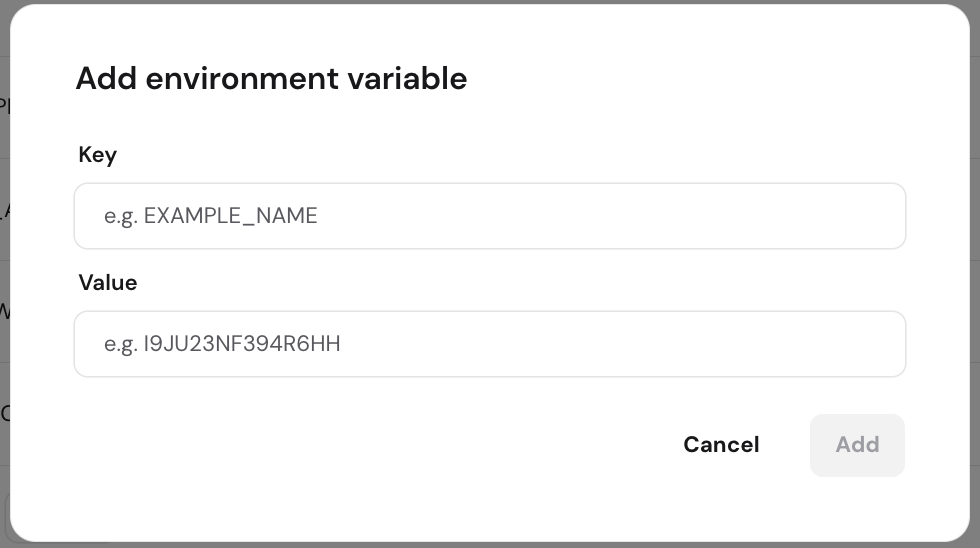
- To add a variable: Click the Add environment variable button and enter the required Key and Value fields.

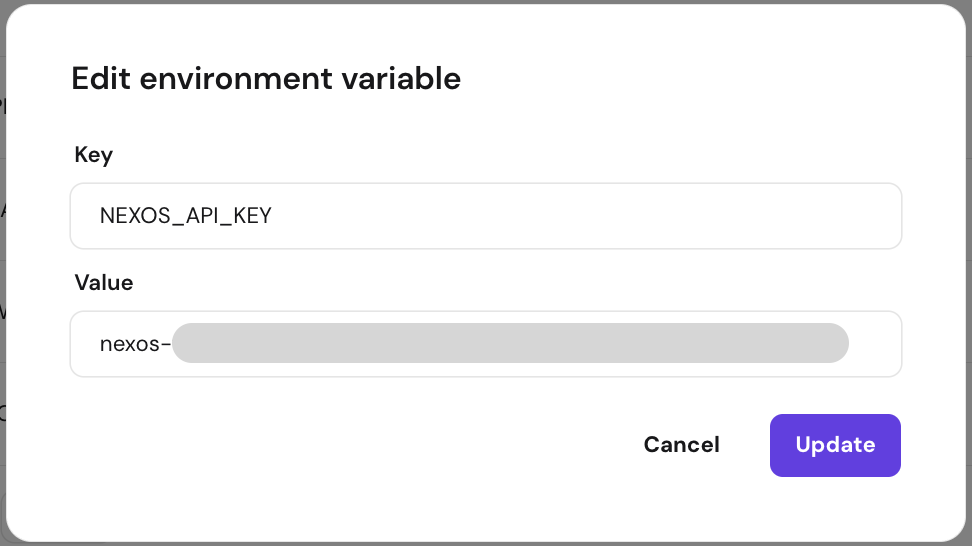
- To edit a variable: Click on an edit button for the variable you want to modify its name or value string.

- To remove a variable: Click the delete icon next to a variable and accept the confirmation prompt.
Protected (System-Managed) variables
Certain parameters are automatically managed by Hermes to prevent core application failures and are marked with a “system managed” info icon.
For example, your WebUI password variable is protected; you can edit its value to change your password, but you cannot rename or delete the variable key itself.
Step 4 — Save and redeploy the agent
Staged changes do not apply to your live agent immediately. To push your updates live:
- Click the Save & redeploy button.
- Confirm the prompt in the dialog box. This action restarts your Managed Hermes agent so it can successfully initialize with the new parameters.
IMPORTANT NOTE
- Permanent Deletion: If you delete API keys or configurations directly from within the Hermes CLI or the Hermes WebUI, the removal is only temporary for variables that were originally added via the hPanel Environments functionality. These keys will reappear as soon as the application restarts. To delete an environment variable completely and permanently, you must remove it through the Environments dashboard in your Hostinger hPanel.