This article explains how to access, log in, and start using OpenClaw after installing it on your Hostinger VPS. By the end, you will send your first command to OpenClaw and set up an automated daily task.
Step 1 – Access OpenClaw
- Log in to hPanel.
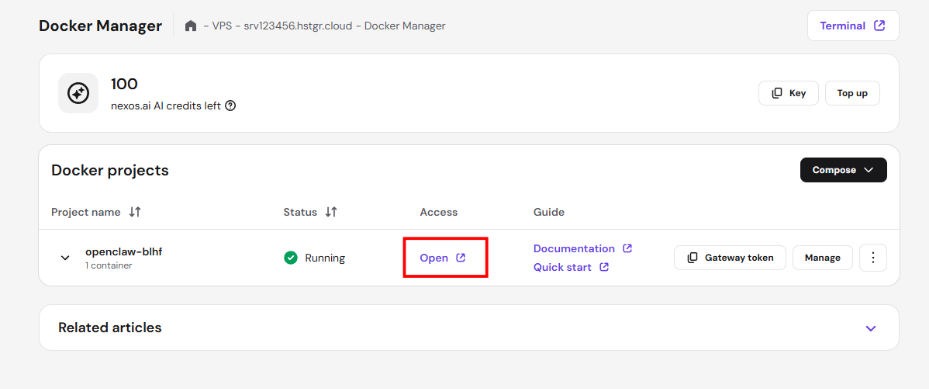
- Go to VPS → select your server → Docker Manager.
- Find your OpenClaw project in the Docker projects list.
- Click Open in the Access column.
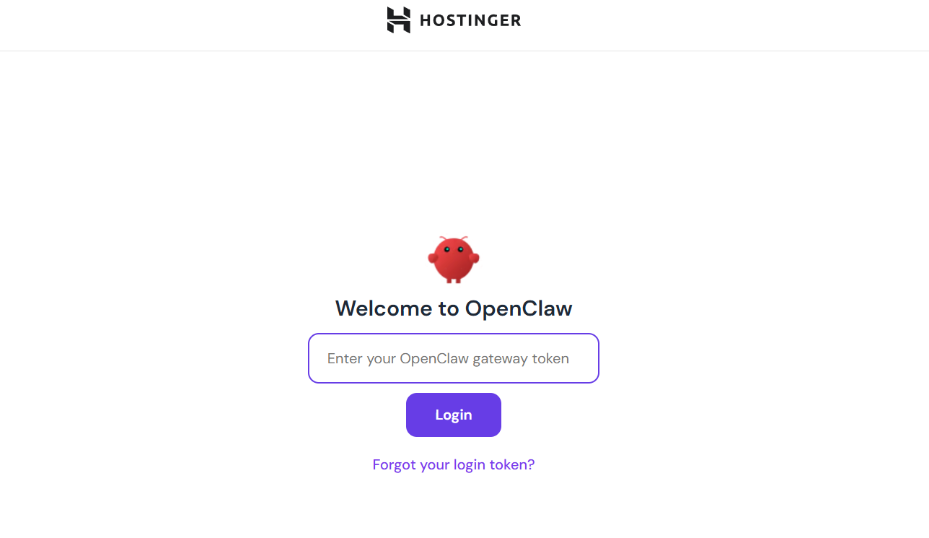
The OpenClaw login screen appears.
Step 2 – Log in with your gateway token
OpenClaw uses a gateway token for authentication. You can copy it directly from Docker Manager.
- In Docker Manager, find your OpenClaw project row.
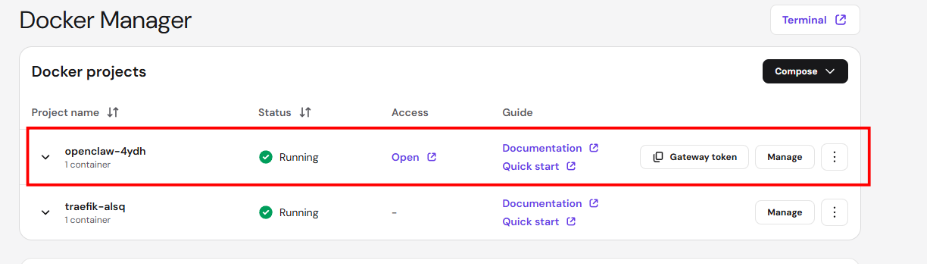
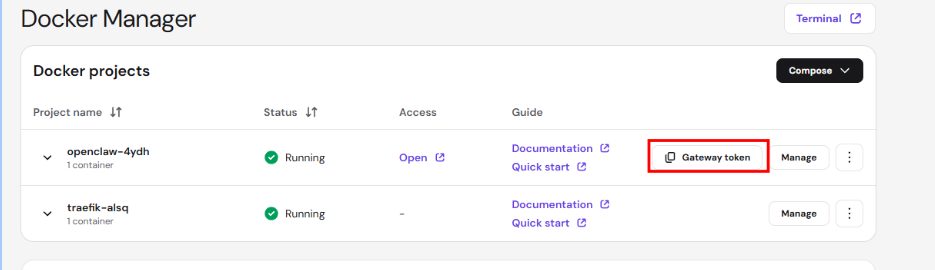
- Click Gateway token to copy the token to your clipboard.
- Return to the OpenClaw login screen.
- Paste the token into the Enter your OpenClaw gateway token field.
- Click Login.
You are now on the OpenClaw Gateway Dashboard.
Step 3 – Explore the dashboard
The dashboard has four main sections in the left sidebar:
- Chat – send messages directly to OpenClaw for quick tasks and testing.
- Control – manage channels, sessions, usage statistics, and scheduled tasks (cron jobs).
- Agent – configure AI agents, skills, and nodes for advanced automation.
- Settings – adjust configuration and enable debug mode.
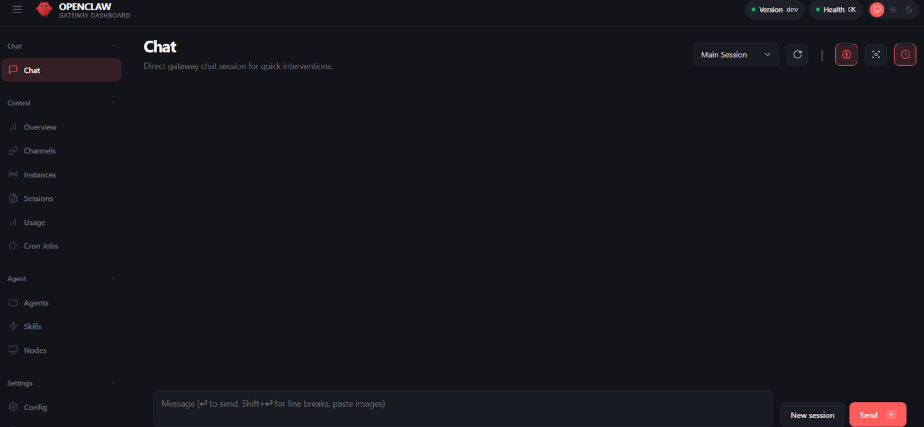
For most tasks, you can use Chat to communicate with OpenClaw and Control to manage your connected channels.
Step 4 – Connect a messaging channel
To receive messages and responses on WhatsApp, Telegram, or another platform, connect a channel first.
👉 How to connect messaging channels to OpenClaw
You can also use OpenClaw without connecting a channel by chatting directly in the dashboard.
Step 5 – Send your first command
Once logged in, you can start giving OpenClaw tasks immediately. A good first task is setting up an automated daily digest.
- In the left sidebar, click Chat.
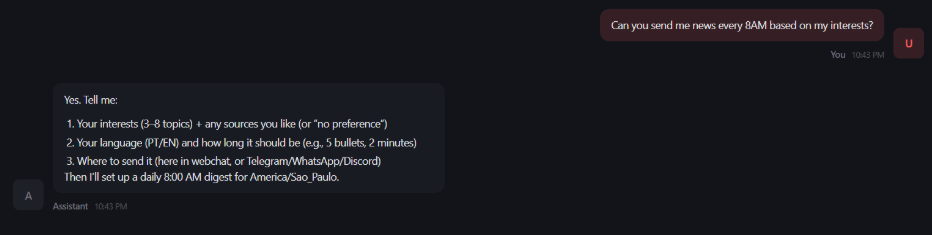
- In the message field, type a request. For example: Can you send me news every 8AM based on my interests?
- Press Enter or click Send.
OpenClaw responds with follow-up questions to personalize your digest:
- Your interests (3–8 topics) and preferred sources.
- Your language and summary length.
- Where to send it (dashboard chat, WhatsApp, Telegram, or Discord).
Answer each question, and OpenClaw automatically creates the scheduled task. You will receive your first digest at the time you specified.
What you can build with OpenClaw
OpenClaw is a flexible AI assistant that you can shape to fit your workflow. Here are a few possibilities:
- Automate customer support on WhatsApp or Telegram.
- Generate daily or weekly reports based on your criteria.
- Monitor news, trends, or keywords in your industry.
- Build a personal assistant that manages reminders and schedules.
- Create custom chatbots for your business or community.
These are just starting points. As you explore agents, skills, and nodes, you can combine them to build more advanced automations tailored to your needs.
You are ready to start building with OpenClaw. Experiment with different prompts, connect your favorite channels, and discover how AI automation can simplify your daily tasks. The more you explore, the more possibilities you will find.