When using OpenClaw on your Hostinger VPS, you may encounter a state where the interface displays a prompt-like error instead of your expected workspace. This issue typically indicates that the application is stuck in an initialization phase.
The full message looks like this:
[Bootstrap pending]
Please read BOOTSTRAP.md from the workspace and follow it before replying normally.
If this run can complete the BOOTSTRAP.md workflow, do so.
If it cannot, explain the blocker briefly, continue with any bootstrap steps that are still possible here, and offer the simplest next step.
Do not pretend bootstrap is complete when it is not.
Do not use a generic first greeting or reply normally until after you have handled BOOTSTRAP.md.
Your first user-visible reply for a bootstrap-pending workspace must follow BOOTSTRAP.md, not a generic greeting.
Because the root cause can vary, follow these troubleshooting steps to restore the OpenClaw environment.
Before you start
These steps can be completed from the Docker Manager page:
- Go to hPanel → VPS.
- Click on Manage next to your VPS and click Docker Manager.
- Locate your OpenClaw project.
Step 1 — Start a new OpenClaw session
Stale session data can remain stuck even after a backend restart.
- Close the current OpenClaw chat session.
- Start a brand-new session by clicking Open next to your OpenClaw project on the Docker Manager.


Step 2 — Restart the OpenClaw container
Refreshing the container often clears temporary runtime errors.
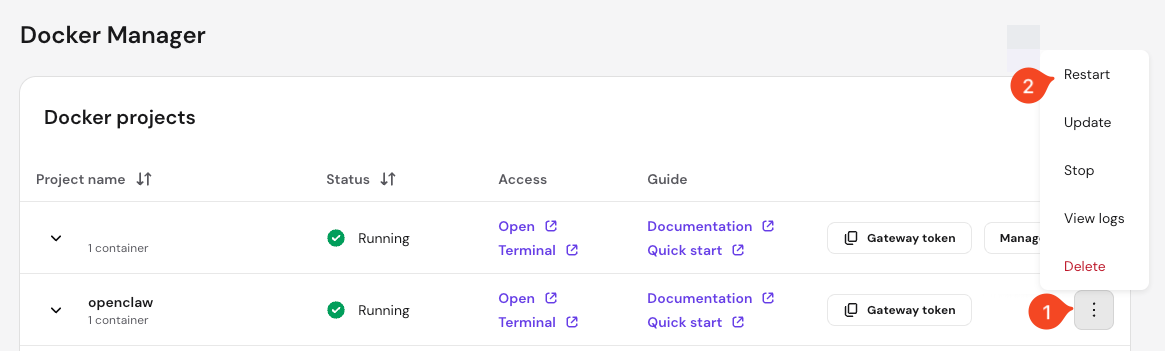
- Click the options button (⋮) next to your project and select Restart.

- Wait for the status to return to Running.
Step 3 — Check container logs
If the issue persists, review the internal logs to identify specific blockers.
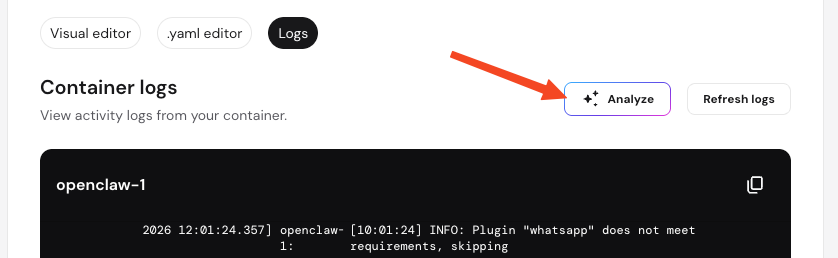
- In the Docker Manager, click the Options button (⋮) next to the OpenClaw container.
- Select View logs.

- Scroll to the bottom of the log window and click the Analyze button.


Step 4 — Redeploy OpenClaw
- In the Docker Manager, click Manage next to the OpenClaw project.
- Click Deploy.
- Wait for the process to complete.
Step 5 — Update OpenClaw
Outdated deployments may have persistent bootstrap issues.
- In the Docker Manager, click the Options button (⋮) next to the OpenClaw container.
- Select Stop
- Once stopped, click Options (⋮) → Update.
- Once the container shows the Running status, test the application with a new session.
Step 6 — Recreate the deployment
As a final resort, you can perform a clean installation.
- Back up any agents, workspaces, or persistent data you wish to keep.
- Remove the existing OpenClaw deployment in the Docker Manager.
- Click Options (⋮) → Delete.
- Create a fresh deployment to ensure a clean initialization state.
NOTES
- Recreating a deployment results in permanent data loss for any information stored within the previous container.
- If you have a Traefik container active on your VPS, it should automatically provide SSL for the new OpenClaw deployment.
By following these steps, you should resolve the bootstrap pending state and return to a functional OpenClaw environment. You can now continue building your AI agents and managing your workspaces efficiently.