If you want to switch from nexos.ai to a different provider or check if your OpenClaw setup (or any other project using AI) is correctly configured, you can manage your settings directly through hPanel.
Instead of using terminal commands or editing configuration files via SSH, the most efficient way to manage these settings is through the Docker Manager environment variables. This ensures that your API keys are correctly injected into the container environment and persist across updates.
Before you start
- Ensure you have a running OpenClaw container (or any other AI-based Docker application) in your Docker Manager.
- Obtain a valid API key from your chosen provider (e.g., OpenAI, Anthropic, or xAI).
Step 1 – Remove the nexos.ai configuration
To disable nexos.ai credits, remove the existing API key:
- Go to hPanel → VPS → Manage → Docker Manager → Projects
- Locate your OpenClaw or AI container and click Manage.
- Navigate to the Environment variables (
.env) section and click to expand it. - Find the
NEXOS_API_KEYvariable and click the bin icon to remove it.
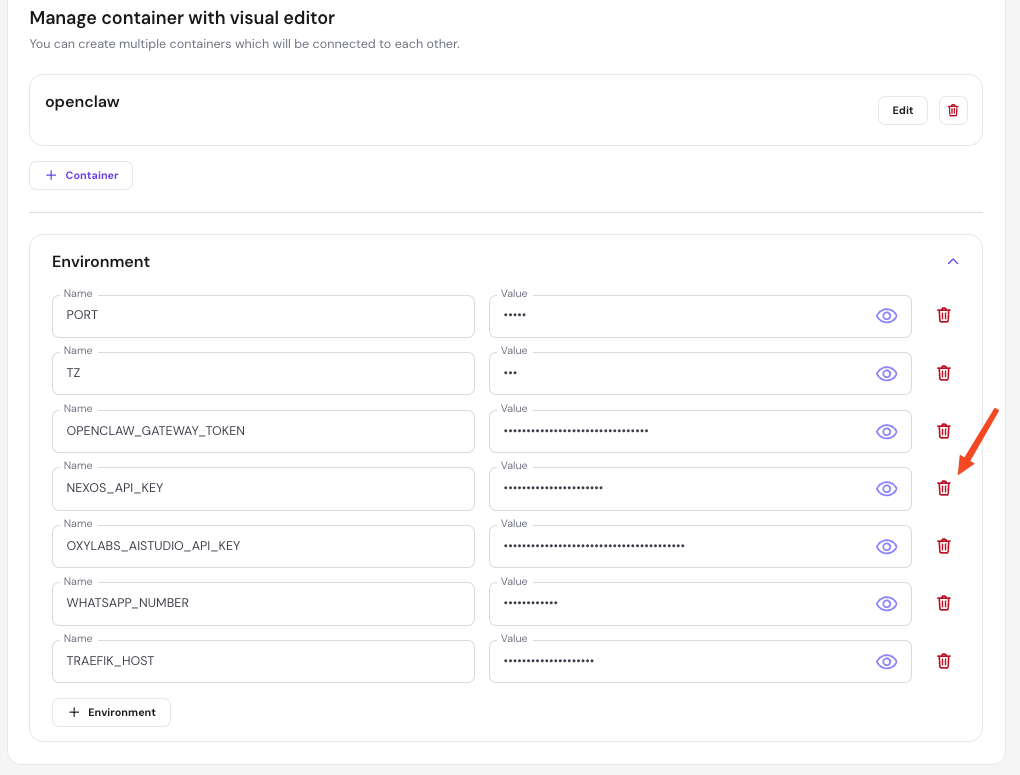
- Click Save and deploy.
Step 2 – Configure a new AI provider
To add a new provider like OpenAI, Anthropic, or xAI, follow these steps:
- In the same Environment variables section, click + Environment to create a new variable.
- Enter the variable name required by your specific model:
ANTHROPIC_API_KEYfor AnthropicOPENAI_API_KEYfor OpenAIXAI_API_KEYfor xAI.
- Paste your corresponding API key into the Value field.
- Click Save and deploy to apply the changes.
After the container finishes re-deploying, your application will stop using nexos.ai credits and begin using your newly configured AI provider. This ensures your setup remains flexible and updated with your preferred AI models without needing manual terminal commands.
NOTE
-
Do not edit the
.envfile directly via SSH, as changes made outside of the Docker Manager may be overwritten during the next deployment.