Email groups allow you to categorize your contacts and send messages to multiple recipients simultaneously. By organizing your contacts into groups, you can streamline your communication and manage large mailing lists more efficiently within Hostinger Webmail.
Pre-requisites
-
An active Hostinger Email account.
-
Access to the Hostinger Webmail interface.
Create a new email group
To start organizing your contacts, you first need to create a group container:
-
Log in to your Hostinger Webmail.
-
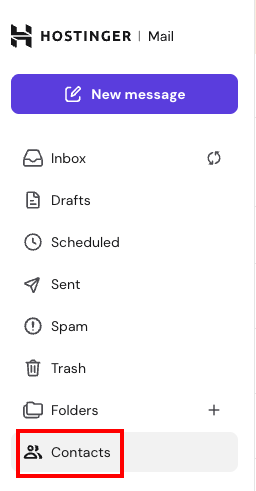
Click on the Contacts icon in the left-hand sidebar.

-
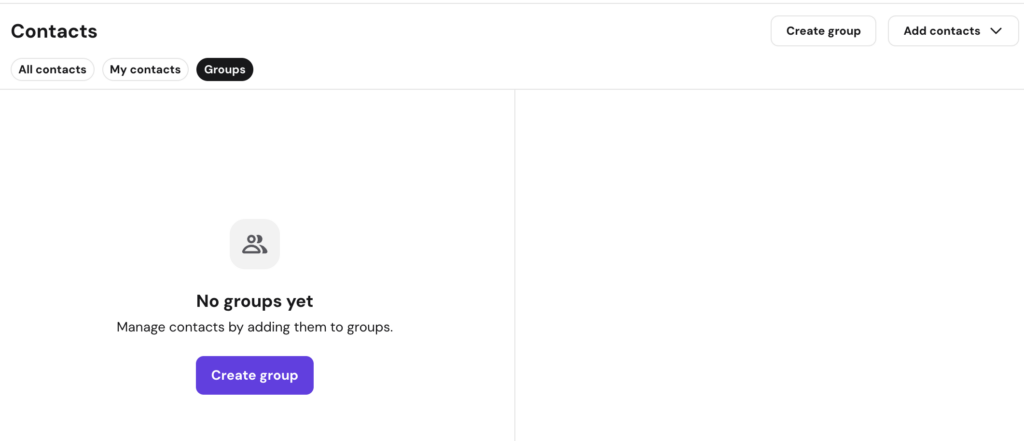
Select the Create Group button.

-
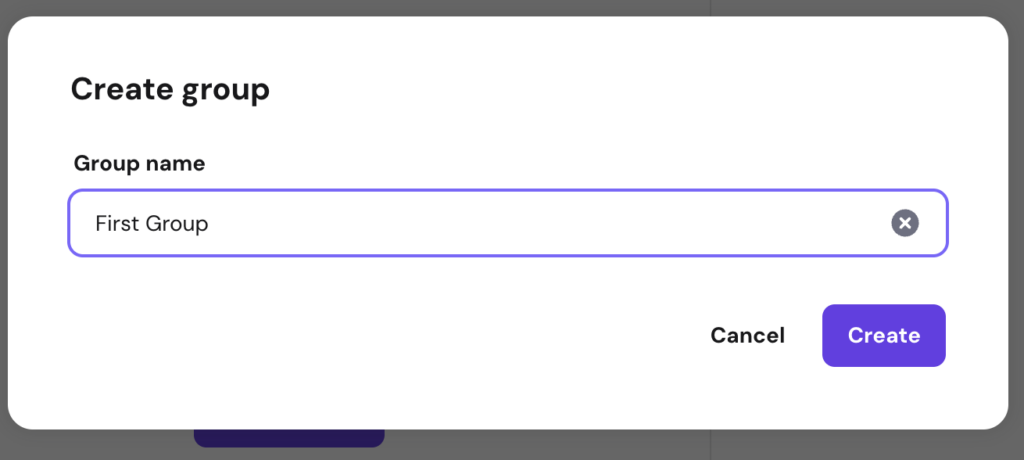
Enter a descriptive name for your group in the text field.

-
Click Create.
Add contacts to an email group
Once a group is created, you can populate it with specific email addresses:
-
Select the group you just created from your contacts list.
-
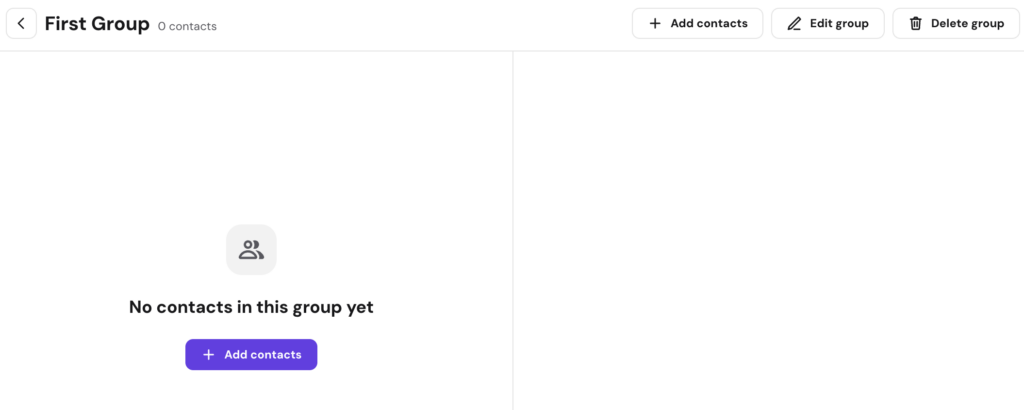
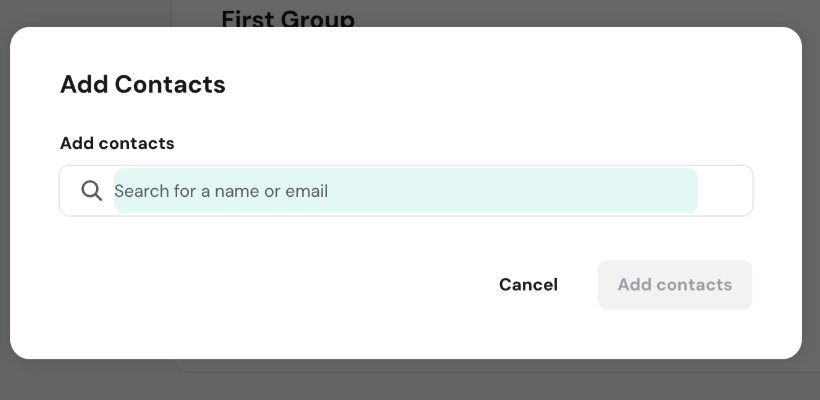
Click the Add Contacts button.

-
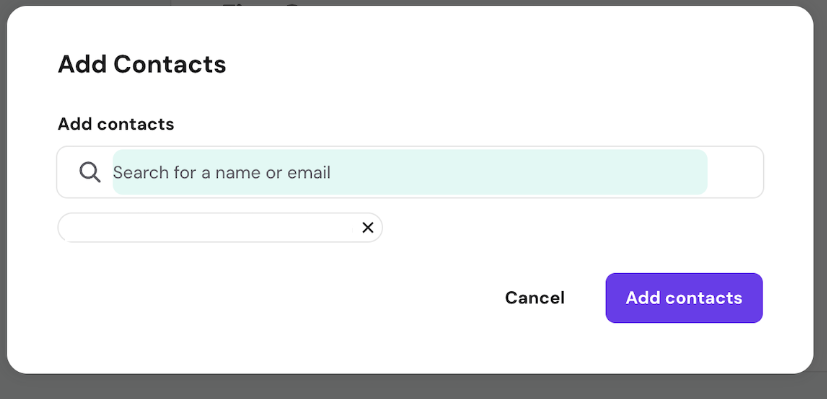
In the search bar, enter the names or email addresses of the contacts you wish to include.

-
Select the desired contacts from the results.

-
Click the Add contacts button to confirm the selection.
Edit or remove group members
You can modify the members of your group at any time:
-
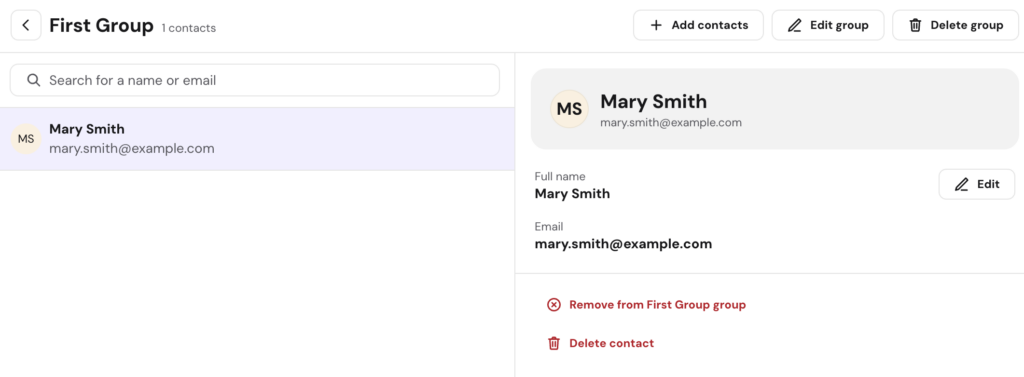
To edit a contact: Click the pencil icon next to a contact’s name to update their details.
-
To remove a contact from the group: Click the specific contact you wish to remove then click Remove from Group

-
To add more members: Click the Add contacts button again at the top of the group view.
Delete an email group
If a group is no longer needed, you can remove it without deleting the individual contacts:
-
Select the group from the side menu.
-
Click the Delete group button.

-
Confirm the action in the pop-up modal.

Managing email groups in Hostinger Webmail helps you stay organized and saves time when sending mass communications. You can update these groups at any time to reflect changes in your contact lists.
NOTES
-
Deleting a group does not delete the contacts from your main contact list; it only removes the group categorization.
-
Ensure your contacts are already saved in your address book to find them easily during the search process.
-
If your contacts were previously migrated from Roundcube, any additional contact details (phone numbers, addresses, etc.) are preserved and will display automatically on the right side panel when clicked.