This article explains how to connect Telegram and WhatsApp messaging channels to OpenClaw on your Hostinger VPS, and how to resolve common connection issues.
Connecting channels during deployment
When deploying OpenClaw from hPanel, you can configure Telegram and WhatsApp directly in the deployment form.
- In hPanel, go to VPS → Manage → OS & Panel → Operating System → Docker Application.
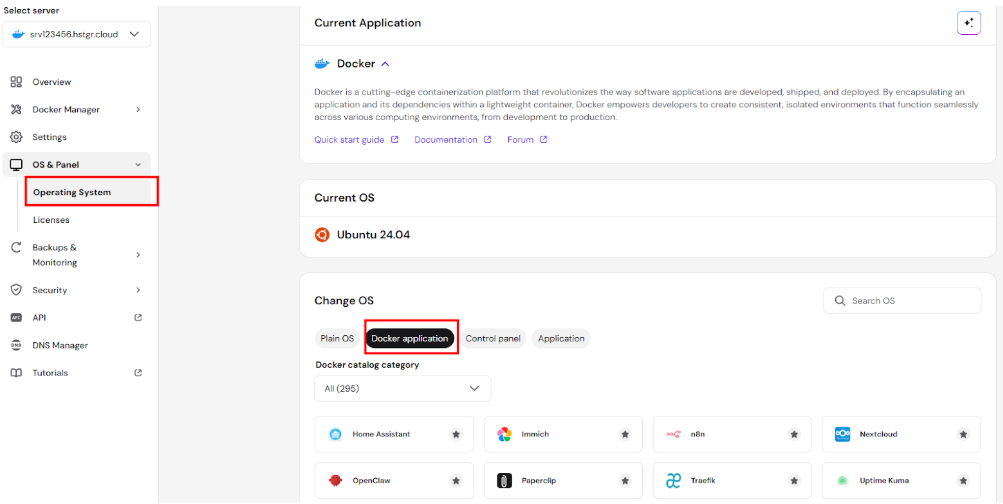
- Search for OpenClaw and click Deploy.
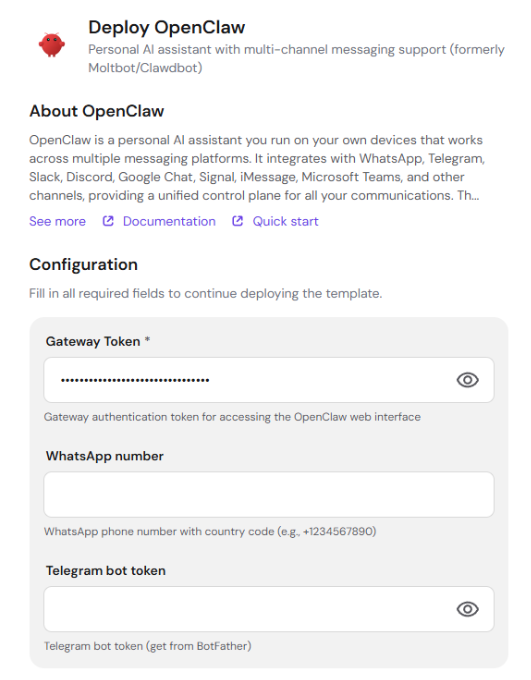
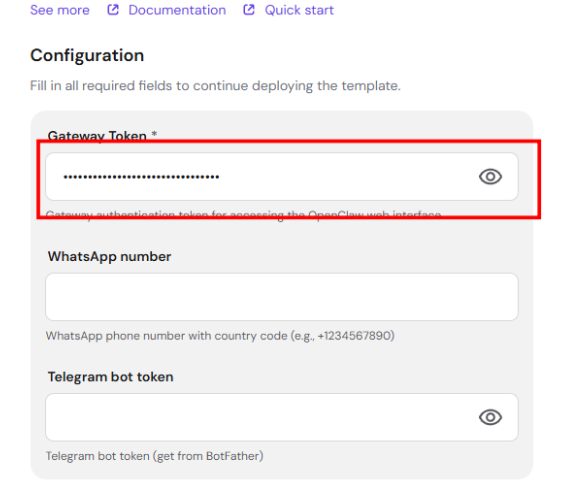
- Copy the required Gateway Token field.
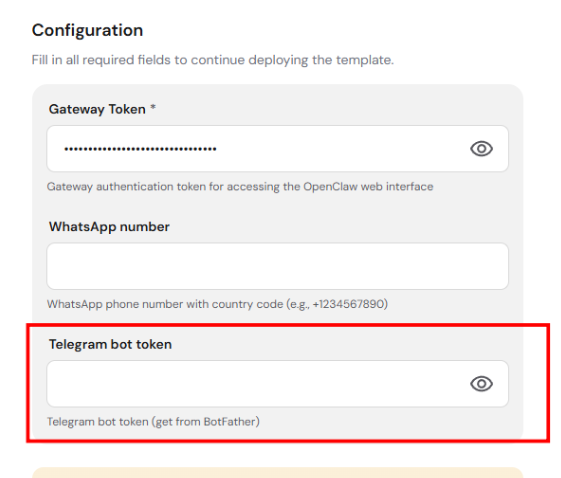
- To connect Telegram, enter your bot token in the Telegram bot token field. You can get this token from @BotFather on Telegram.
- To connect WhatsApp, enter your phone number with country code in the WhatsApp number field (e.g., +1234567890).
- Click Deploy.
After deployment, you still need to complete the WhatsApp pairing by scanning a Quick Response (QR) code. See the “Connecting WhatsApp after deployment” section below.
Connecting Telegram after deployment
If you did not add your Telegram bot token during deployment, or want to connect a different bot:
- Open the OpenClaw dashboard by clicking Open next to your OpenClaw container in hPanel.
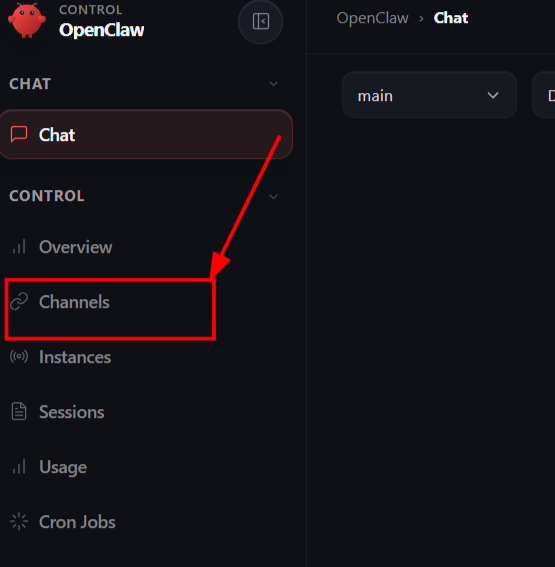
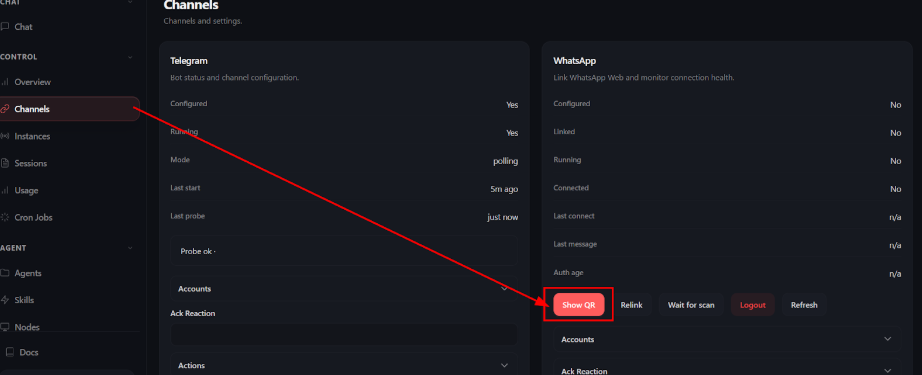
- Go to Channels in the left sidebar
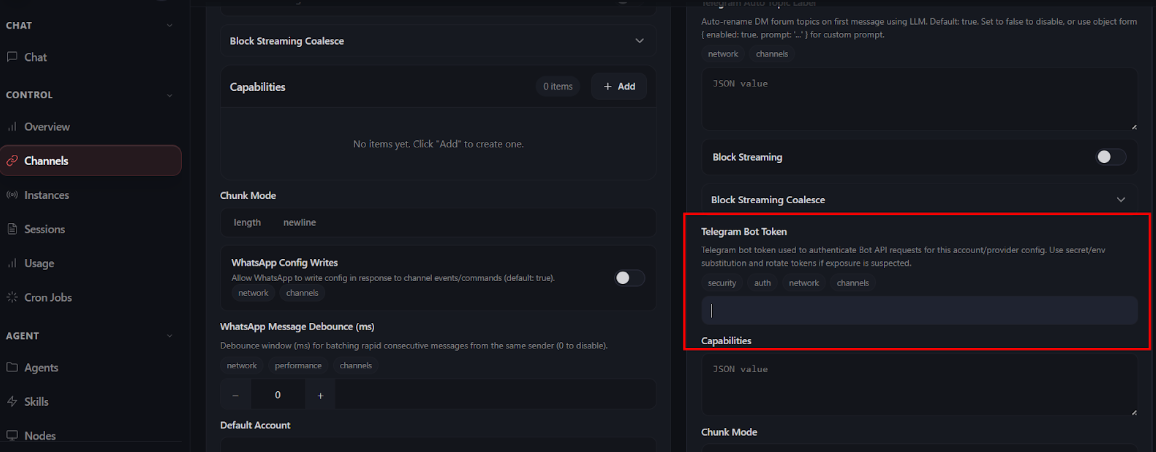
- In the Telegram section, add your bot token to the OpenClaw configuration.
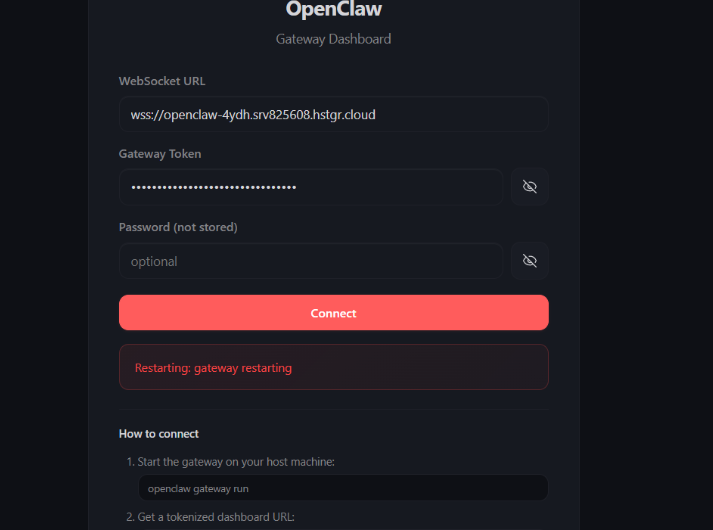
- Scroll down, and click Save. The gateway will restart. Wait for it to finish.
Once connected, the Telegram section displays the following status indicators:
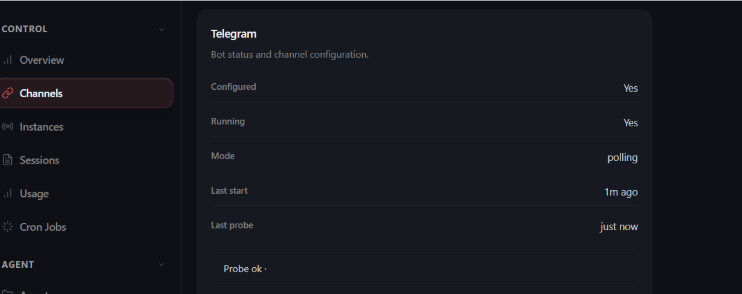
- Configured – Whether the bot token is set.
- Running – Whether the Telegram channel is active.
- Mode – The polling method (typically “polling”).
- Last start – Time since the channel started.
- Last probe – Time since the last health check.
- Probe ok – Confirms the channel is responding.
Connecting WhatsApp after deployment
OpenClaw connects to WhatsApp using WhatsApp Web. You can use a regular WhatsApp account — WhatsApp Business is not required.
To connect or complete WhatsApp pairing:
- Open the OpenClaw dashboard.
- Go to Channels in the left sidebar.
- In the WhatsApp section, click Show QR. A QR code appears.
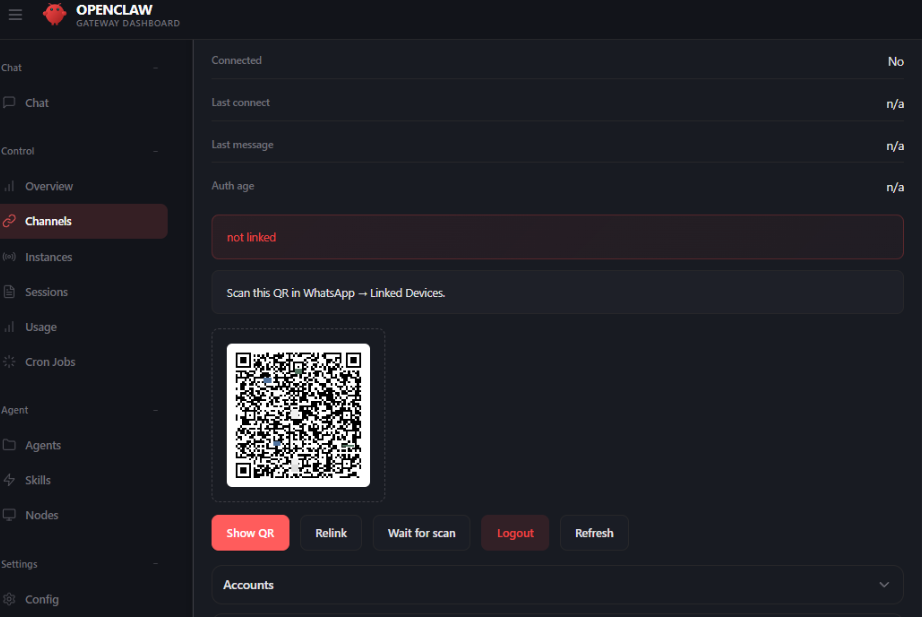
- On your phone, open WhatsApp and go to Settings → Linked Devices → Link a Device.
- Scan the QR code displayed in the OpenClaw dashboard.
- Wait for the connection to complete. The status indicators update to show Linked: Yes and Connected: Yes.
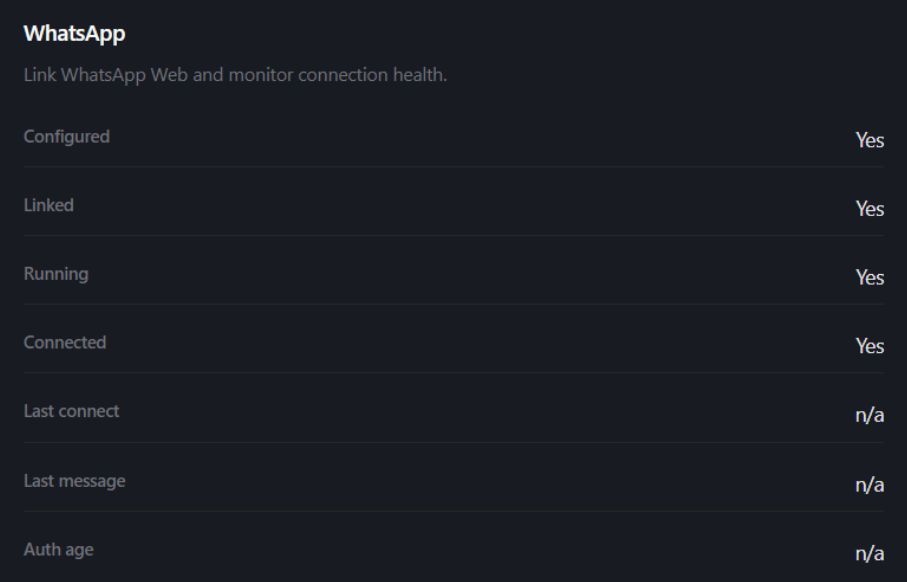
The WhatsApp section displays these status indicators:
- Configured – Whether WhatsApp is set up.
- Linked – Whether a WhatsApp account is linked.
- Running – Whether the WhatsApp channel is active.
- Connected – Whether there is an active connection to WhatsApp servers.
- Last connect – Time of the last successful connection.
- Last message – Time of the last message received.
- Auth age – How long the current authentication has been valid.
Troubleshooting Telegram issues
Telegram pairing loop
If Telegram keeps sending new pairing codes instead of completing the connection, restart the OpenClaw container.
Using hPanel:
- Go to VPS → Manage → Docker Containers in hPanel.
- Find your OpenClaw container.
- Click the three-dot menu and select Restart.
[Screenshot: hPanel Docker Containers page showing the OpenClaw container with the three-dot menu expanded, displaying Restart, Update, Stop, View logs, and Delete options]
Using SSH:
Run the following command, replacing container_name with the correct name of your docker container:
docker restart [container_name]
Telegram bot does not respond
If your Telegram bot is connected but not responding to messages:
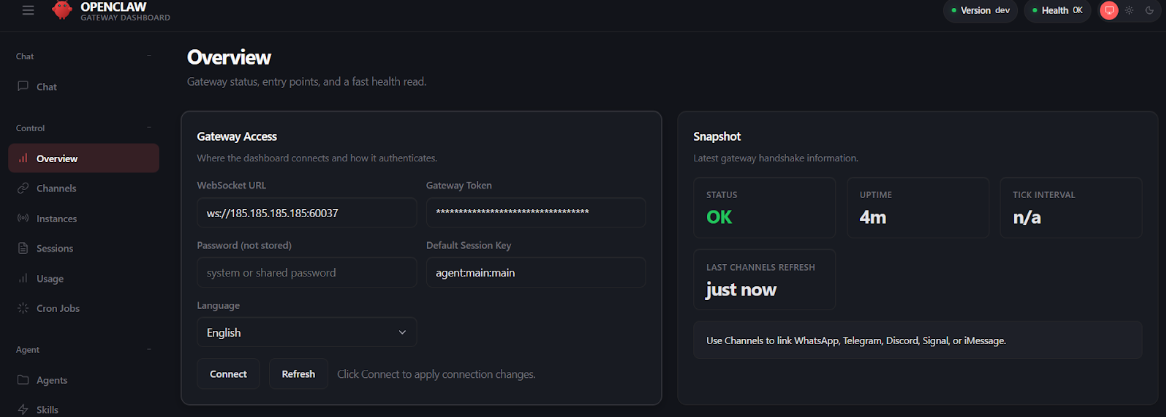
- Open the OpenClaw dashboard and check the Health indicator in the top-right corner. It should display Health OK.
- Go to Channels and verify the Telegram section shows Running: Yes and Probe ok.
- If the probe status shows an error, restart the OpenClaw container using the steps above.
Troubleshooting WhatsApp issues
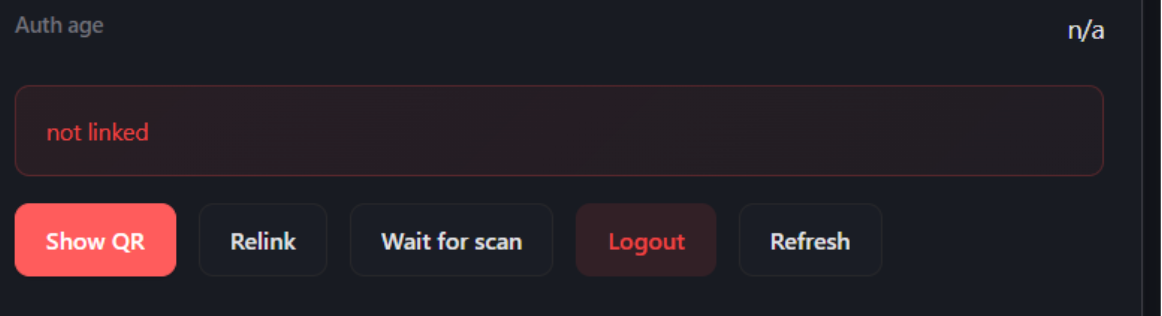
WhatsApp shows “not linked”
If the WhatsApp channel shows not linked after previously being connected:
- In the OpenClaw dashboard, go to Channels.
- In the WhatsApp section, click Logout to clear the previous session.
- Click Show QR to generate a new QR code.
- On your phone, go to WhatsApp → Settings → Linked Devices → Link a Device and scan the new QR code.
WhatsApp QR code keeps refreshing
If the QR code refreshes repeatedly without completing the pairing:
- On your phone, open WhatsApp and go to Settings → Linked Devices.
- Log out from all linked devices.
- In the OpenClaw dashboard, click Logout in the WhatsApp section to clear any pending sessions.
- Restart the OpenClaw container using hPanel or the docker restart command.
- Click Show QR immediately after the container restarts and scan the code promptly — QR codes expire quickly.
NOTES
- WhatsApp pairing requests expire after 1 hour.
- OpenClaw limits pending pairing requests to 3 per channel. Exceeding this limit can cause pairing loops.
WhatsApp connection drops frequently
If the WhatsApp connection is unstable:
- Keep the phone running WhatsApp connected to the internet (Wi-Fi recommended).
- Keep the phone charged to prevent disconnections from battery-saving features.
- If you use a personal number, check that no other WhatsApp Web sessions conflict with the OpenClaw connection.
Viewing logs
To investigate persistent issues, check the OpenClaw logs:
- In hPanel, go to VPS → Manage → Docker Containers.
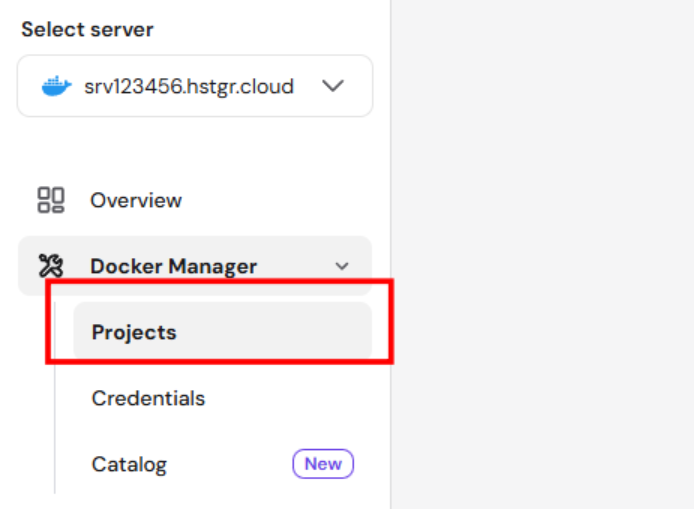
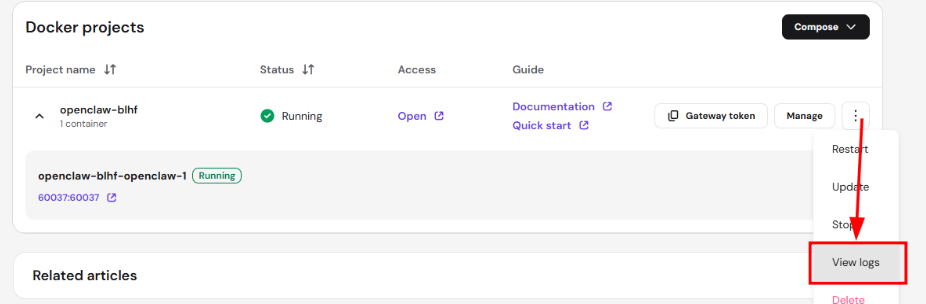
- Find your OpenClaw container and click the three-dot menu.
- Select View logs.
Your Telegram and WhatsApp channels are now ready to use with OpenClaw. Once connected, you can start receiving and responding to messages through your AI assistant.