The Card element in Hostinger Website Builder lets you create modern, styled container layouts for your website. It supports borders, background fills, and shadows, giving you full control over how your content is structured and presented.
Adding a Card element
- Open your website in Hostinger Website Builder.
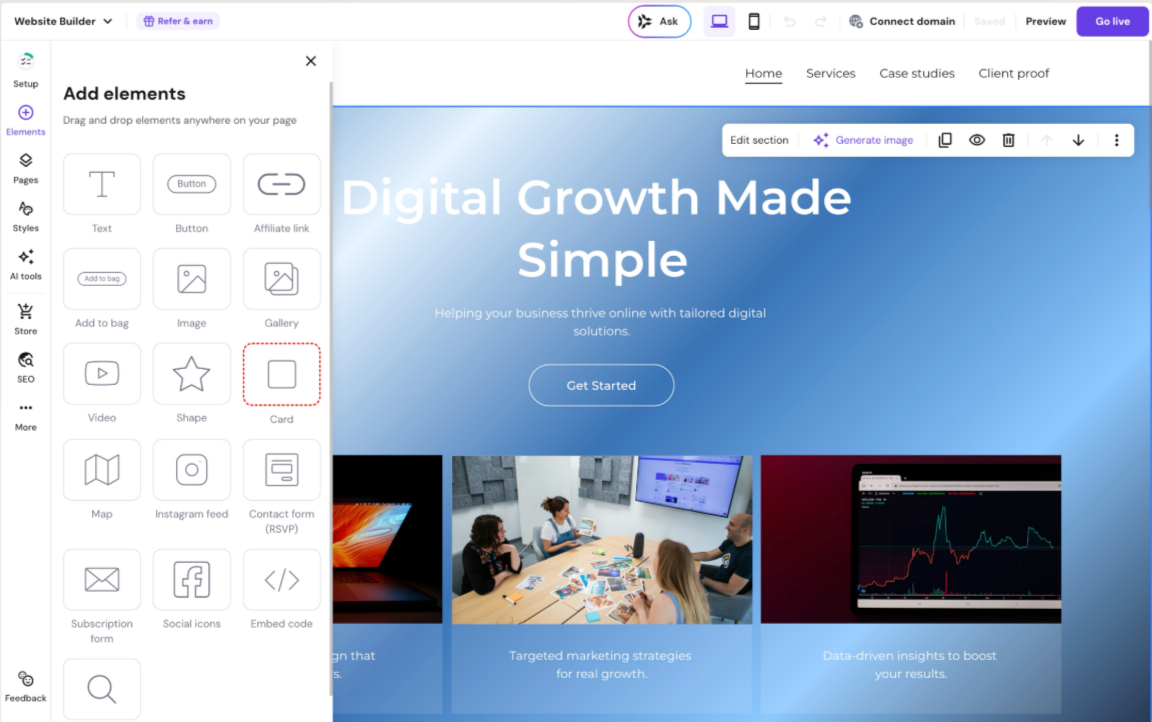
- Click the Add elements panel on the left side of the builder.
- Locate the Card element and drag it onto your page.
Customizing the Card element
Once the Card element is on your page, click it to open the settings panel. From there, you can adjust the following:
- Borders – set the border color and width.
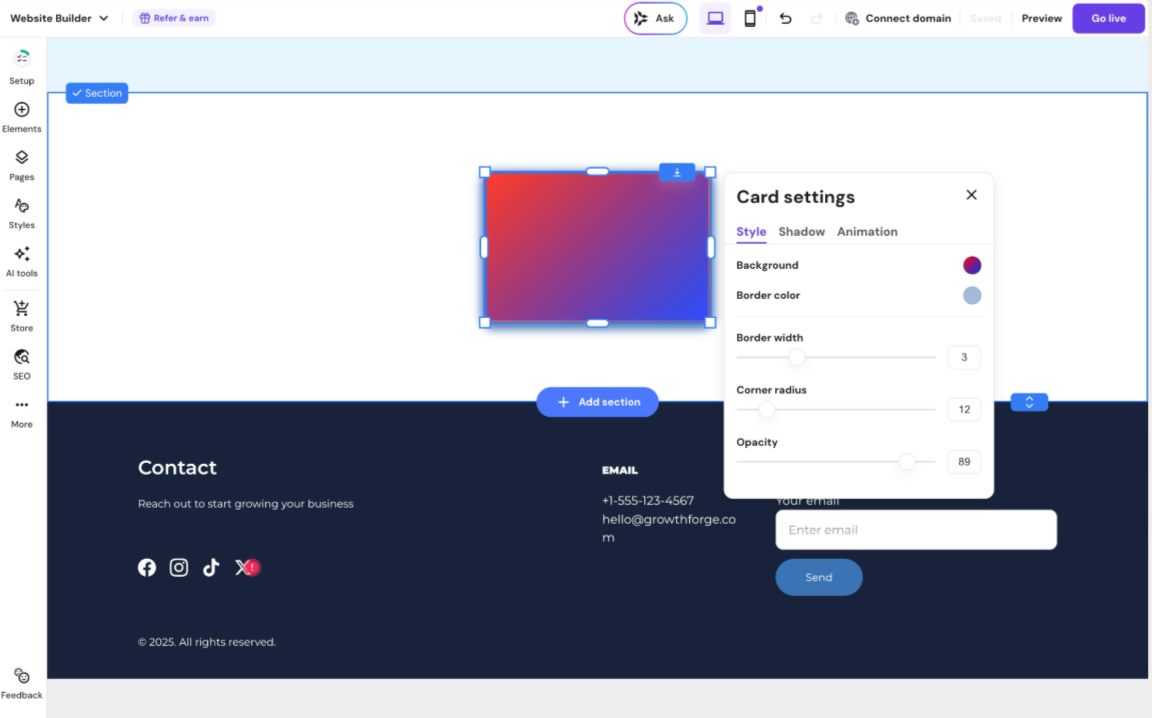
- Background fill – choose a solid color or a gradient.
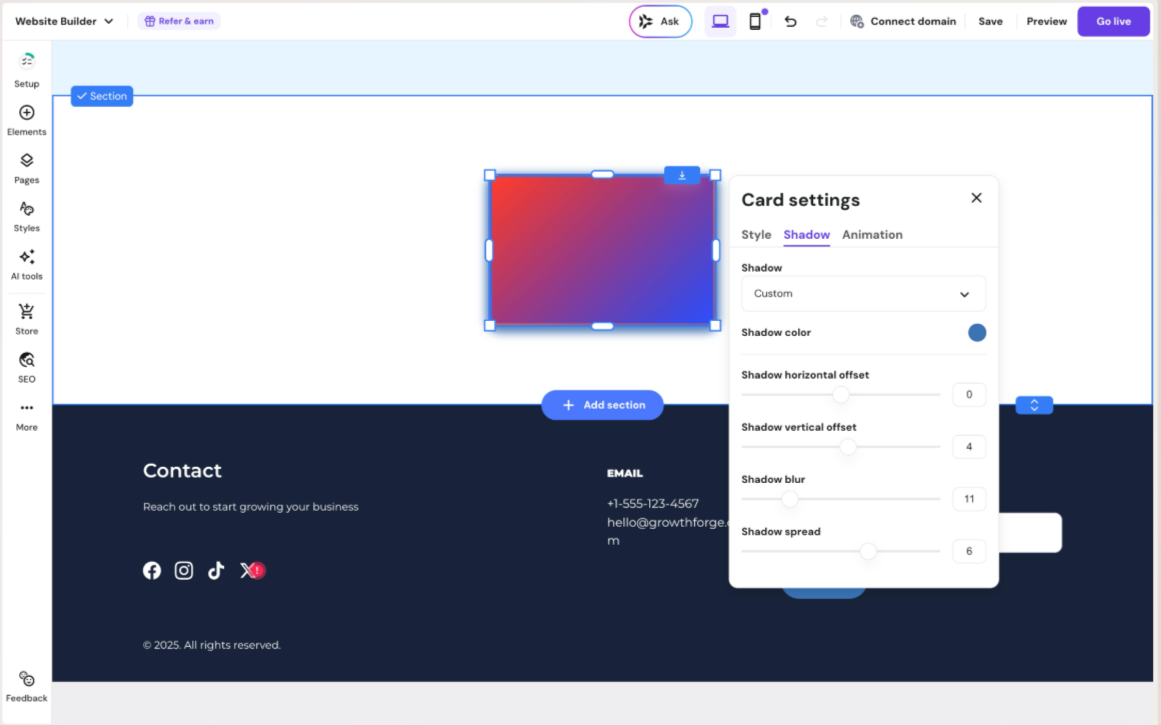
- Drop shadows – select a preset shadow or create a custom one.
- Sizing – adjust the dimensions to fit your layout structure.
With these options, you can match the Card element to any section or design style on your website.