Once a project is deployed on your Hostinger VPS, you can manage its option and monitor performance directly from the Projects page. This allows you to perform essential maintenance tasks such as updating configurations, checking logs for troubleshooting, or stopping services without needing to use the command line.
Pre-requisites
- An active Hostinger VPS with a Docker template installed.
- At least one existing Docker project already deployed.
Access the Hostinger VPS Docker projects
- Navigate to the VPS section on hPanel
- Select the server by clicking the Manage button.
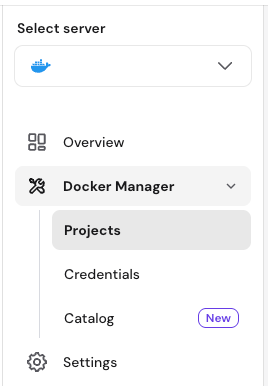
- In the left sidebar, click on Docker Manager and select the Projects sub-menu.

Review project information and status
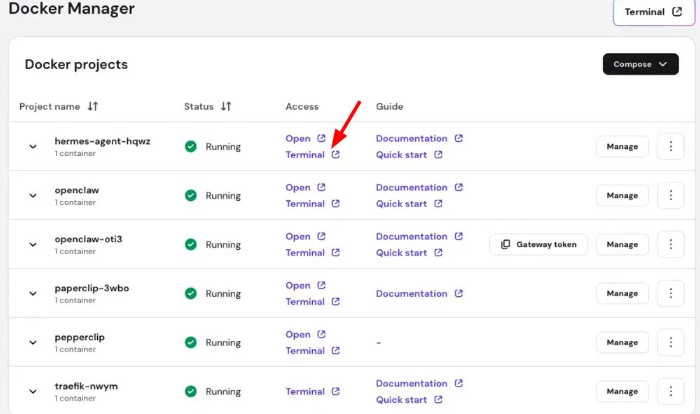
The Projects page provides a high-level overview of your deployments.

The interface includes:
- Browser terminal: Quick access to the VPS command line.
- Compose: A button to deploy new containers.
- Project list: Displays the general information for each project:
- An expandable button to shoe all the containers within the project.
- Project name.
- Access: Links to interact with the project directly — Open launches the project in a new browser tab, and Terminal opens the container’s command-line interface without needing to go through the VPS browser terminal.
- Current Status (e.g., Running or Stopped).
- Documentation: Links to additional guides.
- Manage: A button to access more project settings.
- Options (⋮): A vertical three-dot menu containing action commands.
Access the container terminal
Each project in the list includes a Terminal link under the Access column. Clicking it opens a direct command-line interface into that specific container.
This is useful when you need to:
- Run application-specific CLI commands (e.g., artisan, wp-cli, npm).
- Inspect files or environment variables inside the container.
- Troubleshoot without switching to the full VPS browser terminal.
Perform management actions
Click the Options (⋮) button next to a project to perform the following tasks:
- Restart: Use this to reboot all containers within the project. This is helpful if an application becomes unresponsive.
- Update: Select this to apply changes to your Docker Compose configuration. The system will recreate the containers with the updated settings.
- Stop: This action halts the running containers while keeping the configuration intact. Use this when you need to temporarily disable an application.
- View logs: This opens a terminal-style window showing the real-time output of your container. It is the primary tool for troubleshooting errors or verifying successful startups.
- Delete: This permanently removes the project and its containers from your Hostinger VPS.
Manage your AI provider (optional)
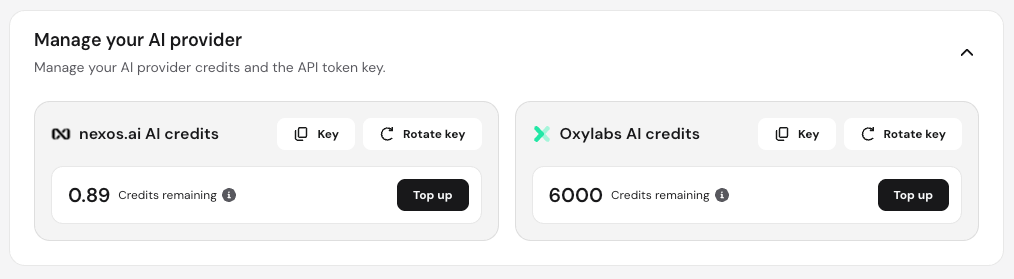
If your project utilizes nexos.ai or Oxylabs credits, additional management options appear below the project list:
- Credit balances: View your remaining usage limits.
- Copy API keys: Retrieve credentials for your integrated services.
- Rotate key: Generate a new API key for security purposes.
- Top up: A button to add more credits to your account.
Managing your Hostinger VPS Docker environment ensures your applications run smoothly and stay up to date. By regularly monitoring logs and updating configurations through the hPanel, you can maintain a stable production environment for your containerized services.