Hostinger Reach email marketing allows you to build your audience in several ways, including manual entry, auto-syncing from Website Builder, and bulk importing. This guide focuses on importing contacts via CSV, which is the most efficient method for uploading large contact lists.
Before you start
Make sure to have:
- An active Hostinger Reach subscription.
- A contact list saved in
.csvformat. - An Email column included in your file (required).
Upload your contacts to Hostinger Reach
To import your subscriber list:
- Go to hPanel → Reach.
- Locate your subscription and click Open Reach.
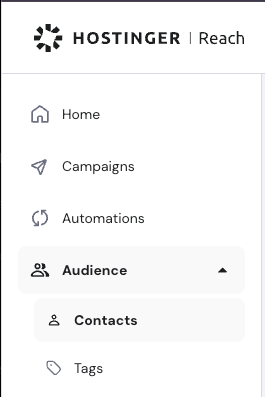
- Navigate to Audience → Contacts.
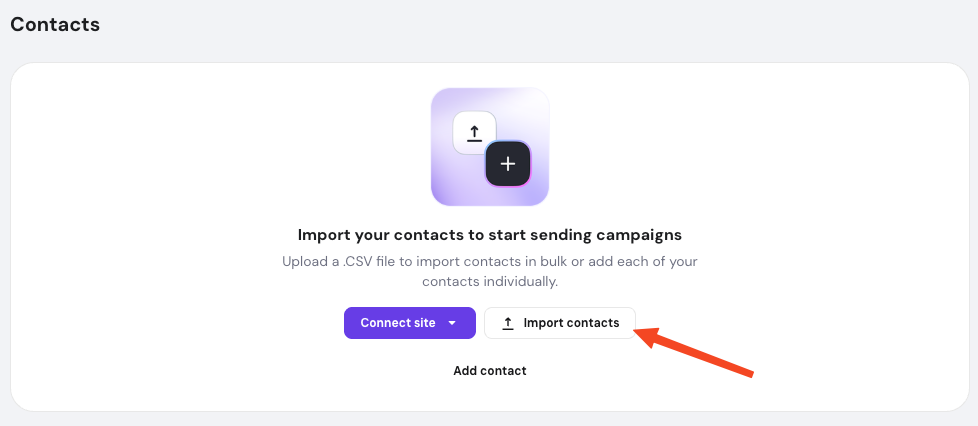
- Click Import contacts.
- If no contacts have been added yet, the option will appear alongside Connect site and Add contact manually.
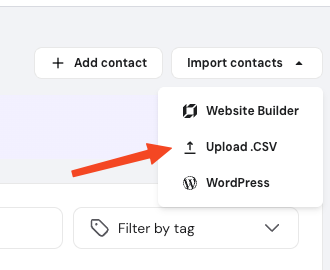
- If contacts already exist, click the Import contacts dropdown and select Upload .CSV.
- If no contacts have been added yet, the option will appear alongside Connect site and Add contact manually.
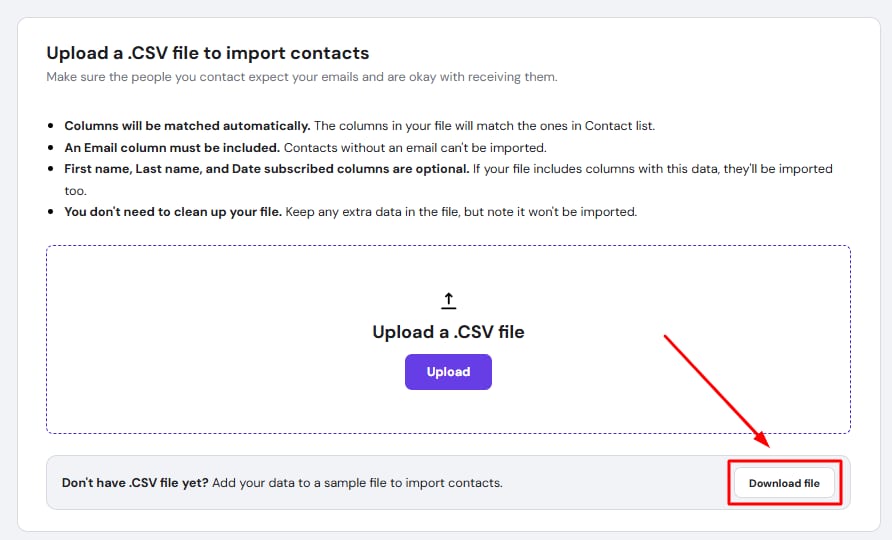
- Upload the file by selecting it from your device or dragging it and dropping it into the upload area.
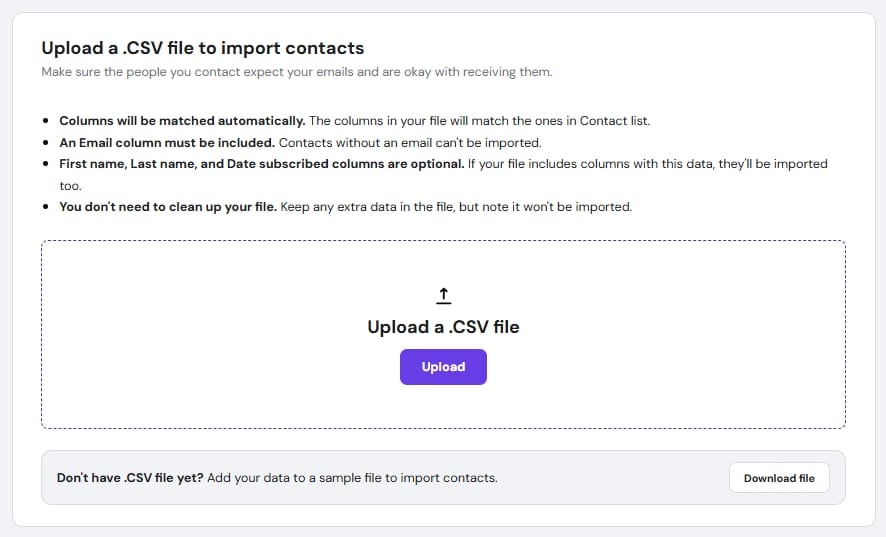
You can also download the CSV template at this step and use it to prepare your data before uploading.
Complete the import
After uploading the file, review the import details and configure the following:
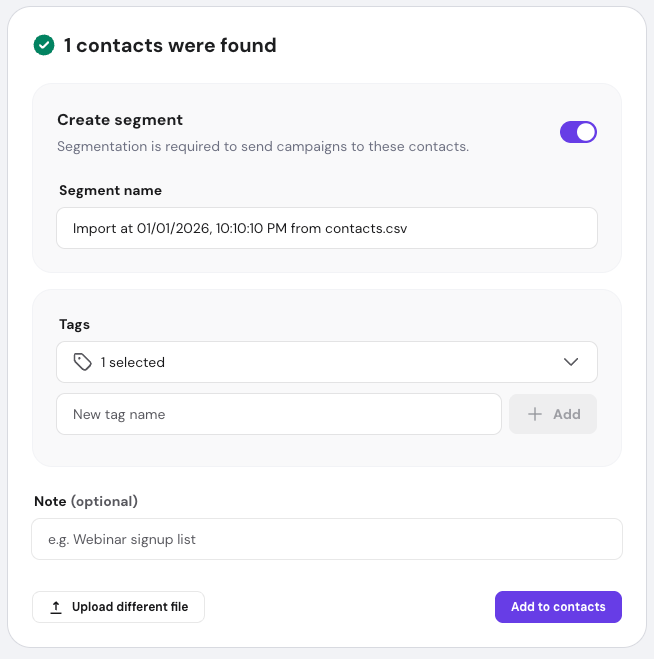
- Create segment: Segmentation is required to send campaigns. Enter a segment name or use the suggested one.
- Tags: The segment name is automatically applied as a tag. You can add additional tags if needed.
- Note (optional): Add any internal information about this import.
- Click on Add to contacts to complete the import.
To use another source file, click on Upload different file and repeat the process.
Troubleshooting common import issues
If your file is rejected or some contacts are not imported, check the following:
Error: Unsupported file type

- Ensure the file is in
.csvformat, not Excel (.xlsx).- In Excel or Google Sheets, use File → Download/Save As → CSV (Comma-separated values).
- Do not upload compressed files (
.zip). - If special characters cause issues, re-save the file using standard CSV encoding.
Contacts were not imported
This may occur if the file structure does not match expected formatting. Use the following column headers (in this order):
- First Name
- Last Name
- Date Subscribed
The Email column is required for each contact. Other fields are optional and can be left empty. Additional columns are ignored during import.
Partial import or missing contacts
If duplicate email addresses exist in the file, only the first occurrence is imported.
Importing your contacts via CSV is a streamlined way to migrate your existing audience into Hostinger Reach. Once the import is complete, you can begin segmenting these users and sending your email campaign.
NOTE
- Ensure you have the necessary permissions and consent from your subscribers before importing their data to comply with anti-spam regulations.