The Drip Campaign Automation feature makes it easy to create and manage multi-email sequences that help you stay connected with your subscribers over time.
You can set up automated campaigns that fit your goals, with the flexibility to expand, shorten, or adjust the sequence whenever needed.
You’ll be able to:
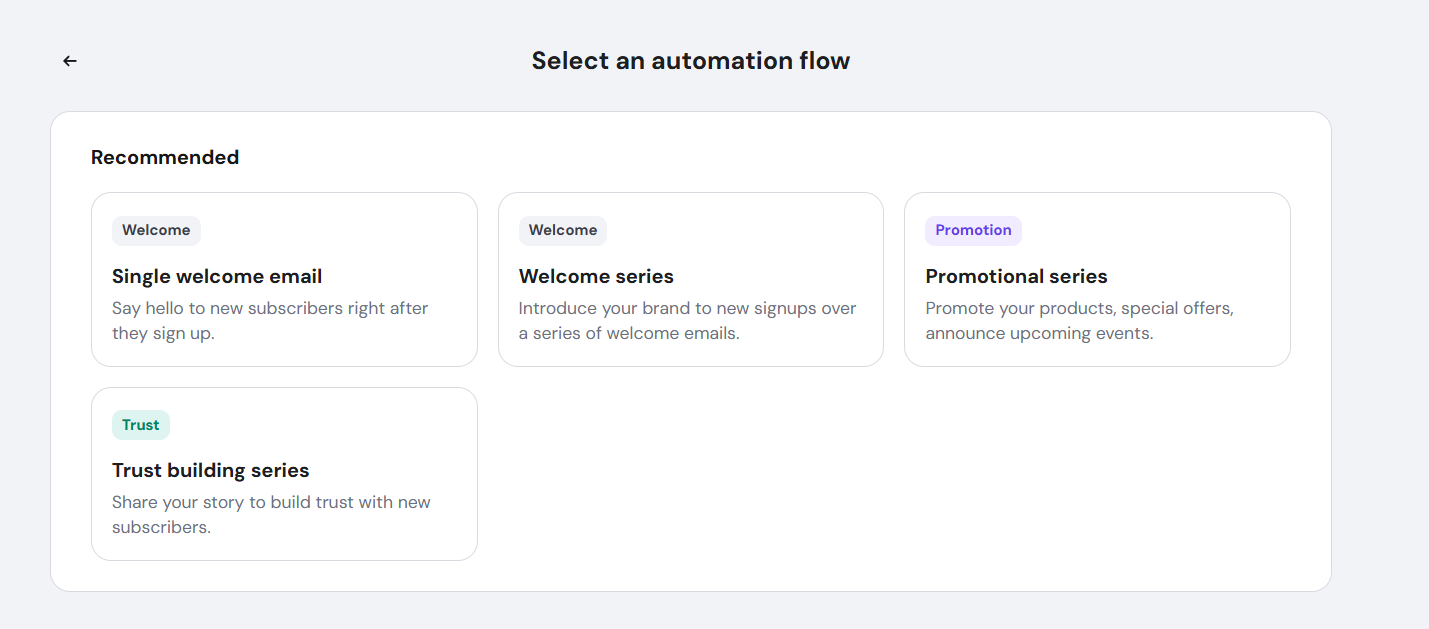
- Choose an automation workflow with a clear preview and description for each option.
- Add or remove steps directly on the create/edit page.
- Use a new Delay step to add time gaps between emails for better timing.
- Get help from predefined AI chat prompts in every “send email” step to create strong, engaging messages.
How to enable it
- Open the sidebar and select the Automations tab.
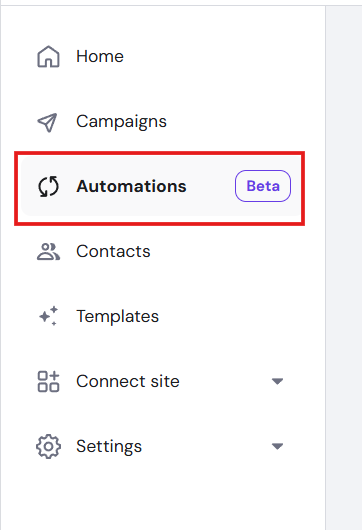
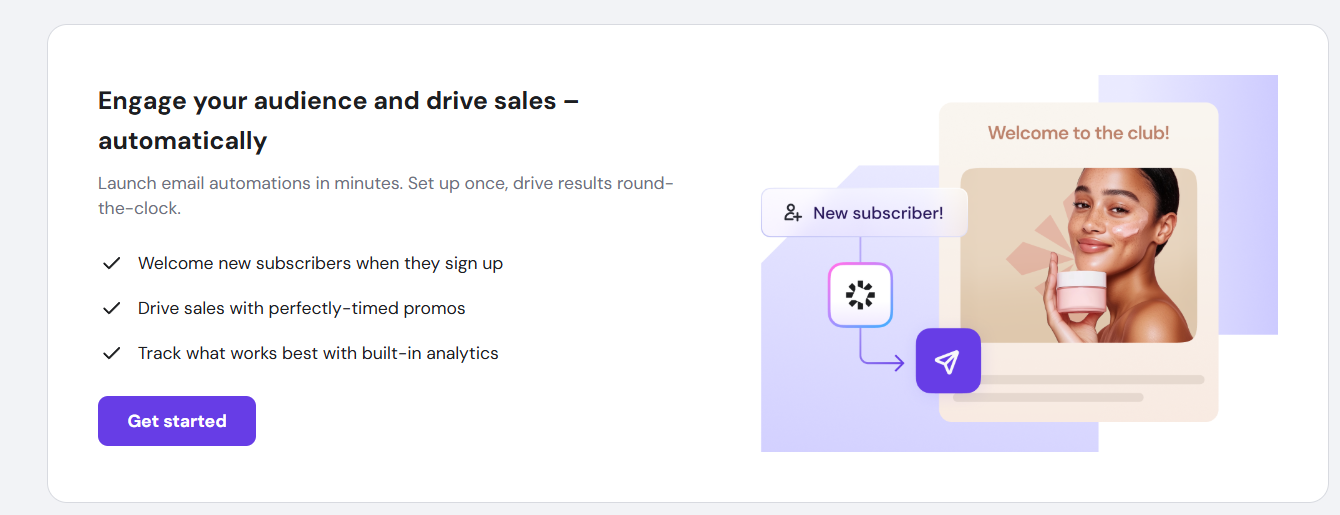
- Click Get Started.
- Select Welcome Series automation.
- Begin customizing your automation.
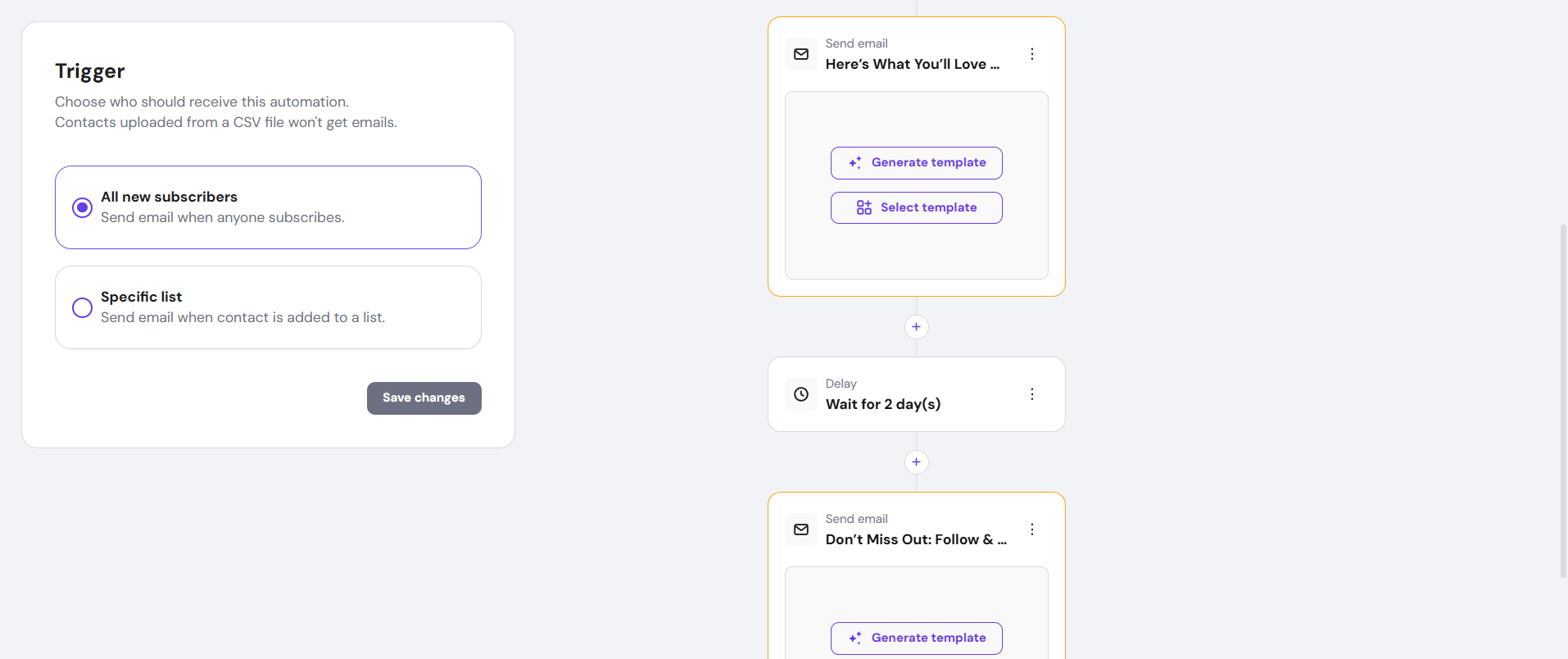
Once set up, drip campaigns will automatically and consistently engage your subscribers, helping you build stronger relationships and prepare for more advanced automations in Reach.
Delay step
The Delay step lets you control how long the automation waits before sending the next email in the sequence.
There are two options:
- Delay for — pauses the automation for a set duration before moving to the next step.
- Choose from hours, days, or weeks
- Best for ongoing drip sequences where timing is relative to when each subscriber enrolled
- Until specific date and time — pauses the automation until a fixed date and time you select using the date picker.
- Best for time-bound sequences tied to a real event, like sending a reminder before a webinar or holding off until a promotion goes live
To configure the Delay step:
- Open the Delay step in the workflow editor.
- Choose Delay for or Until specific date and time.
- Set the duration or select the target date and time.
- Save the step.
Re-engagement automation templates
Hostinger Reach includes two pre-built re-engagement automation templates to follow up with subscribers who did not engage with a specific campaign:
- Re-engage non-openers — sends a follow-up email to subscribers who received but did not open a selected campaign.
- Re-engage non-clickers — sends a follow-up email to subscribers who opened but did not click a selected campaign.
How to set up:
- Go to Reach Dashboard → Automations.

- Select Re-engage non-openers or Re-engage non-clickers.

- In the Campaign Sent trigger, select the campaign you want to follow up on. Draft and Scheduled campaigns are available, with a preview on selection.

- Configure the condition step and choose the Yes path (did not open / did not click) to target non-engaged subscribers.
- Add a Send Email action. Use the pre-suggested AI prompt to generate a follow-up email based on the selected campaign.
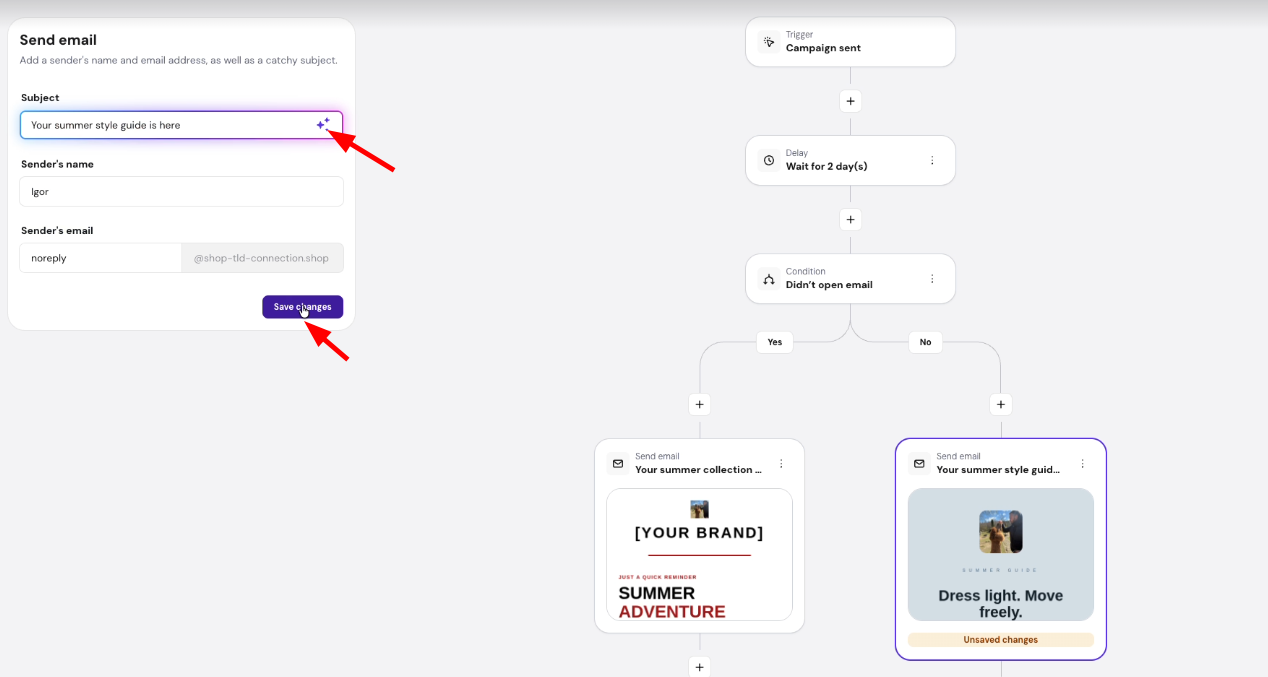
- Activate the automation.
Only subscribed contacts who match the condition will receive the follow-up email.