With Hostinger Reach forms, you can collect email leads from your website and automatically send them a follow-up email after they submit a specific form. This setup helps you automate your communication by instantly delivering event details, welcome messages, or resource links.
This is useful when you want to send targeted emails based on a specific form submission, for example:
-
Thanking attendees for signing up and sharing event details, calendar links, or reminders.
-
Informing customers that you have received their inquiry and explaining the next steps.
-
Sharing useful resources, introducing your brand, or encouraging the next step.
Recommended setup
- Create a Reach form.
- Create a dedicated segment for that form.
- Publish or preview the form.
- Submit a test email in your form.
- Confirm the contact appears in the segment.
- Create an automation with the trigger Specific segment.
- Select the form’s segment.
- Activate the automation.
- Test again with a new email address.
This ensures that only contacts who submit the selected Reach form receive the automated email.
Step 1 — Create and Publish Your Reach Form
Before creating an automation, make sure your Reach form is fully set up and ready to collect submissions.
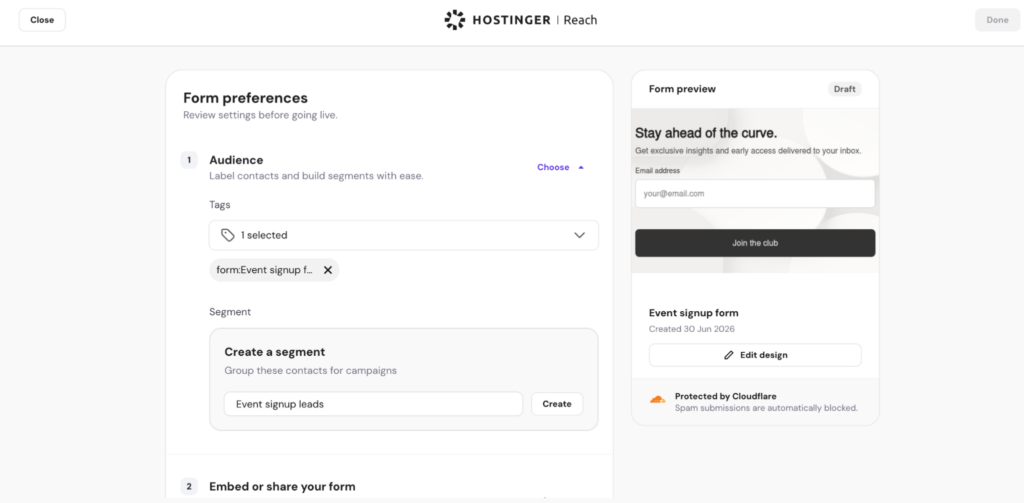
When creating your form, you’ll be asked to choose how new contacts should be organized in your audience. We recommend creating a dedicated segment for each Reach form. This makes it easy to trigger automations for contacts who submit a specific form.
If you prefer to use an existing segment, you can assign a tag to the form instead. Then, update your existing segment so it also includes contacts with that tag.
For this automation setup, the recommended option is to create a dedicated segment for the form.
For example:
- Form name: Event signup form
- Segment name: Event signup leads
This way, every new contact who submits this form will be added to the “Event signup leads” segment automatically.
Before continuing, make sure that:
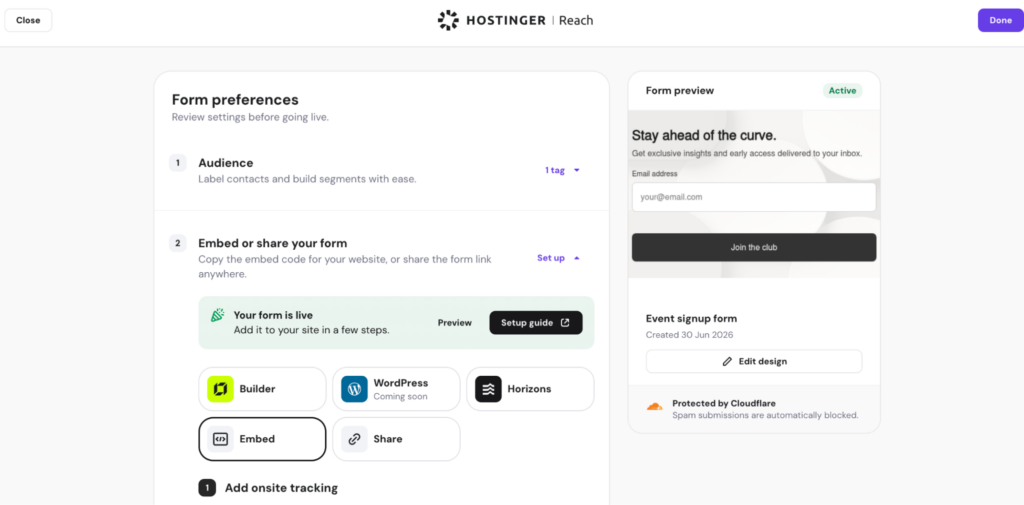
- Your Reach form is Active
- The form is added to your website (or you’ve opened Forms Preview URL in the Share option)
- A dedicated segment and/or the appropriate tag has been assigned to the form
Step 2 — Confirm That the Segment Was Created
After creating and activating your form:
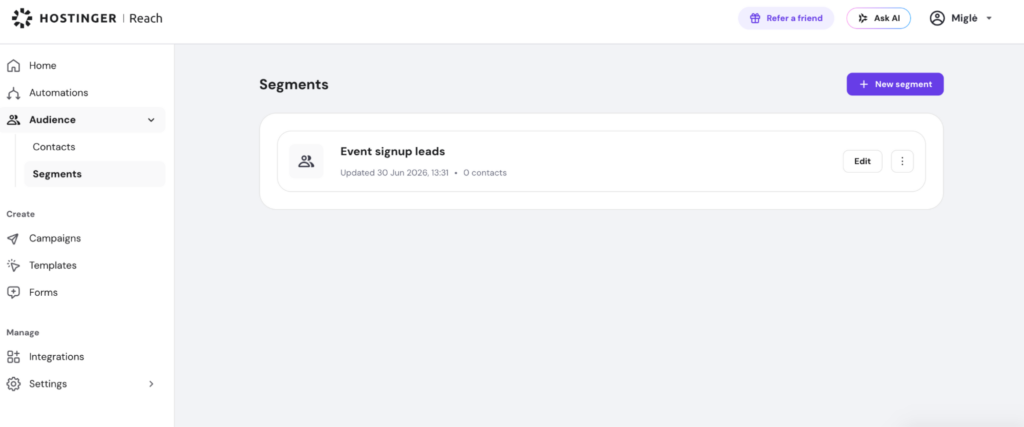
- Go to Audience in Reach.
- Open the Segments tab.
- Find the segment connected to your form.
At first, the segment may show 0 contacts. This is expected if no one has submitted the form yet.
Step 3 — Test the Form Submission
Before creating the automation, test that the form correctly adds contacts to the segment.
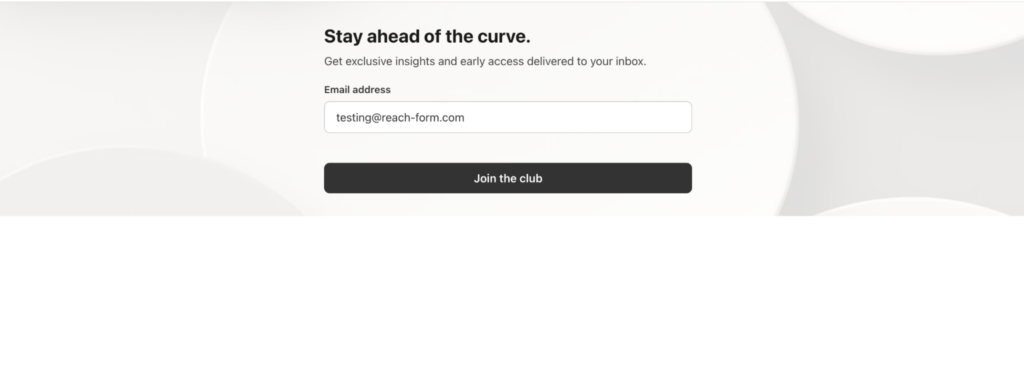
- Open the form on your website or use the form preview URL.
- Submit the form using a test email address.
- Go back to Audience → Segments.
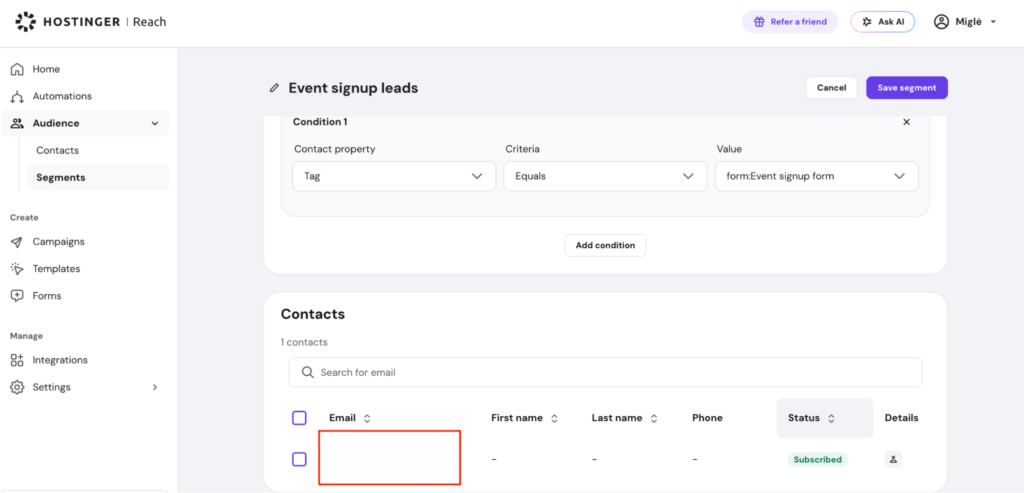
- Open the segment connected to your form.
- Check whether the test contact appears in the segment.
If the contact appears in the segment, the form submission is syncing correctly with Reach.
Step 4 — Create the Automation
Once your form and segment are working correctly, you can create the automation.
- Go to Automations in Reach.
- Click New automation.
- Choose one of the automation templates from the First steps section.
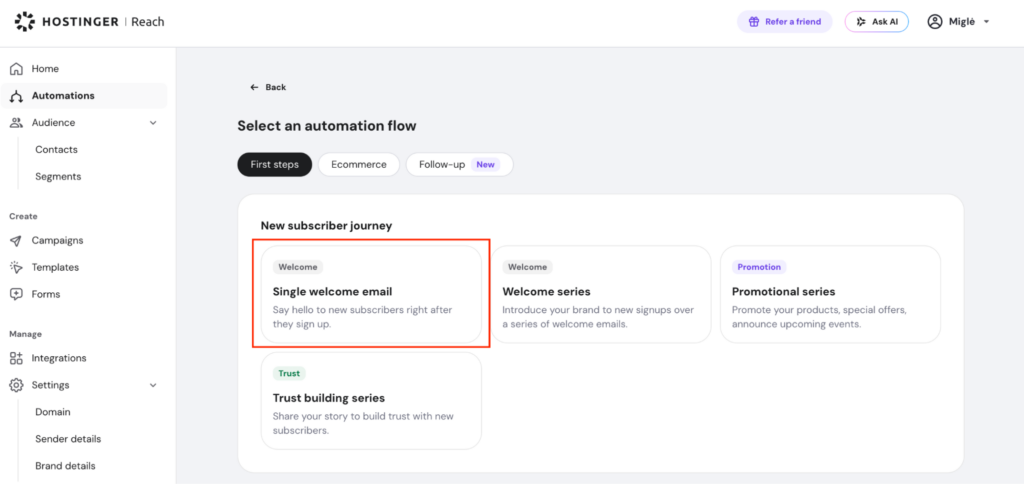
- Open the automation flow.
- Set the trigger to a Specific segment.
- Select the segment connected to your Reach form.
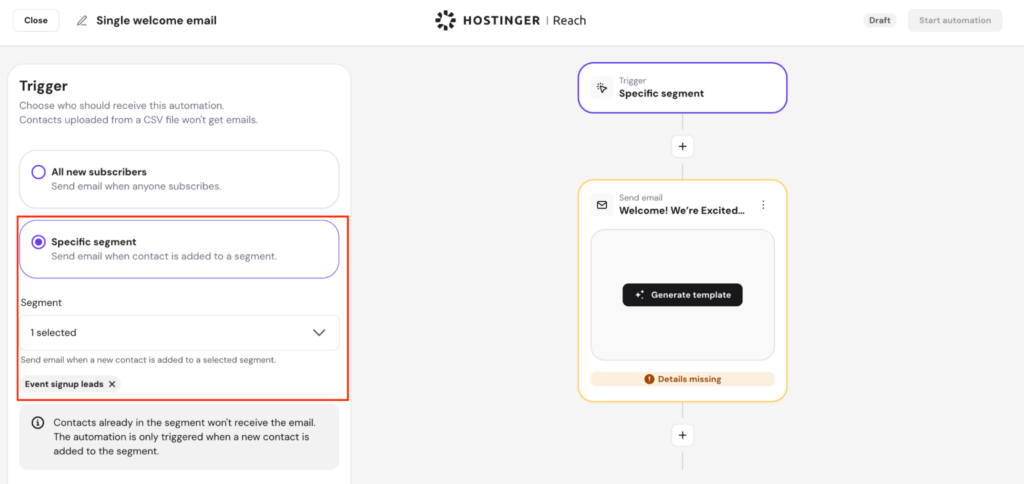
- Add or edit the email that should be sent after the form is submitted.
- Activate the automation.
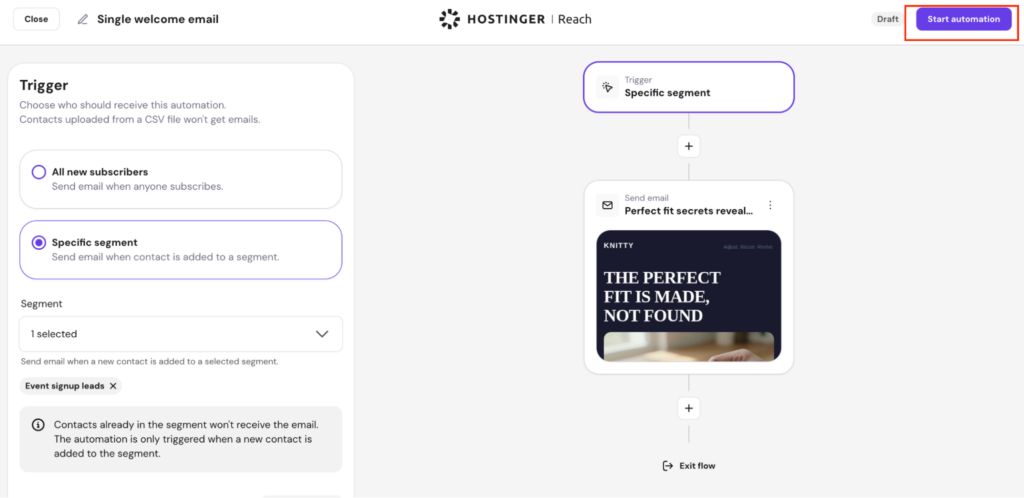
Now, when a new subscriber submits the form and is added to this segment, the automation will start.
Step 5 — Test the Automation
To test the full flow, use an email address that does not already exist in your Reach contacts.
If you already used a test email before creating the automation:
- Go to Audience → Contacts.
- Find the test contact.
- Delete the test contact.
- Make sure the automation is active.
- Submit the form again using that same email address (if you deleted it), or use a completely new test email.
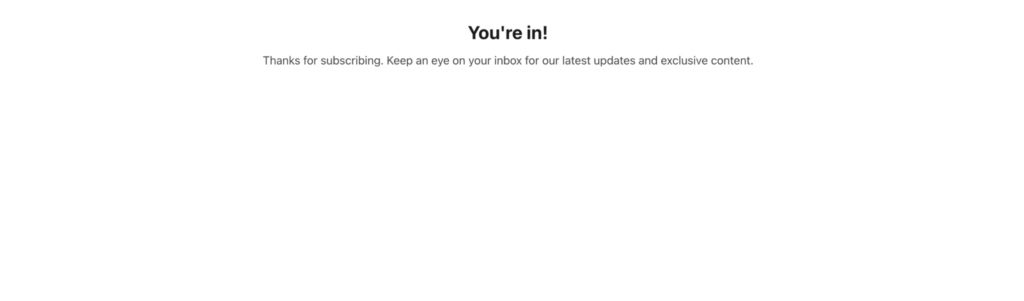
- Check whether the contact is added to the segment.
- Confirm that the automation starts and the email is sent.
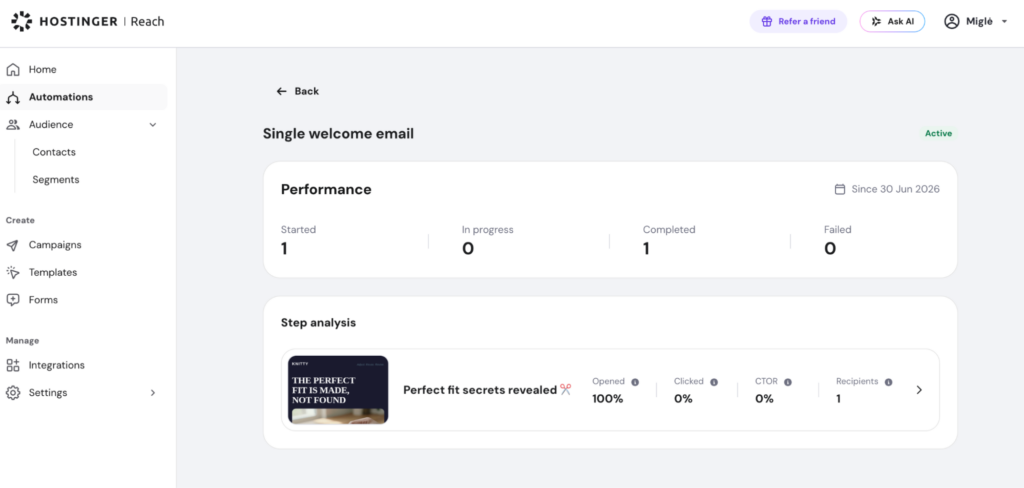
This helps you test the same experience a new subscriber would have after submitting your form.

You will now automatically send a targeted follow-up email to every new subscriber who fills out your Hostinger Reach form.